
Vouchers and Add-On Items Explained
Vouchers and Add-On Items Explained
What Is This?
Yes, a customer can use a voucher and pay for add-ons in the same visit. The voucher covers its part of the bill, and the customer pays the rest at your normal prices.
Where the voucher is used decides who applies your add-on rules. At your counter, that's your staff, guided by the voucher's Terms & Conditions.
How It Works
| Where the voucher is used | What Pixalink checks | Who applies your add-on rules |
|---|---|---|
| Your counter (staff click Validate Reward) | The code is real, unused and not expired | Your staff, using the terms |
| Pixalink online ordering | The voucher's value and qualifying products | Pixalink, at checkout |
| A connected POS, such as Eats365 | It depends on your POS | Your POS, using the offer set up for it |
At your counter
When staff click Validate Reward, Pixalink asks only for a code. There's no field for the bill, so Pixalink doesn't know what else the customer bought.
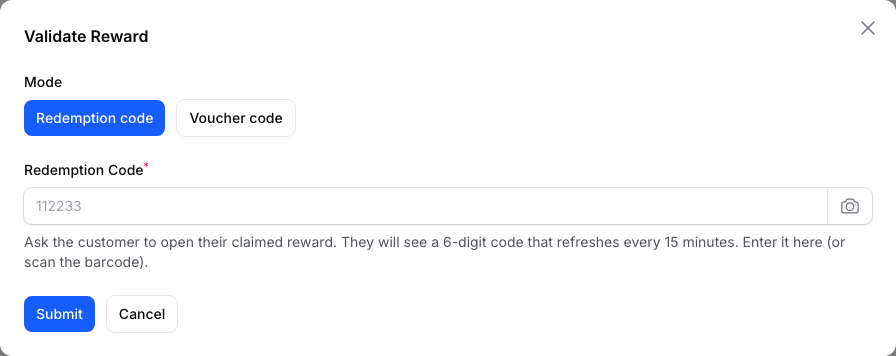
The window only takes a code. Your staff take the voucher off the bill at your POS and charge the add-ons as normal.
So write your add-on rule into the voucher itself. Go to Loyalty Program → Rewards, edit the reward, and fill in Terms & Conditions on the Reward Details tab. Say what the voucher covers, what's charged extra, and what happens to any leftover value.
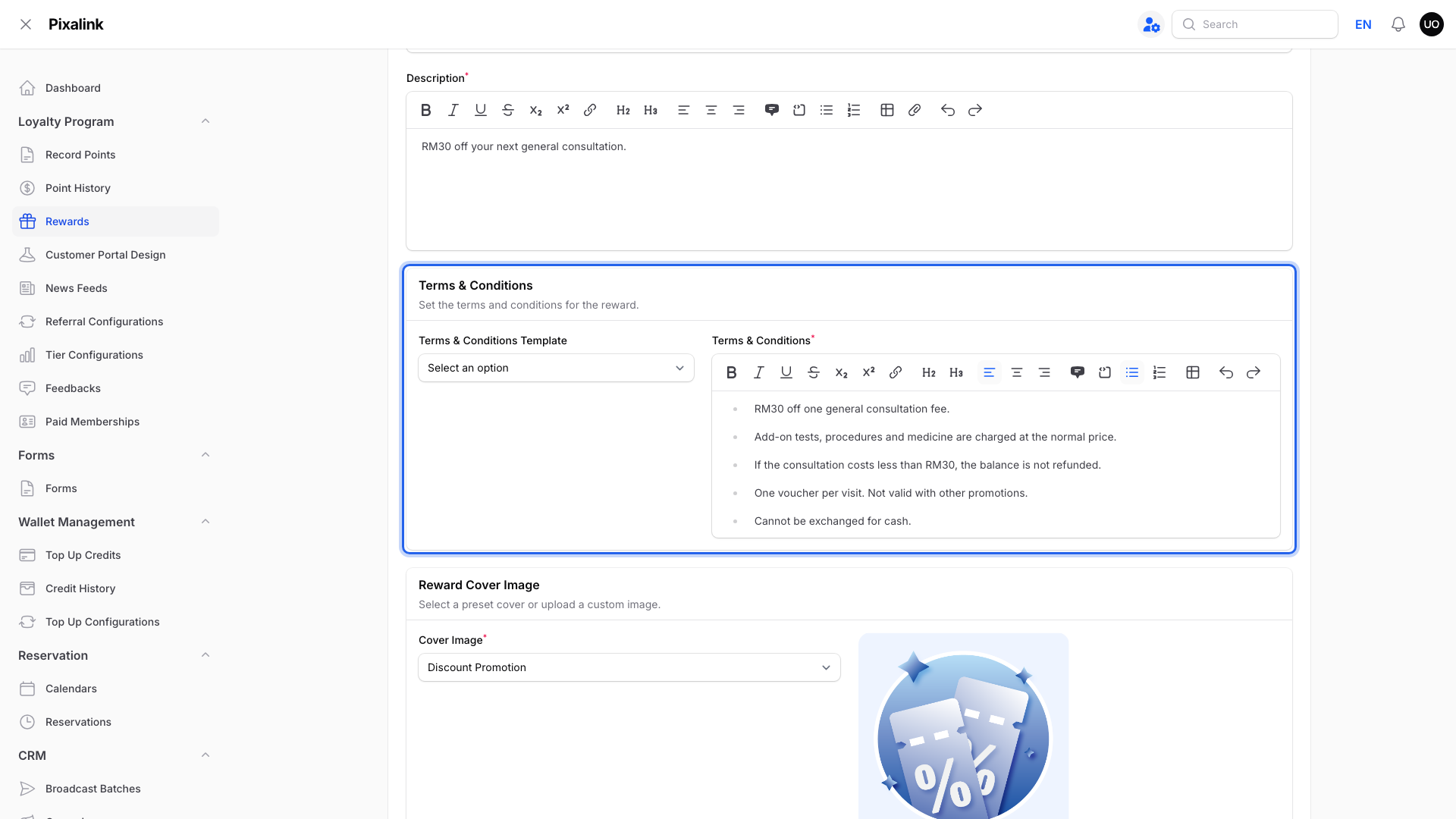
Start from a Terms & Conditions Template, then edit it.
Pixalink online ordering
If you take orders through Pixalink, the reward form also shows a Voucher Value section. Pick a Value Type, enter the amount, then set Applies To to:
- Off the whole order: the value comes off the basket total.
- Off one item: the value comes off one unit of a Qualifying Products item. If the basket has several, it comes off the dearest one.
Everything else in the basket is charged at the normal price. A voucher never takes off more than the order is worth, and leftover value isn't kept as a balance.
A connected POS
If your POS applies Pixalink vouchers, the discount comes from the offer you set up for that POS. See Voucher Minimum Spend, Service Charge and Tax Explained for how this works with Eats365.
Real-Life Example
Siti runs a family clinic in Shah Alam. She gave members an "RM30 Off Consultation" voucher. Patients asked if they could also get a blood test.
Each staff member gave a different answer. Siti added clear terms: RM30 off the consultation fee, add-on tests and medicine at the normal price, and no refund if the consultation costs less.
Now a RM60 consultation costs RM30, and the RM80 blood test is charged as usual. Patients see the terms before they arrive.
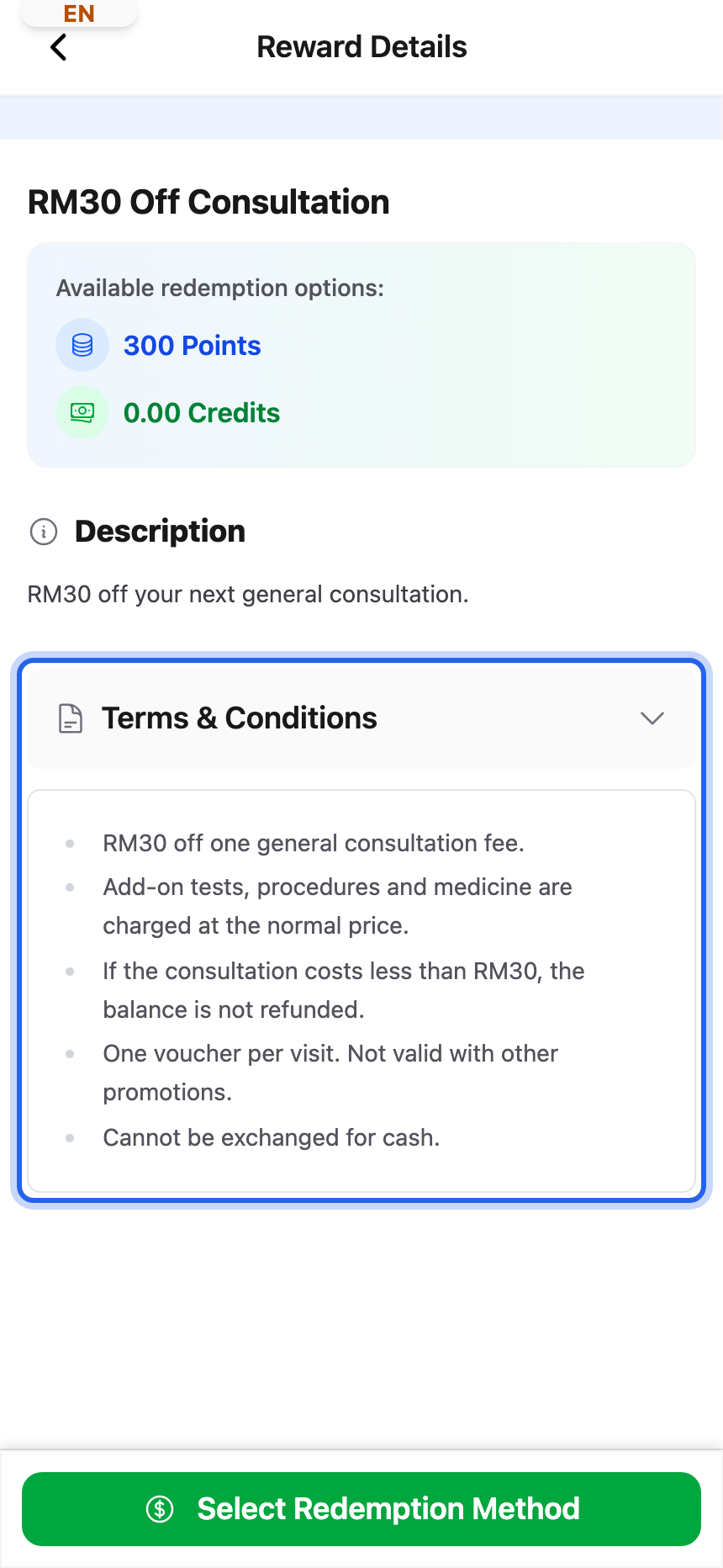
Customers see the terms on the voucher in your customer portal.
Good to Know
- Add-ons and points. Points follow the amount your staff record, so decide whether that is before or after the voucher. See How to Avoid Giving Points When a Customer Uses a Voucher.
- Make the terms match what staff do. Customers see the terms, so your counter should follow them.
- Validating marks the voucher used. Take it off the bill at the same time, so the two always match.
- One voucher per online order. In the online basket, a customer picks one voucher. A promo code can also apply.
Need Help?
Need help wording your terms? Contact our support team.