
What the Messages Mean When You Validate a Voucher
What the Messages Mean When You Validate a Voucher
What Is This?
When a customer shows a voucher at your counter, your staff validate it in Pixalink. This guide explains each message they might see, and what to do next.
How It Works
Validating a voucher
-
Go to Loyalty Program → Record Points and click Validate Reward.
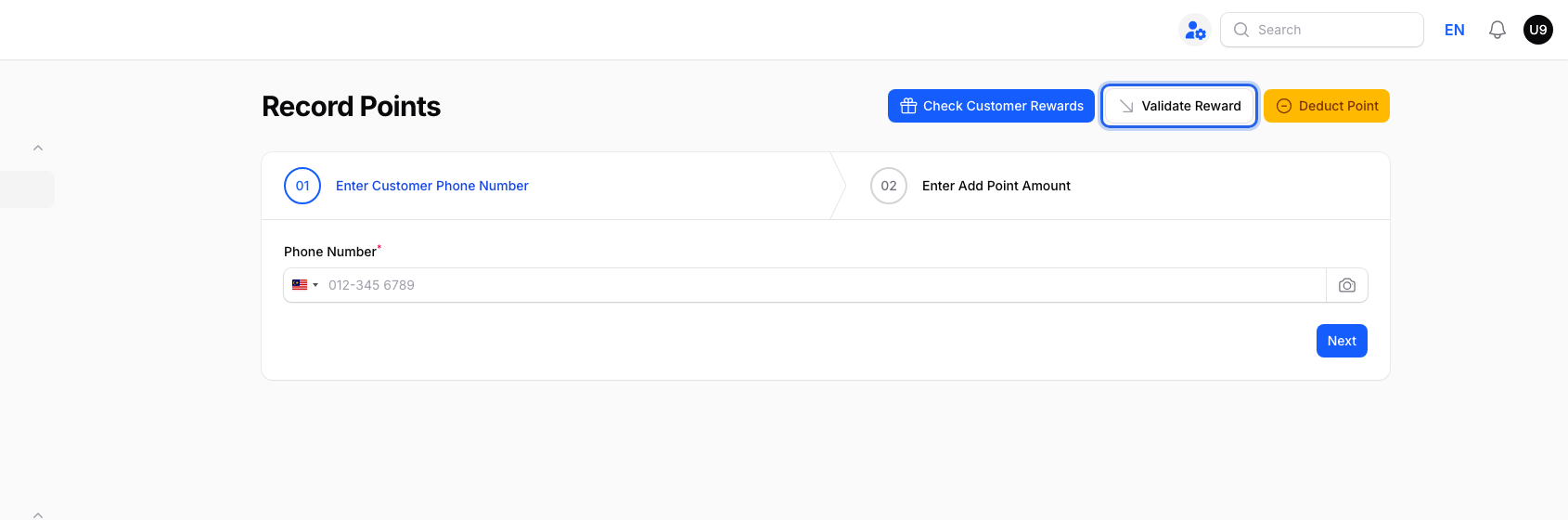
Validate Reward is the middle button at the top right of the Record Points page, between Check Customer Rewards and Deduct Point.
-
Ask the customer to open the voucher and tap Use Now. Type the 6-digit redemption code from their phone into the window. Use the code on their live screen, not a screenshot.
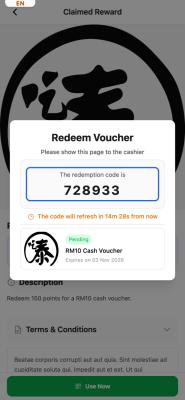
This is what the customer shows you. The 6-digit code is in the middle. The orange line under it counts down to the next code, which comes every 15 minutes.
If you set a Default Voucher Code Format in your customer portal design, a barcode or QR also shows here, and you can scan it instead of typing.
-
Wait for the customer's name and the reward to appear, then click Submit.
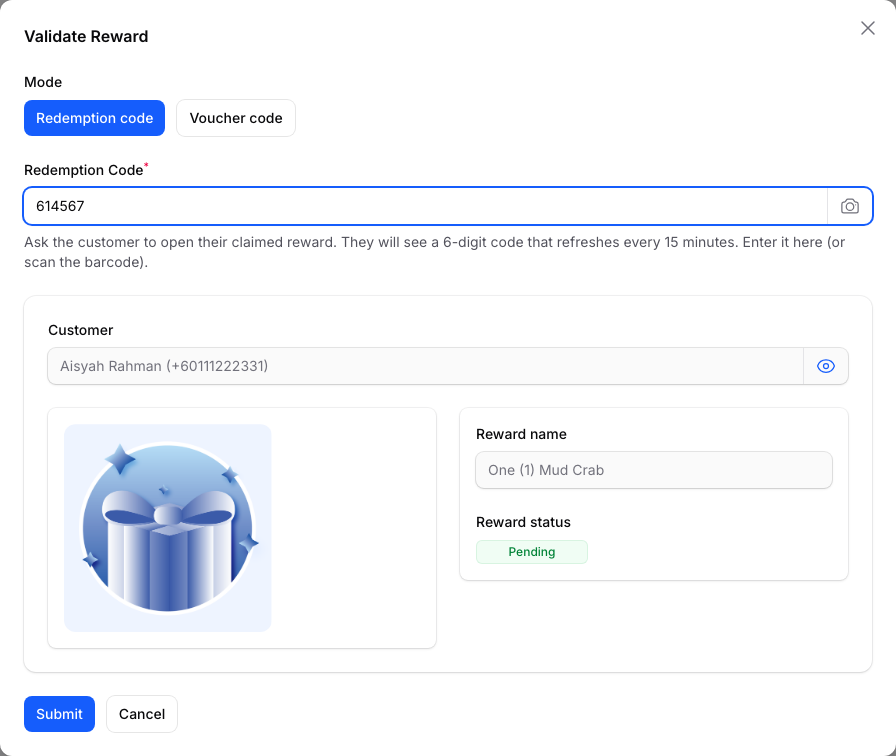
A valid code shows the customer's name and phone number, the reward name and a Pending status. Pending means it is not used yet. It becomes used only after you click Submit.
Warning
Typing or scanning the code only shows a preview. The voucher is used only when you click Submit, so click it when the customer is ready.
What each message means
| Message | What it means | What to do |
|---|---|---|
| Invalid redemption code. | The code is wrong. | Check the 6 digits, or scan again. |
| This redemption code has already been used. | The voucher was used before. | Nothing to redeem. Check the customer's other vouchers. |
| Expired Redemption Code | The code changes every 15 minutes. | Open Validate Reward again and enter the code now on the customer's screen. |
| Voucher Not Usable Yet | The voucher has a delayed start. | It works from the date shown. |
| Reward Not Available Yet | An Auto-Renewing Reward is still cooling down. | Try again once the cooldown ends. |
No name or reward appears after a second? The code is wrong, used or expired. Click Submit to see which.
Real-Life Example
Wei Lin runs a bubble tea shop in Damansara. Her cashier scanned a voucher, but it stayed Pending, because he walked away before clicking Submit. Now her staff wait for the name and reward to appear, then click Submit. The customer's screen shows Redeem Reward Successful.
Good to Know
- Customer sees a message on their phone instead? That comes from the reward's settings. See Why Can't My Customer Redeem a Reward?.
- Voucher shows a fixed code under the barcode? Scan the barcode. To type the fixed code, pick Voucher code under Mode in the Validate Reward window.
- Vouchers used through your POS system are checked by the POS, not here.
- Don't see Validate Reward? Our team turns it on for you.
Need Help?
Contact our support team with the reward name and the message you saw.