
How to Redeem a Customer Voucher at Your Counter
How to Redeem a Customer Voucher at Your Counter
What Is This?
When a customer claims a reward in their portal, they get a barcode and a 6-digit code. To finish the redemption at your counter, you mark the voucher as Used in your admin panel. You can either scan the barcode with your phone or laptop camera, or type the 6-digit code by hand.
Video Walkthrough
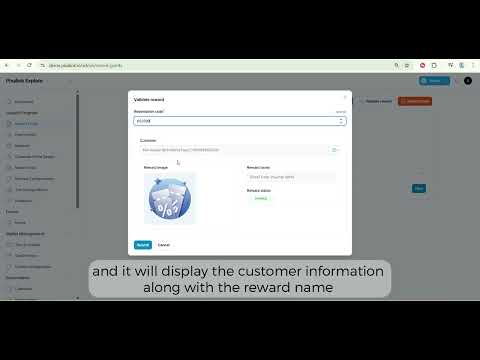
Real-Life Example
Wei Lin runs a bubble tea shop in Damansara. Aishah walks in to use her RM10 OFF voucher and shows Wei Lin the Claimed Reward page on her phone. Wei Lin opens Record Points, clicks Validate Reward, taps the camera icon, and points it at Aishah's barcode. The voucher flips to Used in one second and Wei Lin rings up the discount.
How to Set It Up
-
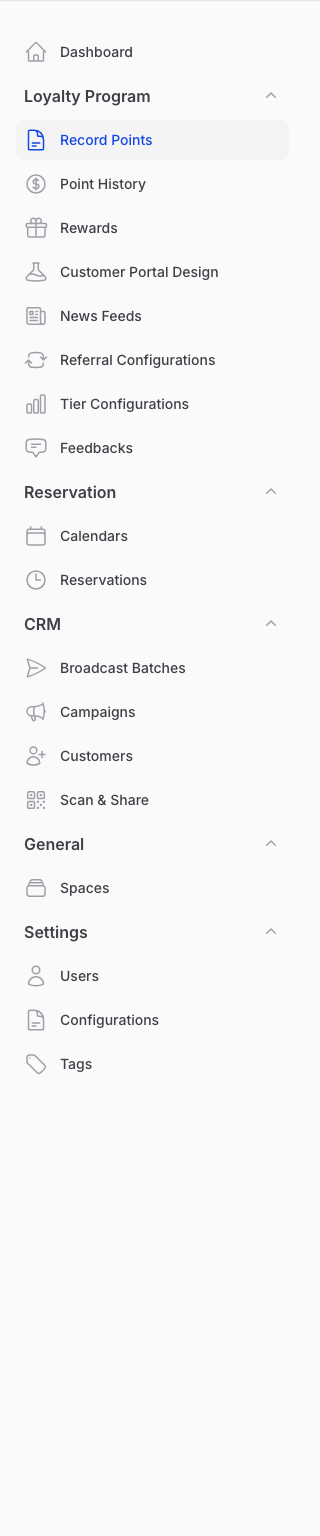
Go to Admin Panel → Loyalty Program → Record Points
-
Click Validate Reward at the top of the page

-
Either tap the camera icon to scan the customer's barcode, or type the 6-digit code shown below the barcode. Then click Submit.
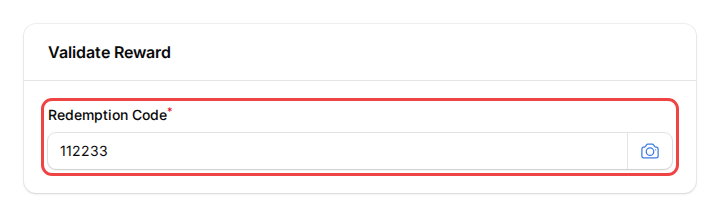
You'll see a green Validated notice and the voucher is now marked as Used.
What Your Customers Will See
Your customer opens the rewards page in their portal and taps the voucher they want to use. They see a Redeem Voucher screen with a scannable code and a 6-digit code below it. The voucher code shows as a barcode (or a QR code, depending on your setup), so you can scan it straight from their screen instead of typing. They show this page to you.
![Customer portal Claimed Reward page showing the barcode (code 297003), refresh countdown, and the [Bonus] RM5 Cash Voucher in Pending status](https://kb.pixalink.io/storage/940/v3-customer-claimed-reward.png)
The voucher stays in their portal as Pending until you validate it — it won't disappear on its own.
Good to Know
- The barcode and 6-digit code refresh every 15 minutes. If the customer's screen has refreshed, just ask them for the new code.
- Scan is faster than typing and avoids typos. Every voucher that has a code now shows a scannable barcode (or QR code) on the customer's screen.
- The code appears as a barcode or QR code depending on the format set for that reward. Both scan the same way at your counter.
- The Validate Reward button and the camera scan are both turned on by Pixalink. Ask us to switch them on if you don't see them.
- Made a mistake? You have a 1-hour grace period to undo it. Open the voucher under Customer Rewards and revert it to Pending.
- A voucher that's already Used or Expired can't be validated again.
Need Help?
Can't see the Validate Reward button or camera icon? Send us a message.