
How to See Who Redeemed a Reward Voucher
How to See Who Redeemed a Reward Voucher
What Is This?
When you publish a reward, you'll often want to know which customers have actually claimed or redeemed it — for example, to see how popular a voucher is, follow up with redeemers, or audit usage. Pixalink shows this list directly on each reward's detail page.
Real-Life Example
Wei Lin runs a bubble tea shop and recently launched a "RM10 OFF Voucher for New Customers". A week later she wants to check who has actually used it. She opens Rewards → RM10 OFF Voucher, scrolls to the bottom, and changes the Status filter from Pending to Used. She now sees the full list of customers who redeemed the voucher, when they used it, and at which outlet.
Video Walkthrough

How to See Who Redeemed a Voucher
-
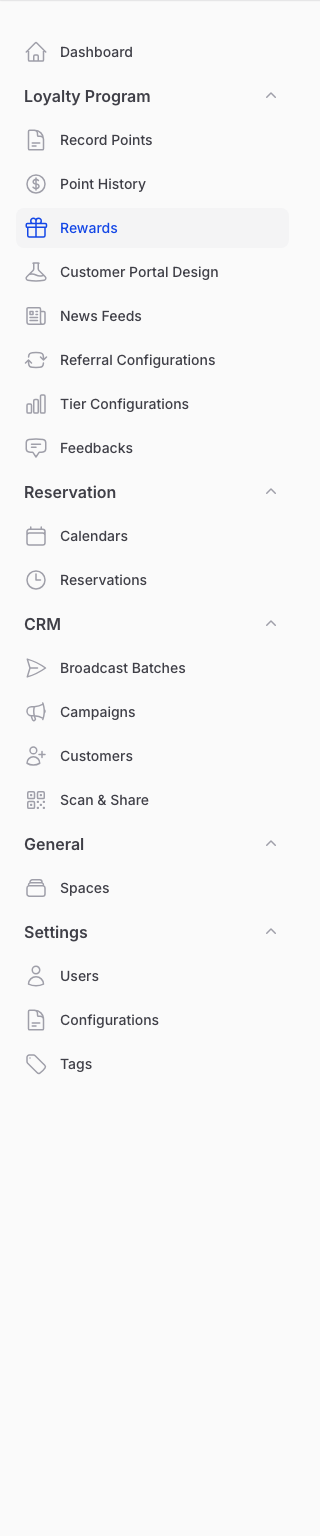
Go to Admin Panel → Loyalty Program → Rewards
-
Click View on the reward you want to check.
-
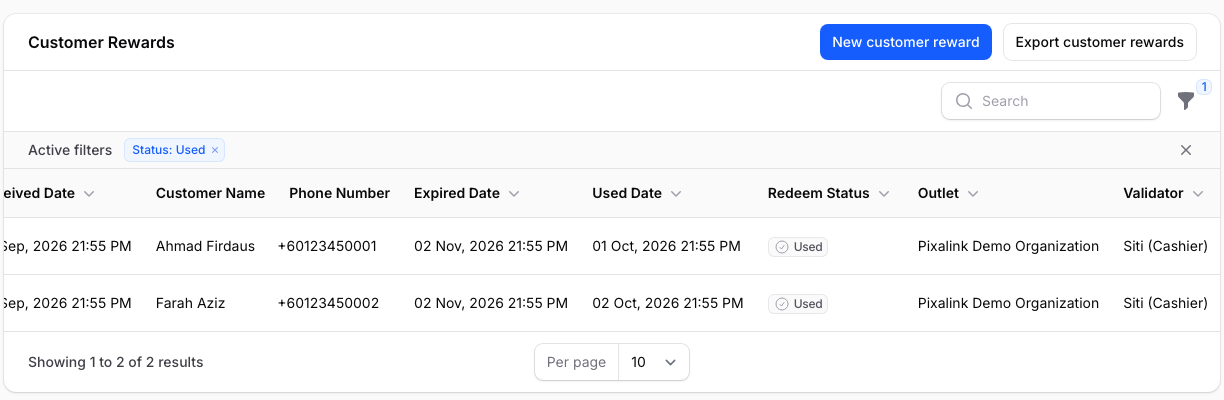
Scroll to the bottom of the page to find the Customer Rewards table. This table lists every customer who has claimed this voucher, with columns for ID, Received Date (when the voucher was claimed), Customer Name, Phone Number, Expired Date, Used Date, Redeem Status, Outlet (where it was validated), and Validator (the staff who confirmed the redemption).
-
Important — change the Status filter. By default the list only shows Pending vouchers (claimed but not yet used). To see who has already redeemed:
- Click the filter icon above the table and open the Status dropdown
- Choose Used to see customers who have redeemed the voucher
- Or choose All to see everyone — Pending, Used, and Expired
- Click Apply filters
-
Use the other filters to narrow further:
- Outlet — only show redemptions at a specific space
- Validator — only show redemptions confirmed by a specific staff member
- Received Date / Used Date — restrict to a date range
Understanding the Redeem Status Column
| Status | Meaning |
|---|---|
| Pending | Customer has claimed the voucher but hasn't used it yet |
| Used | Customer has redeemed the voucher at your counter |
| Expired | The voucher's expiry date passed before it was used |
Good to Know
- Your customer sees a redeemed voucher in their portal under My Rewards, in the Used Rewards filter.
- The Active Reward stat at the top of the reward page counts only Pending vouchers — that's why the number is often smaller than the Total claimed. The difference is made up of Used and Expired vouchers.
- The stat labelled Redemption Rate (Used/Total Given) at the top of the reward page is
Used ÷ Total Given. A higher percentage means the voucher is converting into actual store visits. - The Validator column tells you which staff member confirmed the redemption — useful for accountability and training.
- You can sort most columns by clicking their header — sorting by Used Date descending shows the most recent redemptions first. Customer Name and Phone Number are not sortable; use the search bar to find a specific customer instead.
- If the list is long, use the search bar at the top of the table to find a specific customer by name or phone number.
What's Next?
- How to Redeem a Customer Voucher at Your Counter — the redemption flow itself
- How to Manage Your Rewards (View, Edit & Delete) — managing the reward catalog
- What Do Customer Reward Statuses Mean? — deeper detail on each status