
How to Manage Your Rewards (View, Edit & Delete)
What Is This?
Once you've created rewards in Pixalink, you'll need to manage them — check how they're performing, update details, or remove ones you no longer need. The Rewards page in your Admin Panel is your central hub for all reward management.
Real-Life Example
Encik Hafiz runs Burger Bakar KL with two outlets. He created a "Free Upsize" reward last month but wants to change the points required from 50 to 30 to boost redemptions. He also wants to archive an expired "CNY Special" reward that's cluttering the list. Both tasks take just a few clicks from the Rewards page.
How to Manage Rewards
Viewing All Rewards
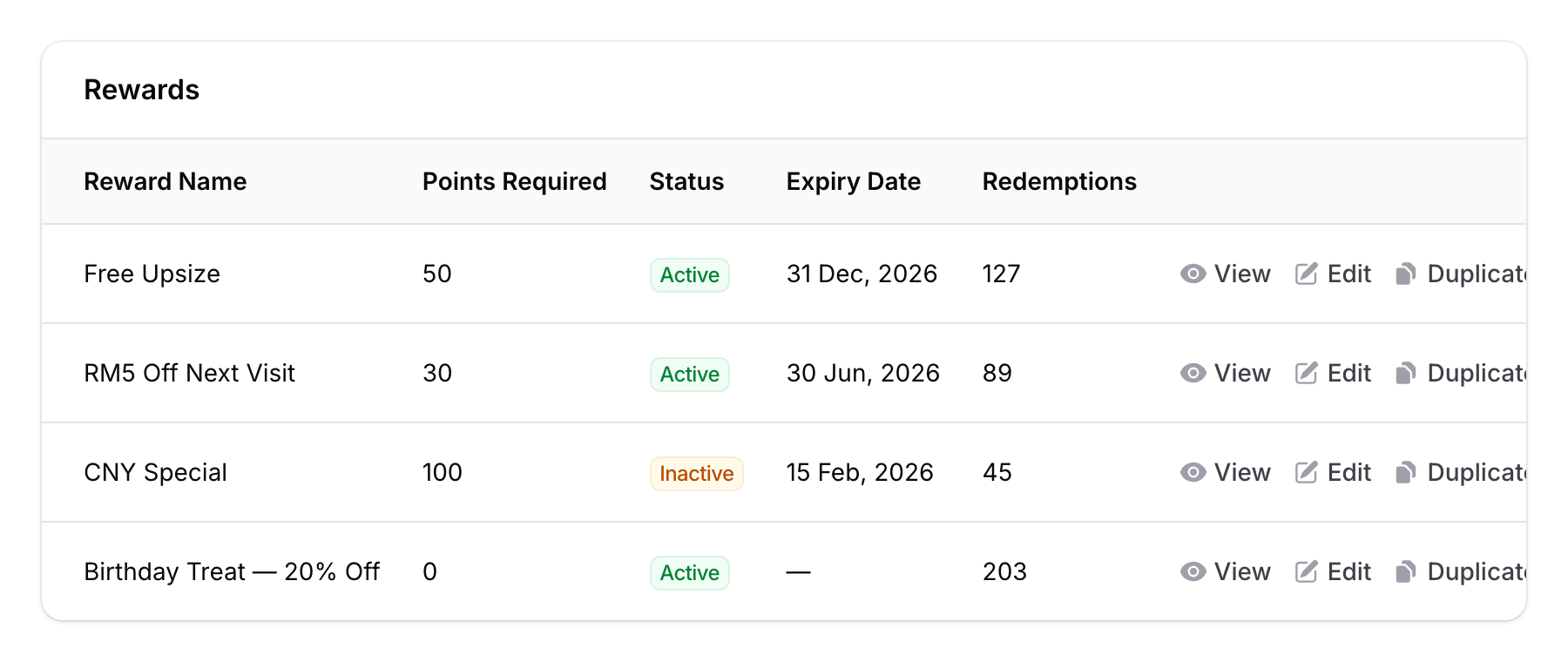
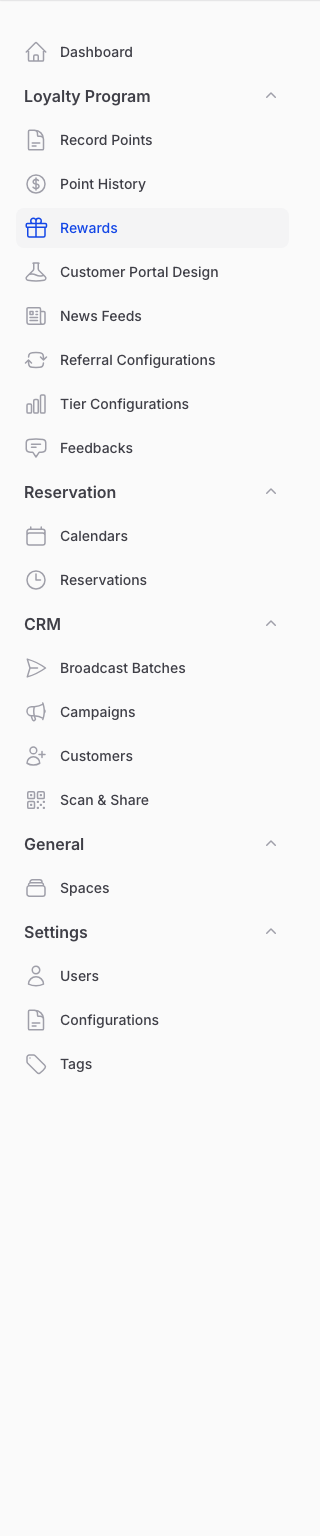
From the Admin Panel sidebar, go to Loyalty Program → Rewards. You'll see a list of all your rewards with key details at a glance.
Editing a Reward
- Find the reward you want to edit in the list.
- Click the pencil icon (Edit) on the reward's row.
- Update any fields you need — name, description, points required, visibility, expiry date, etc.
- Click Save when you're done.
The reward updates immediately. Customers who already hold this reward are not affected by changes to points or visibility settings.
Viewing Reward Details
Click on a reward's name or use the eye icon (View) to see its full details, including:
- Current settings and configurations
- Linked vouchers
- Assignment history
- Audit log of all changes
Archiving a Reward
Rewards are not permanently deleted. Instead you Archive them, which hides a reward from your active list while keeping everything fully reversible.
- Open the reward's row menu and choose Archive (the same action is in the edit page), or select several rewards with the checkboxes and choose Archive selected.
- Confirm when prompted. The reward moves to an archived state and drops out of your normal list.
To bring it back later, use the Restore action.
Vouchers already issued stay valid. Customers who received or redeemed the reward keep seeing it, and it still validates at the counter. Archiving only stops the reward from being given out to new customers.
Archiving is blocked while the reward is still in use. If it is still attached to any of these, you will see a "This reward is still in use" message and need to remove it there first: a Reward Bundle, a Referral Program, Tier Rewards, a Paid Membership, a Stamp Campaign, a Custom Form, a Credit Top-Up Milestone, or a scheduled reward assignment.
To find archived rewards, use the Archived filter (Hide archived, Show all, or Only archived). An archived reward carries a gray Archived badge, and its active/inactive toggle is locked until you restore it.
Duplicating a Reward
Need a similar reward? Instead of building from scratch, use the Duplicate action to copy an existing reward with all its settings. The copy is created as inactive with "[Copy]" added to the name, so you can tweak it before making it live.
Good to Know
- Active vs Inactive — You can toggle a reward's status without archiving it. Inactive rewards won't appear in the customer portal but are kept for your records.
- Archive and Restore is an owner action. Staff accounts without delete rights won't see the Archive or Restore options.
- Tabs in the edit form — Rewards have multiple tabs: Reward Details, Settings, Automations, Notifications, and Configurations. The Configurations tab only appears if your account has a POS integration (e.g., Eats365, Zeoniq). Make sure to check all relevant tabs when reviewing a reward.
- Audit trail — Every change to a reward is logged. Open the Audit page (separate from the edit form) to see who changed what and when.
- Visibility controls — You can restrict which customers see a reward based on their tags or loyalty tier.