
How to Set Up QR Rewards (Scan & Earn)
What Is This?
QR Rewards (called Scan & Share in the Admin Panel) is a feature that rewards customers for engaging with your social media. You create a QR code that customers scan, then they follow your social media pages (Facebook, Instagram, Google, TikTok, etc.) and earn a reward in return. It's a clever way to grow your online presence while keeping customers engaged.
Real-Life Example
Kak Wani owns Dapur Wani Catering in Setapak. She prints a QR code on her packaging. When customers scan it, they see buttons for her Facebook, Instagram, and Google Reviews pages. After following or reviewing, they earn a free drink voucher. In three months, her Google Reviews jumped from 50 to 300, and her Instagram following tripled.
How to Set Up QR Rewards
Step 1: Open the Scan & Share Page
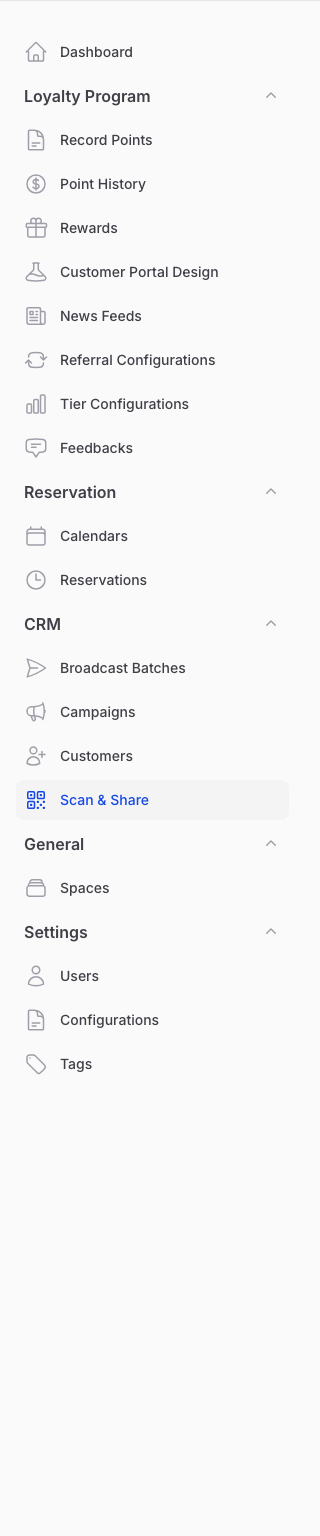
From the Admin Panel sidebar, go to CRM → Scan & Share. Click Create to set up a new QR reward.
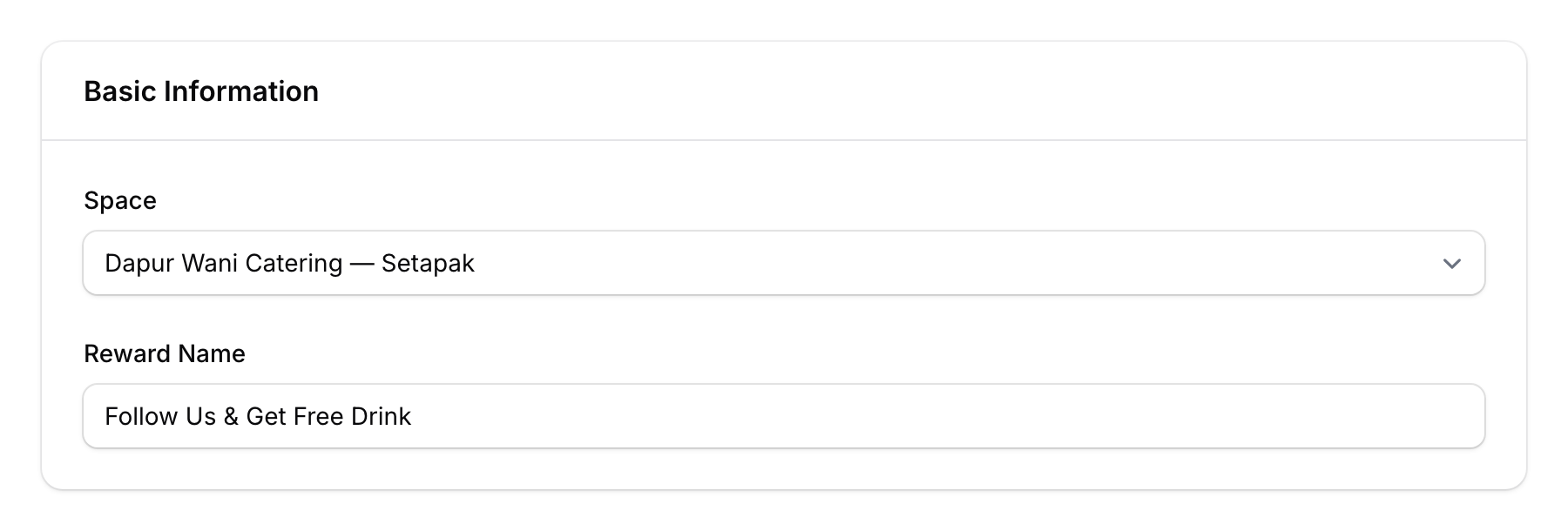
Step 2: Fill In Basic Information
- Space — Select which outlet this QR reward applies to
- Reward Name — Give it a clear name (e.g., "Follow Us & Get Free Drink")
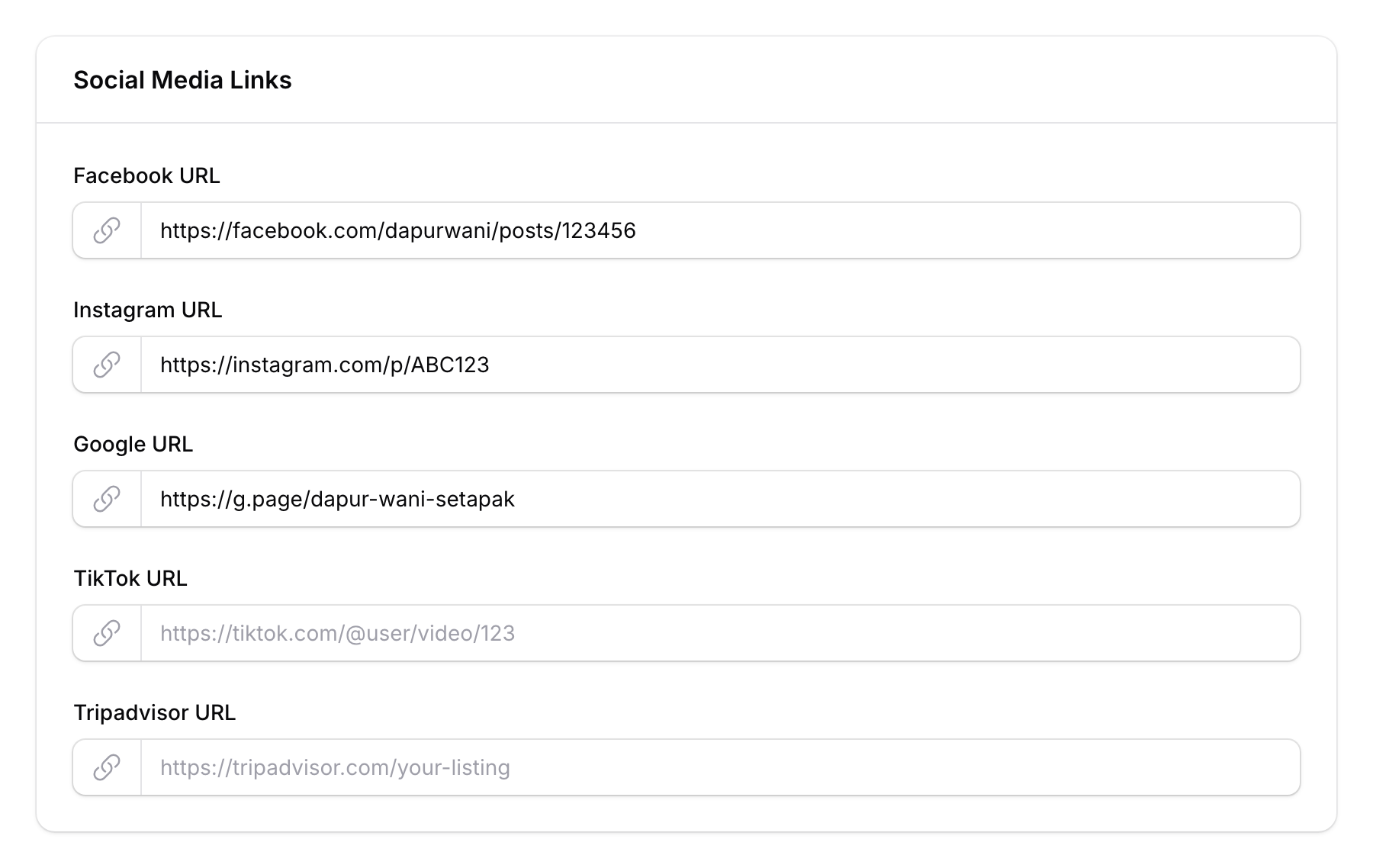
Step 3: Add Social Media Links
Add the social media platforms you want customers to engage with:
Built-in platforms:
- Facebook URL — The URL of a specific Facebook post (not your page URL)
- Instagram URL — The URL of a specific Instagram post (not your profile URL)
- Google URL — Your Google Reviews/Maps link (profile link is correct here)
- TikTok URL — The URL of a specific TikTok video (not your profile URL)
- Tripadvisor URL — Your Tripadvisor listing link
Leave any platform blank if you don't use it.
Step 4: Add Custom Social Media (Optional)
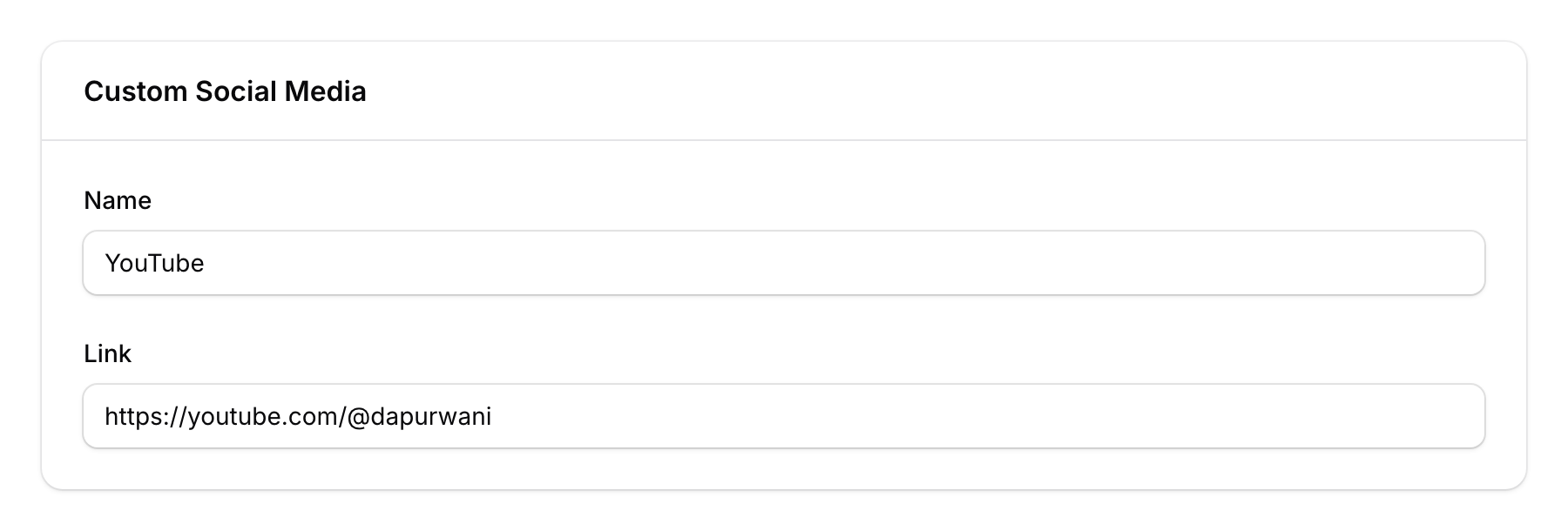
Need to link to a platform that's not in the default list? Use the Custom Social Media section:
- Click Add to create a new entry
- Enter the Name (e.g., "YouTube", "Xiaohongshu")
- Enter the Link (full URL)
- Pick a Colour using the colour picker
- Choose an Icon from the icon picker
You can add multiple custom platforms.
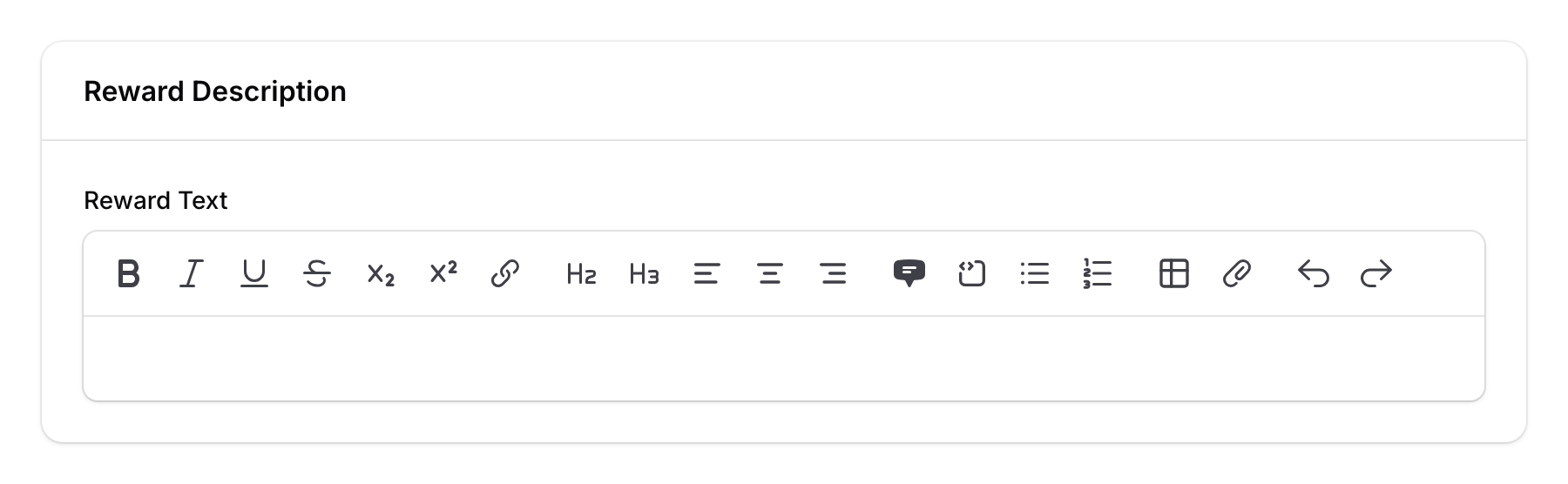
Step 5: Write the Reward Description
In the Reward Text field, describe what customers will earn. Use the rich text editor to format your message:
Follow us on social media and earn a FREE drink on your next visit! Just scan this QR code, follow our pages, and show the confirmation to our staff.
Step 6: Set Instruction Template
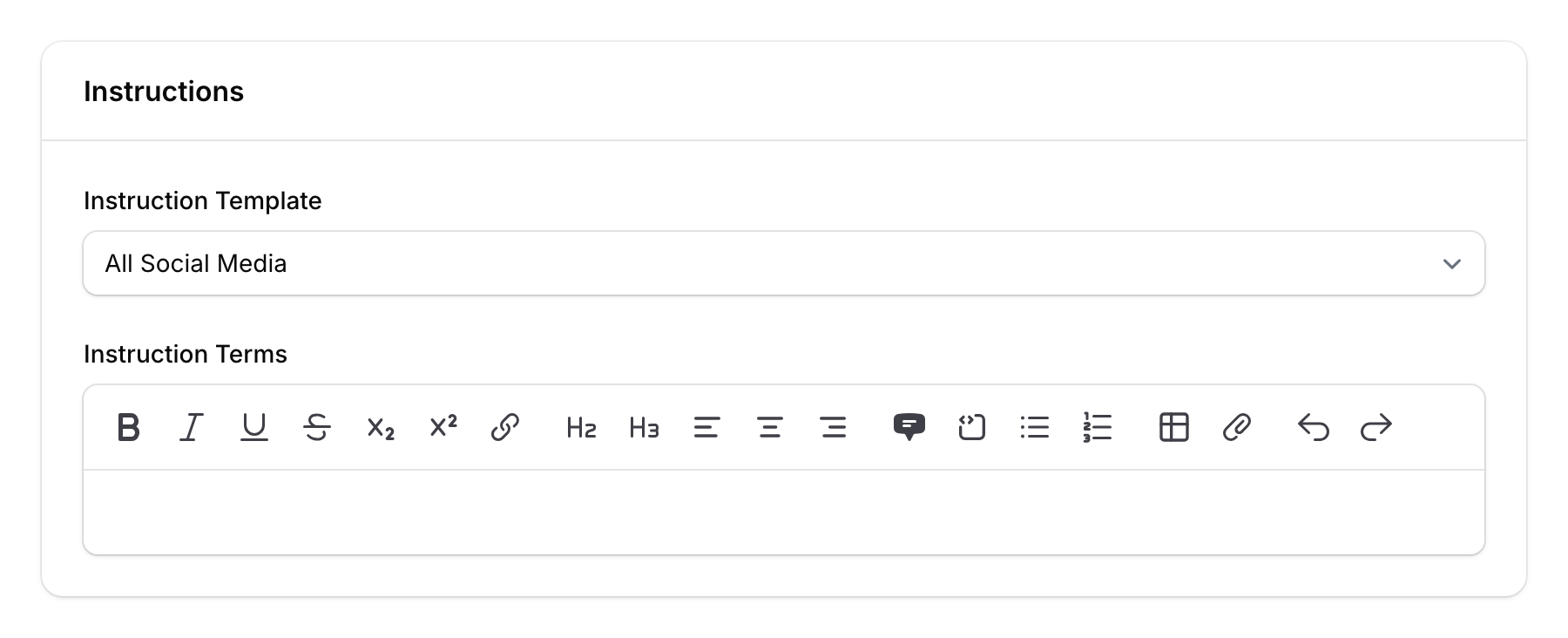
Choose an instruction template that tells customers what to do.
Note: The Instruction Template selector only appears when creating a new QR reward. When editing, you can update the Instruction Terms text directly.
| Template | What It Says |
|---|---|
| All Social Media | Instructions for following all platforms |
| Post Share | Instructions for sharing a post |
| Google Review Only | Instructions for leaving a Google review |
The Instruction Terms field auto-populates based on your selection. You can edit the terms if needed.
Step 7: Upload a Featured Image
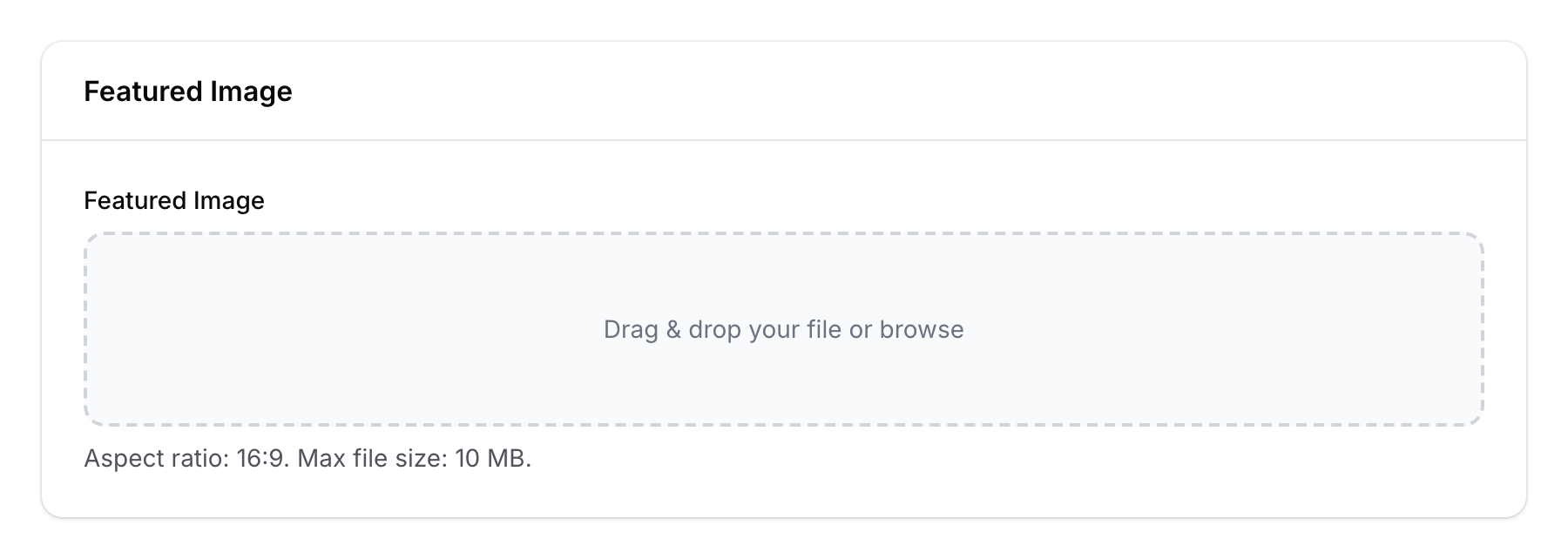
Upload an eye-catching image for the QR reward page. The recommended aspect ratio is 16:9 (max 10 MB).
Step 8: Save and Share
Click Create to save. Your QR reward is created as inactive by default. To activate it, go back to the Scan & Share list and click the status badge on your QR reward's row to toggle it to active. Print or display the QR code at your outlet — customers scan it with their phones to start earning.

Good to Know
- Active toggle — You can activate/deactivate QR rewards directly from the list view without opening the edit page.
- Multiple QR rewards — Create different QR rewards for different spaces or promotions.
- Custom colours and icons — Custom social media buttons can match your brand colours for a professional look.
- Works on any device — Customers scan the QR code with their phone camera and the reward page opens in their browser.
- No app needed — Customers don't need to install anything. The QR code opens a web page directly.