
How to Create a Reward Bundle
What Is This?
A reward bundle is a package that groups multiple rewards together into a single offer. Instead of giving customers one reward at a time, you can create a bundle that assigns several rewards at once — perfect for welcome packages, seasonal promotions, or VIP perks.
Real-Life Example
Puan Melissa owns Glow Aesthetics in Bangsar. For her year-end promotion, she wants to offer a "Holiday Glow Package" that includes a free facial voucher, a 20% skincare discount, and 50 bonus points — all given to customers in one go. She creates a reward bundle with these three items, and her staff can assign the entire package with a single click.
How to Create a Reward Bundle
Step 1: Open the Reward Bundles Page
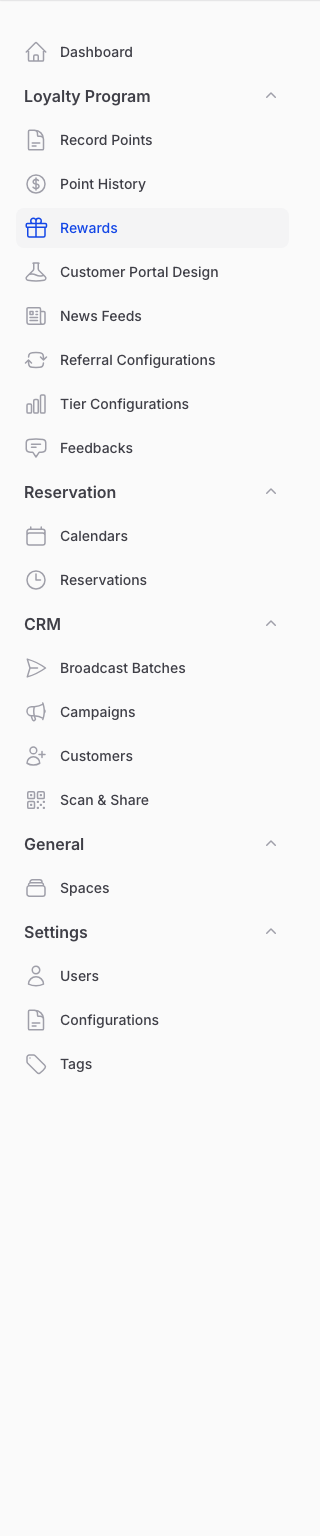
From the Admin Panel sidebar, go to Loyalty Program → Rewards. On the Rewards list page, click the Manage Reward Bundles button at the top.
Note: This button only appears if the Reward Bundle feature is enabled for your account. Contact Pixalink support to enable it.
Step 2: Create a New Bundle
Click Create to start building your bundle.
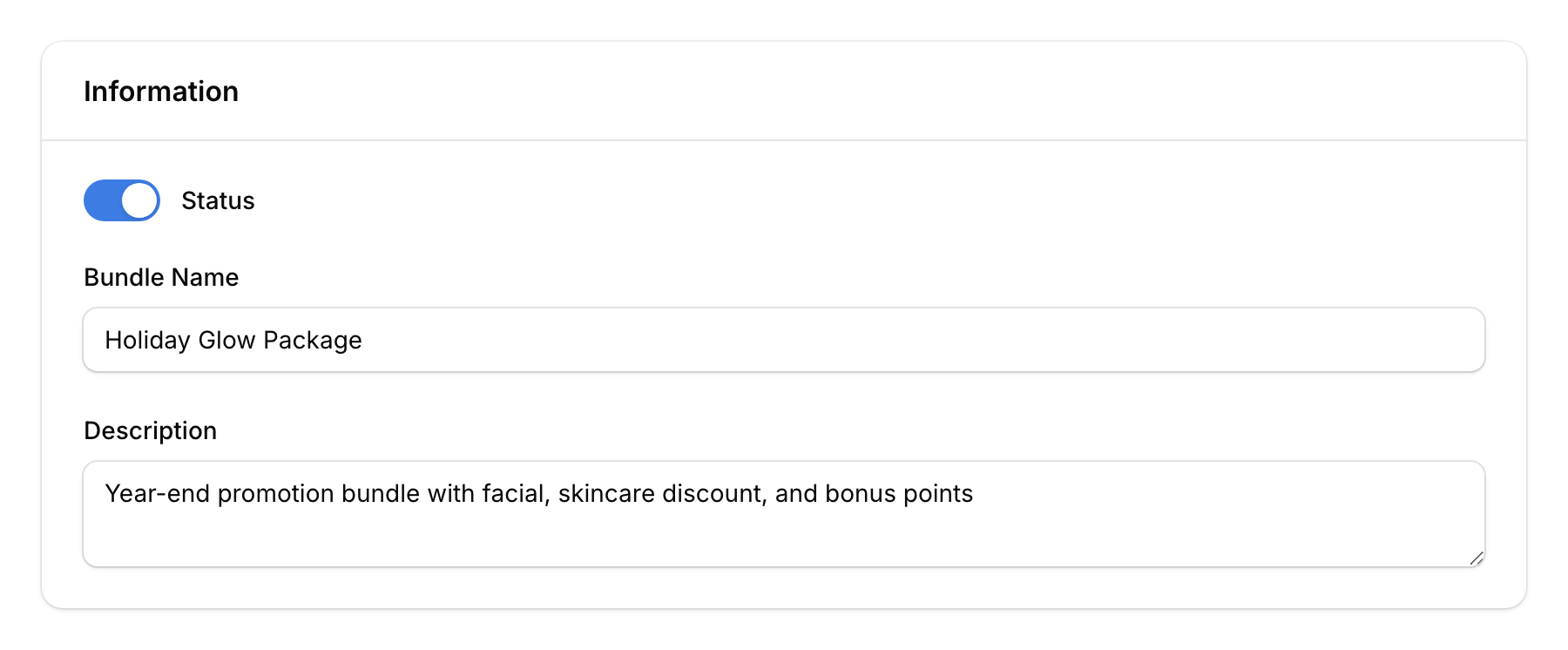
Step 3: Fill In Bundle Information
On the Information tab:
- Status — Toggle to Active or Inactive
- Bundle Name — Give it a clear name (3–50 characters), e.g., "Holiday Glow Package"
- Description — A short description (max 100 characters) for internal reference
Step 4: Add Reward Items
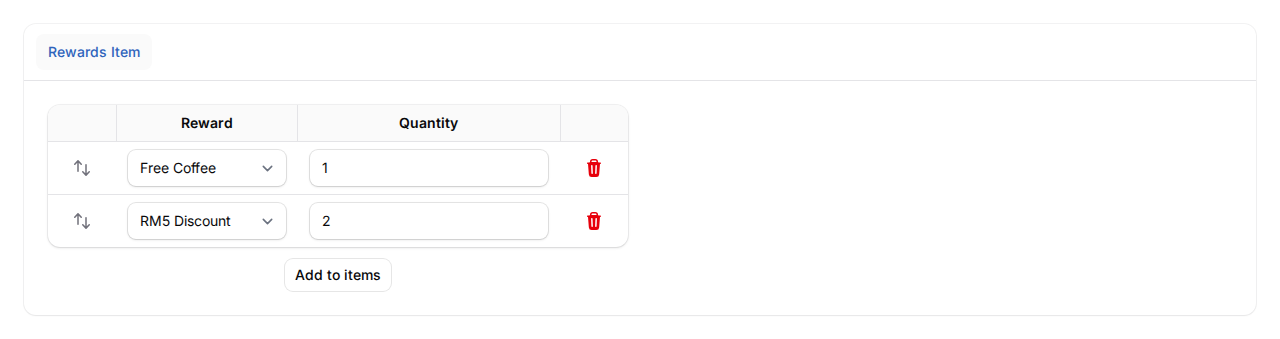
Switch to the Rewards Item tab:
- Click Add Item to add a reward to the bundle.
- Select a Reward from the dropdown — only reusable rewards appear (one-time rewards are excluded).
- Set the Quantity — how many of this reward each customer receives.
- Repeat for each reward you want to include (up to 10 items per bundle).
Step 5: Save the Bundle
Click Create to save. Your bundle is now ready to be assigned to customers.

Good to Know
- Minimum 1 item — Every bundle must contain at least one reward.
- Maximum 10 items — You can include up to 10 different rewards per bundle.
- Only reusable rewards — One-time rewards cannot be added to bundles, since bundles are designed to be assigned multiple times.
- Active/Inactive toggle — Deactivate a bundle to temporarily hide it without deleting the configuration.
- Accessing bundles — Reward Bundles don't appear in the main sidebar navigation. Always access them through the Manage Reward Bundles button on the Rewards list page.