
How to Create a Reward Bundle and Assign It to All Customers
How to Create a Reward Bundle and Assign It to All Customers
What Is This?
A reward bundle lets you give each customer several vouchers at once. You create one reward, add it to a bundle with the quantity you want, then assign the whole bundle to every customer in a single step. It is perfect for a promotion like "ten vouchers for every customer this month."
Video Walkthrough
Prefer to watch? This short video shows the whole flow, from opening Manage Reward Bundles to assigning the bundle to every customer.
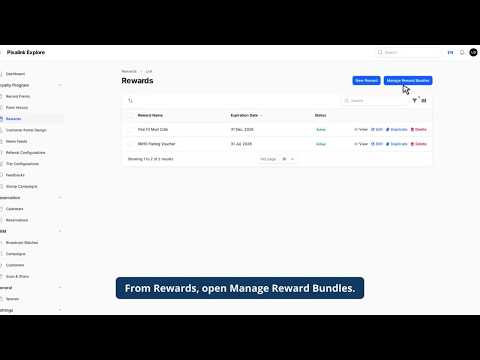
Real-Life Example
Aishah runs a fishing pond business. For July she wants every customer to get ten RM10 Fishing Vouchers to use through the month. She creates one RM10 voucher, bundles ten of them together, and assigns the bundle to her whole customer list in seconds.
How to Set It Up
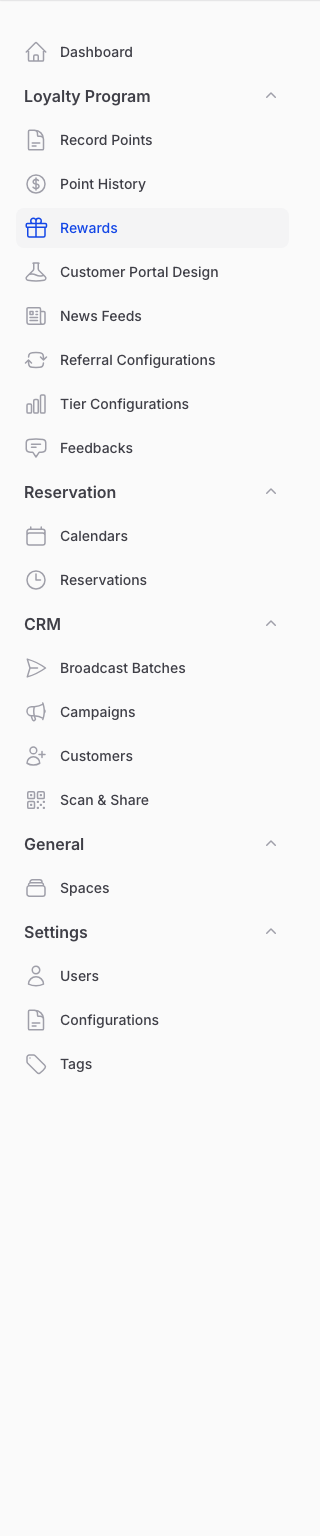
- In the Admin Panel sidebar, open Loyalty Program and click Rewards.
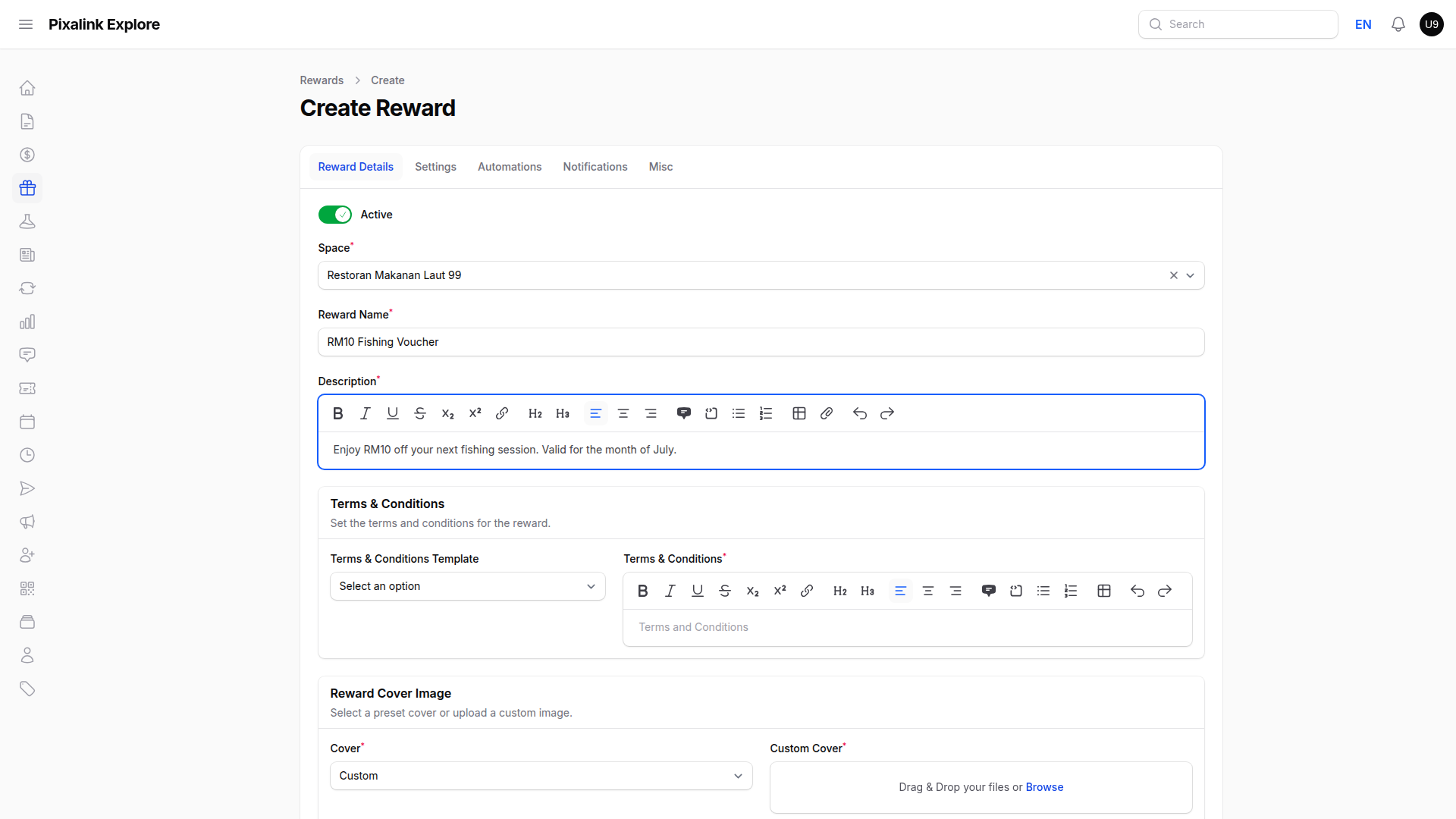
- Click New Reward. Turn on Active, set the Reward Name to
RM10 Fishing Voucher, and add a short Description.
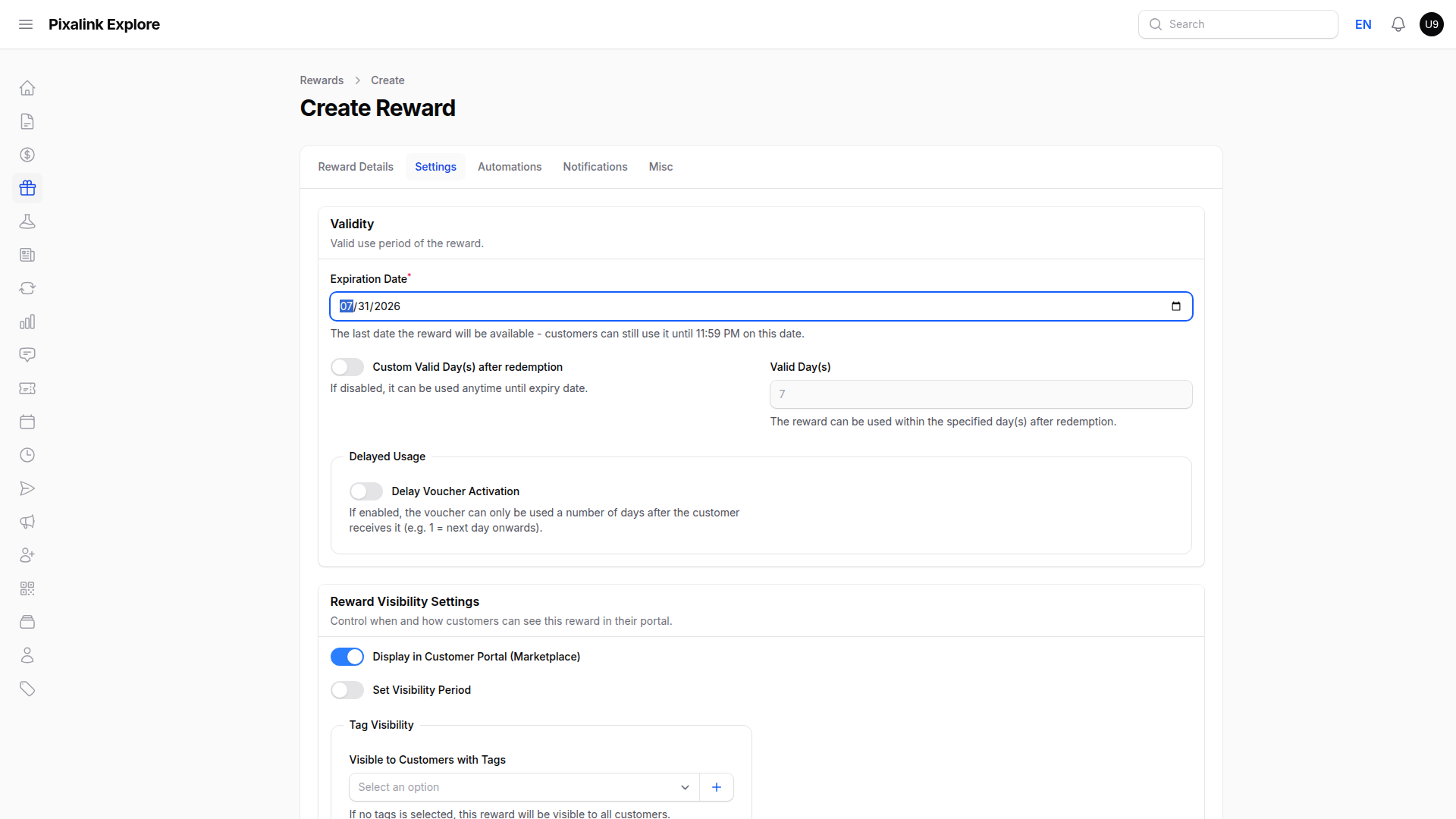
- Open the Settings tab. Set the Expiration Date to 31 July 2026, and set Points to Redeem to 0 so the voucher is free. Then save. Keep it reusable, so do not turn on Single Redemption, or it cannot go into a bundle.
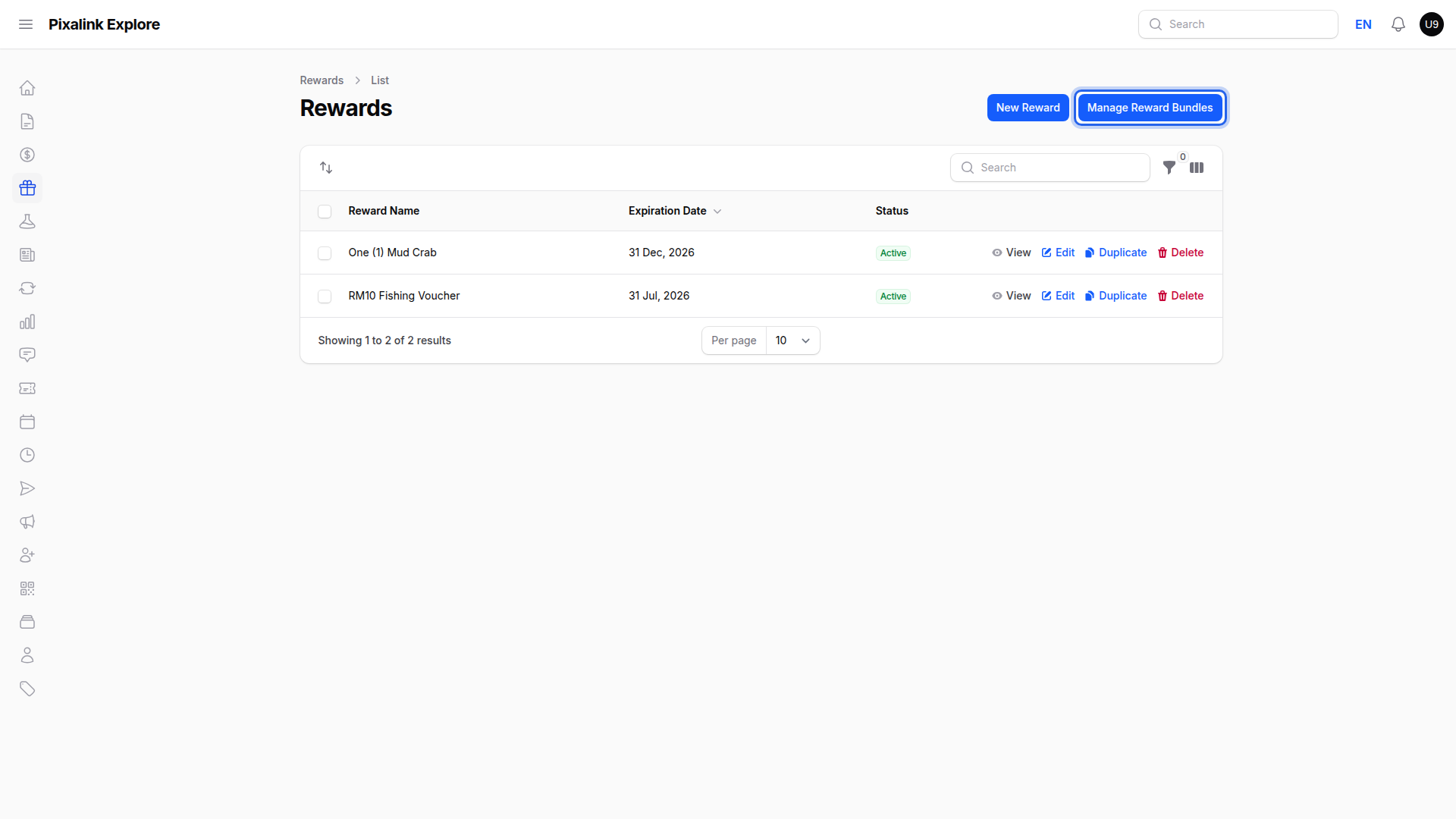
- Back on the Rewards page, click Manage Reward Bundles, then Create. On the Information tab, give the bundle a Name like "July Fishing Bundle".
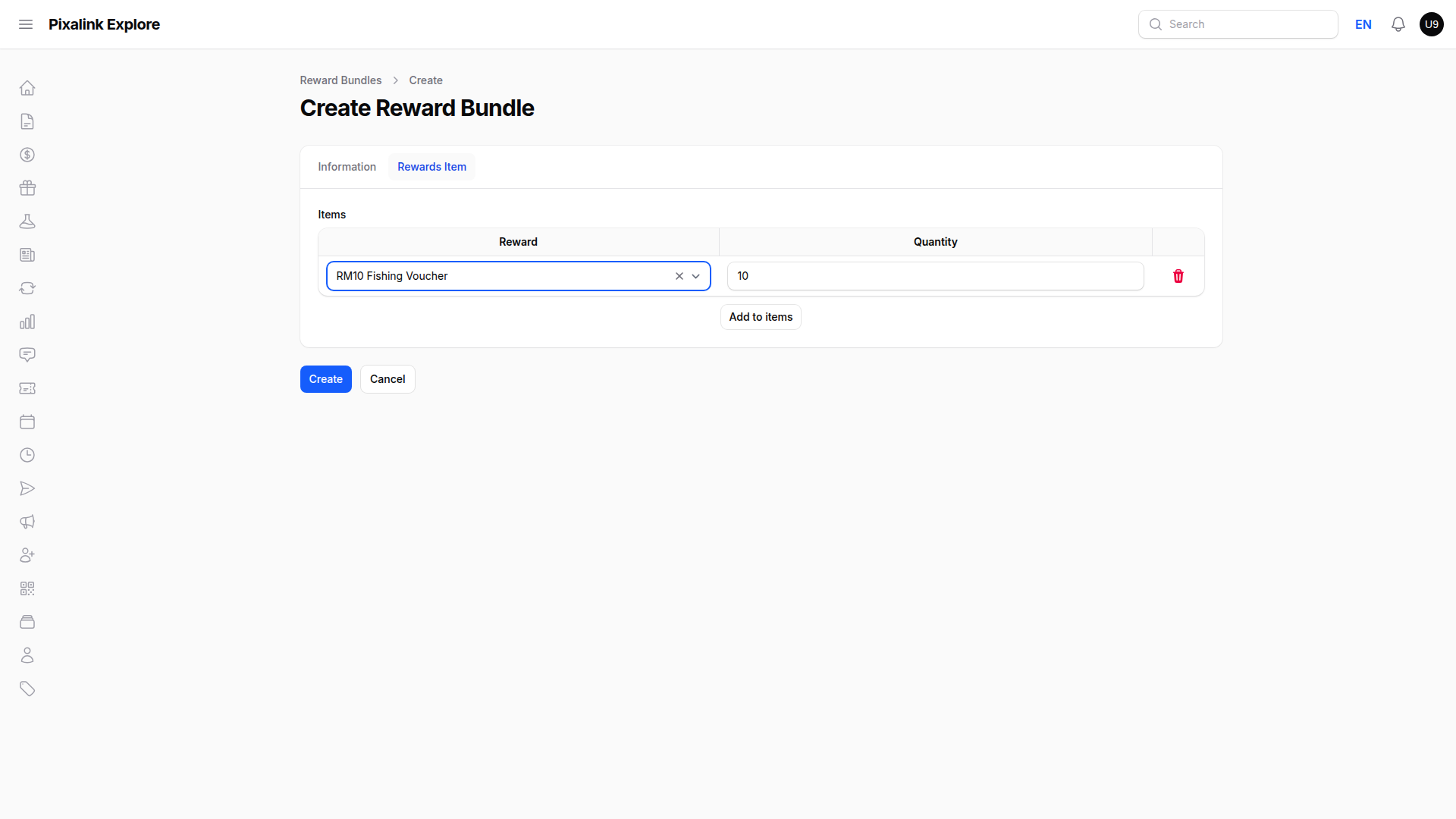
- Open the Rewards Item tab, click Add to items, choose the RM10 Fishing Voucher, set Quantity to 10, then click Create.
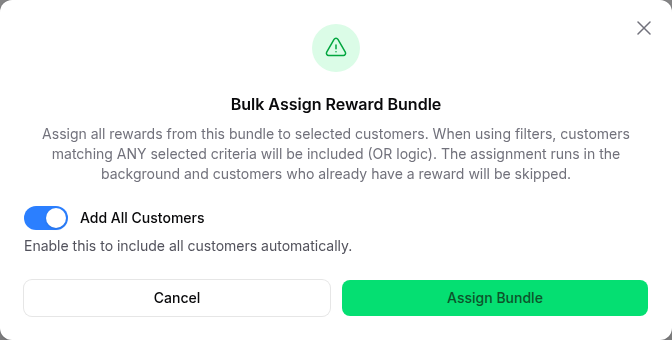
- Open the bundle and click Bulk Assign to Customers. Turn on Add All Customers, click Assign Bundle, and confirm.
What Your Customers Will See
Each customer receives ten separate RM10 Fishing Vouchers in their account, ready to use any time until 31 July.
Good to Know
- A bundle can hold up to 10 different rewards, and each one can have its own quantity.
- Only free, reusable rewards can go into a bundle. One-time rewards are not allowed.
- The assignment runs in the background, so a large customer list may take a few minutes.
- Customers who already have a reward are skipped, and blocked customers are not included.
- The Manage Reward Bundles button only shows if the feature is on. Contact Pixalink support to enable it.
Need Help?
If the Manage Reward Bundles button is missing, or a customer did not receive their vouchers, contact the Pixalink support team and we will help you sort it out.