
How to Share a Reward with a QR Code or Link
How to Share a Reward with a QR Code or Link
What Is This?
Turn any reward into a QR code or a shareable link that customers open on their phone. They scan it, see the reward, and claim it on the spot — a simple way to bring people back to your business.
Real-Life Example
Aishah runs Boba Lab, a bubble tea shop in Petaling Jaya. She wants regulars to keep coming back for more drinks. So she creates a "Free Bubble Tea" reward and turns on direct link access. She downloads the QR code and prints it on a small card for every table. She also drops the link into her Instagram story. Within a week, customers are scanning the code and claiming their free drink. Aishah fills her quiet afternoons without spending a sen on ads.
Video Walkthrough
How to Set It Up
-
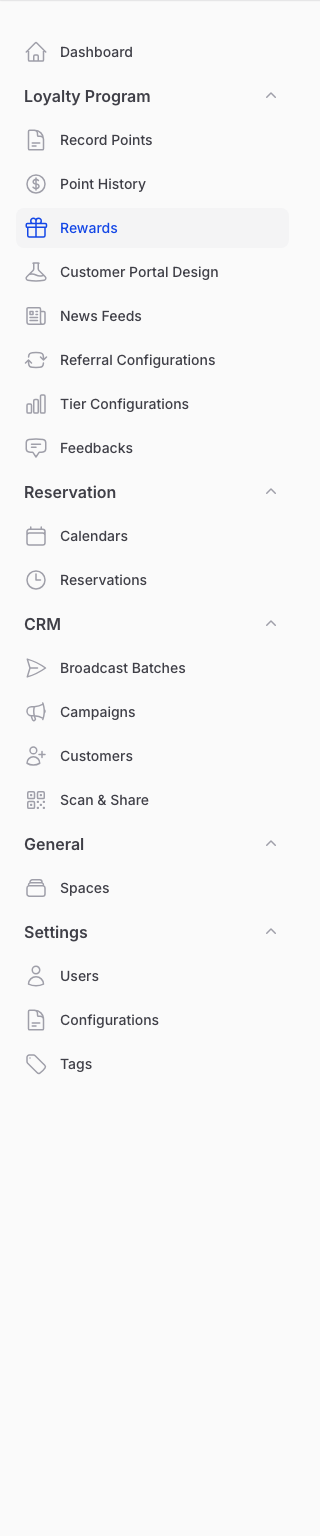
Go to Admin Panel → Loyalty Program → Rewards.
-
Open your reward, go to the Settings tab, and turn on Customer Direct Link Access. Click Save changes when you're done.

-
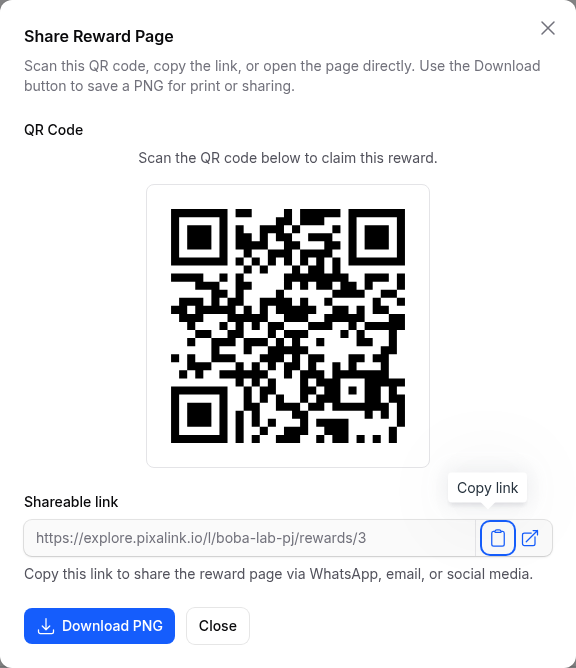
Click View at the top of the page, then click Show QR Code.

-
Click Download PNG to save the QR code. To share the link instead, copy it from the link shown under Customer Direct Link Access on the Settings tab.
What Your Customers Will See
When a customer scans the code or opens the link, the reward page opens straight away on their phone. They can read the details and claim the reward in one tap on Redeem Now. If customers can also pay for this reward with credits, they pick points or credits first, then confirm. A customer who has never visited your portal signs up with their phone number first, then lands right on the reward.
Good to Know
- The QR code and the link both point to the same reward page.
- Print the QR code on receipts, table cards, or posters. Share the link on WhatsApp, email, or social media.
- The Show QR Code button only appears after you turn on Customer Direct Link Access.
- If you run more than one outlet, each reward links to the outlet you picked for it. If your business uses one portal for all outlets, the link opens on your main outlet instead.
- You can open the Show QR Code window again any time to download a fresh copy.
Need Help?
Stuck on any step? Reach out to our support team and we'll walk you through it.