
Zu Wei
5 min read
2 views

How to Run a Buy 1 Free 1 Promotion for a Fixed Period

How to Run a Buy 1 Free 1 Promotion for a Fixed Period

What Is This?

A Buy 1 Free 1 deal brings customers in fast, but only if it ends on time. You can set it up as a reward that customers claim in their portal. Pixalink opens it on your start date and closes it on your end date, so you don't have to remember.

Video Walkthrough
Real-Life Example

Aishah runs Boba Lab in Petaling Jaya. She wants an Ice Lemon Tea Buy 1 Free 1 from 25 December to 11 January. She creates one reward with those dates and sets it to 0 points. Members can see it early, but they can't claim it yet. From 25 December they claim it and show the code at the counter. On 12 January it disappears by itself.

Buy 1 Free 1 reward lifecycle Four stages on a timeline: before the start date, the start date, the last day, and the day after. THE REWARD'S LIFECYCLE Before 25 Dec Coming soon Members can see it but can't claim it yet 25 Dec Claim opens Distribution Start Date Members claim it 11 Jan Last day Distribution End Date and Expiration Date Last day to claim and to use it 12 Jan Promo over Leaves the marketplace Unused codes stop working Set the start and end once. Pixalink opens and closes the deal for you.

How to Set It Up

  1. Go to Loyalty Program → Rewards and click New Reward.
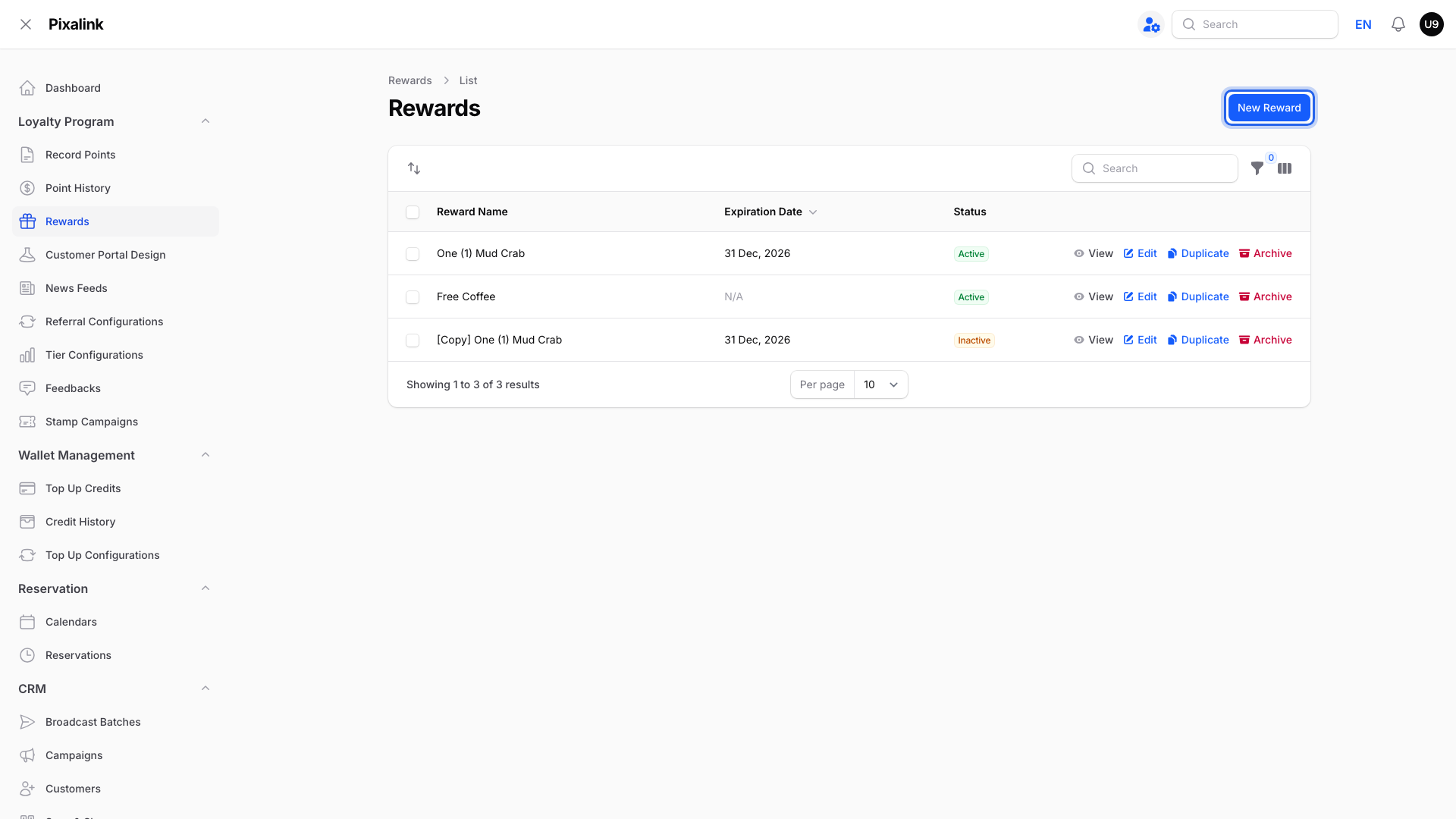
    Rewards list in the admin panel with the New Reward button highlighted

  2. If Space appears, check it shows the outlet running the deal. With more than one outlet, pick it here.
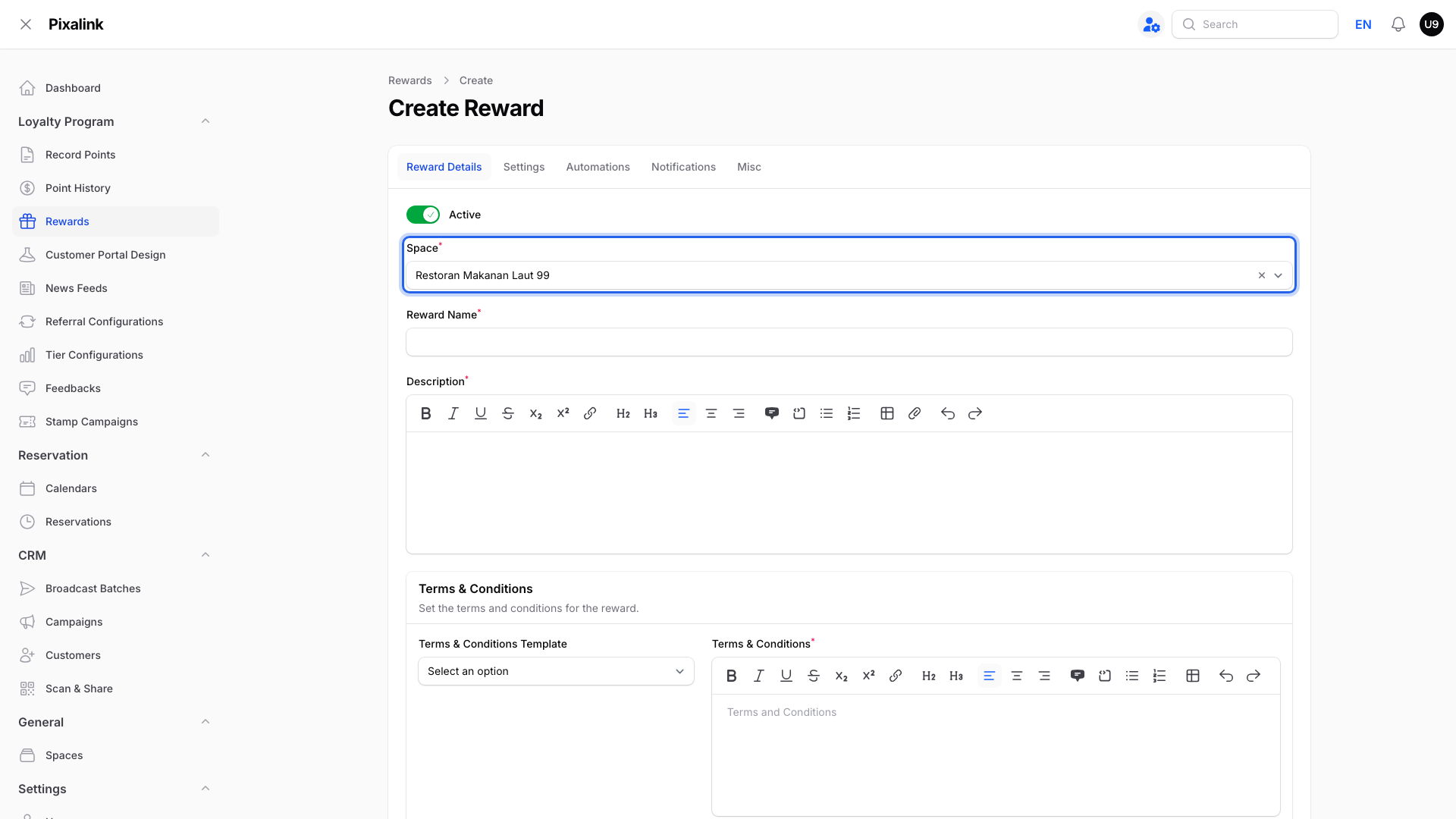
    Create Reward page with the Space field highlighted at the top of the Reward Details tab

  3. Type the offer in Reward Name, then add the promo details in Description.
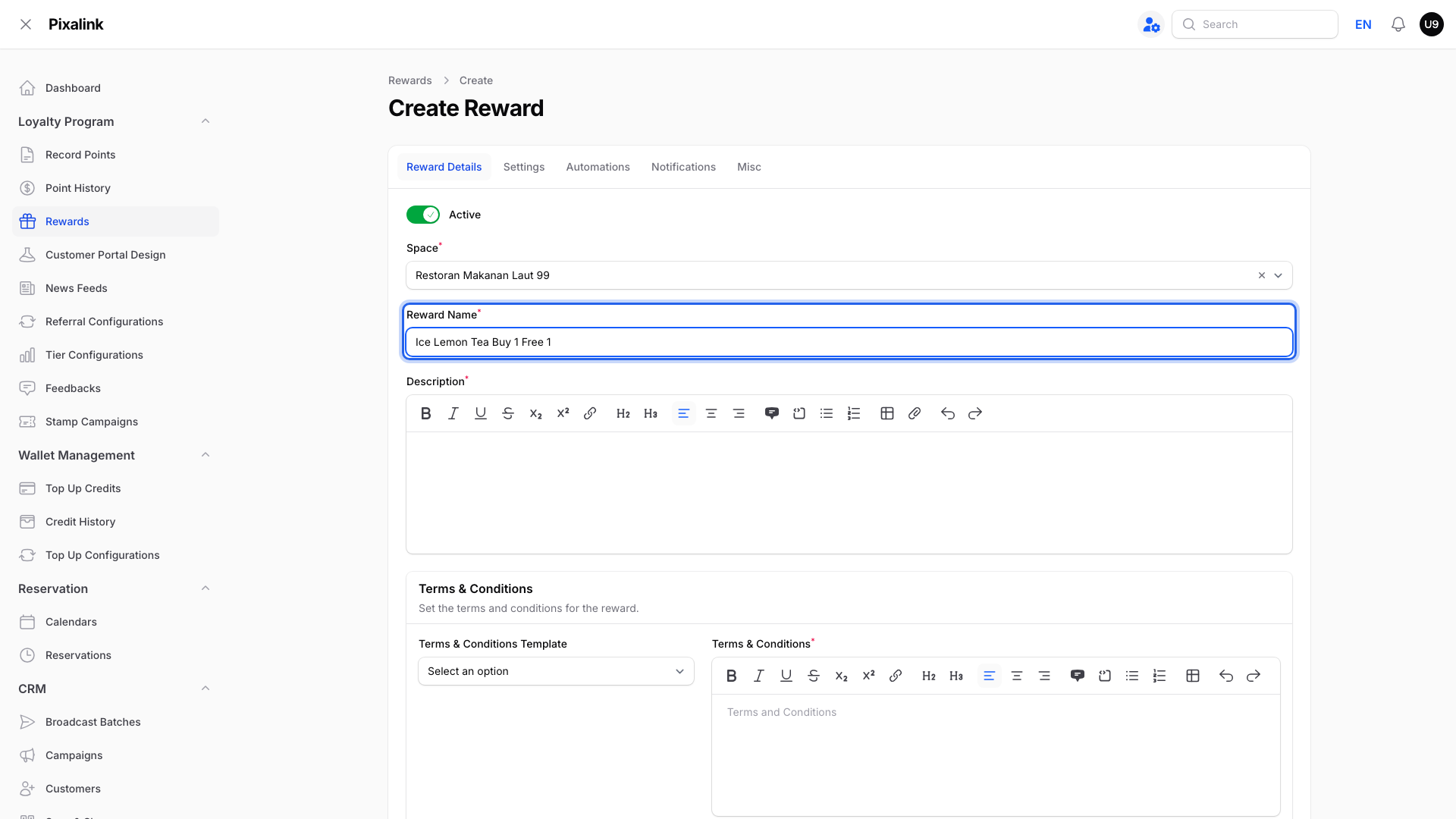
    Create Reward page with Reward Name filled in as Ice Lemon Tea Buy 1 Free 1 and the empty Description box below it

  4. Pick Buy-one-get-one (BOGO) Deals in Terms & Conditions Template, then edit the terms. Say which drink they must buy and which drink is free.
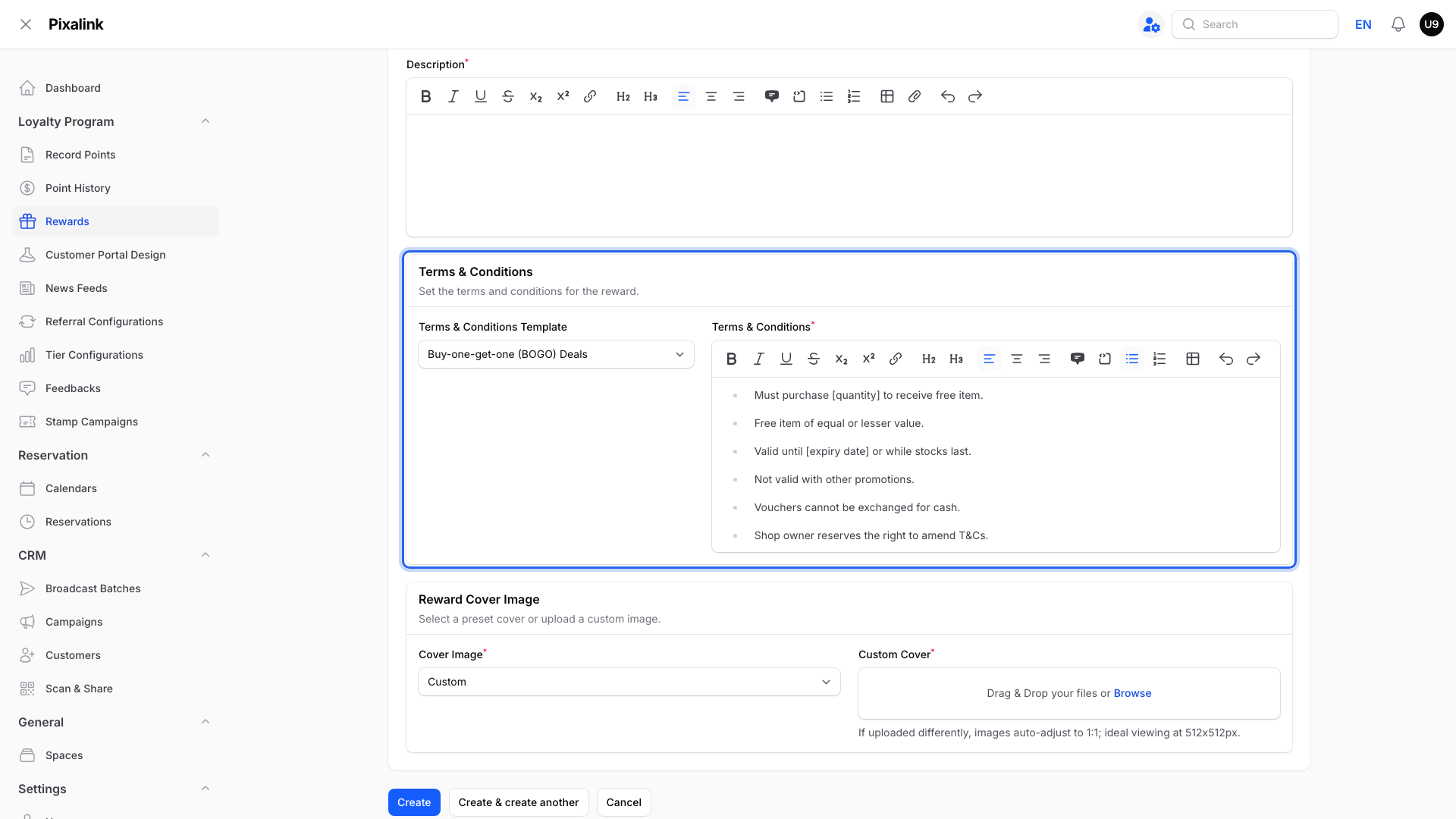
    Terms and Conditions section with Buy-one-get-one (BOGO) Deals picked in the Terms & Conditions Template box and its terms filled in

  5. Open the Settings tab and set Expiration Date to the last promo day.
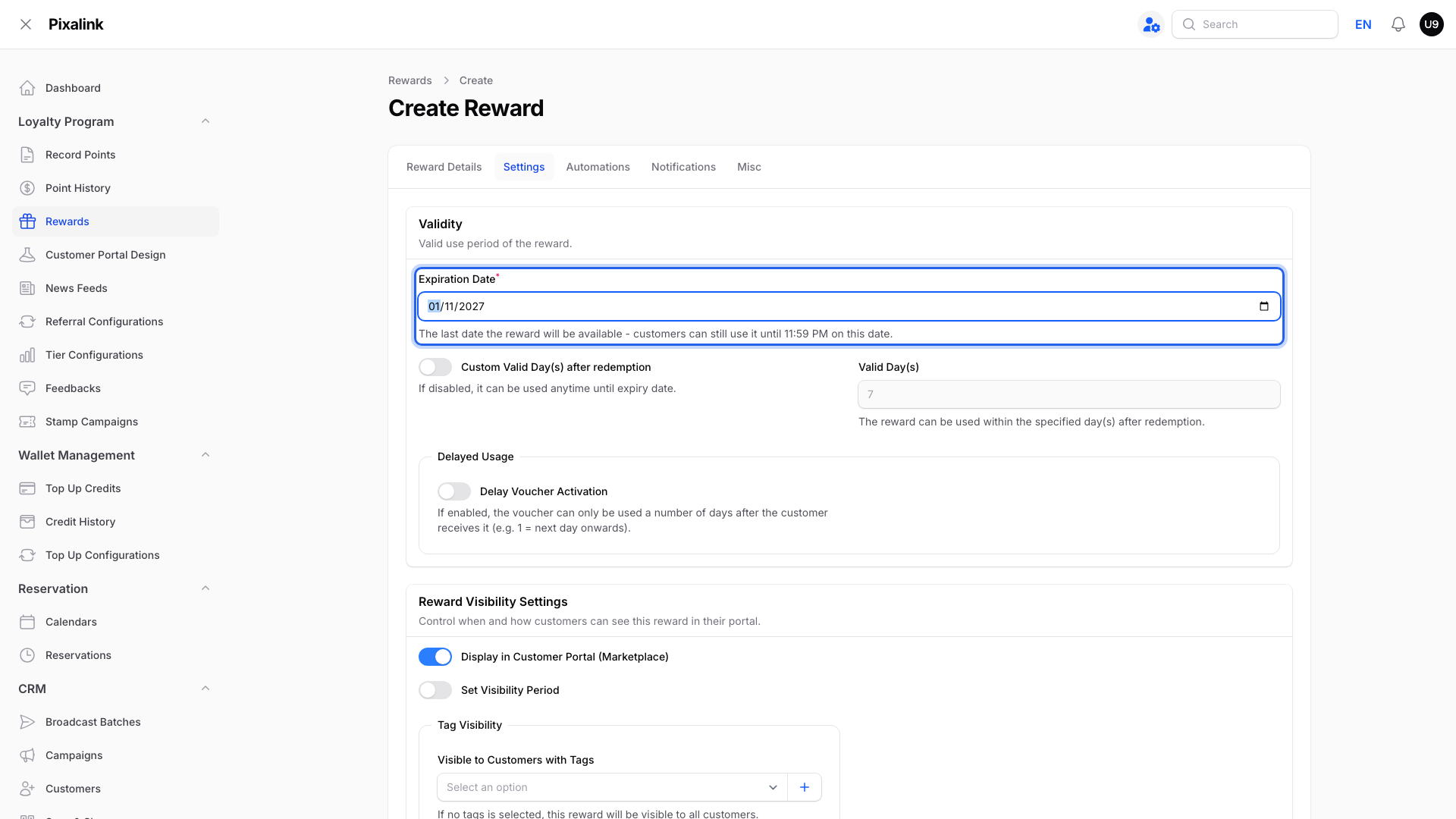
    Settings tab with the Expiration Date set to the last day of the promotion

  6. Turn on Schedule in the Distribution box. Pick the first promo day as Distribution Start Date and the last as Distribution End Date.
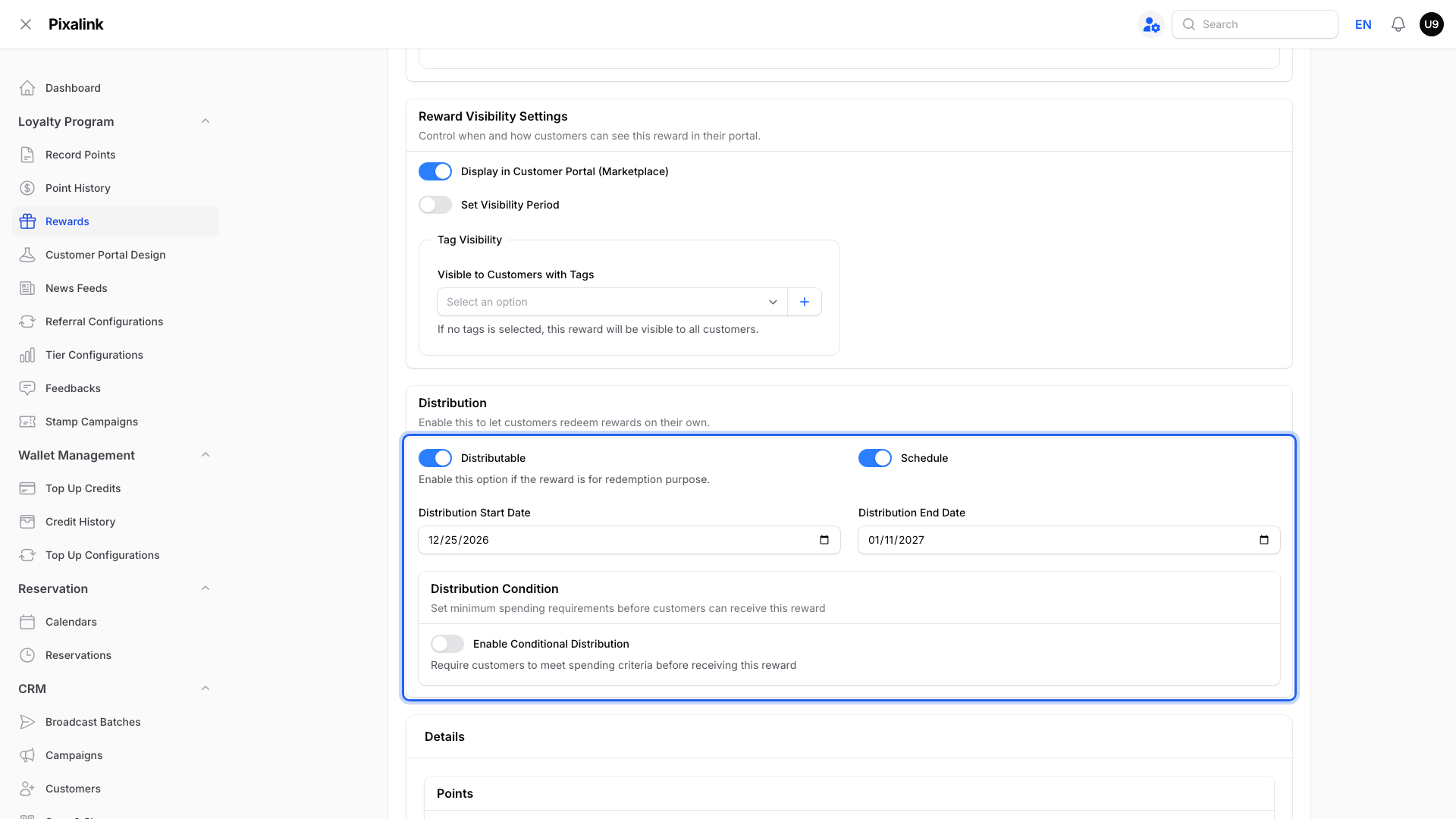
    Distribution section with Schedule on and the Distribution Start Date and Distribution End Date filled in

  7. Leave Points to Redeem at 0 for a free deal, or type a points price. Then turn on Single Redemption so each customer claims it once.
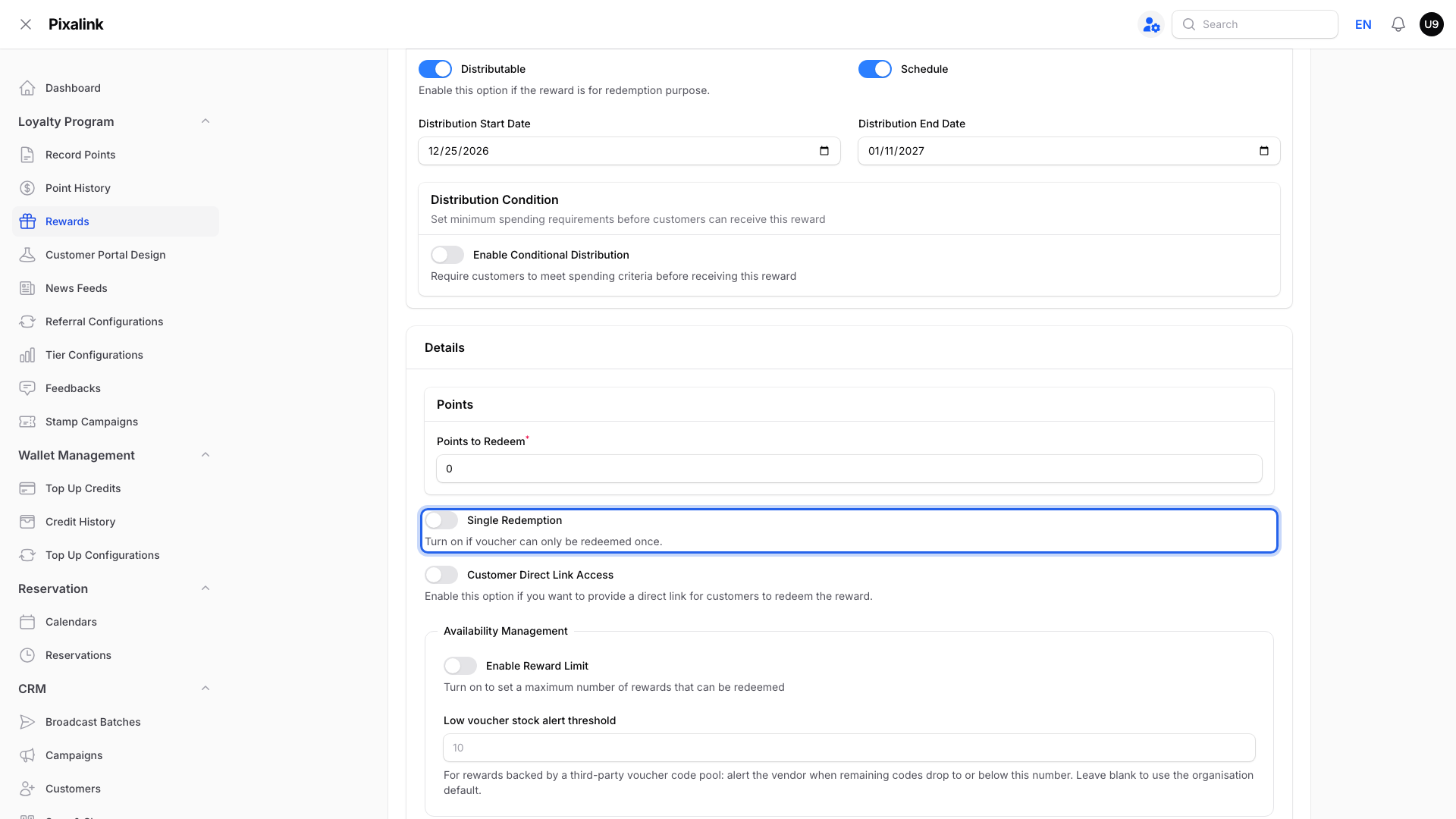
    Details section with Points to Redeem at 0 and the Single Redemption toggle highlighted while it is still off

  8. Click Create at the bottom of the page.
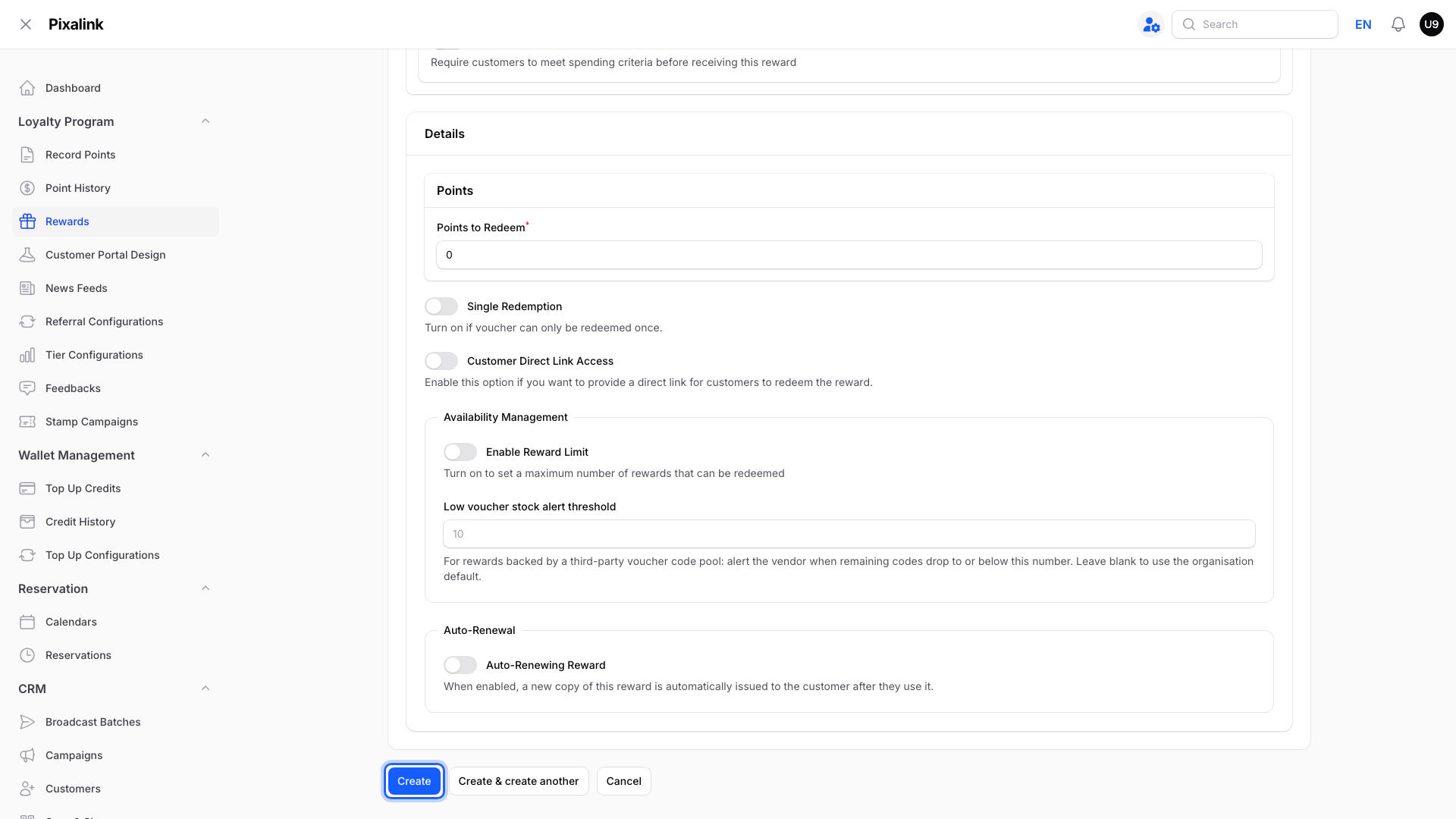
    Bottom of the Create Reward page with the Create button highlighted

What Your Customers Will See

The deal appears in the Reward Marketplace of their portal. Before the start date, they can see it, but its page has no button to claim it. From the start date, the button appears, and they tap to claim it and get a code. The code works until the end of your Expiration Date.
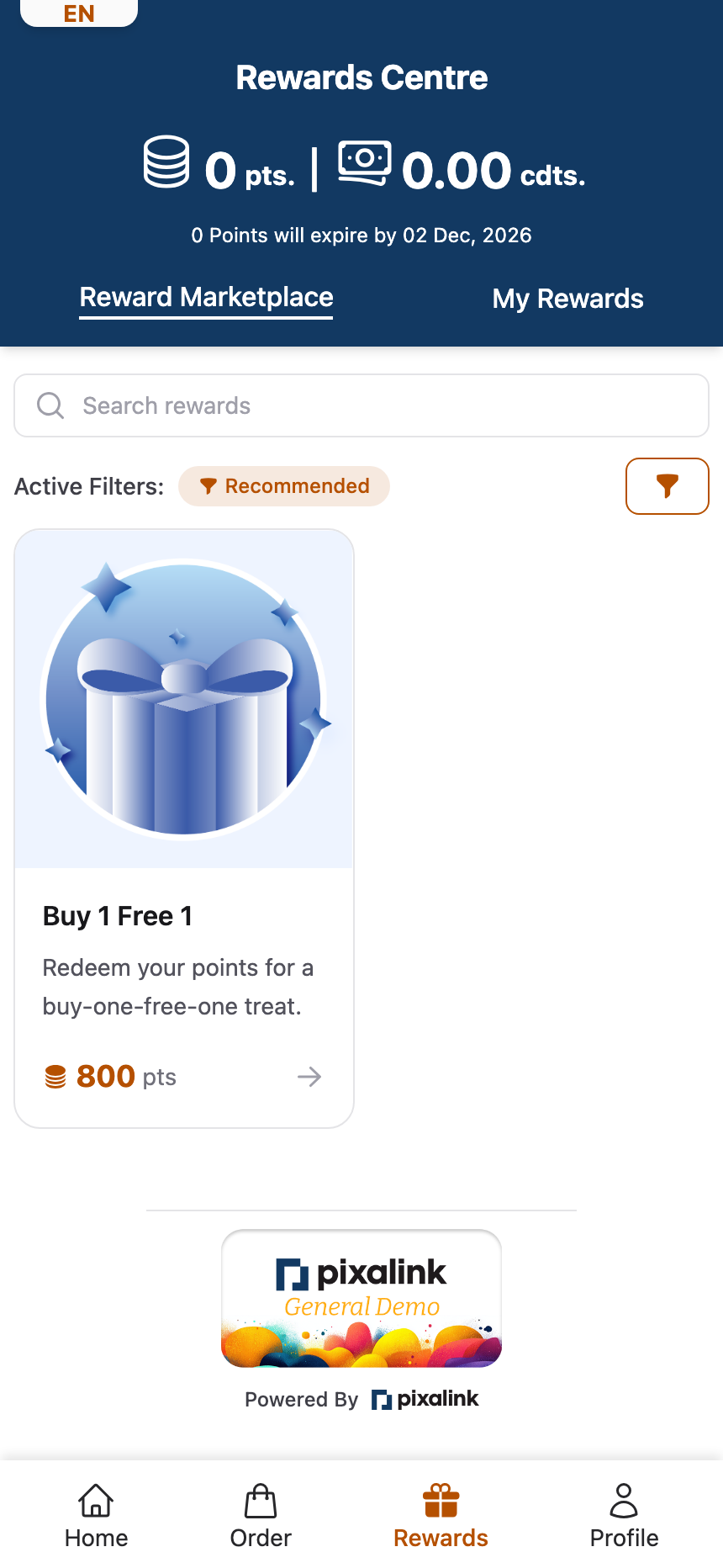
Customer portal Rewards Centre showing a Buy 1 Free 1 reward for 800 points to a customer who has 0 points

Good to Know

  • After the Distribution End Date, the reward leaves the marketplace.

  • To hide the deal before it starts, turn on Set Visibility Period in Reward Visibility Settings and use the same dates.
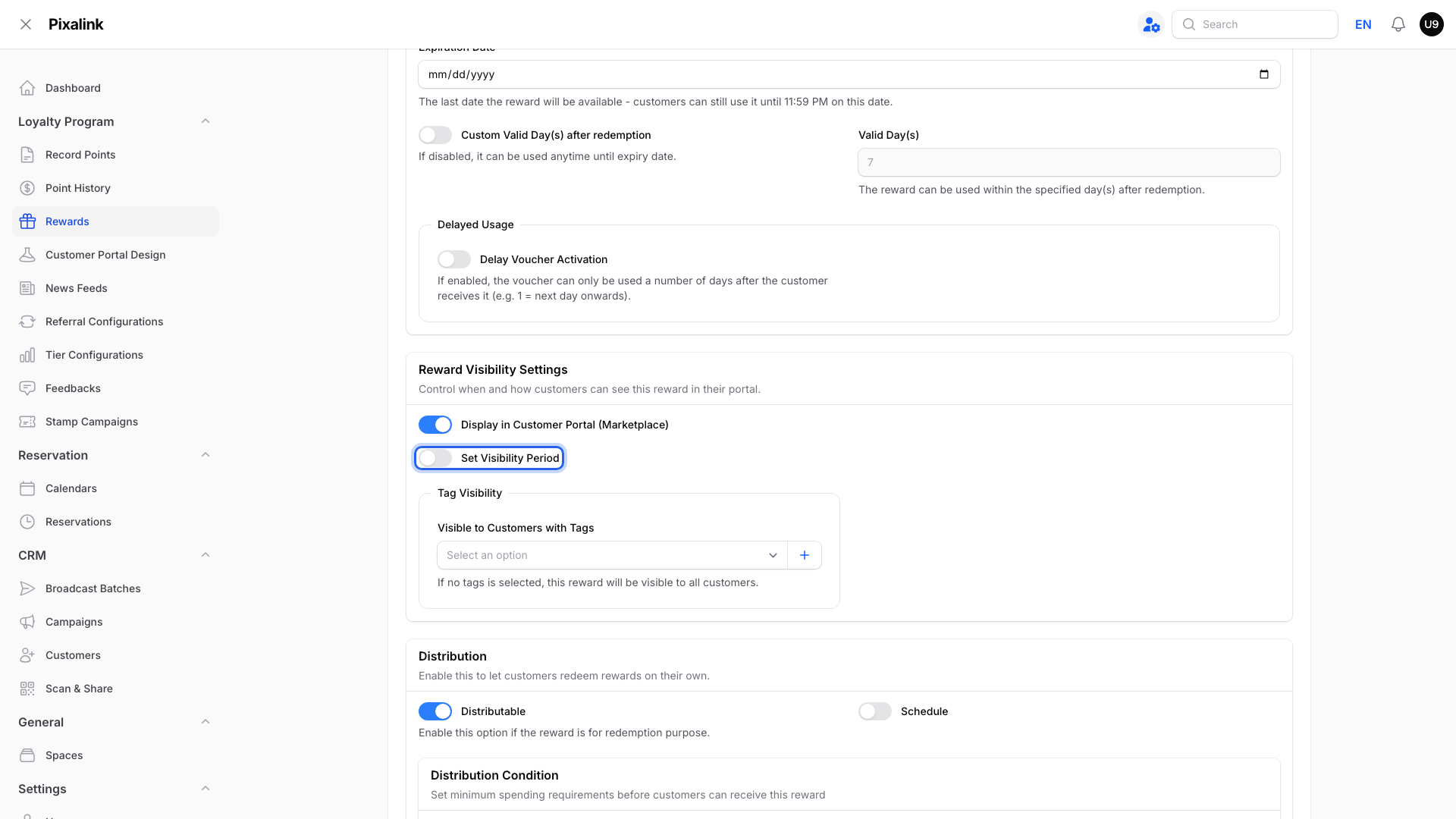
    Reward Visibility Settings on the Settings tab with the Set Visibility Period toggle highlighted while it is still off

  • To cap how many free drinks you give away, see What Single Redemption and Reward Limit Mean.

Need Help?

Contact our support team if your promo dates need a different setup.

What's Next?

Video transcript: Buy 1 Free 1 for a Fixed Period
A Buy 1 Free 1 deal brings customers in fast, but only if it ends on time. This video shows how to set one up with a start and end date. Here is the result first. Before the start date, members already see the deal in the marketplace. They just cannot claim it yet. Take Aishah's Ice Lemon Tea promo, from the twenty fifth of December to the eleventh of January. Members can claim it from the twenty fifth. The eleventh is the last day to claim and use it. On the twelfth, it disappears by itself. In the Admin Panel, open Loyalty Program in the left menu, then select Rewards. Click New Reward at the top right. Type the offer in Reward Name, for example Ice Lemon Tea Buy 1 Free 1. In Terms & Conditions Template, pick Buy one get one Deals. Then edit the terms to say which drink is free. Open the Settings tab. Set Expiration Date to the last day of the promo. In the Distribution box, turn on Schedule. Set the Distribution Start Date to the first promo day, and the end date to the last. Turn on Single Redemption, so each customer claims it only once. Finally, click Create at the bottom of the page. Two things to know. For a free deal, leave Points to Redeem at zero. And to hide the deal until it starts, turn on Set Visibility Period with the same dates. Need a different setup? Contact our support team.

Was this article helpful?

Thank you for your feedback!

0 found this helpful 0 did not

Search