
How to Set Up Conditional Reward Distribution
How to Set Up Conditional Reward Distribution
What Is This?
Stop giving away your best rewards for free. Conditional Reward Distribution holds a reward back until a customer has earned it — by spending enough or collecting enough points. Loyal customers get rewarded, and casual visitors get a reason to come back.
One point to be clear about: this feature unlocks a reward so the customer can claim it. It does not drop the reward into their account on its own — once the condition is met, the customer still taps Redeem Now in their portal.
Video Walkthrough
Real-Life Example
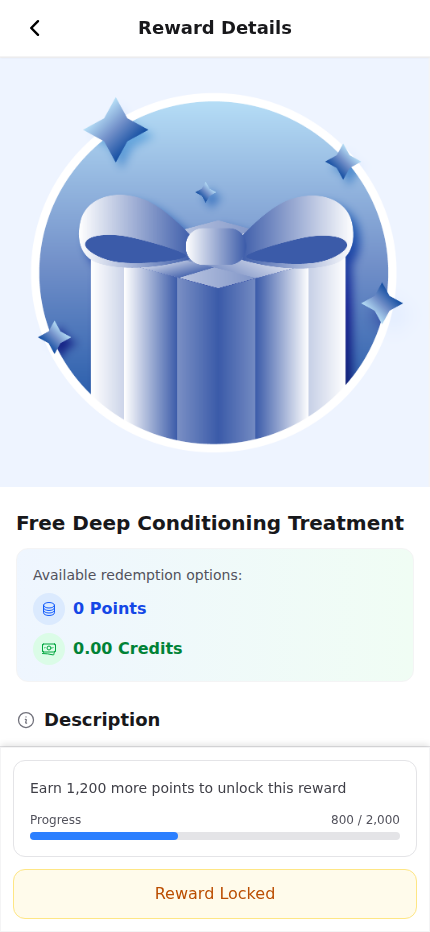
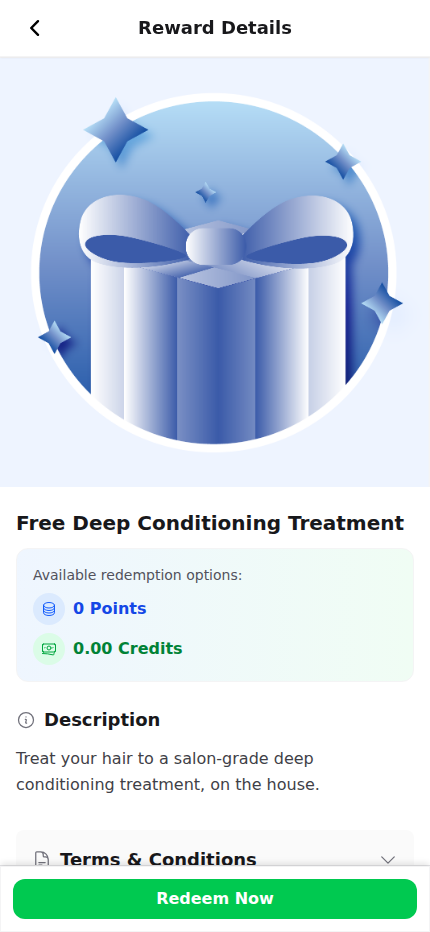
Siti runs a hair salon and creates a "Free Deep Conditioning Treatment" reward. She sets a Cumulative condition of 2,000 points. Aishah has 800 points and sees the reward with a progress bar reading "800 / 2,000". She earns the rest over two more visits, the lock lifts, and a Redeem Now button appears so she can claim her treatment.
How to Set It Up
-
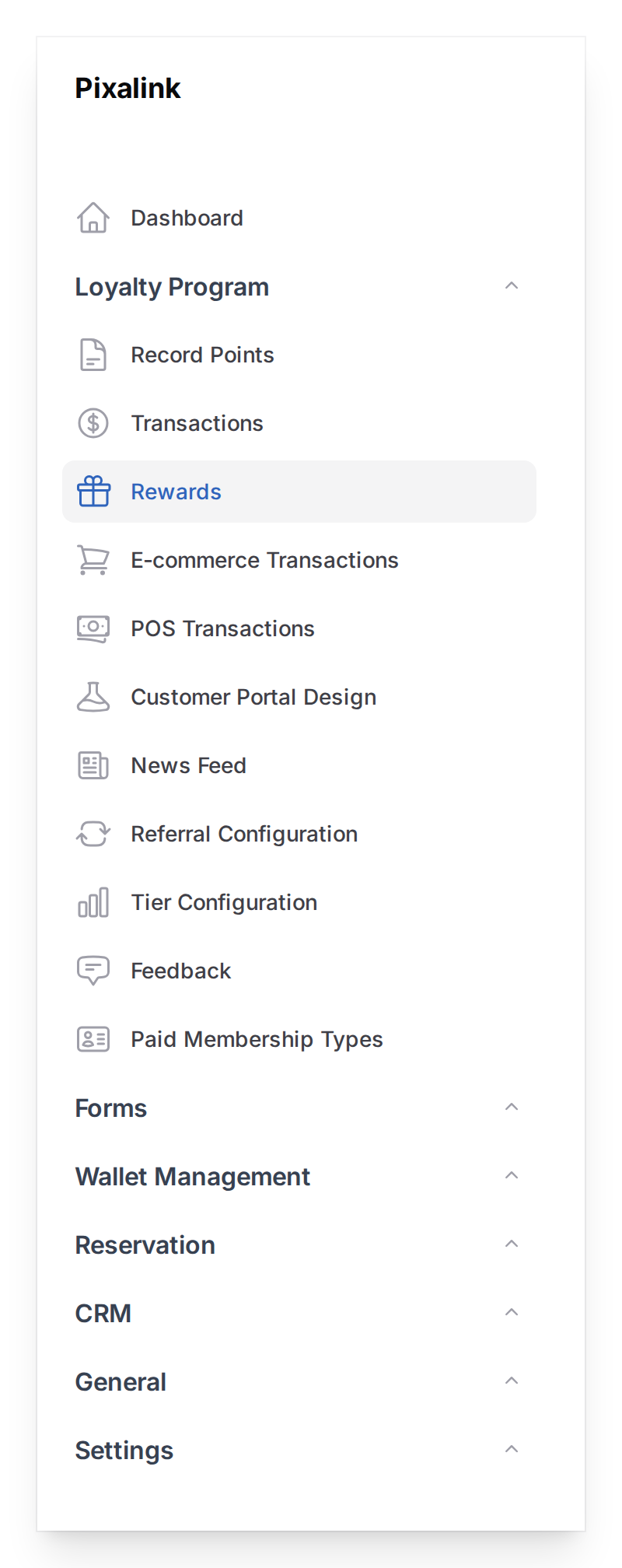
Go to Loyalty Program → Rewards in the left sidebar
-
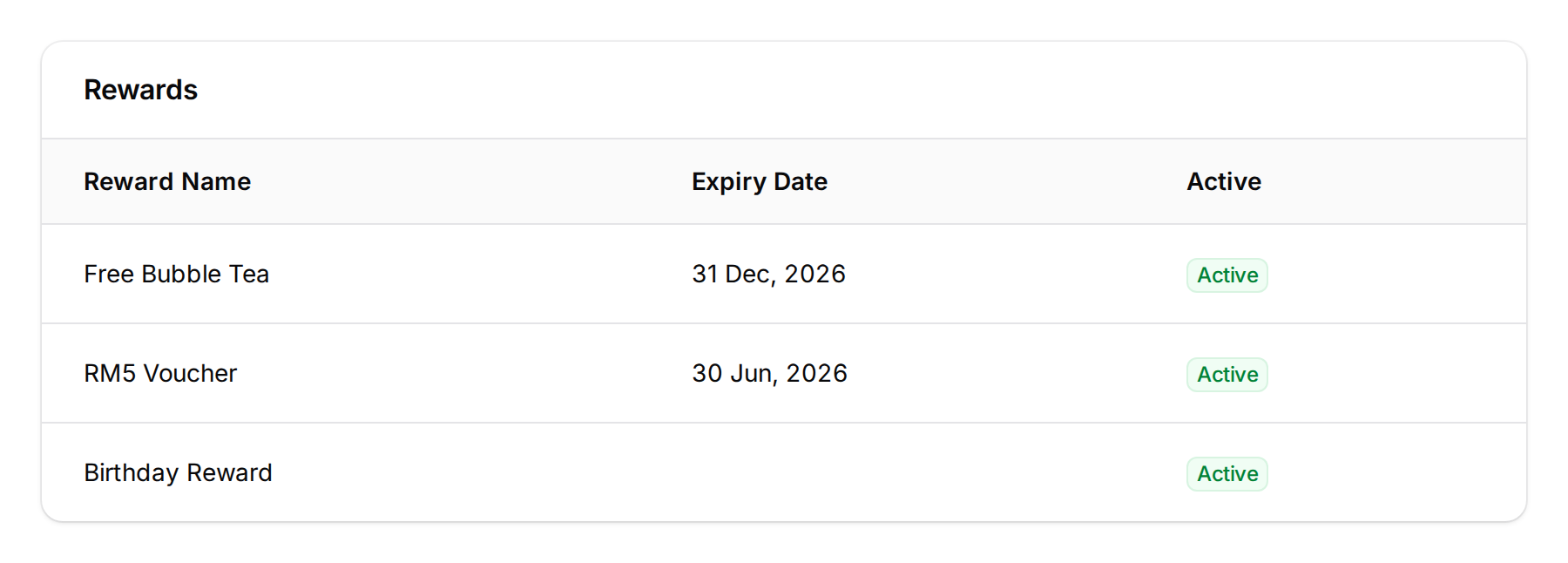
Open the reward you want to set up (or create a new one)
-
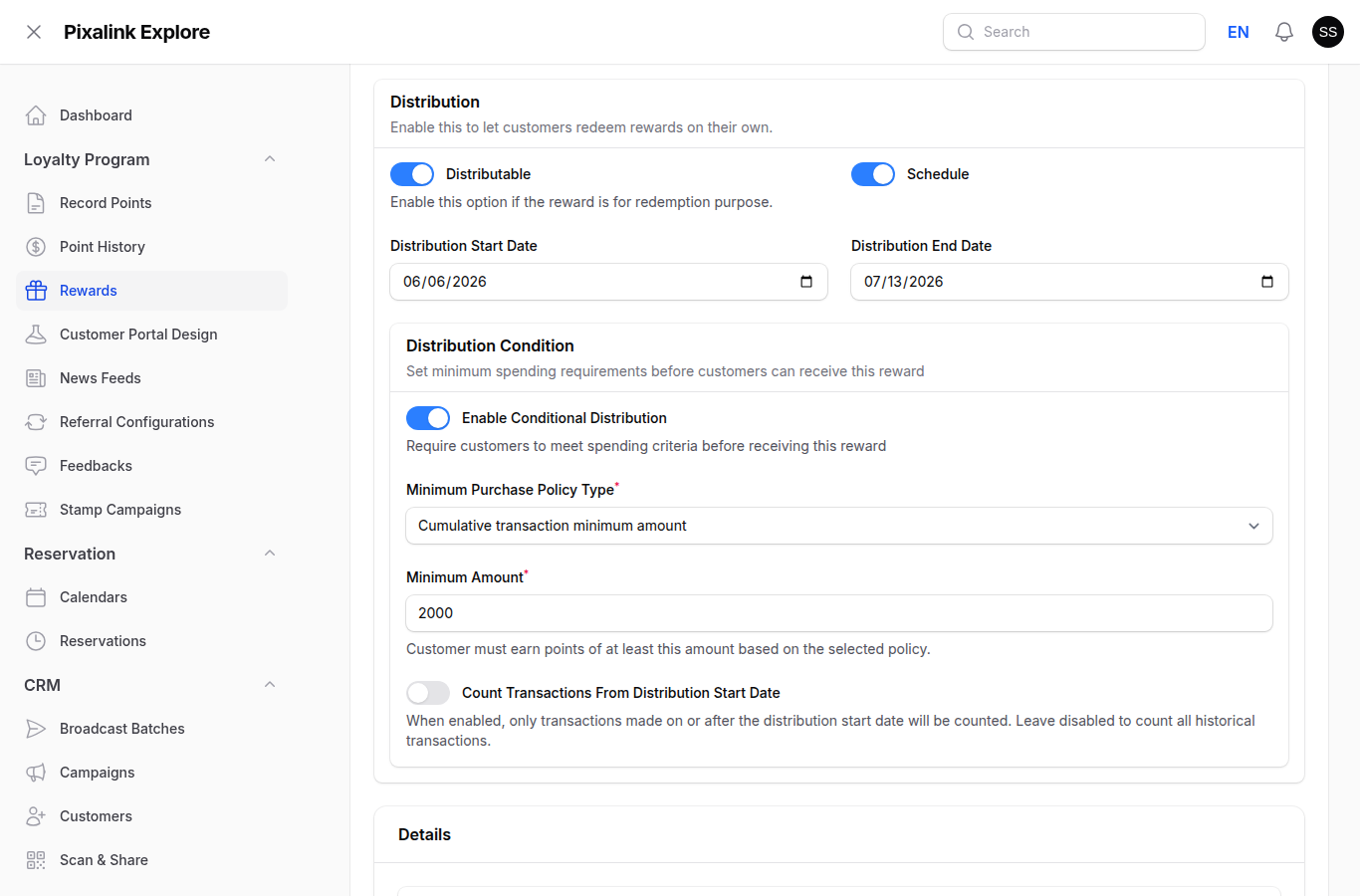
Open the Settings tab, turn on Distributable, scroll to Distribution Condition, fill in the form, then click Save:
- Enable Conditional Distribution — turn on to reveal the condition fields
- Minimum Purchase Policy Type — First transaction (the first purchase alone), Cumulative (earnings add up over time), or Any transaction (one qualifying purchase)
- Minimum Amount — the points (or credits) the customer must earn
- Count Transactions From Distribution Start Date — turn on to count only transactions after the reward's start date; leave off to count all history
What Your Customers Will See
While a customer is short of the target, the reward shows an amber Reward Locked badge. For First transaction and Cumulative types, a progress bar shows how far they have come.
Once they reach the required amount, the lock lifts and a green Redeem Now button appears. The customer taps it to claim the reward — nothing is added before they do.
For the Any transaction type there is no progress bar — the reward stays locked until a single qualifying purchase unlocks it.
Good to Know
- Unlock, not auto-give. Meeting the condition unlocks the reward to claim — it is not placed in the account on its own. For a reward handed out automatically, use a reward automation instead.
- Distributable must be on — the Distribution Condition section won't appear without it
- The minimum counts points the customer earns (or credits), not ringgit directly — so match the amount to your points settings
- Count from start date is off by default — all past transactions count unless you turn it on
Need Help?
If a reward is not unlocking the way you expect, confirm that Distributable is on and that the Minimum Amount matches how your points are awarded. The Pixalink support team can help you pick the policy type that fits your promotion.
What's Next?
- What Are Rewards and How to Create Them — new to rewards? Start here
- How to Set Up New Customer Reward Automation — hand a reward to customers automatically
- Customer Reward Lifecycle Explained — see how rewards move from pending to used or expired