
How to Give Different Voucher Discounts for Different Spend Amounts
What Is This?
You may want bigger bills to get bigger discounts, like RM2 off for RM21 to RM30 and RM12 off for RM81 to RM100. One Pixalink voucher can't do this. Each voucher holds one discount and, at most, one minimum spend.
Instead, make one voucher per spend band.
Real-Life Example
Siti runs a coffee shop in Ipoh. She wanted RM2 off a RM25 bill and RM12 off a RM90 bill, all on one voucher. Pixalink couldn't hold seven bands in one voucher.
So she made seven vouchers, one per band. Her Eats365 POS now checks each minimum spend. A RM35 bill can use the RM2 or RM5 voucher, and the customer picks RM5.
How to Set It Up
-
Go to Admin Panel → Loyalty Program → Rewards and click New Reward.

New Reward is the first button at the top right.
-
Type the band into Reward Name, such as "RM5 Off (Spend RM31 to RM40)". Fill in the other required fields, such as the description and validity dates, as usual.

Customers see this name.
-
Write the band rule in Terms & Conditions.

Pixalink doesn't enforce rules written here, so your staff check them at the counter.
-
If you use Eats365, open Configurations. Under Eats365 Integration Settings, turn on Enabled, set Voucher Version to V1 and pick the outlets it applies to. Set Offer Type to Amount Discount on Whole Bill and enter the Discount Amount. Under Conditions, turn on Enabled, pick Total Price of the Order, then type the band's lowest amount in Minimum Price.
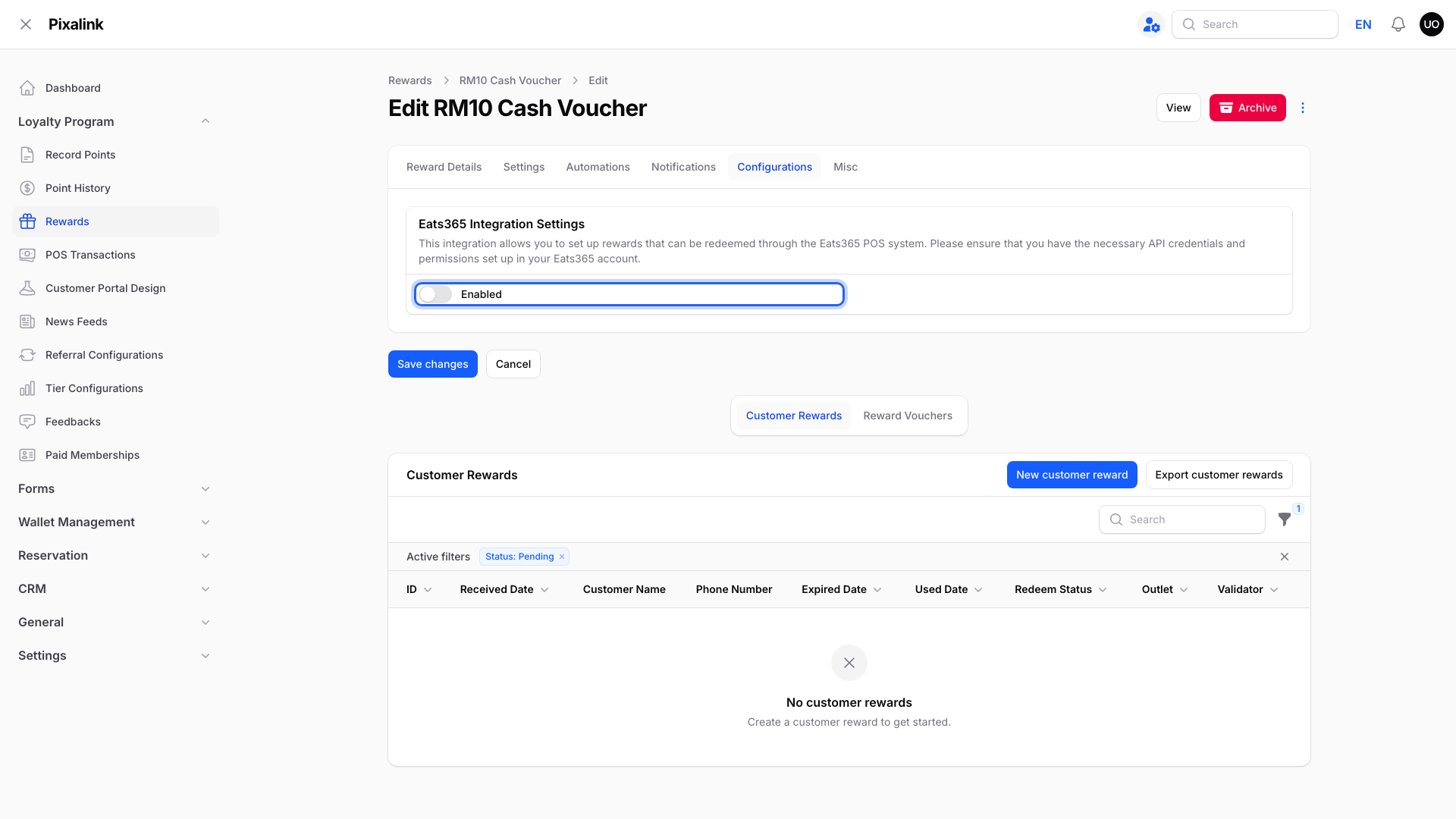
This example shows RM5 off with a Minimum Price of 30. For the RM31 to RM40 band, type 31.
-
Click Create & create another, then repeat steps 2 to 4 for the next band.
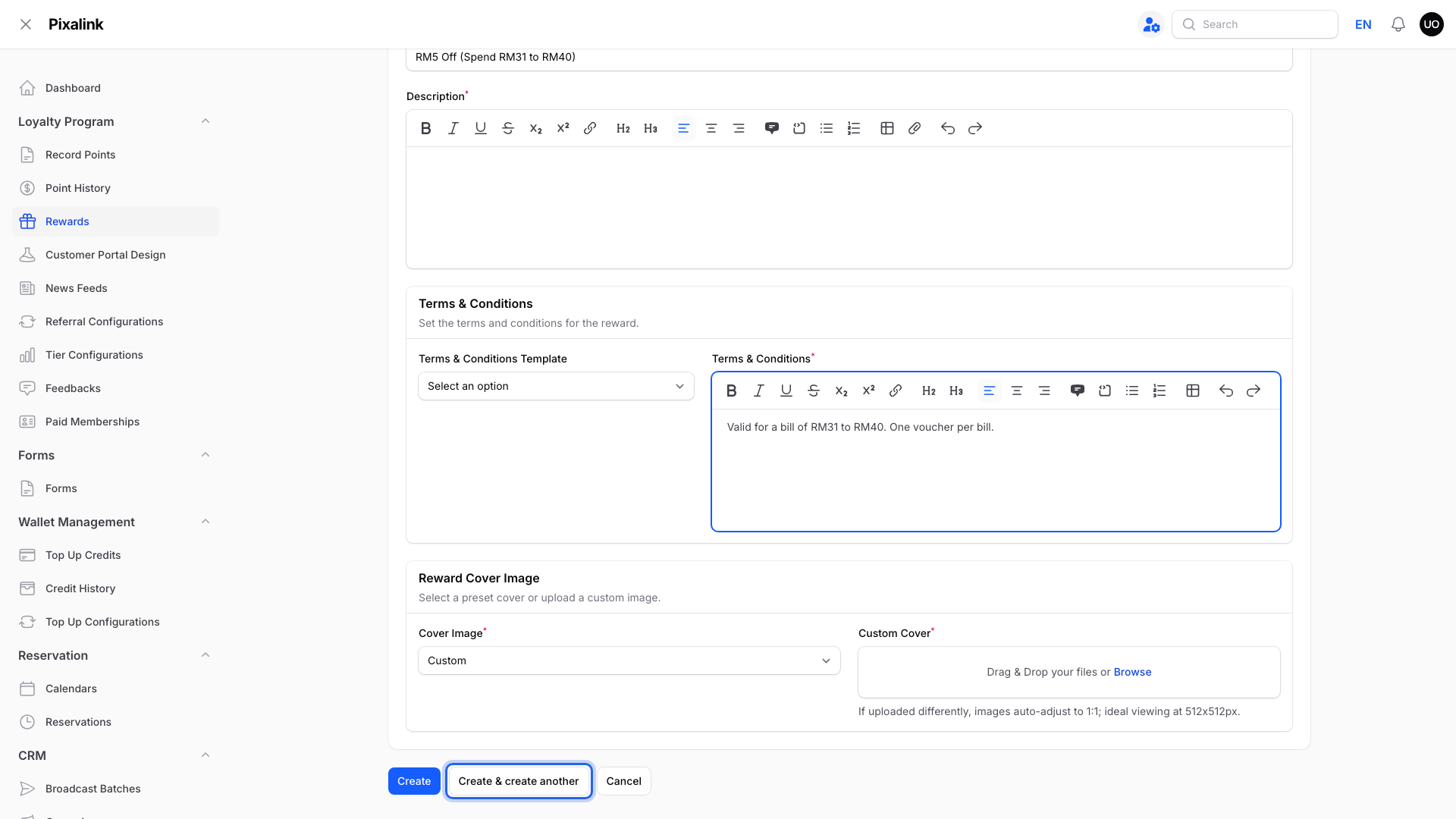
This saves the voucher and opens a fresh form.
What Your Customers Will See
Each band shows as its own voucher, with its own name and terms.
Good to Know
- No maximum spend. A RM90 bill meets every minimum from RM21 to RM81. Write the upper limit in Terms & Conditions.
- One voucher per bill isn't automatic. Check with Eats365 whether one bill can take two vouchers.
- Each voucher is separate. A customer who holds several band vouchers can use each of them.
- On Voucher Version V2, the discount lives in Eats365. Ask Eats365 whether its discounts can hold spend bands.
- Shopify also takes one Minimum Amount per voucher.
Need Help?
Contact our support team to plan your bands.