
Voucher Minimum Spend, Service Charge and Tax Explained
Voucher Minimum Spend, Service Charge and Tax Explained
What Is This?
Many vouchers have a minimum spend, like "RM10 off when you spend RM50". You may want that RM50 to count food only, before service charge and tax.
Pixalink has no switch for this. Who checks the bill depends on where the voucher is used. This guide shows what you control in Pixalink and what your POS controls.
How It Works
| Where the voucher is used | Who checks the minimum spend | Can Pixalink choose before or after service charge and tax? |
|---|---|---|
| Eats365, Voucher Version V1 | Your Eats365 POS, using the Minimum Price you enter in Pixalink | No |
| Eats365, Voucher Version V2 | Your Eats365 POS, using the discount you set up in Eats365 | No, it's an Eats365 setting |
| Shopify | Shopify, using the Minimum Amount on the reward's Shopify tab (for codes Pixalink creates), checked against the order subtotal | No |
| Your counter | Your staff, using the rule in Terms & Conditions | You write the rule yourself |
Eats365 with Voucher Version V1
Go to Loyalty Program → Rewards, edit the reward and open the Configurations tab. With Eats365 turned on, Voucher Version set to V1 and your outlets picked in Applicable Spaces, the Conditions section appears. Switch it on. The Condition Type called Total Price of the Order uses the Minimum Price you type in.
For the minimum spend, Pixalink sends Eats365 only that one number. It sends no rule about service charge or tax.
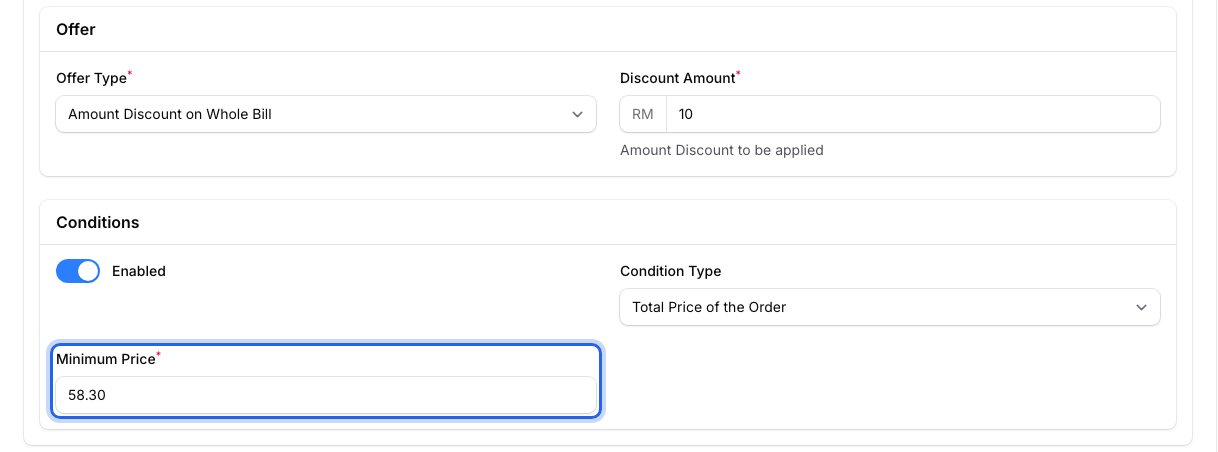
Minimum Price is a single amount. There is no option for which part of the bill it counts.
Eats365 with Voucher Version V2
With V2, Pixalink sends Eats365 a Discount Code instead of the discount itself. The discount and any rule attached to it live in Eats365. To change how it counts the bill, ask Eats365 support.
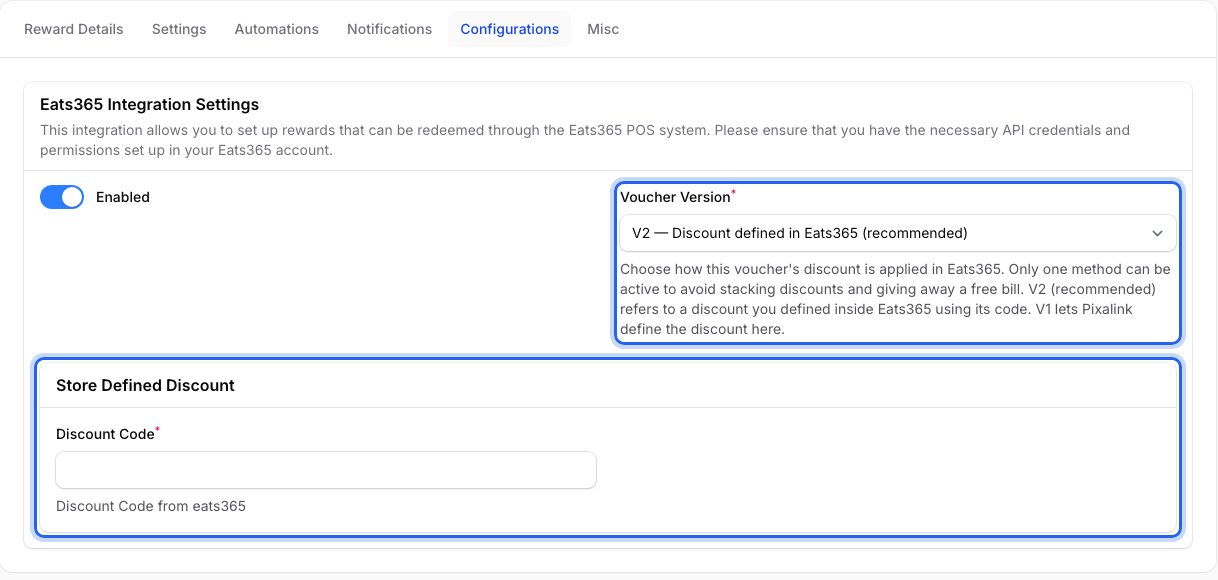
On V2, Pixalink passes this code to your POS. The discount amount is set in Eats365.
Vouchers redeemed at your counter
When staff redeem a voucher in Pixalink, nothing checks the bill. Write the rule in Terms & Conditions on the Reward Details tab. Say exactly which amount counts, such as "Minimum spend of RM50 on food and drinks, before service charge and SST."
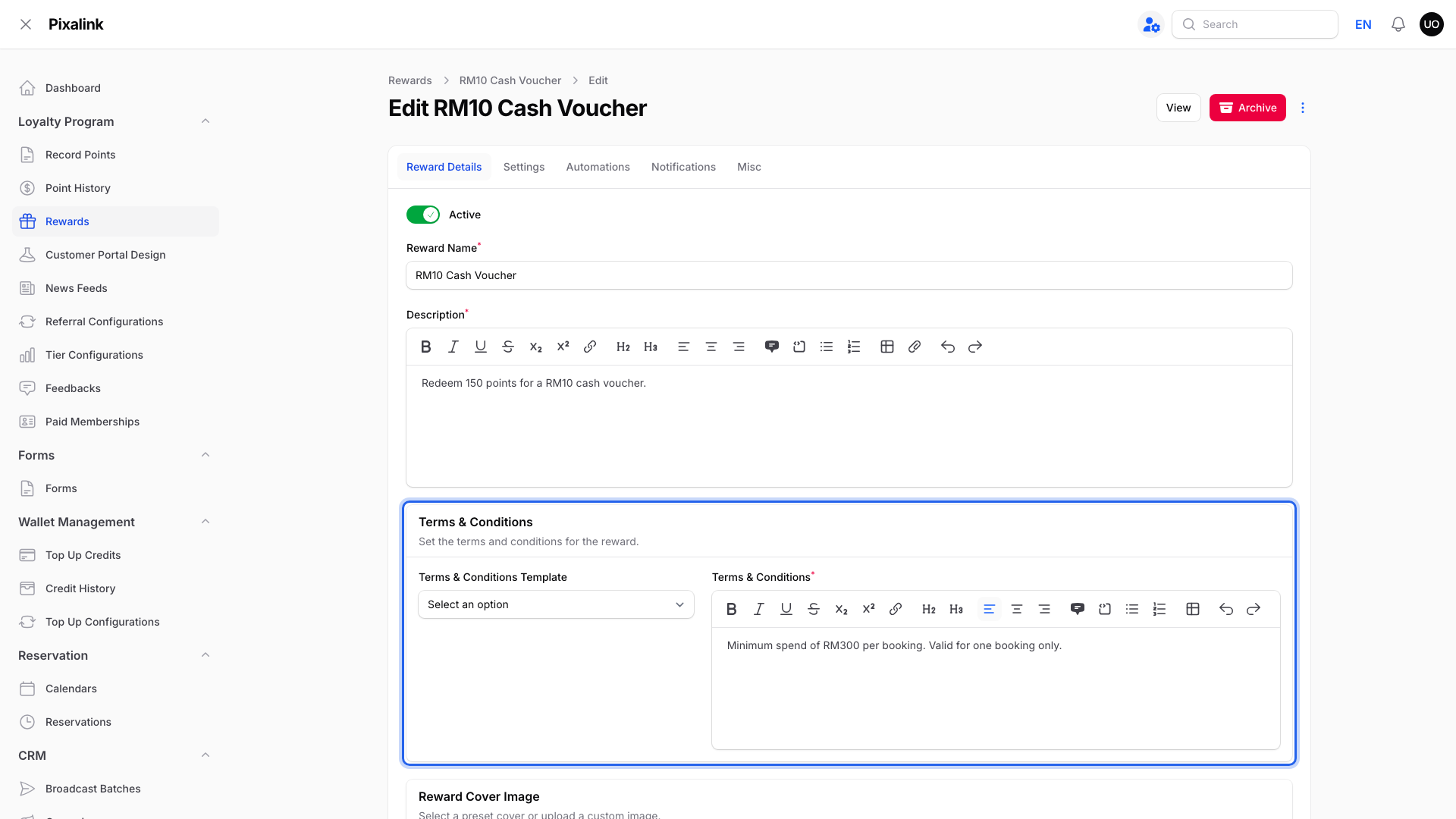
Members see these terms on their voucher in the portal.
Real-Life Example
Wei Lin runs a café in Petaling Jaya with Eats365 at the counter. Her "RM10 off" voucher had a Minimum Price of RM50. At her outlet, the POS checked the total after 10% service charge and 6% SST.
A RM46 meal became RM53.64, so the voucher went through. Wei Lin wanted RM50 of food before any charges. She worked out RM50 plus 10% plus 6% and set the Minimum Price to 58.30.
Now a RM46 meal no longer qualifies, and a RM50 meal does. She also changed her terms to say "RM50 before service charge and SST" so customers know the rule.
Good to Know
- Do the sum once. If your POS checks the total after charges, multiply your food amount by 1.10 and then 1.06 (for 10% service charge and 6% SST). RM50 becomes RM58.30. Test it on one real bill first.
- Keep your terms in step. Customers see Terms & Conditions, not the Minimum Price. Make both say the same thing.
- Edits apply on the next lookup. Pixalink sends the Minimum Price each time your POS looks up the member. A change applies from the next lookup.
- Distribution Condition is different. It decides who can receive a reward based on past spending. It does not check the bill when the voucher is used.
Need Help?
Not sure which Voucher Version you use? Contact our support team.