
Eats365 Reward Offer & Condition Types — Configuration Guide
Eats365 Reward Offer & Condition Types — Configuration Guide
What Is This?
When you create rewards in Pixalink that are redeemable at Eats365 POS terminals, you need to configure offer types (what discount the customer gets) and condition types (what the customer must do to qualify). These settings are stored in the reward's Eats365 properties and sent to the POS as "coupons" when a customer's membership is looked up.
This guide is a reference for all available offer and condition types, how to configure them, and common combinations.
Offer Types
Offer types define what the customer receives when they redeem the reward at the POS.
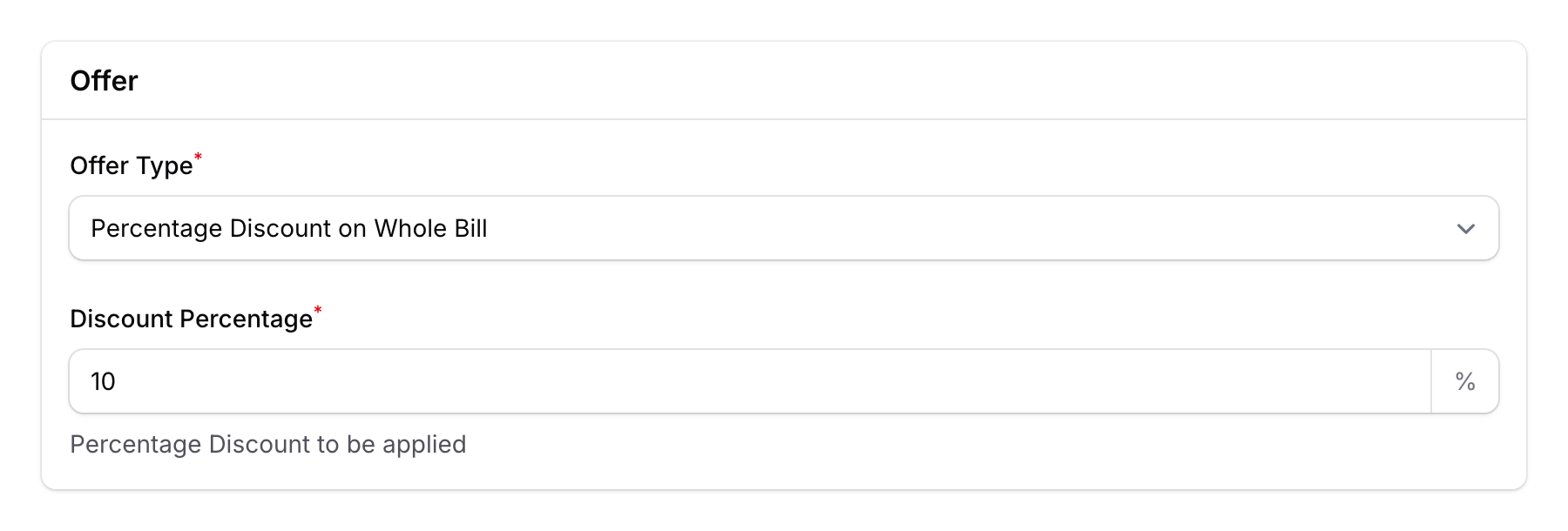
Type 1: Percentage Discount (Storewide)
Applies a percentage discount to the entire bill.
- Discount (%) — The percentage off (e.g.,
10for 10% off) - Example: "10% off your entire bill"
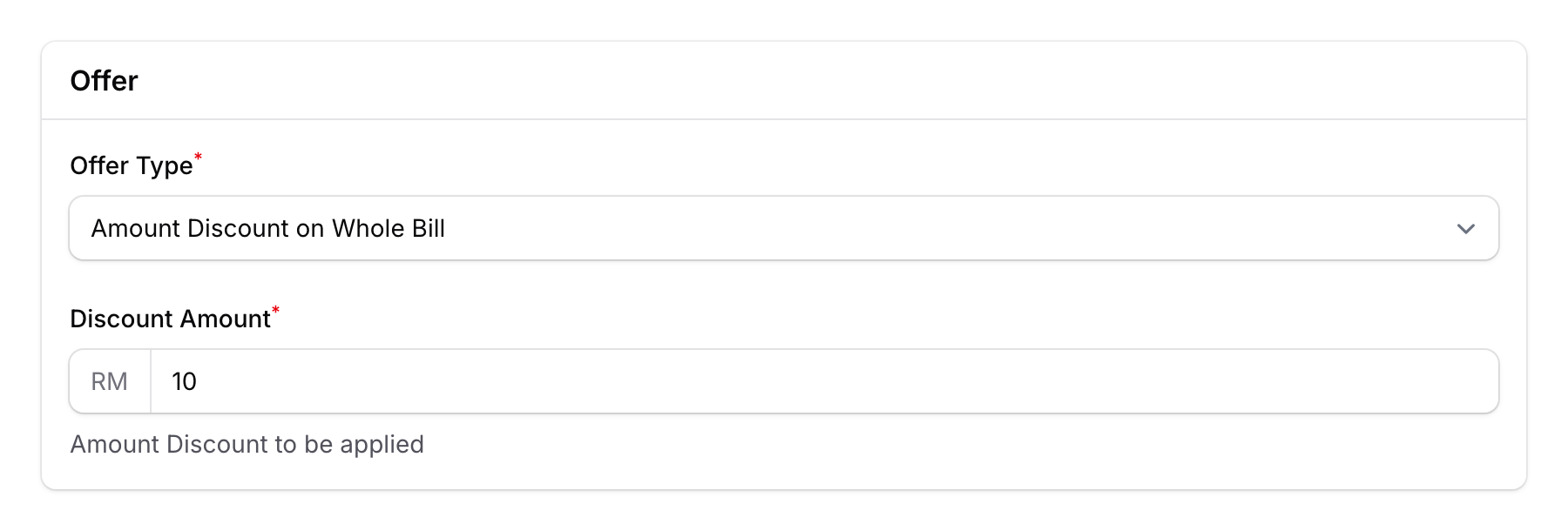
Type 2: Fixed Amount Discount (Storewide)
Deducts a fixed amount from the total bill.
- Discount Amount — The fixed amount in RM (e.g.,
5.00for RM5 off) - Example: "RM5 off your next visit"
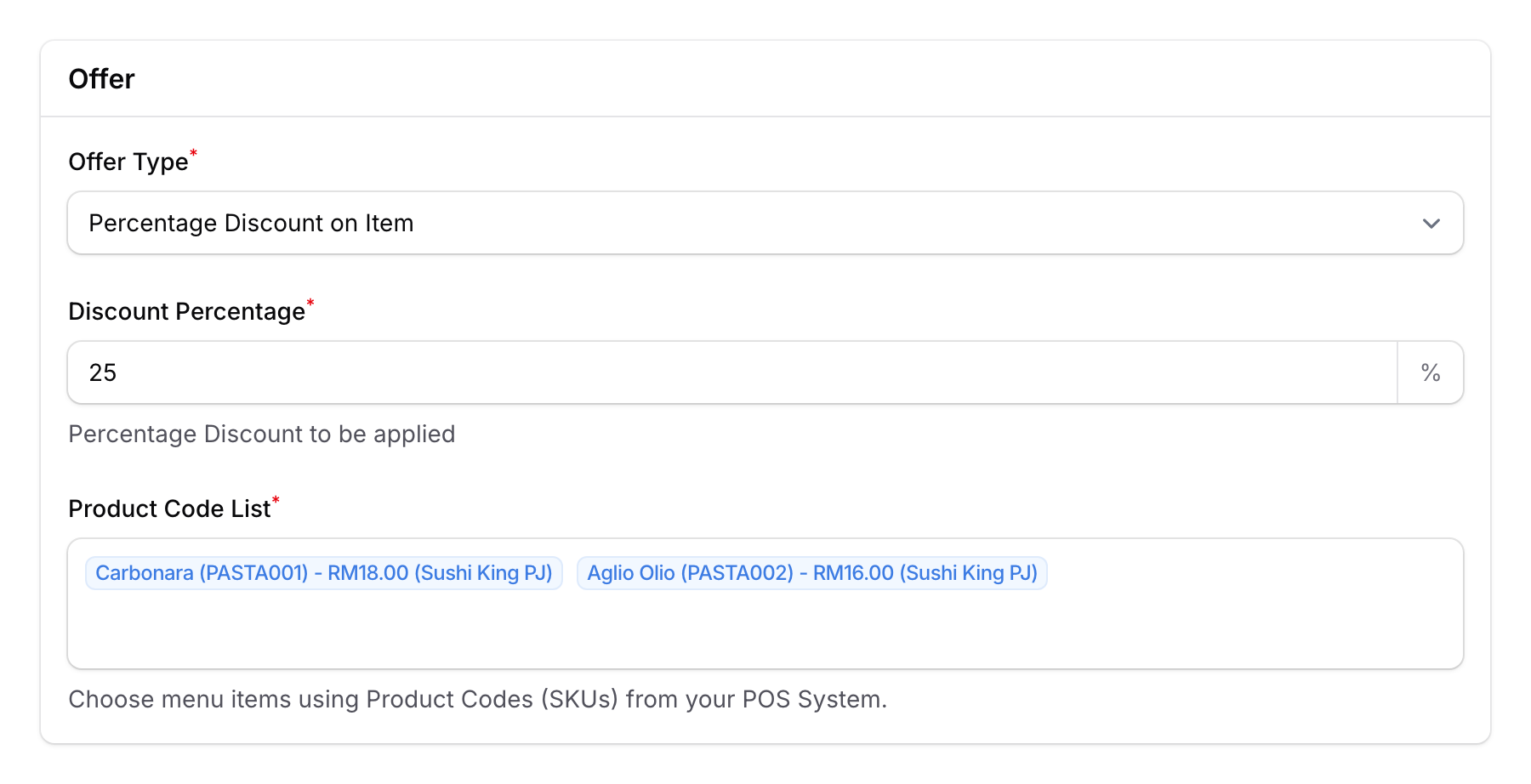
Type 3: Percentage Discount on Specific Products
Applies a percentage discount only to selected products.
- Discount (%) — The percentage off
- Product Codes — Select which products this applies to from the Eats365 menu dropdown
- Example: "20% off any pasta dish"
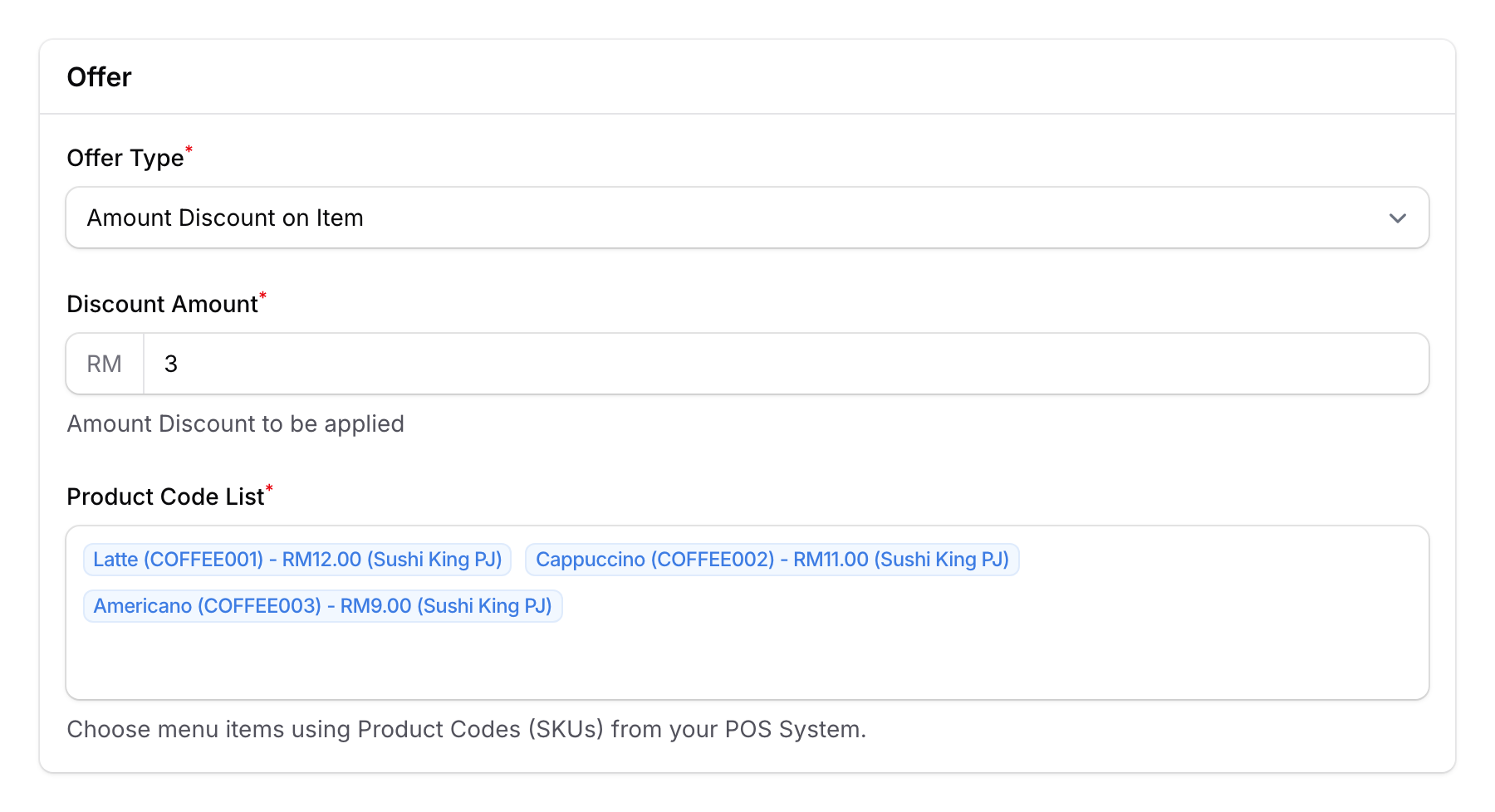
Type 4: Fixed Amount Discount on Specific Products
Deducts a fixed amount from selected products only.
- Discount Amount — The fixed amount in RM
- Product Codes — Select which products this applies to
- Example: "RM3 off any coffee"
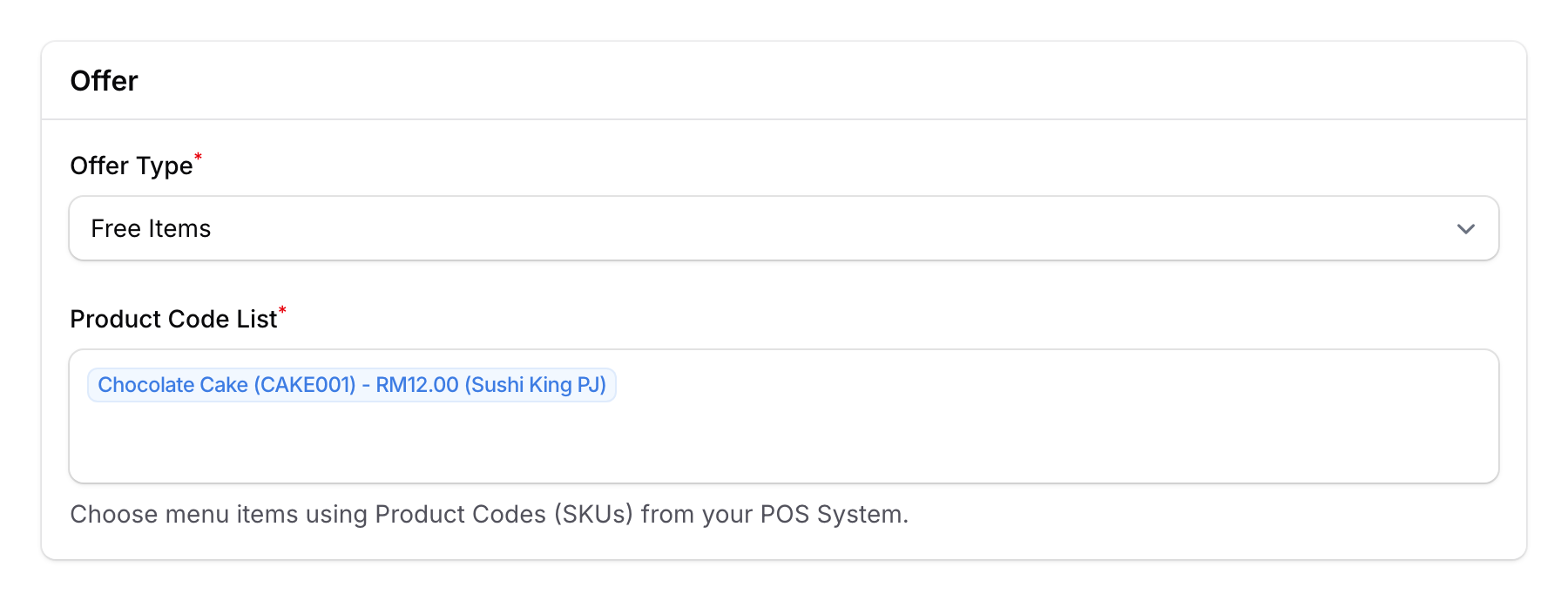
Type 5: Free / Included Products
Gives the customer specific products for free.
- Product Codes — Select which products are given free
- Quantity — How many units are included
- Example: "Free slice of cake with any purchase"
Type 6: Amount Discount on Item — Single Item Only
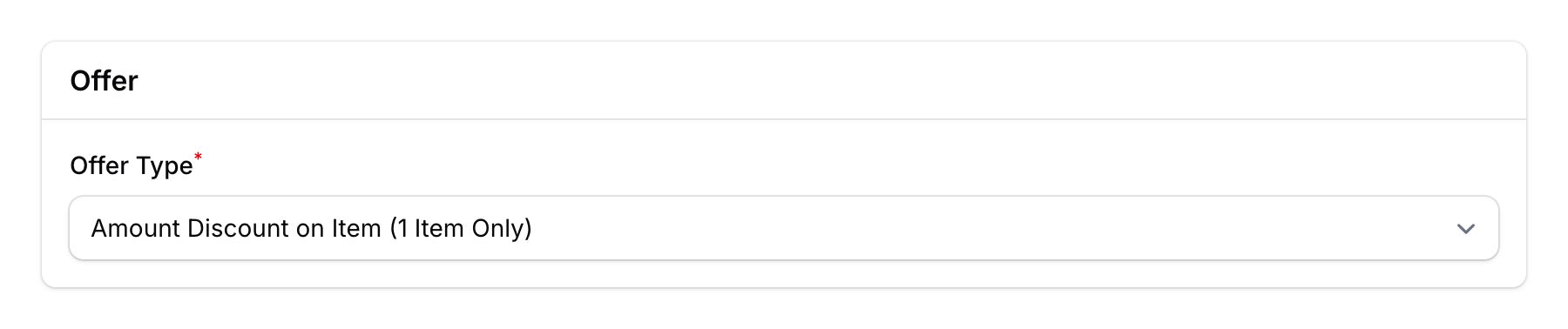
Similar to Type 4, but the discount applies to only one item (not all matching items in the order).
- Example: "RM5 off one main course"
Note: Type 6 does not show any additional configuration fields (no Discount Amount, no Product Code List). Only the Offer Type selection itself is required. The discount details are managed on the Eats365 side.
Condition Types
Condition types define what the customer must do to qualify for the reward. Conditions are optional — if no condition is set, the reward can be redeemed without any requirement.
To add a condition:
- Toggle the Enabled switch under the Conditions section
- Select a Condition Type from the dropdown (only appears when enabled)
- Fill in the condition-specific fields
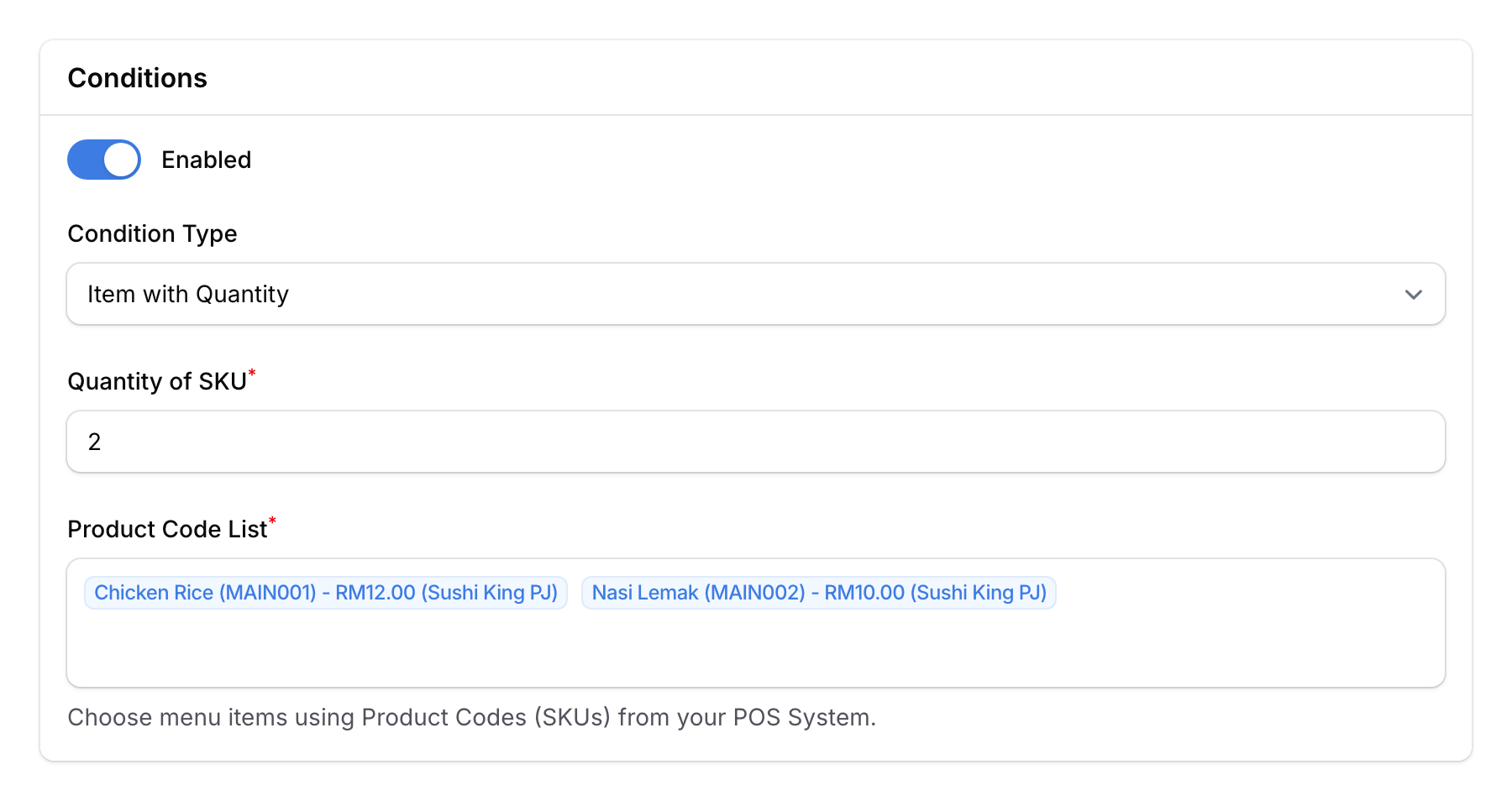
Type 1: Quantity of Specific Products
Customer must order a minimum quantity of specific products.
- Product Codes — Which products count
- Minimum Quantity — How many the customer must order
- Example: "Buy 2 main courses" (then get 10% off)
Type 2: Minimum Total Price
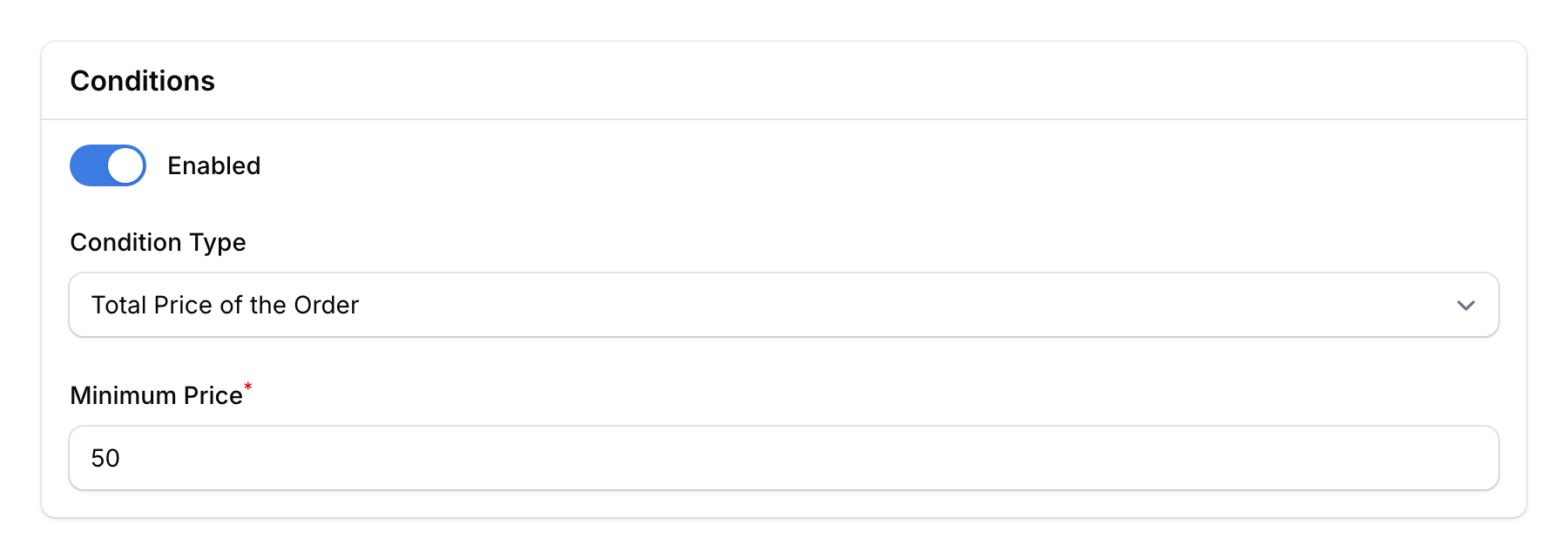
Customer's order must meet a minimum spend.
- Minimum Amount — The minimum bill total in RM
- Example: "Spend at least RM50" (then get RM5 off)
Type 3: Minimum Quantity of Any Product
Customer must order a minimum number of items (any product counts).
- Minimum Quantity — The total number of items required
- Example: "Order at least 3 items" (then get a free drink)
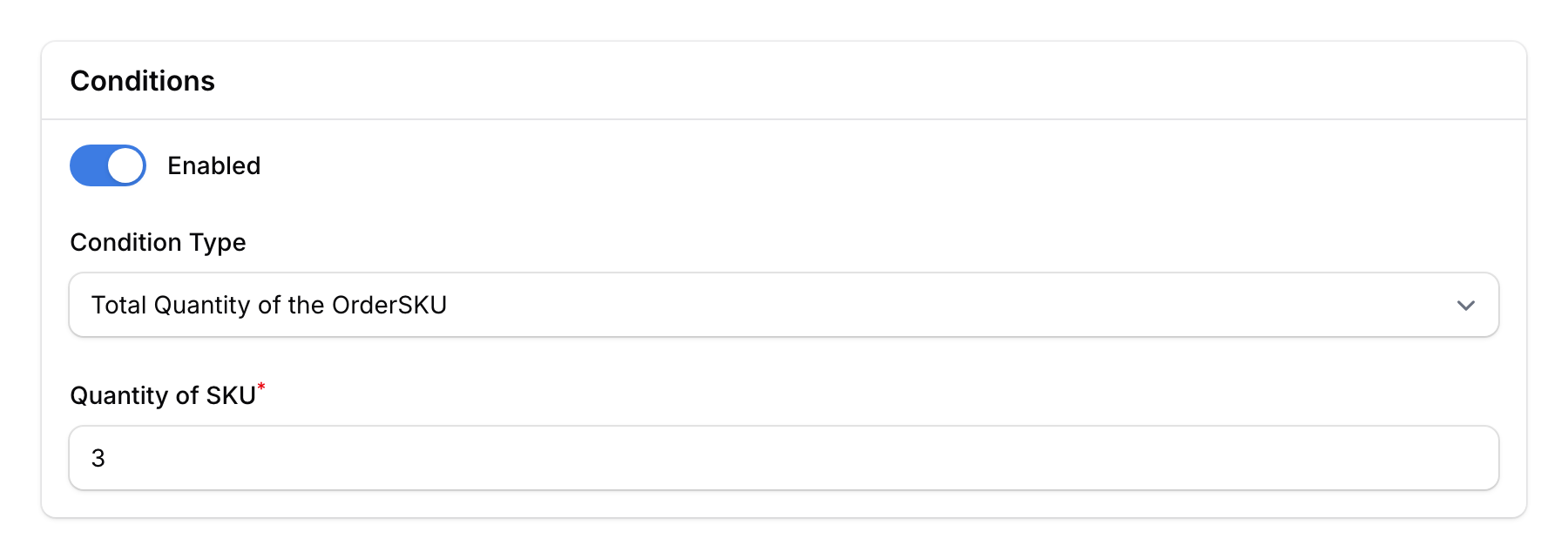
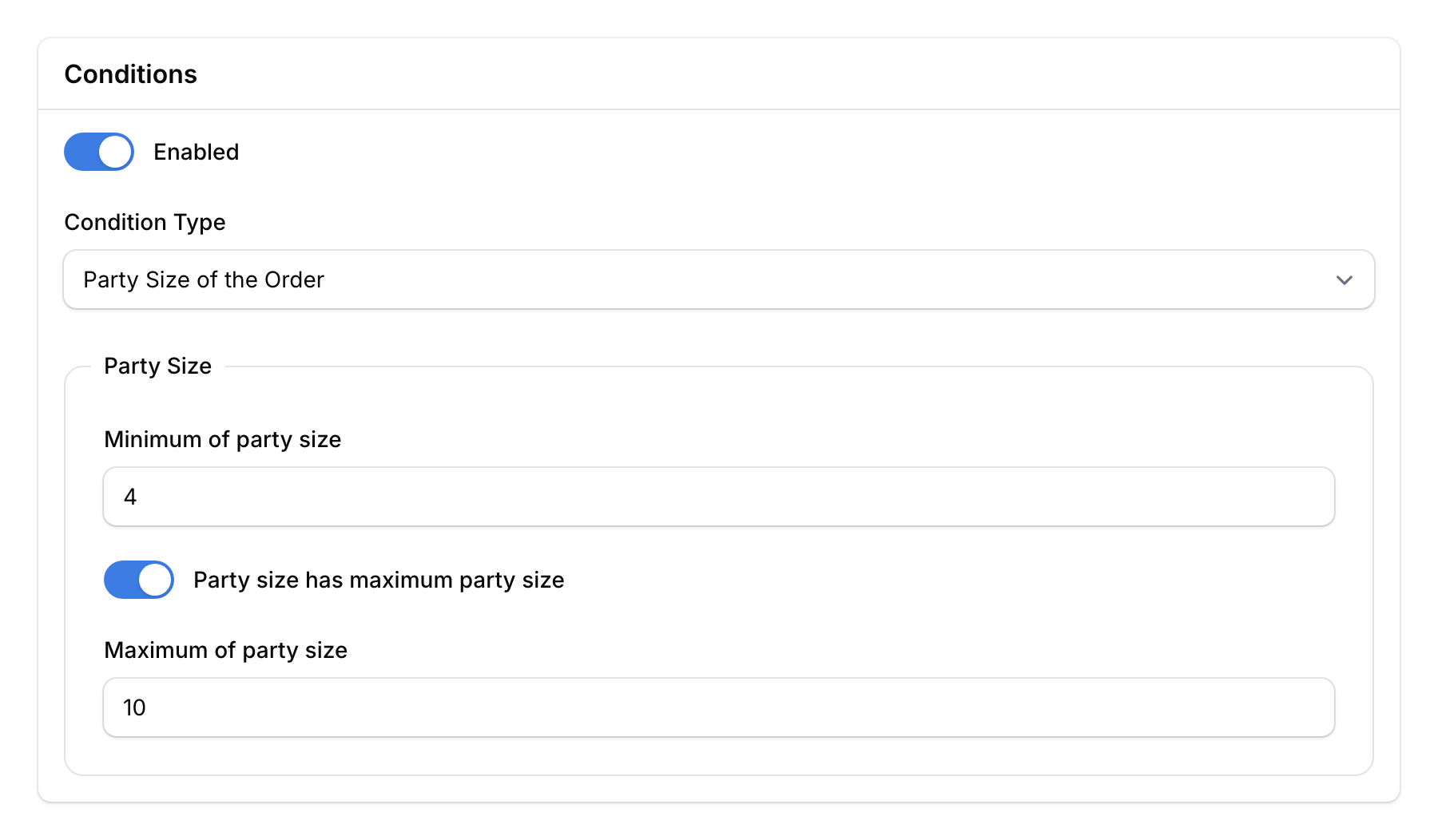
Type 4: Party Size
The number of diners at the table must fall within a range.
- Minimum Party Size — The minimum number of guests
- Maximum Party Size — The maximum number of guests (optional)
- Example: "Table of 4 or more" (then get 15% off)
Common Combinations
Here are popular offer + condition pairings used by restaurants:
| Reward Name | Offer Type | Condition Type | Description |
|---|---|---|---|
| Birthday Special | Type 1 (15% off) | Type 2 (Min RM30) | 15% off when you spend RM30+ on your birthday |
| Buy 2 Get 1 Free | Type 5 (Free item) | Type 1 (2x specific product) | Buy 2 coffees, get 1 free |
| Group Dining Deal | Type 2 (RM20 off) | Type 4 (Min 6 guests) | RM20 off for tables of 6 or more |
| Pasta Lover | Type 3 (25% off pasta) | Type 3 (Min 2 items) | 25% off pasta when you order 2+ items |
| Welcome Voucher | Type 2 (RM10 off) | Type 2 (Min RM50) | RM10 off your first visit (min spend RM50) |
What You Set in Pixalink and What You Set in Eats365
You do not need to set up condition Types 1 to 4 in Eats365. All four conditions are set on the reward in Pixalink, and Pixalink sends them to Eats365 with the voucher. This works the same on Voucher Version V1 and V2.
| Setting | Where you set it |
|---|---|
| Conditions, Types 1 to 4 (specific products, minimum spend, minimum items, party size) | Pixalink, in the reward's Conditions section |
| The discount itself, on Voucher Version V1 | Pixalink, in the reward's Offer section |
| The discount itself, on Voucher Version V2 | Eats365, as a Merchant Discount. In Pixalink you only enter its Discount Code |
| The products you can pick in the product lists | Eats365. Pixalink reads your Eats365 menu, so add or rename products there |
How to Configure in Admin Panel
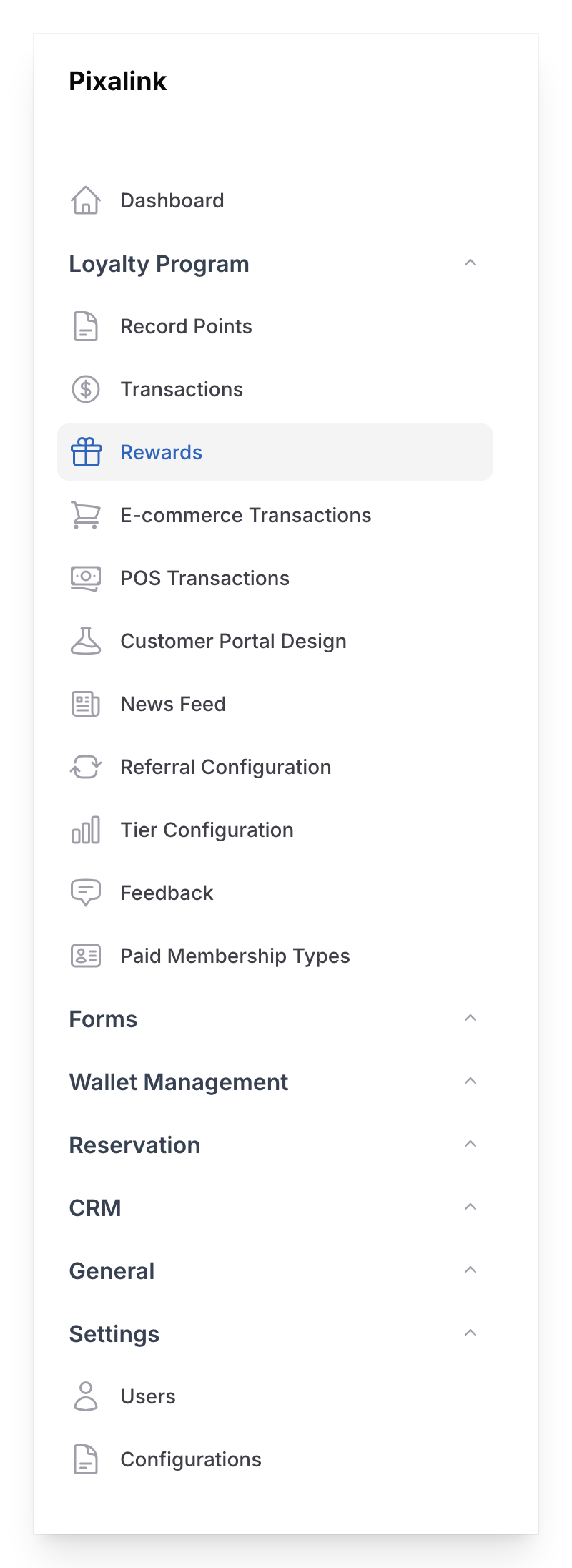
- Go to Rewards and create or edit a reward
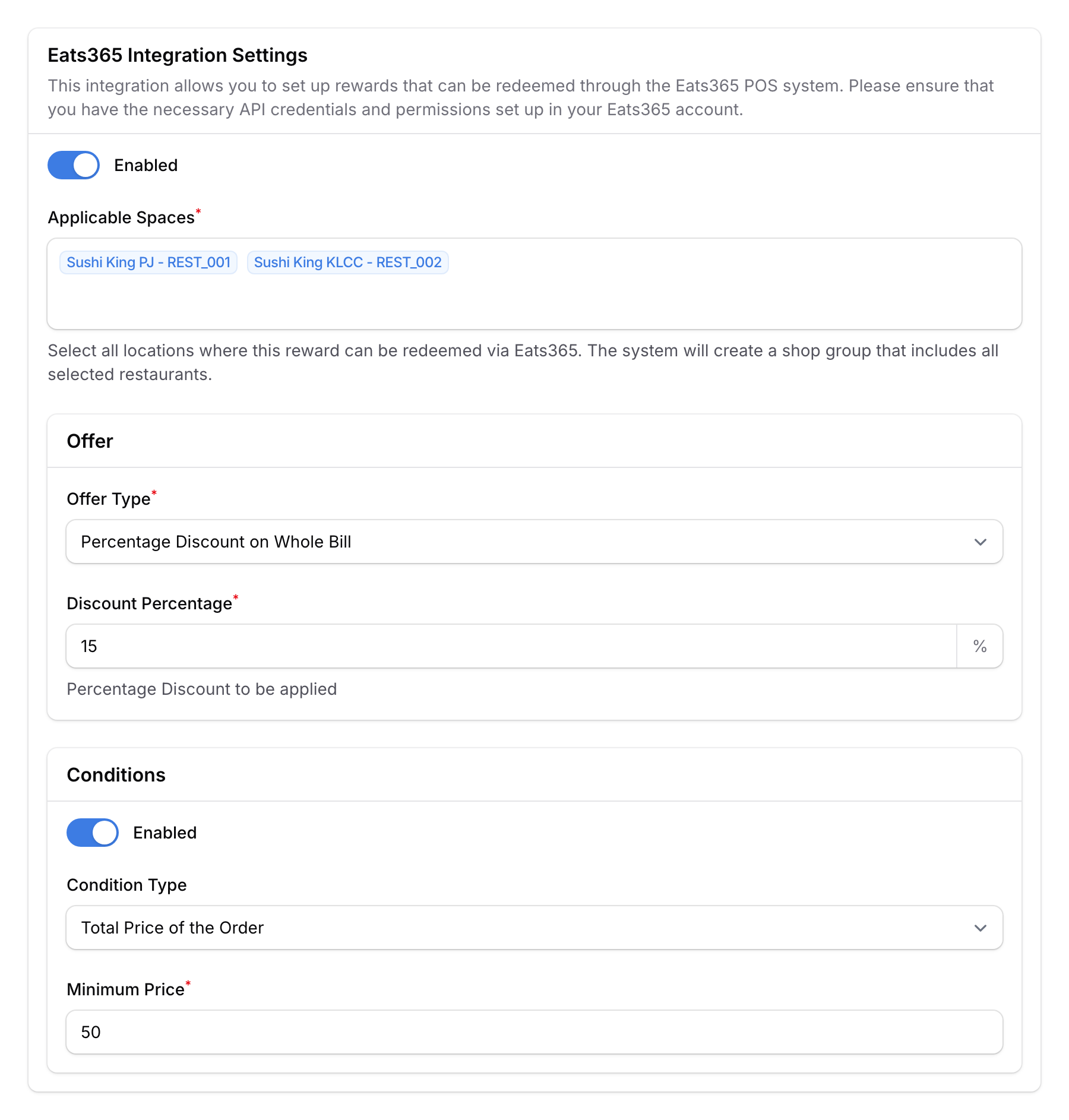
- Scroll down to the Eats365 section
Prerequisite: This section only appears when your organisation's POS provider is set to Eats365. If you don't see it, contact Pixalink support to check your integration setup.
- Toggle Enabled on, then set Voucher Version to V1 — Discount defined in Pixalink. The offer and condition types in this guide only apply to V1 — the default is V2, which uses a discount defined inside Eats365 instead
- Select the Offer Type from the dropdown
- Fill in the offer-specific fields (discount percentage, amount, product codes, etc.)
- Optionally select a Condition Type and fill in the condition fields
- Save the reward
Product Code Dropdown
The product code fields pull live data from the Eats365 menu. Products are displayed as:
Product Name (SKU Code) - RM{price} (Space Name)
Products are aggregated from all Eats365-connected spaces in your organisation, so you can see items from every outlet.
Store Defined Discount (Voucher Version V2)
The Voucher Version select in the Eats365 Integration Settings controls where the discount is defined:
- V2 — Discount defined in Eats365 (recommended, default) — the reward carries a Discount Code referencing a Merchant Discount configured inside Eats365. The offer and condition types in this guide do not apply.
- V1 — Discount defined in Pixalink — the offer and condition types described in this guide apply.
Only one method can be active per reward — switching version clears the other method's settings on save, since Eats365 would otherwise stack both discounts and could discount the whole bill twice. See Eats365 Voucher 2.0 Integration — Setup Guide for the V2 flow.
Redemption & Rollback
How Redemption Works
- Customer is looked up at POS → rewards appear as "coupons" in the member profile
- Cashier selects a coupon to redeem
- Pixalink validates: coupon exists, belongs to customer, is in pending (unredeemed) status
- Coupon is marked as used, and the discount is applied to the order
- Activity is logged with the space that processed the redemption
What Happens on Void
If the order is voided after a coupon was redeemed:
- The coupon is rolled back to pending status — the customer can use it again
- This happens automatically when the POS sends a void request
Good to Know
- One reward can serve multiple spaces — Use the Applicable Spaces field to control which outlets accept this reward
- Each offer type shows different fields — The admin form dynamically shows/hides fields based on your selected offer type
- Conditions are optional — Not every reward needs a condition. Simple rewards like "RM5 off" can work without any qualification
- Discount codes — Some rewards can have a discount code for manual entry at the POS
- Coupon names support multiple languages — The reward name sent to Eats365 uses the configured language for the organisation