
How to Create a Voucher for Eats365
How to Create a Voucher for Eats365
What Is This?
This guide walks you through creating a reward in Pixalink that works as a voucher (coupon) at Eats365 POS terminals. When a customer is looked up at the POS, the voucher appears automatically.
Real-Life Example
A restaurant wants to give loyalty members a "RM10 off when you spend RM50" birthday voucher. You create a reward, enable Eats365, pick the outlet, set it to Amount Discount on Whole Bill with RM10, and add a minimum spend condition of RM50.
How to Set It Up
- Go to Admin Panel → Loyalty Program → Rewards. Create a new reward or edit an existing one.
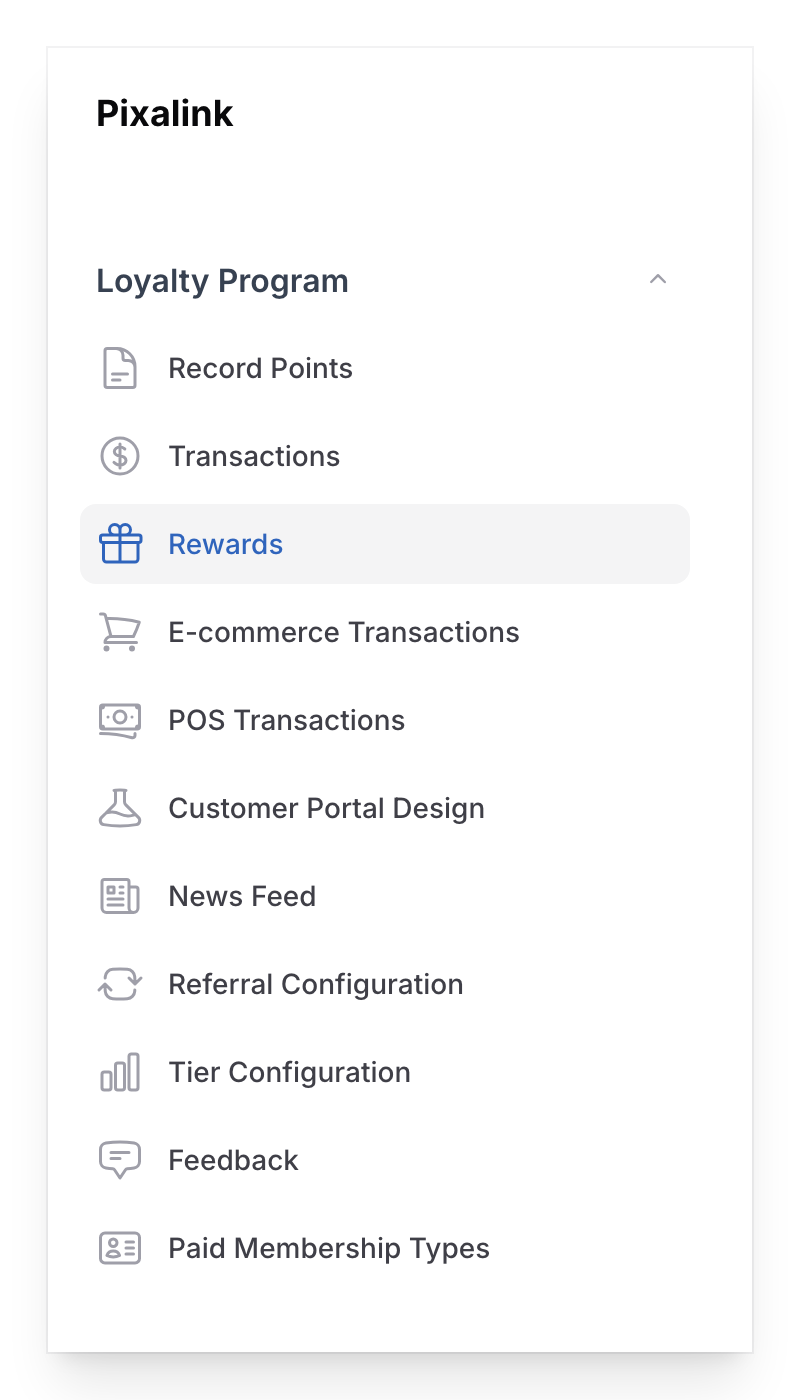 Create a new reward or edit an existing one.
2. Scroll to Eats365 Integration Settings and toggle Enabled to on. A Voucher Version select appears, defaulting to V2 — Discount defined in Eats365 (recommended). To define the discount in Pixalink as described in the steps below, change it to V1 — Discount defined in Pixalink. Only one method can be active per voucher — switching version clears the other method's settings on save, because Eats365 would otherwise stack both discounts.
Create a new reward or edit an existing one.
2. Scroll to Eats365 Integration Settings and toggle Enabled to on. A Voucher Version select appears, defaulting to V2 — Discount defined in Eats365 (recommended). To define the discount in Pixalink as described in the steps below, change it to V1 — Discount defined in Pixalink. Only one method can be active per voucher — switching version clears the other method's settings on save, because Eats365 would otherwise stack both discounts.
 3. Choose which outlets accept this voucher from the Applicable Spaces dropdown.
4. Pick an Offer Type (shown when Voucher Version is V1):
3. Choose which outlets accept this voucher from the Applicable Spaces dropdown.
4. Pick an Offer Type (shown when Voucher Version is V1):
- Percentage Discount on Whole Bill
- Amount Discount on Whole Bill
- Percentage Discount on Item
- Amount Discount on Item
- Free Items
- Amount Discount on Item (1 Item Only — managed by Eats365)
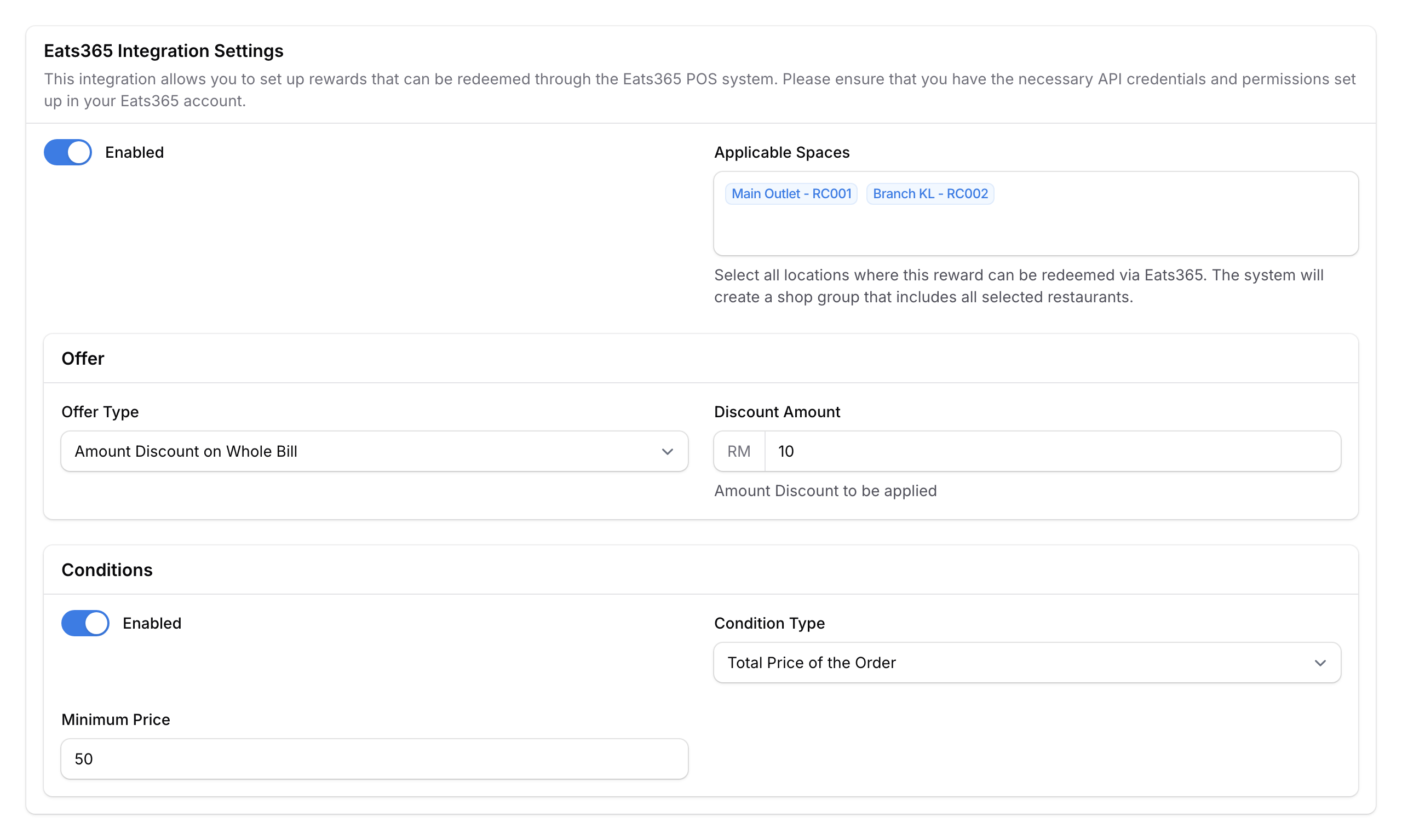
- Add Conditions (optional) — minimum spend, minimum items, minimum quantity of specific products, or party size.
- Save the reward.
Special Voucher — Store Defined Discount (V2)
If the standard offer types don't fit a restaurant, keep the Voucher Version on V2 — Discount defined in Eats365. This tells the POS to apply a discount code that's set up directly in Eats365.
- Set Voucher Version to V2 (this is the default when you enable the integration)
- In the Store Defined Discount section, enter the Discount Code from Eats365's own discount setup — it must exactly match the Merchant Discount code configured in Eats365
- No offer type is needed — Eats365 handles the discount logic
For the full V2 walkthrough, including the Eats365 Merchant Portal side, see Eats365 Voucher 2.0 Integration — Setup Guide.
Good to Know
- Voided orders — the voucher is automatically returned to the customer.
- Multiple spaces — one voucher can work across multiple outlets.
- Product codes pull live data — dropdowns fetch menu items directly from Eats365.
What's Next?
- Eats365 Reward Offer & Condition Types — full reference for all offer and condition types