
How to Give Every Member a Festive Voucher with a Minimum Spend
How to Give Every Member a Festive Voucher with a Minimum Spend
What Is This?
A festive voucher rewards your whole member list at once. You create one voucher, set the spend that unlocks it, then give it to every member in one step. It brings quiet members back during Merdeka or Raya without discounting every bill.
Real-Life Example
Aishah runs a cafe and wants a Merdeka promotion. She creates a RM5 voucher that only applies once a customer spends RM30. She gives it to all 1,200 members at once. Regulars who spend RM20 add a drink to reach RM30, lifting her average bill.
How to Set It Up
- In the Admin Panel sidebar, open Loyalty Program and click Rewards.
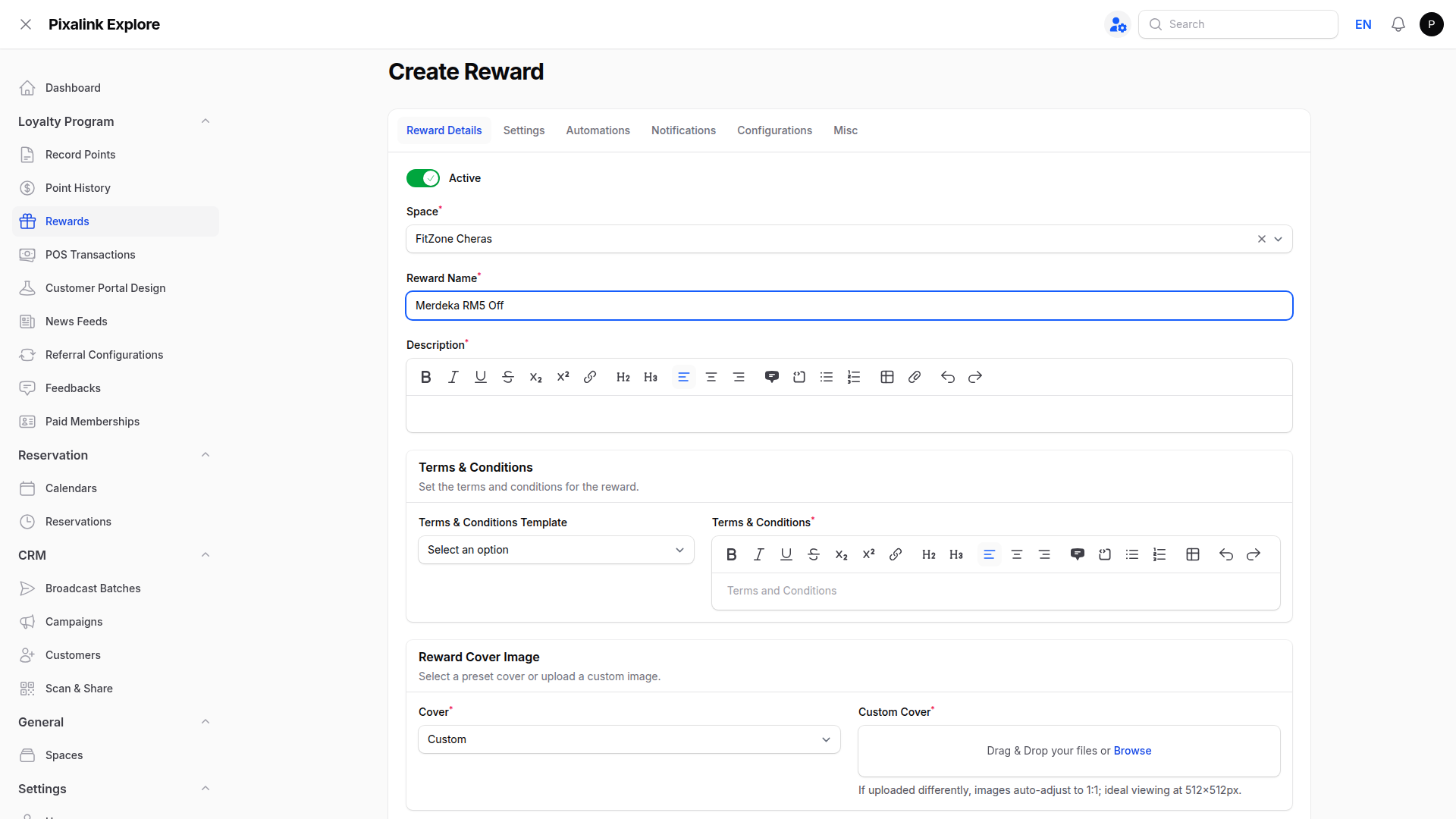
- Click New Reward, pick the Space, then set the Reward Name to
Merdeka RM5 Off.
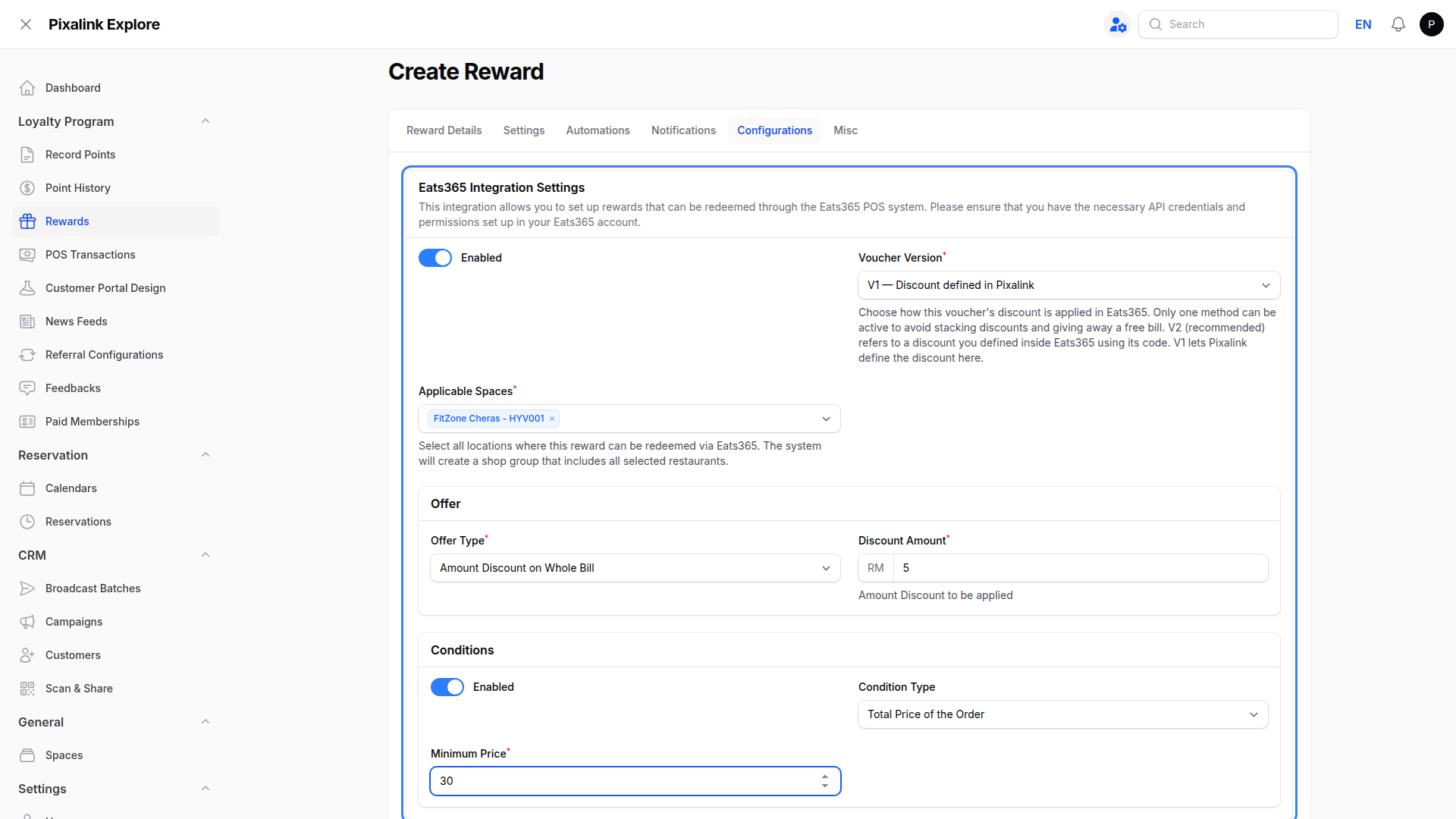
- Open the Configurations tab. Turn on Enabled, set Voucher Version to V1 — Discount defined in Pixalink, then pick your outlets under Applicable Spaces. Under Offer, choose Amount Discount on Whole Bill and enter
5. Under Conditions, turn on Enabled, choose Total Price of the Order, then enter30as Minimum Price.
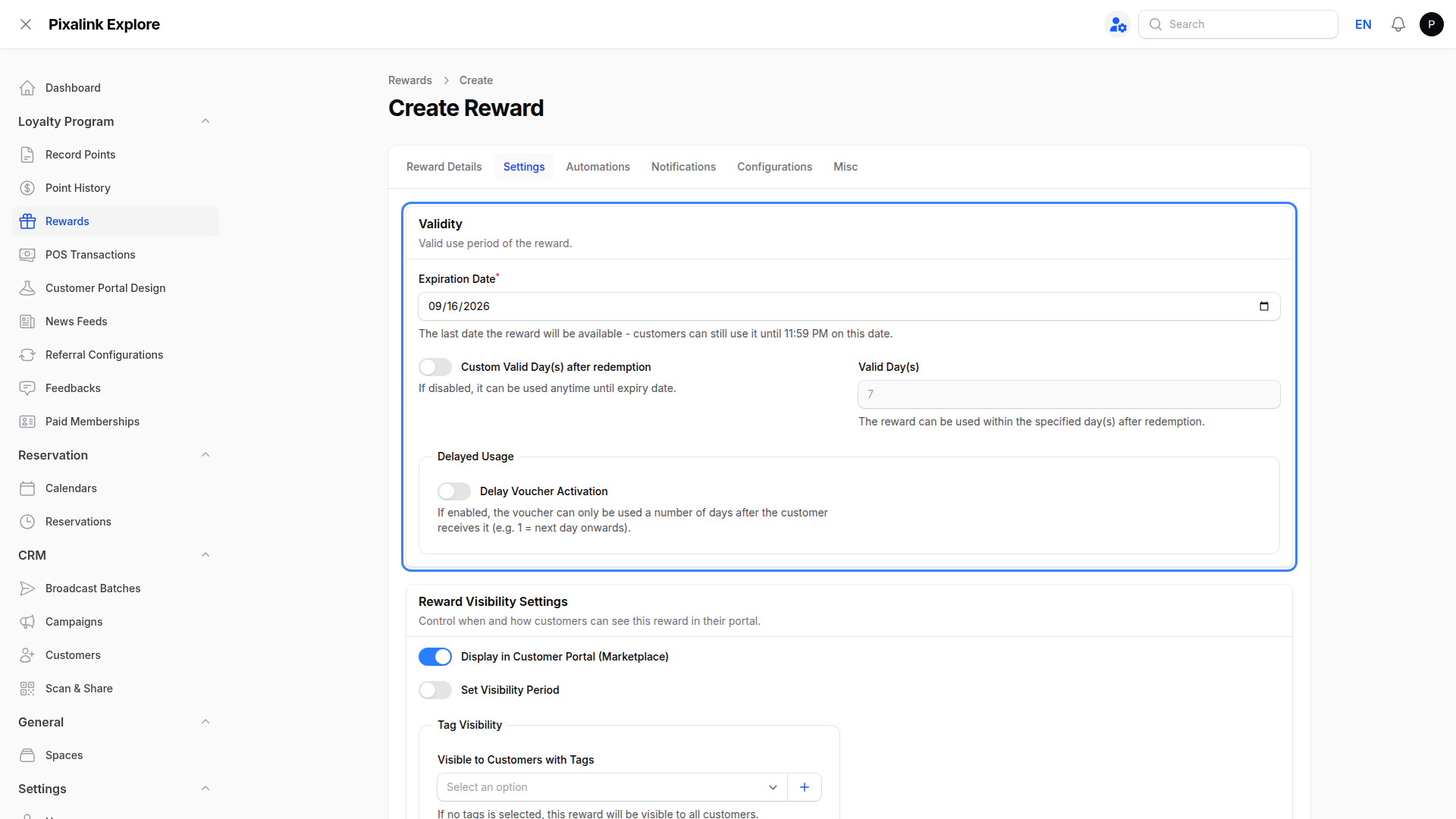
- Open the Settings tab, set the Expiration Date to your campaign end, set Points to Redeem to
0, then save.
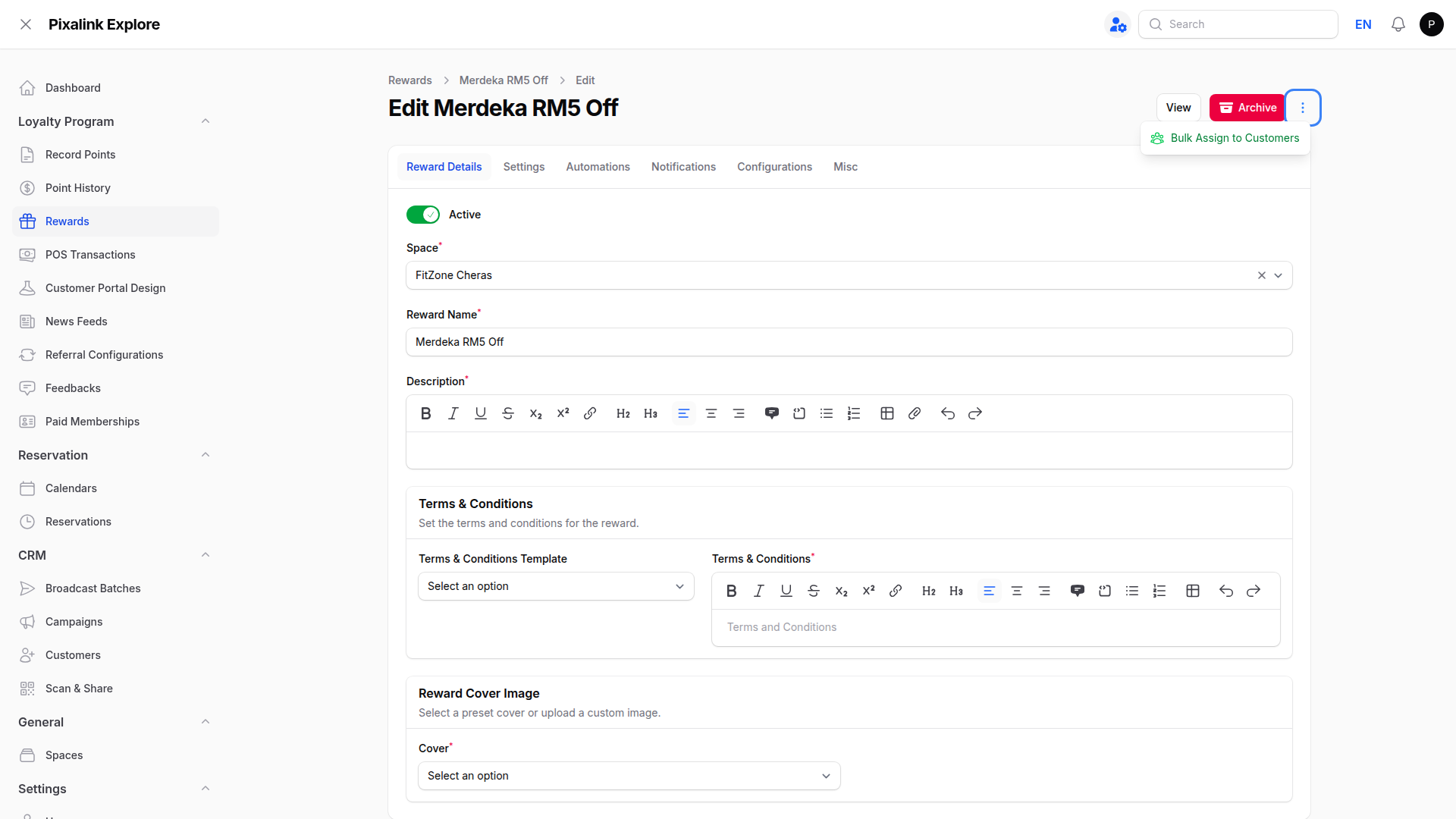
- Open the reward again, click the three dots at the top right, then choose Bulk Assign to Customers.
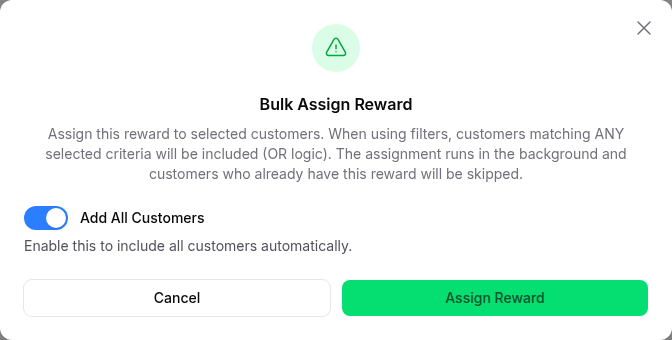
- Turn on Add All Customers, then click Assign Reward.
What Your Customers Will See
The voucher lands in each member's account in the customer portal. When they order, the RM5 comes off any bill of RM30 or more. A smaller bill leaves it untouched, so it waits until your end date.
Good to Know
- Step 3 needs an Eats365 outlet. On other tills, put the RM30 minimum in the voucher terms and let staff check the bill.
- V2 uses a discount built inside Eats365. Only V1 lets you set the RM5 and RM30 here.
- Bulk assigning does not message anyone. Send a broadcast afterwards so members know the voucher is waiting.
- The assignment runs in the background and may take a few minutes.
- Members who already hold this voucher are skipped, so it is safe to run twice.
- Blocked customers are left out. Every other member receives it.
Need Help?
If a member did not receive the voucher, or the minimum spend is not applying, contact the Pixalink support team.