
How to Create a Hidden Voucher and Give It to a Specific Member
How to Create a Hidden Voucher and Give It to a Specific Member
What Is This?
Sometimes you want to reward just one customer, not everyone. A hidden voucher stays out of your customer portal, so no one can claim it on their own. You then hand it to the exact member you choose. It is perfect for a private thank-you, a VIP perk, or a small goodwill gesture.

Real-Life Example
Aishah runs Boba Lab, a bubble tea shop in Petaling Jaya. One regular, Wei Lin, brings friends in almost every week. Aishah wants to thank her with a free drink, but only her. So she builds a "Free Bubble Tea" reward and hides it from the portal. Then she assigns it straight to Wei Lin. Wei Lin finds the voucher waiting in her account. No other customer ever sees it.
How to Set It Up
-
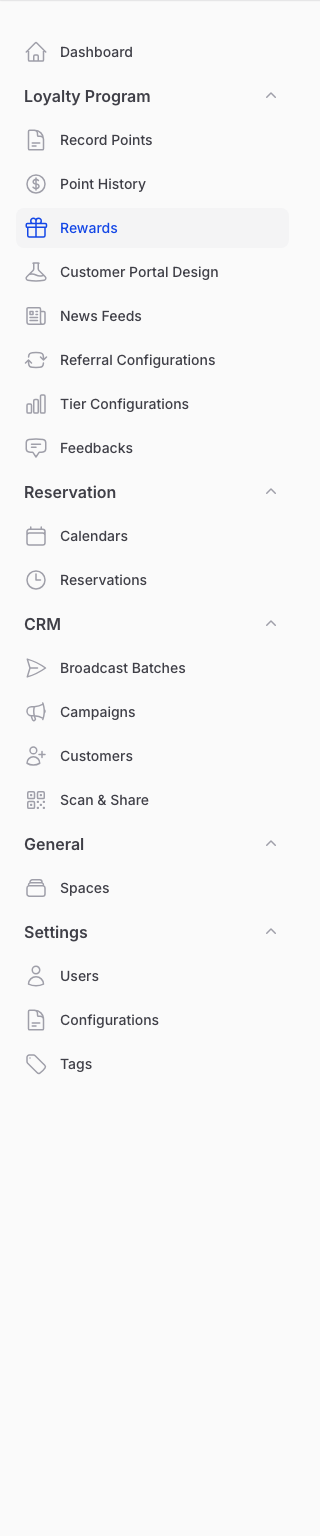
Go to Loyalty Program → Rewards in the left sidebar.
-
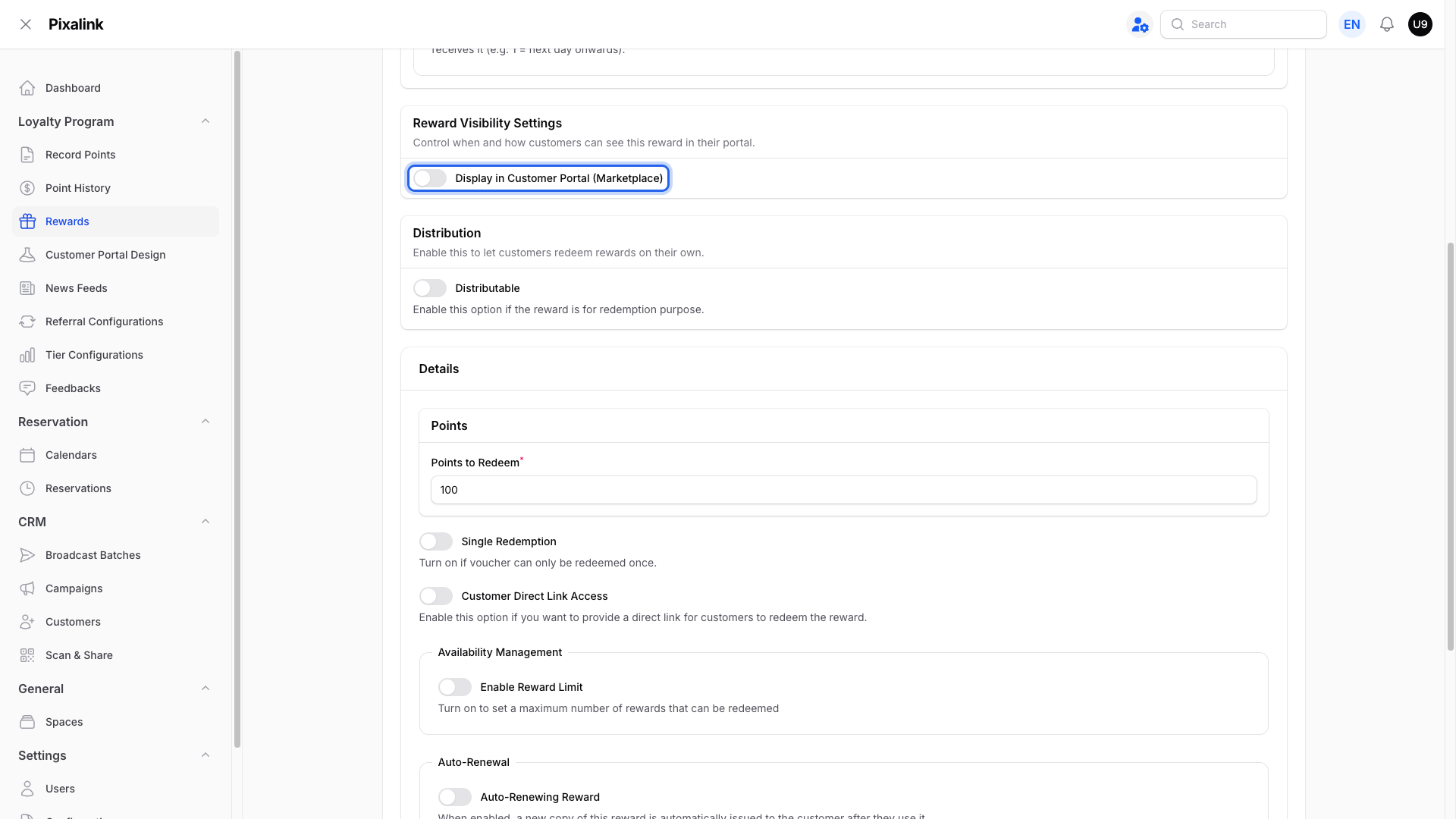
Open your reward, click the Settings tab, switch off Display in Customer Portal (Marketplace), then save.
-
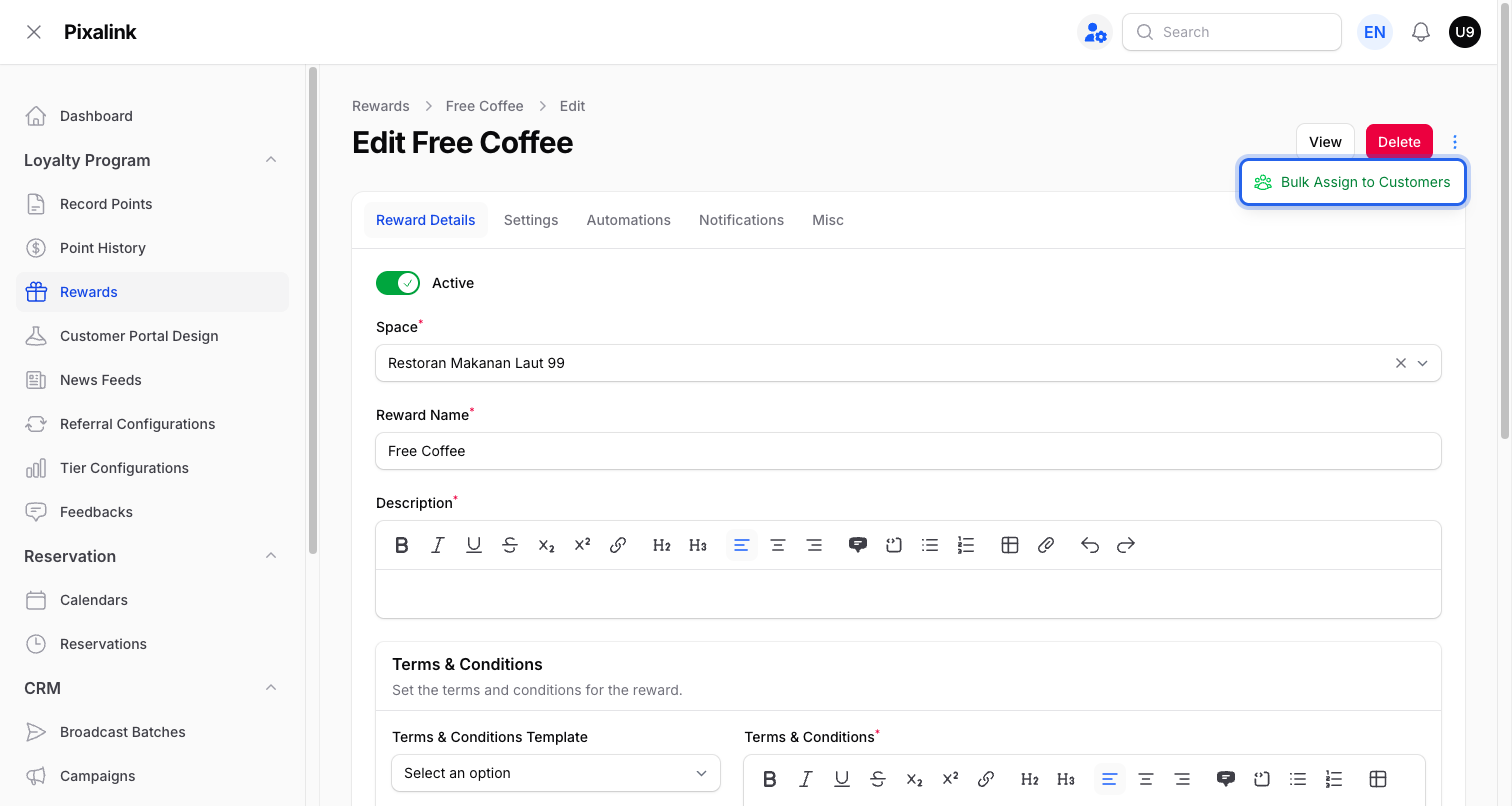
Click the actions menu (the three-dots button) at the top right, then choose Bulk Assign to Customers.
-
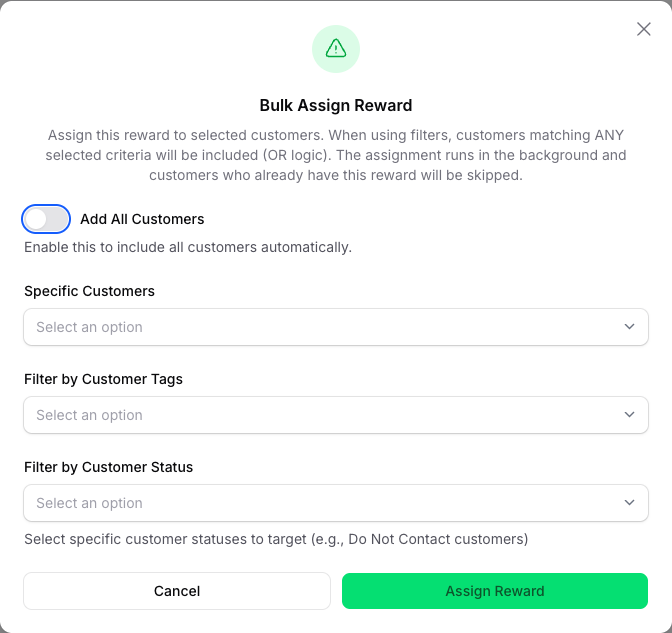
Leave Add All Customers off, pick your member under Specific Customers, then click Assign Reward.
What Your Customers Will See
The member you picked finds the voucher in their account, ready to use. It never shows in the public rewards list, so other customers see nothing. The voucher is issued in the background, and anyone who already has it is skipped.
Good to Know
- The toggle is on by default, so new rewards show in the portal until you switch it off.
- To check or remove a voucher later, open that member's profile and view their Customer Rewards tab.
- To hand the same voucher to a whole group, tag those customers instead. See the auto-assign guide below.
Need Help?
If a member cannot find their voucher, wait a moment, since it is issued in the background. Still stuck? Contact the Pixalink support team and we will help you sort it out.
What's Next?
- Auto-Assign Rewards by Customer Tag — hand out a reward to a whole group by tag
- What Are Rewards and How to Create Them — the basics of building any reward