
How to Apologise to a Customer Instantly with Quick Redeem
How to Apologise to a Customer Instantly with Quick Redeem
What Is This?
Something went wrong in your store: a long wait, a wrong order, a spilt drink. You want to say sorry at the counter, not next week. Quick Redeem lets your staff hand a voucher to that one customer in seconds.
The setup is a one-time job: an apology reward that costs 0 points, hidden from your portal so nobody can claim it. It only reaches the customers your staff choose.
Real-Life Example
Aishah runs a café in Petaling Jaya. During a busy lunch, Wei Lin's drink comes out wrong. Aishah apologises, opens Wei Lin's profile, clicks Quick Redeem, and picks Sorry! Free Drink On Us. The voucher lands in her account before she leaves, at 0 points.
How to Set It Up
First, create your apology reward. You only do this once.
-
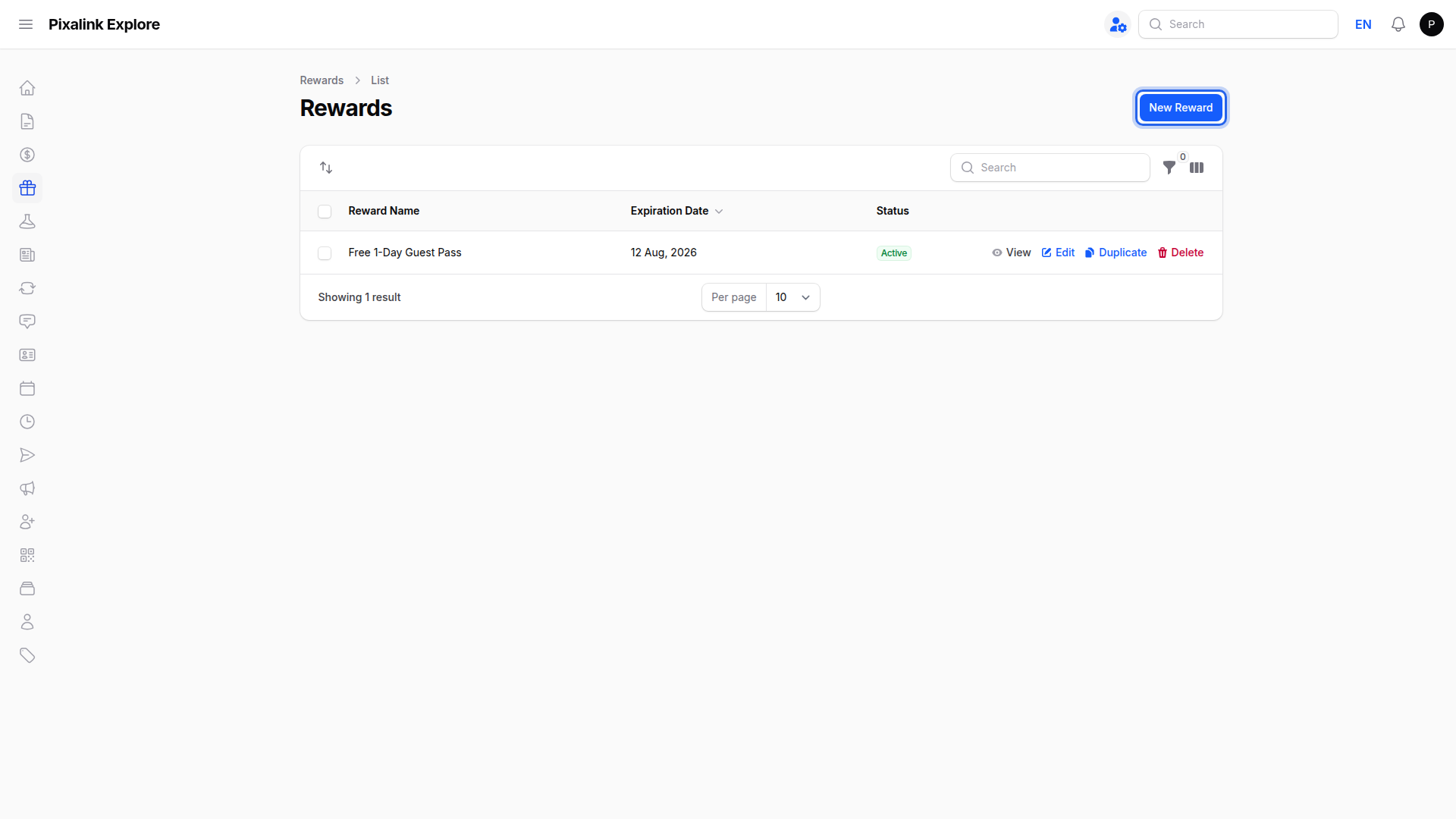
Go to Rewards and click New Reward. Give it a clear name, such as Sorry! Free Drink On Us. For the full walkthrough, see What Are Rewards and How to Create Them.
-
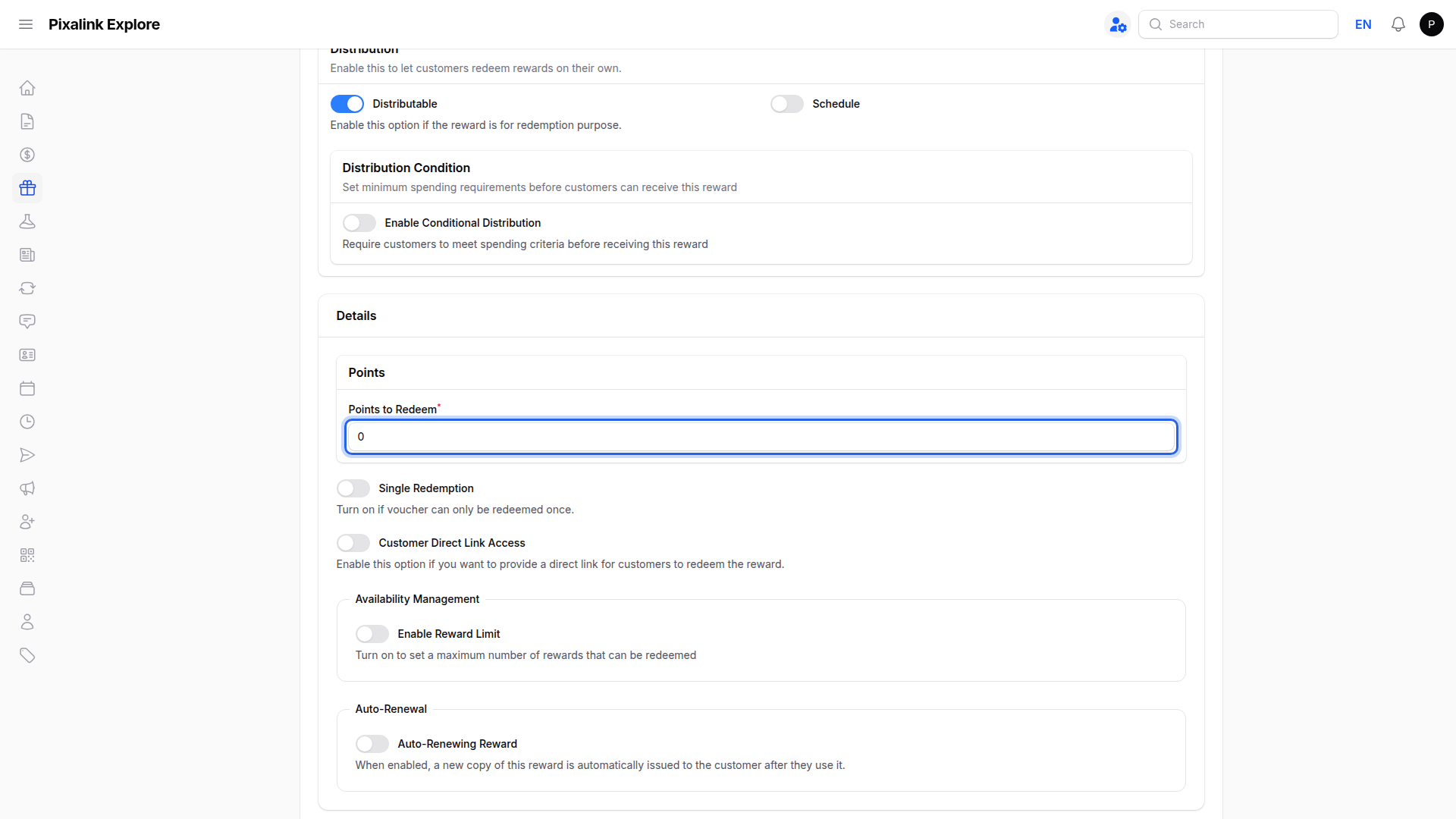
Open the Settings tab and set Points to Redeem to 0, so the apology never spends the points your customer has earned.
-
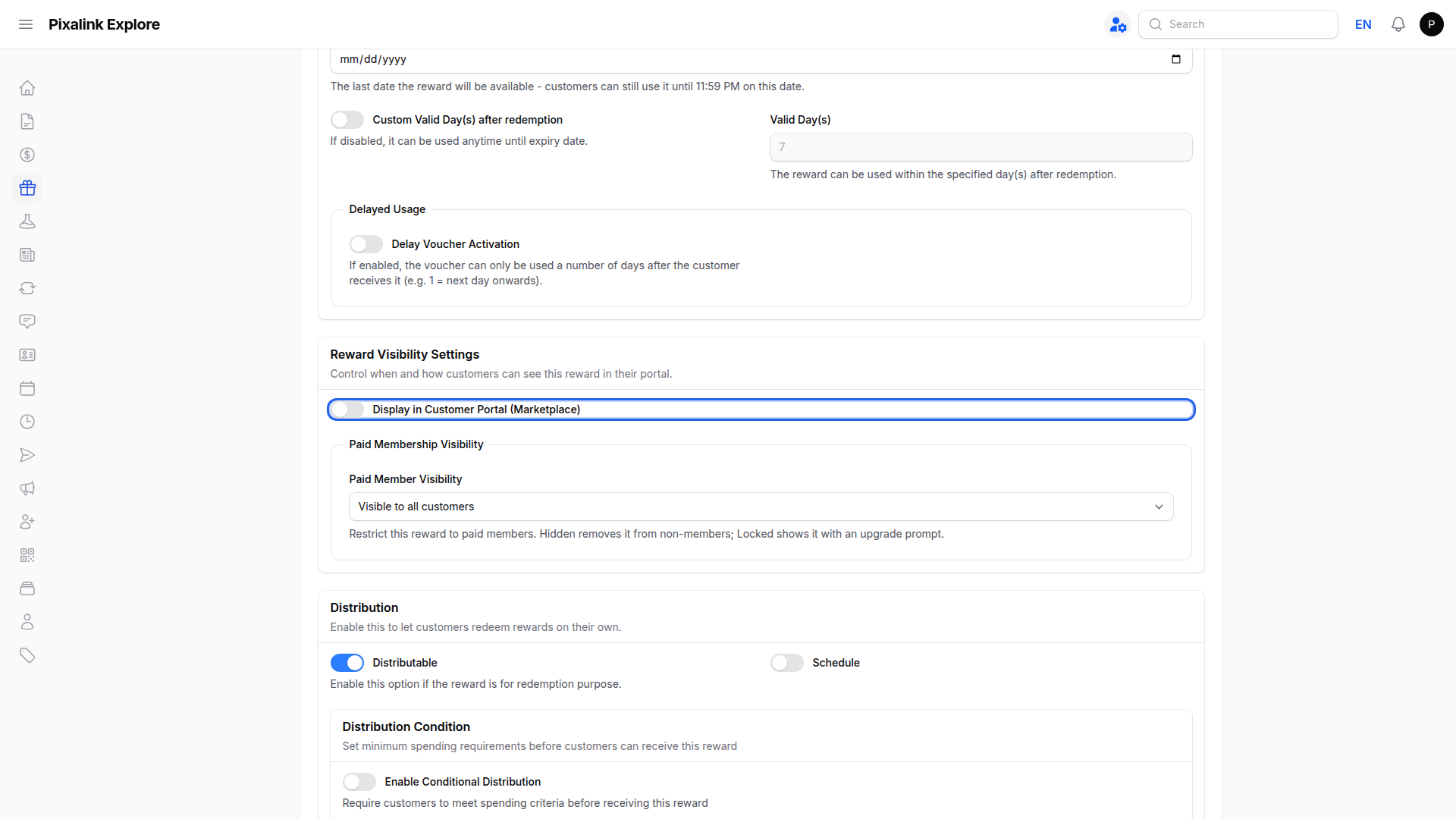
Still on Settings, switch off Display in Customer Portal (Marketplace) and save. This keeps the reward staff-only.
Then hand it out whenever you need to.
-
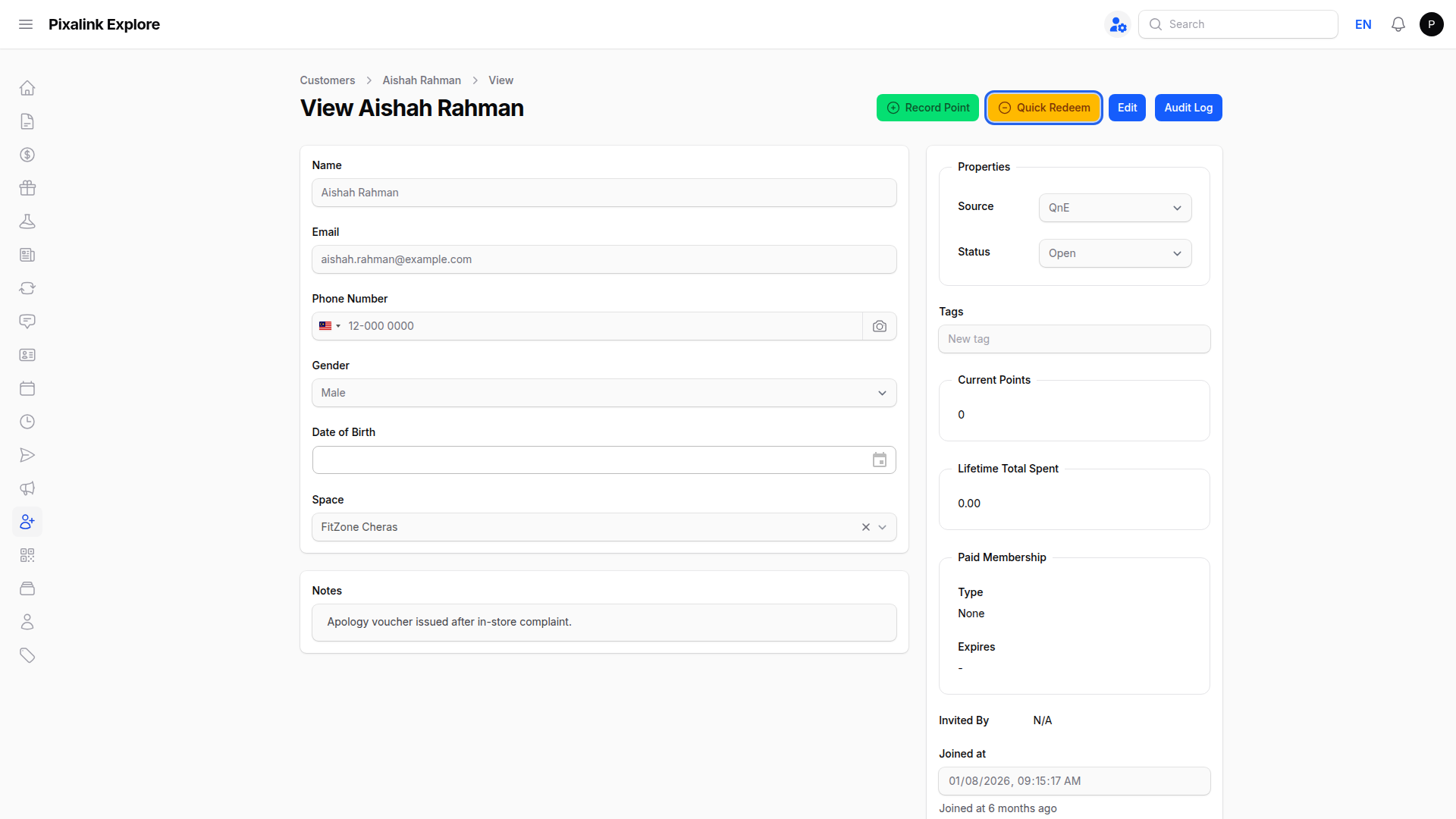
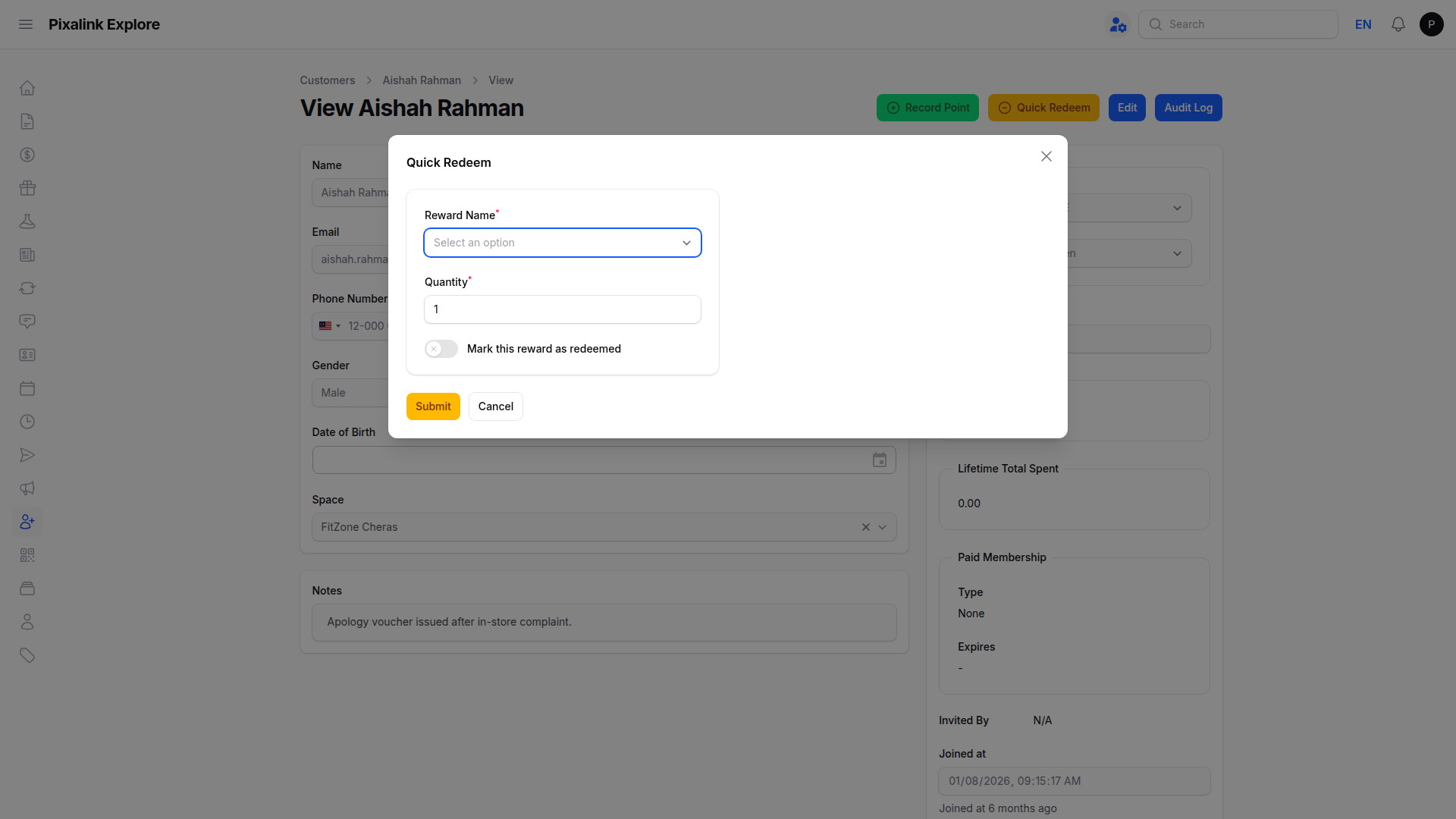
Go to Customers, open the customer's profile, and click Quick Redeem at the top.
-
Choose your apology reward, keep the quantity at 1, and click Submit.
What Your Customers Will See
The customer opens their account and finds the voucher waiting for their next visit. Because it is hidden, it never appears in the public rewards list, so no one else asks why they missed out.
Good to Know
- Keep the point cost at 0 so the gesture never spends earned points.
- Set a fair expiry, such as 30 days.
- Every voucher you give is recorded under the customer's Customer Rewards tab.
- To give it to a whole group at once, use Bulk Assign instead.
Need Help?
Can't see the Quick Redeem button on the profile? Contact the Pixalink support team and we'll help you sort it out.
What's Next?
- What Are Rewards and How to Create Them — the basics of building any reward
- How to Create a Hidden Voucher and Give It to a Specific Member — hand the same voucher to a chosen group
- How to View and Edit a Customer Profile — what else you can do from the profile page