
Set Up Welcome Messages and Vouchers for New Customers
Set Up Welcome Messages and Vouchers for New Customers
What Is This?
A warm welcome turns a first visit into a lasting relationship. Pixalink can greet every new customer for you with a friendly message and a free voucher, sent the moment they sign up. You set it once and it runs on its own.

One caveat the video leaves out: "skipped on purpose" is only true for the customer-list import (CRM → Customers → Import). A transactions, redemptions, or iVend import creates any phone number it has not seen before and can still send the welcome. Read "Why Imported Customers Do Not Get the Welcome" below before you upload those files.
Real-Life Example
Farah runs Petal & Stem, a florist in Subang. She wants every new sign-up to feel special, so she sets up a welcome voucher for a free posy and a short WhatsApp hello. She tests it with her own number, and the voucher arrives in seconds. Later she imports her list of 400 regulars and waits for the vouchers to go out. Nothing happens. She worries it is broken. It is not. Imported customers are left out on purpose, and Farah gives them a treat a different way instead.
How to Set It Up
-
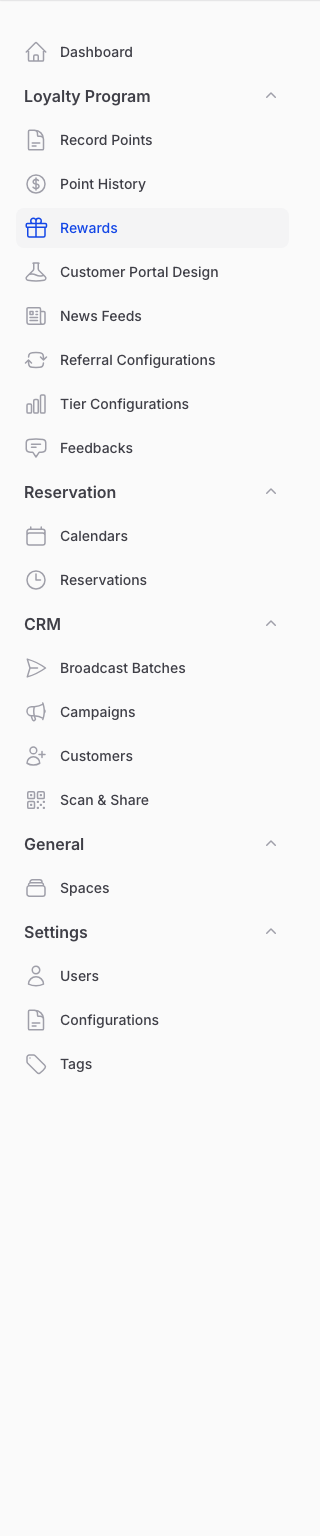
Go to Loyalty Program → Rewards and open the reward you want to give new customers.
-
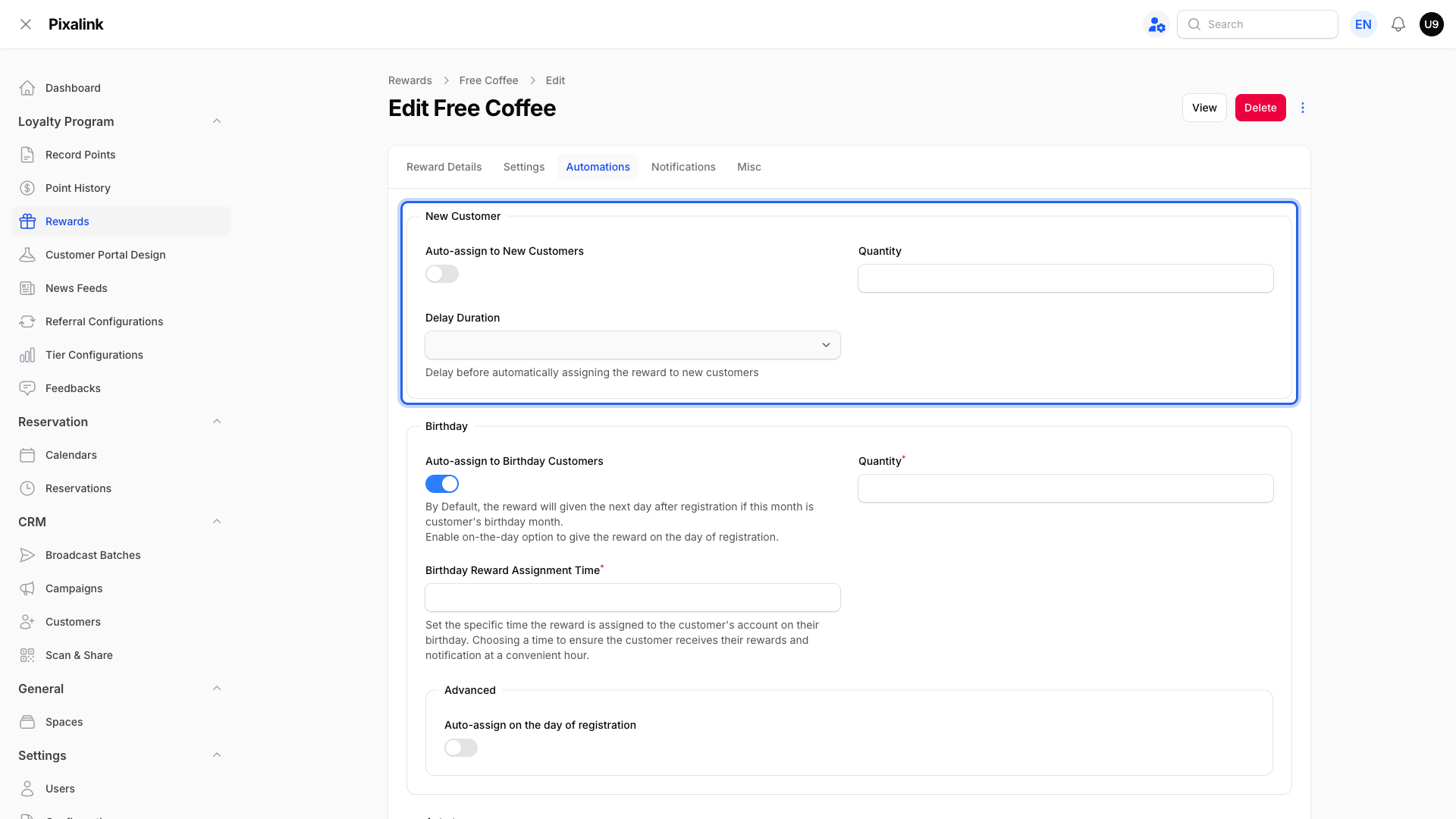
Open the Automations tab and turn on Auto-assign to New Customers. Set the Quantity and a Delay Duration, and pick Immediately for an instant welcome.
-
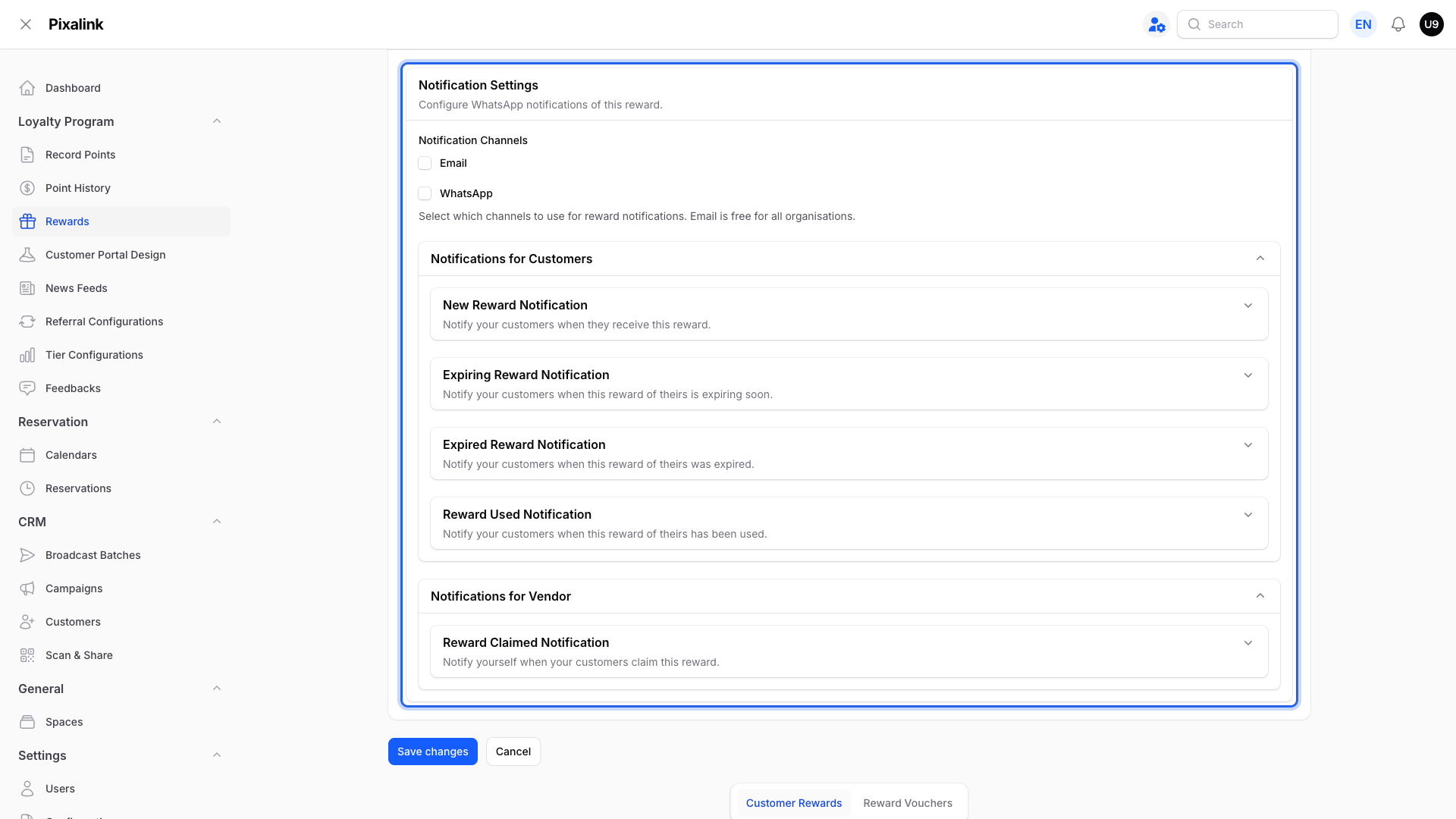
Open the Notifications tab, pick WhatsApp or Email, and turn on the customer notification so they hear about their voucher.
-
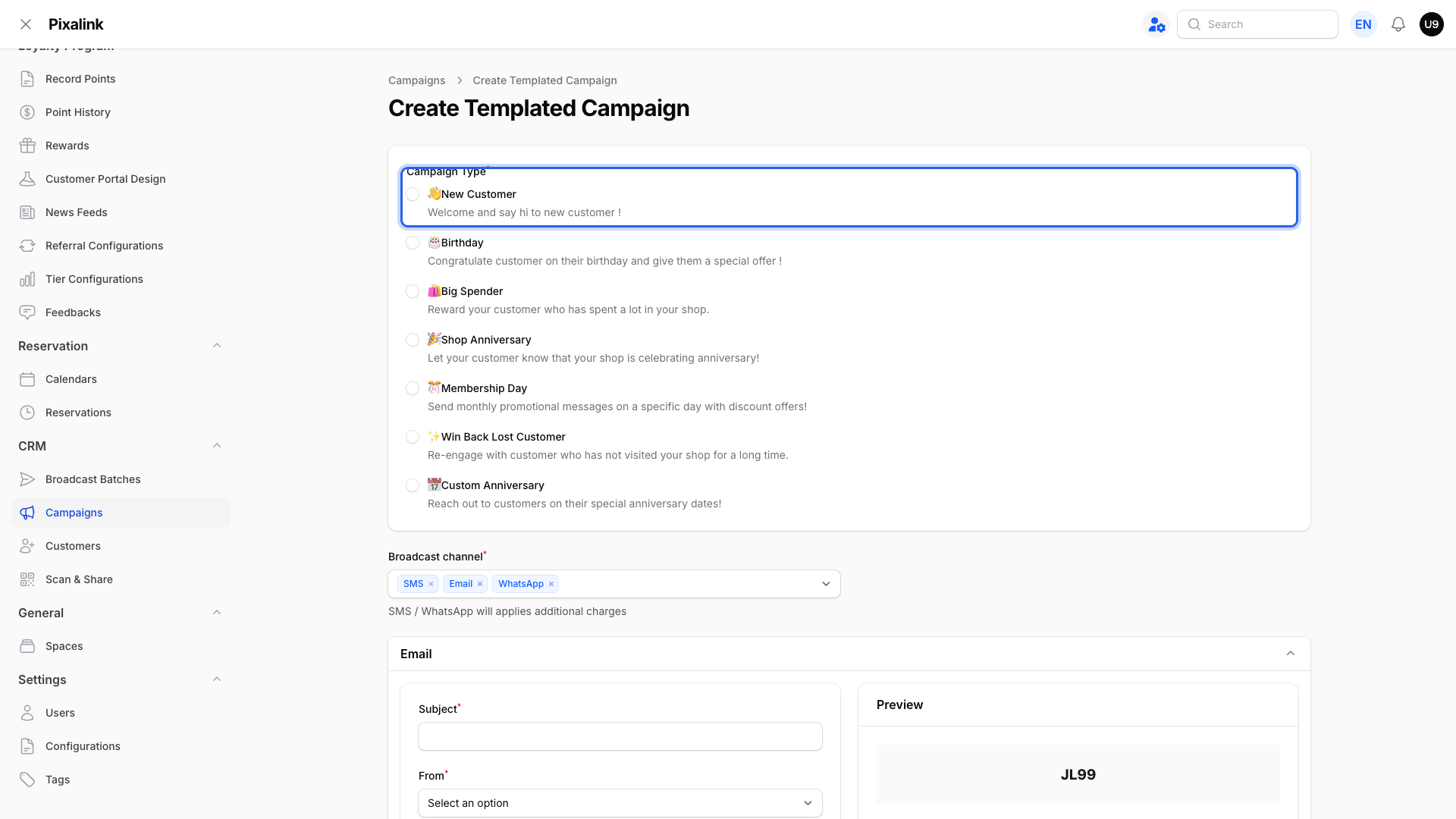
Add a welcome message. Go to CRM → Campaigns, choose Create Templated Campaign, and pick New Customer. Write your greeting and pick the channel.
-
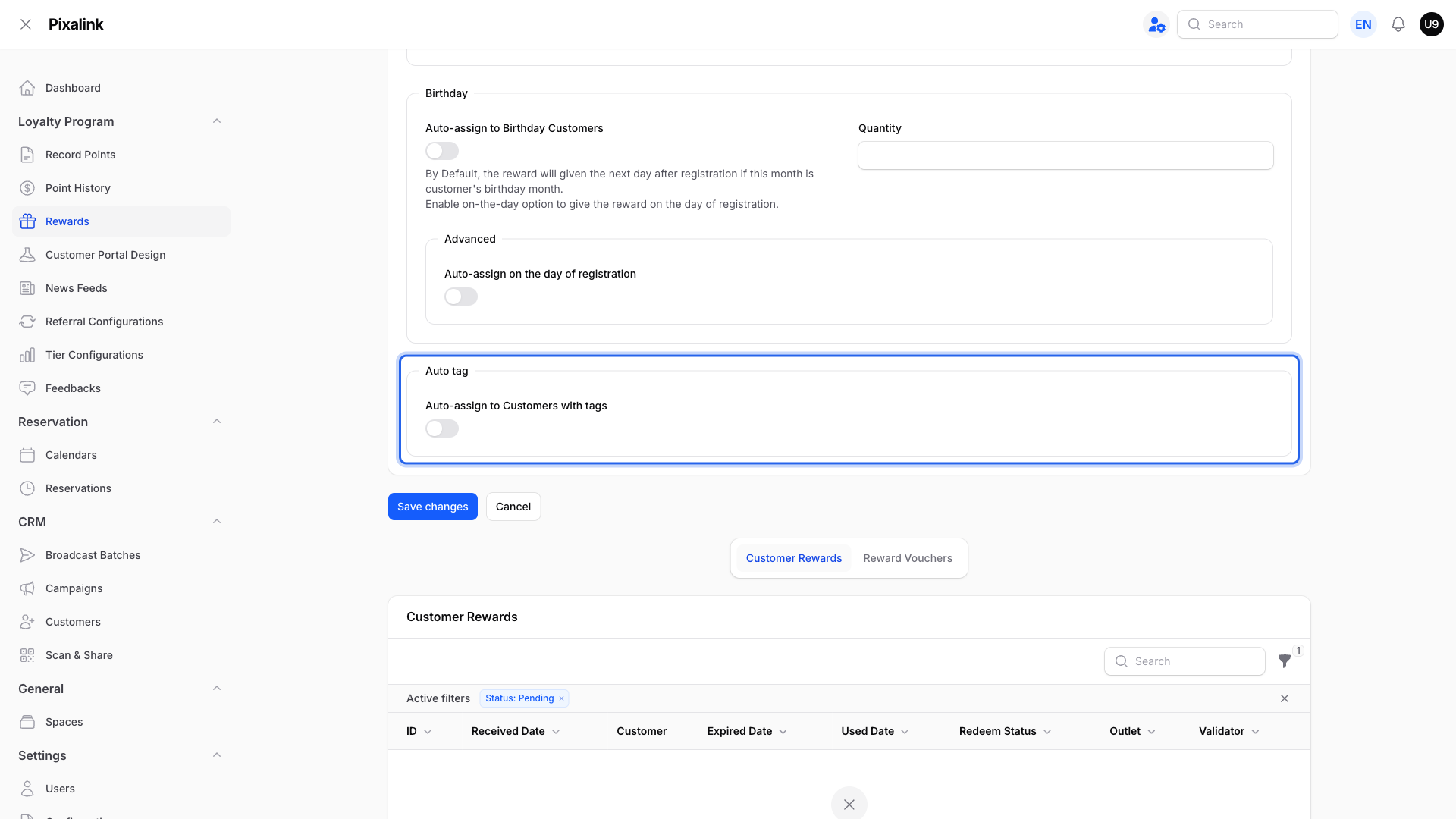
Reward the people you have already imported. Open a reward, turn on Auto-assign to Customers with tags, and pick a tag such as "imported-regulars".
-
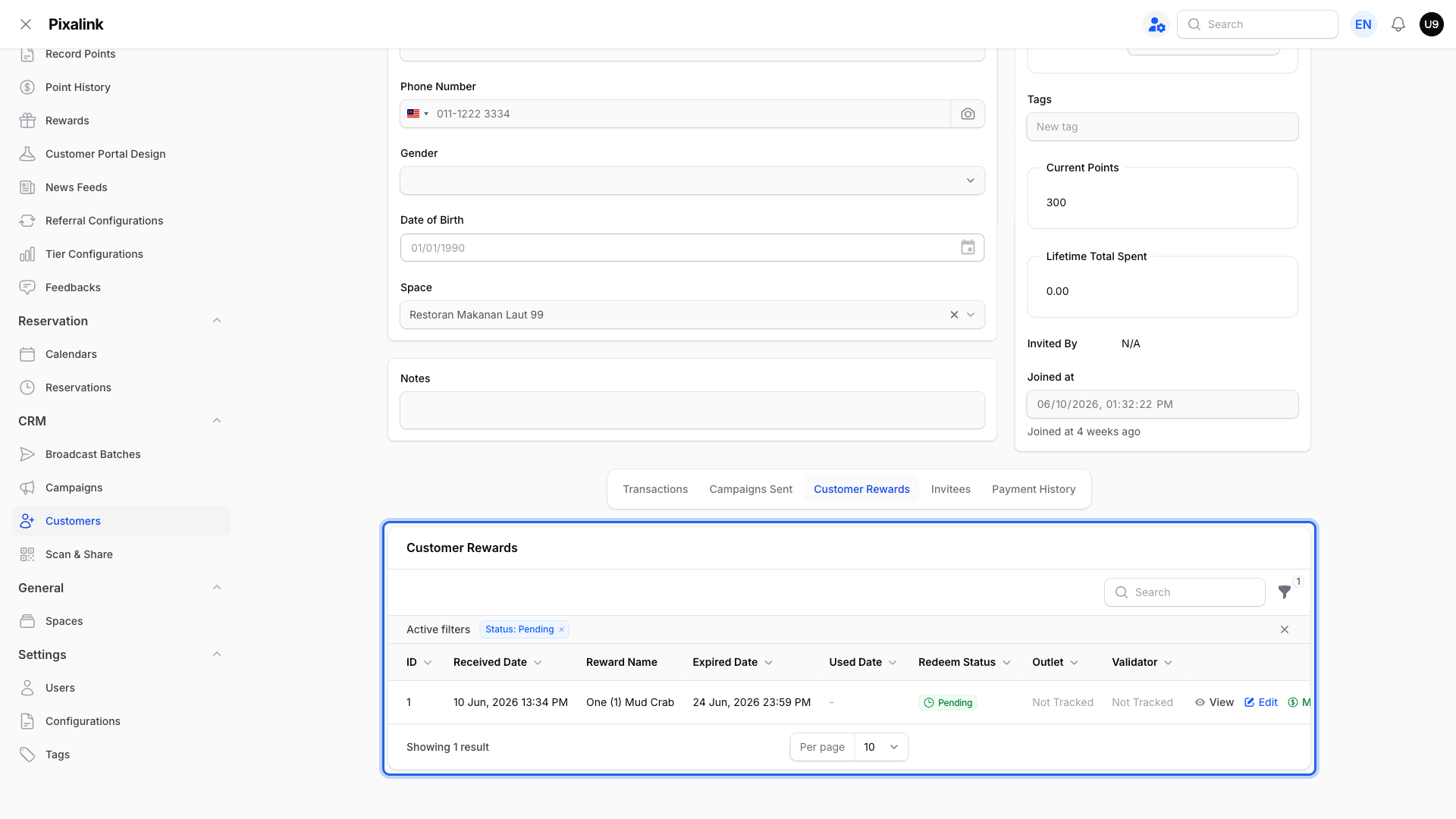
Check who got what. Go to CRM → Customers, open a customer, and look at the Customer Rewards and Campaigns Sent tabs.
Why Imported Customers Do Not Get the Welcome
This is on purpose, not a fault. The welcome fires once, at the moment a customer signs up. An import adds many people at once, often your whole history. If the welcome ran for every one of them, hundreds of people would suddenly get a voucher and a message meant for brand-new customers. That would waste vouchers, confuse your regulars, and burn through your message credits.
So Pixalink holds the welcome back for the customer list import — the spreadsheet of customers you upload under CRM → Customers → Import. People who sign up on their own from now on get the welcome; people you bring in through that customer-list upload do not.
Important — other kinds of import can still send the welcome. The skip rule covers the customer-list upload only. Some other actions create a brand-new customer record and will greet them: importing a transactions file, importing a redemptions file, and an iVend POS customer CSV. Each of these creates any phone number it has not seen before, and a freshly created customer triggers the welcome reward (and its WhatsApp or email notification) just like a real sign-up. There is no rate limit on those messages.
The right way to treat your imported base:
- Add a tag to them during the import, using a Tags column in your file. You can also select them later and use Add Tags.
- Set a reward to Auto-assign to Customers with tags for that tag. Everyone with the tag who does not already hold the voucher gets one.
- Send a message with a campaign aimed at that same tag.
This way you choose exactly who gets the treat, and no one gets it twice.
What Your Customers Will See
A new customer gets your WhatsApp hello and a voucher they can open in their portal. If you set a delay, both arrive a little later instead of straight away.
Good to Know
- Timing: by default the welcome goes out right away. A Delay Duration can hold it back from one minute up to one week.
- Test with your own number the safe way: sign up as a brand-new customer using a number that is not already in your customer list. The welcome only fires for a first-time sign-up.
- Do not delete a customer to force a welcome. Deleting a customer erases their points, credits, vouchers, and history for good.
- Do not import the same list twice. A repeat import can create duplicate records or overwrite details you have edited. To treat people you already have, use tags instead.
- Import your customers fully before you import transactions. If you follow the historical-points guide (import customers, then import their past transactions), finish the customer import first and check it. Any phone number in the transactions file that is not already a customer will be created on the spot, and that new customer can receive the welcome reward and a WhatsApp greeting from your number. When you upload the transactions file you can also tick Skip unregistered customers so unmatched rows are skipped instead of creating new customers.
If Nothing Arrives
- Check your WhatsApp Number is connected and shows as working.
- Check the reward is active and Auto-assign to New Customers is on.
- Check the reward's customer notification is on, or your New Customer campaign is active.
- Wait a moment if you set a Delay Duration.
- Remember the customer-list import is meant to skip the welcome. Use the tag method for those people. (A transactions or redemptions import is different — it can create and greet brand-new customers.)
- Test with a fresh number, not one already saved. If it still does not arrive, contact support.
Need Help?
Our support team is happy to help you set up your welcome and check that it is sending.