
New Customer Reward — Automatically Welcome New Members with a Reward
New Customer Reward — Automatically Welcome New Members with a Reward
What Is This?
A New Customer Reward is a reward that gets given to every new customer the moment they sign up for your loyalty programme. Instead of manually assigning welcome rewards one by one, you set it up once and Pixalink handles the rest — every new member receives their welcome gift automatically.
Real-Life Example
Priya runs a bubble tea shop in Subang Jaya. She noticed that new members who received a welcome voucher on their first visit were twice as likely to come back within a week. Before Pixalink, her staff had to remember to hand out printed coupons — and sometimes they forgot.
Now, Priya has set up a "Welcome Drink" reward that automatically goes to every new customer who signs up. The customer gets a notification right away, and Priya does not have to lift a finger. Her return-visit rate jumped, and her staff can focus on making great drinks instead of tracking vouchers.
How to Set It Up
Step 1: Create or choose a reward
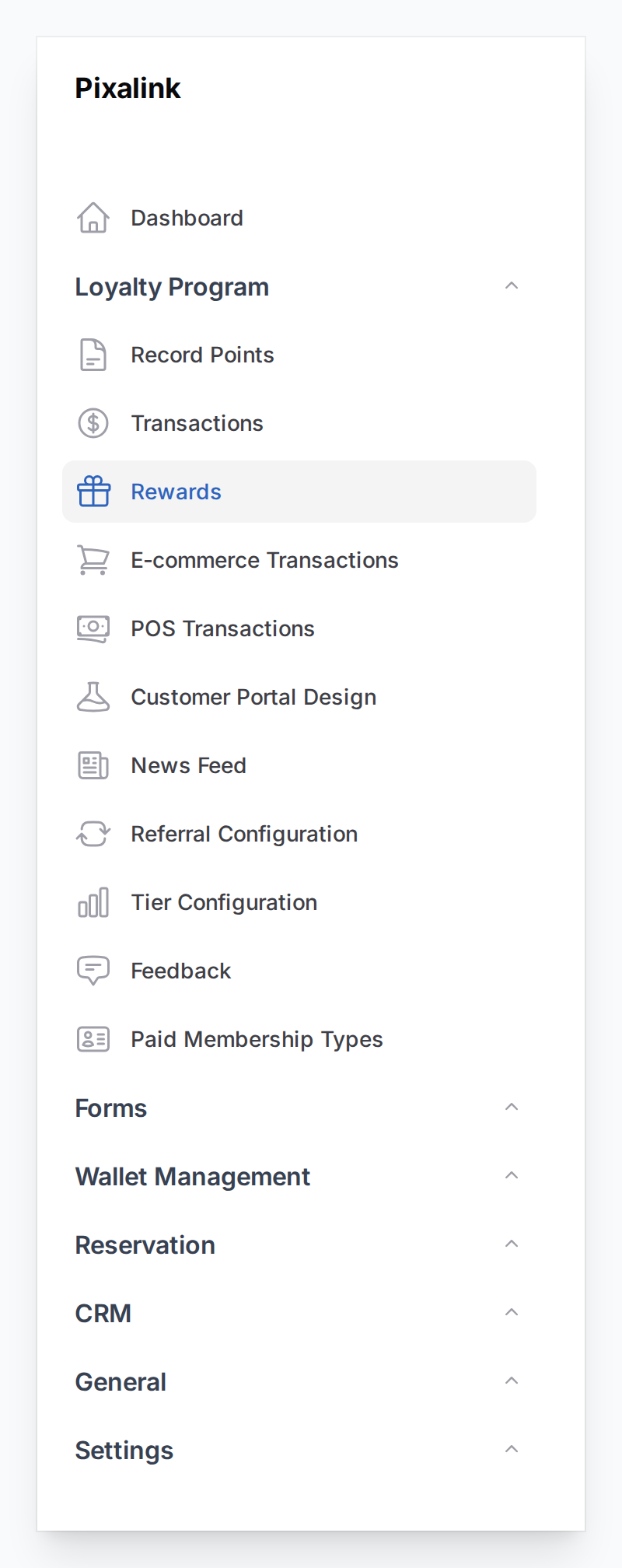
Go to Admin Panel > Loyalty Program > Rewards and click New Reward, or open an existing reward.
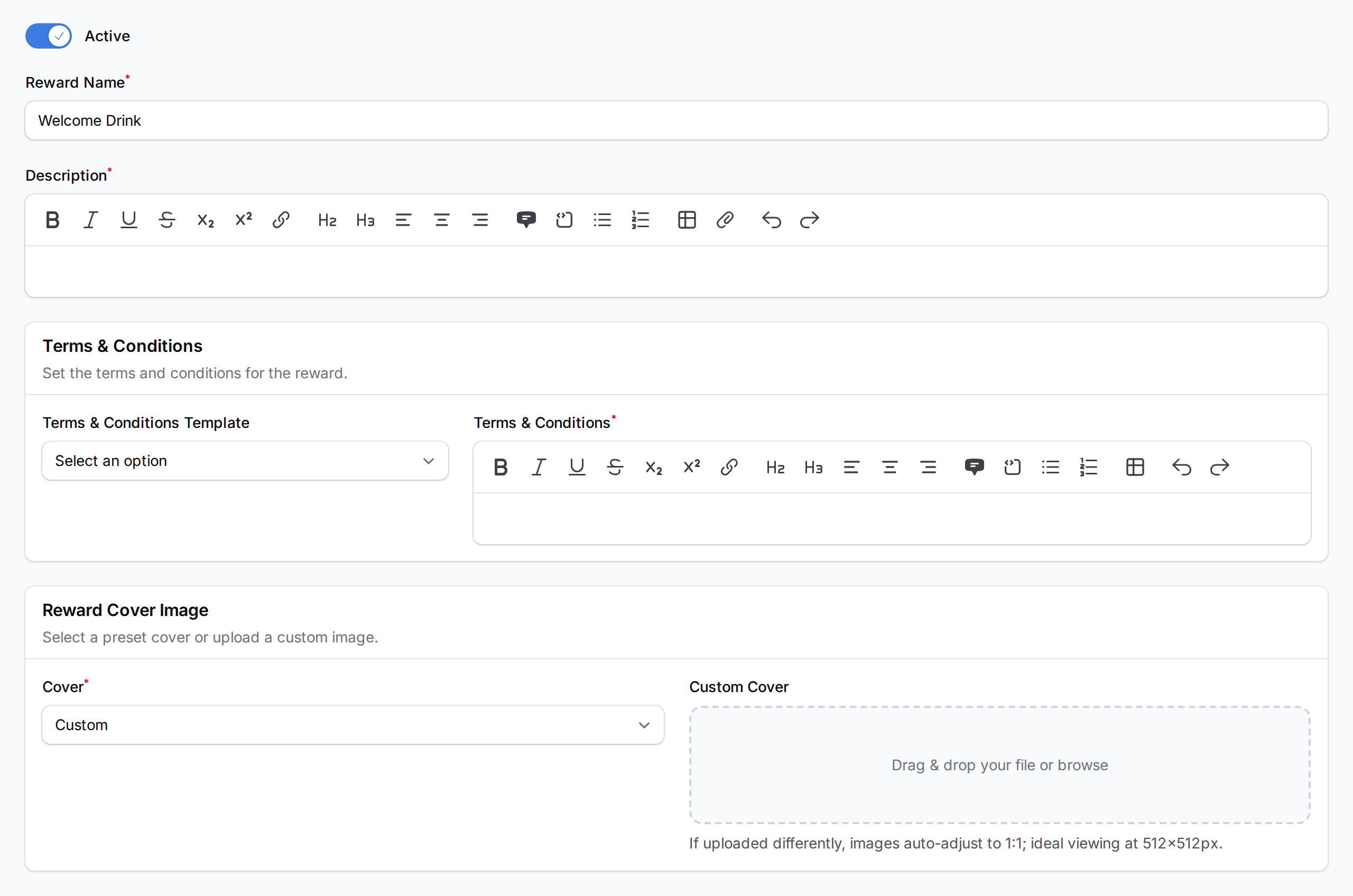
Fill in the Reward Details tab — give the reward a name, description, and optional cover image.
Step 2: Set the cost to zero
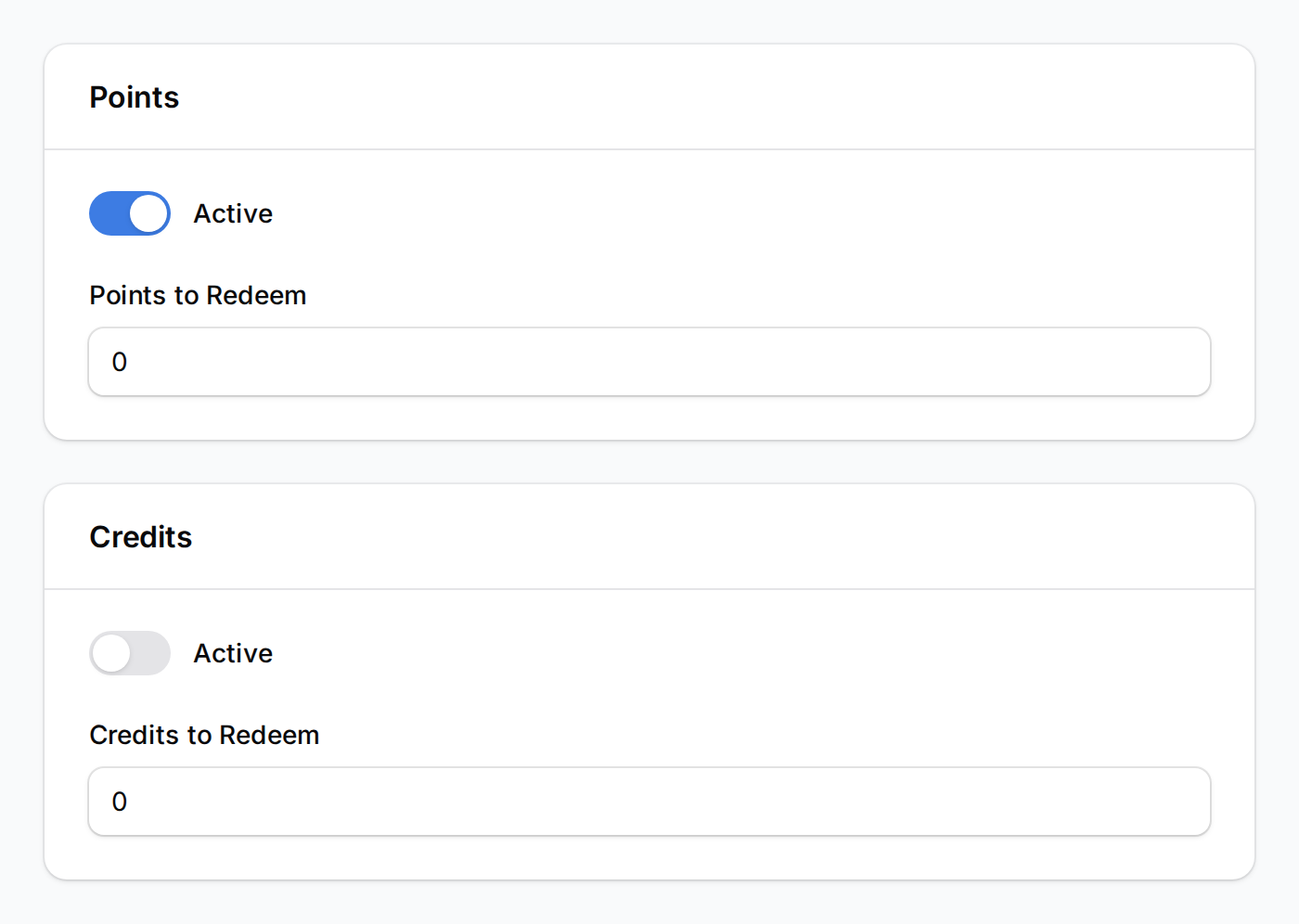
Rewards with automation enabled cannot have a points or credits cost. Set both Points to Redeem and Credits to Redeem to 0.
Step 3: Turn on the New Customer automation
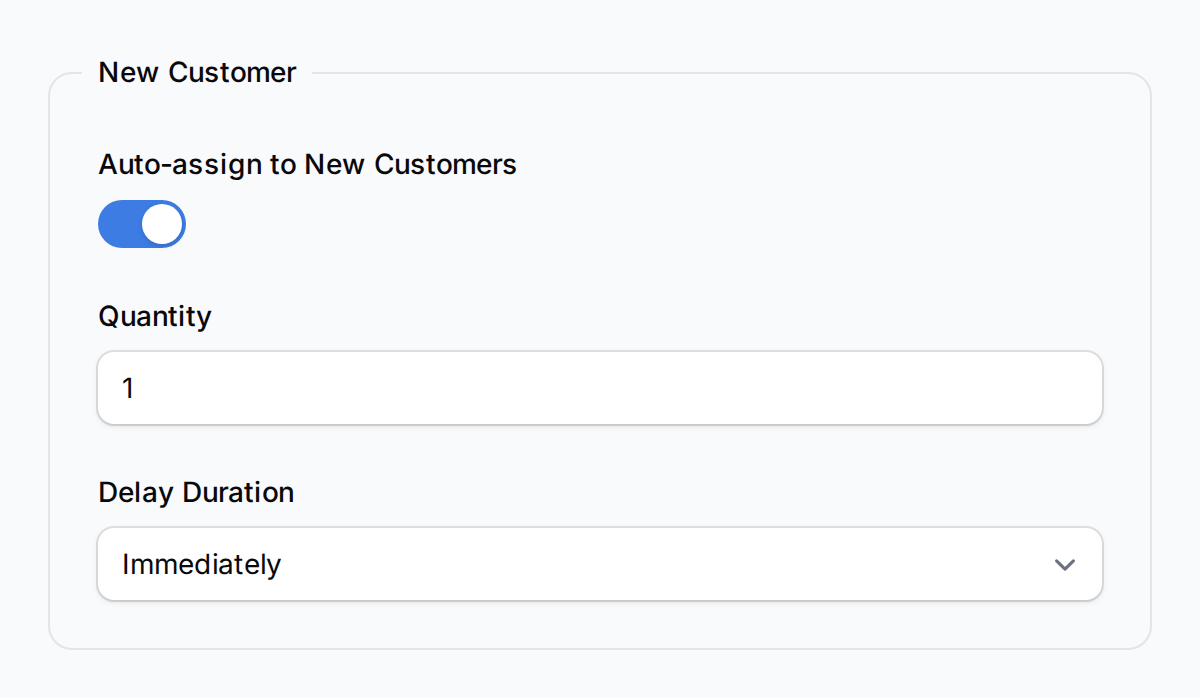
Click the Automations tab. Under New Customer, toggle on Auto-assign to New Customers, set the Quantity (usually 1), and choose a Delay Duration.
| Option | When to Use |
|---|---|
| Immediately | Best for most businesses — customer sees it right away |
| 5 / 10 / 30 minutes | Slight delay for a "surprise" feel |
| 1 / 2 / 3 / 12 hours | Follow-up style reward |
| 1 / 2 / 3 days / 1 week | "Come back tomorrow" type reward |
Step 4: Activate and save
Make sure the Active toggle is on, then click Save.

From now on, every customer who signs up will automatically receive this reward.
What Your Customers Will See
When a new customer signs up and the reward is assigned immediately, they will see it in their account straight away. If you set a delay, the reward appears after the chosen time has passed. Customers can view and redeem their rewards in the loyalty portal.
Good to Know
- The reward must be free. When New Customer automation is on, points and credits cost are locked to 0.
- Each customer only gets it once. No duplicates — a customer who already holds this reward, however they got it (for example, handed over by your staff), is skipped.
- Works across all sign-up methods. Loyalty portal, custom form, transaction import, POS integration — all covered.
- Cannot be combined with Referral rewards. A reward already used as a Referral reward cannot have New Customer automation enabled — the toggle switches off automatically and you'll see a warning with a link to change the referral settings.
- Delayed rewards are queued automatically. No extra steps needed — the system handles the timing.
- You can have multiple New Customer rewards. Turn on automation on each one and customers receive all of them.
- Make sure the reward is Active. An inactive reward will not be assigned even if automation is on.
- Changing the delay only affects new signups going forward. Customers who already received the reward are not affected. A customer still waiting on a delayed reward when you edit it still receives it at the original time; deactivating the reward during the wait stops it.
What's Next?
- What Are Rewards and How to Create Them — set up the reward first if you haven't yet
- How to Set Up Conditional Reward Distribution — add spending conditions to unlock rewards
- Customer Reward Lifecycle Explained — see what happens after a reward is assigned