
Birthday Rewards — Automatically Reward Customers on Their Birthday
Birthday Rewards — Automatically Reward Customers on Their Birthday
What Is This?
Birthday Rewards let you automatically give a reward to every customer on their birthday. You set it up once, and Pixalink takes care of the rest — no manual work needed, no birthdays forgotten.
Real-Life Example
Mei runs a bubble tea shop in Penang. She used to keep a spreadsheet of customer birthdays and manually send out vouchers every month, but she kept missing people or sending them late.
After turning on Birthday Rewards in Pixalink and picking per-birthday delivery, every customer with a birthday on file now receives a free topping voucher on the morning of their birthday. One of her regulars, Ahmad, was surprised to wake up to a birthday reward notification on his phone. He came in that same week to use it and ended up buying drinks for his whole office. Mei didn't lift a finger — the system handled everything automatically.
How It Works
Pixalink checks every night for birthday rewards that are due, and gives each one at the Birthday Reward Assignment Time you set. The Delivery Schedule setting decides which day each customer gets theirs:
- At the start of the birthday month (everyone at once) — the default. On the first run of the month, every customer whose birthday falls in that month receives the reward together, at the time you set.
- On each customer's birthday — each customer receives the reward on their own birthday. You can also send it a few days early with Send in advance.
Each customer only gets a given birthday reward once per year, so there is no risk of duplicates.
If a customer signs up on their birthday
Important
A customer who joins on their birthday can receive the birthday reward, but the delivery day depends on Auto-assign on the day of registration:
- Off (default): The reward is assigned the next day. The customer will not receive it on the signup day.
- On: The reward is assigned on the same day the customer registers.
This also applies when a customer registers on another day during their birthday month. With the option on, a customer whose date of birth is added or changed to the current month also receives the reward straight away. Their date of birth must be saved in the customer profile, the reward must be active, and they must not have already received that same birthday reward in the current calendar year.
How to Set It Up
Step 1: Create or edit a reward
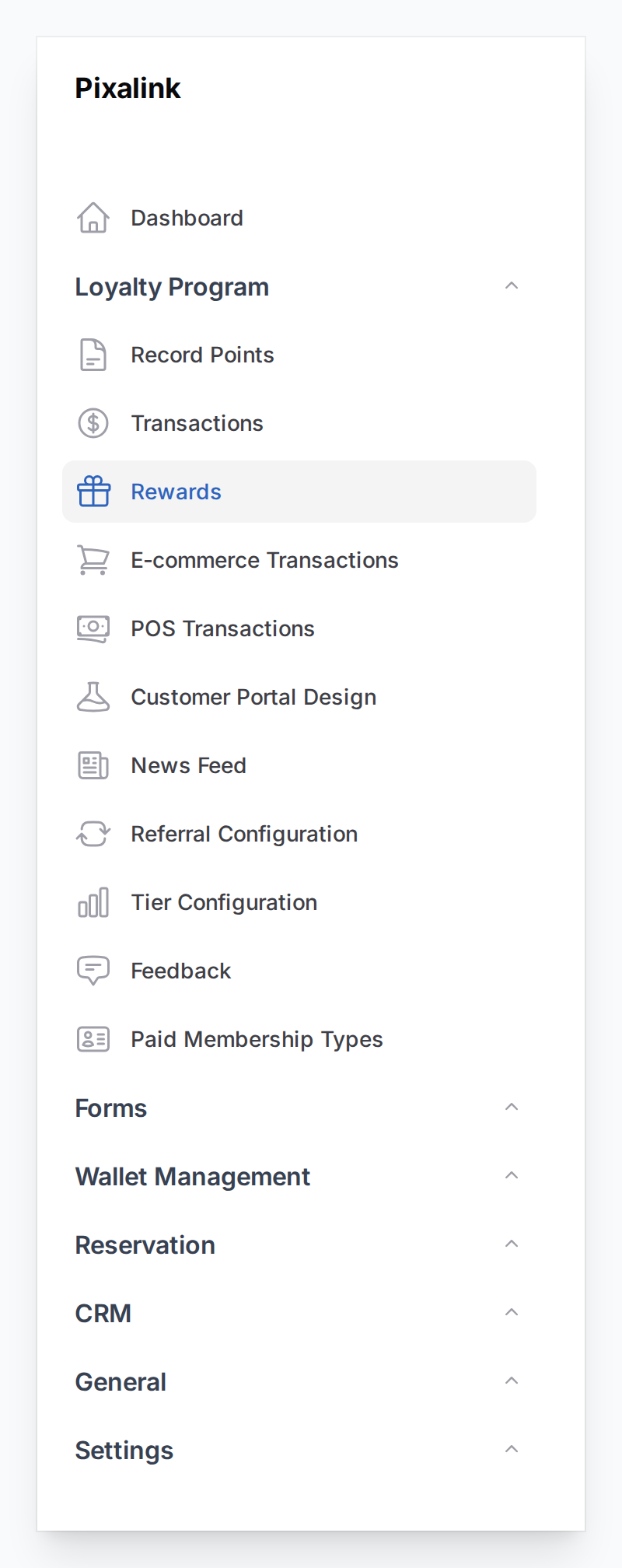
Go to Admin Panel > Loyalty Program > Rewards and click New Reward, or open an existing reward to edit it.
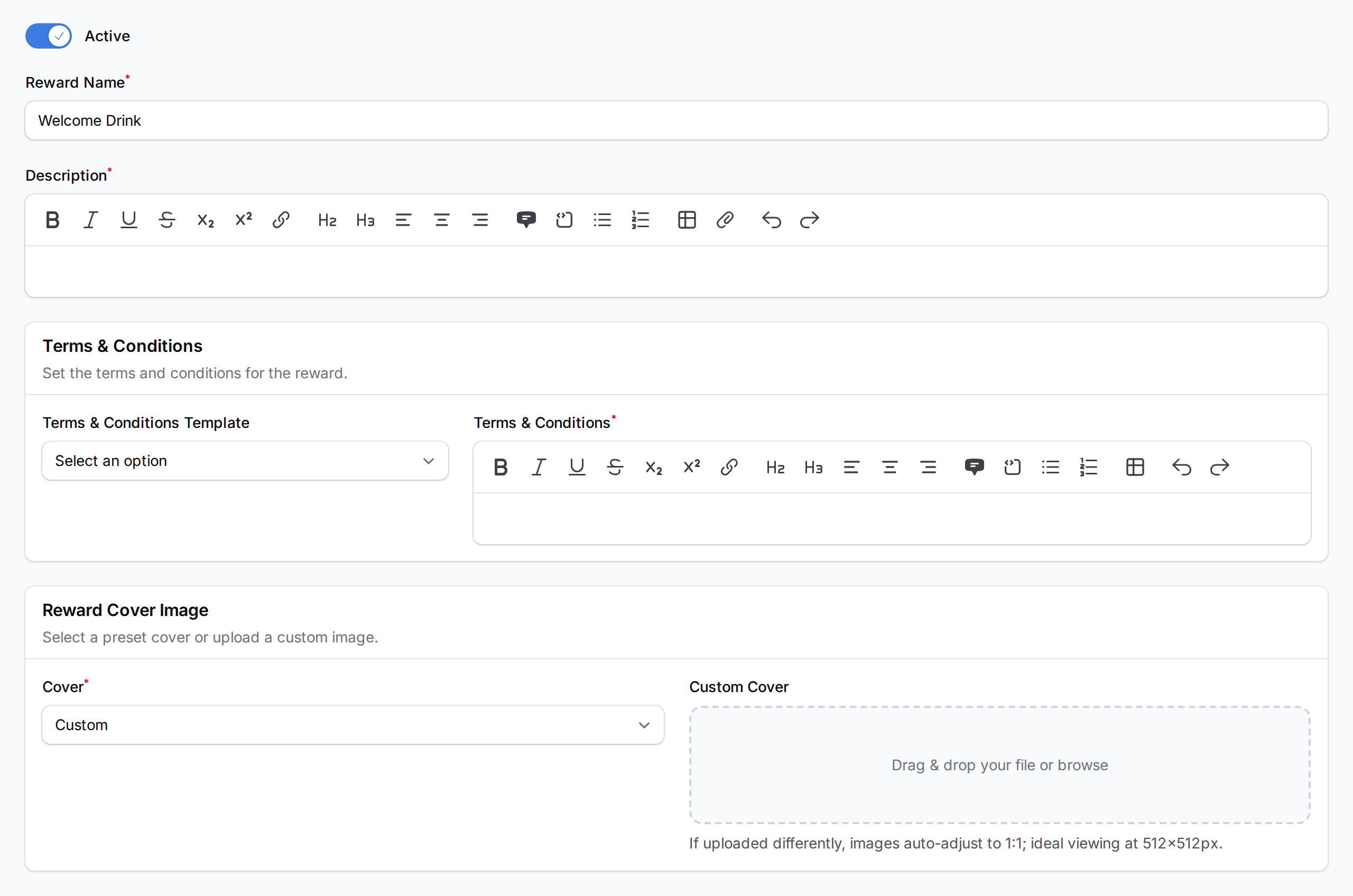
Fill in the Reward Details tab with a name, description, and cover image.
Step 2: Set the points cost to zero
Because this reward is given automatically, the points and credits cost must be 0. Set Points to Redeem to 0 (and Credits if applicable).
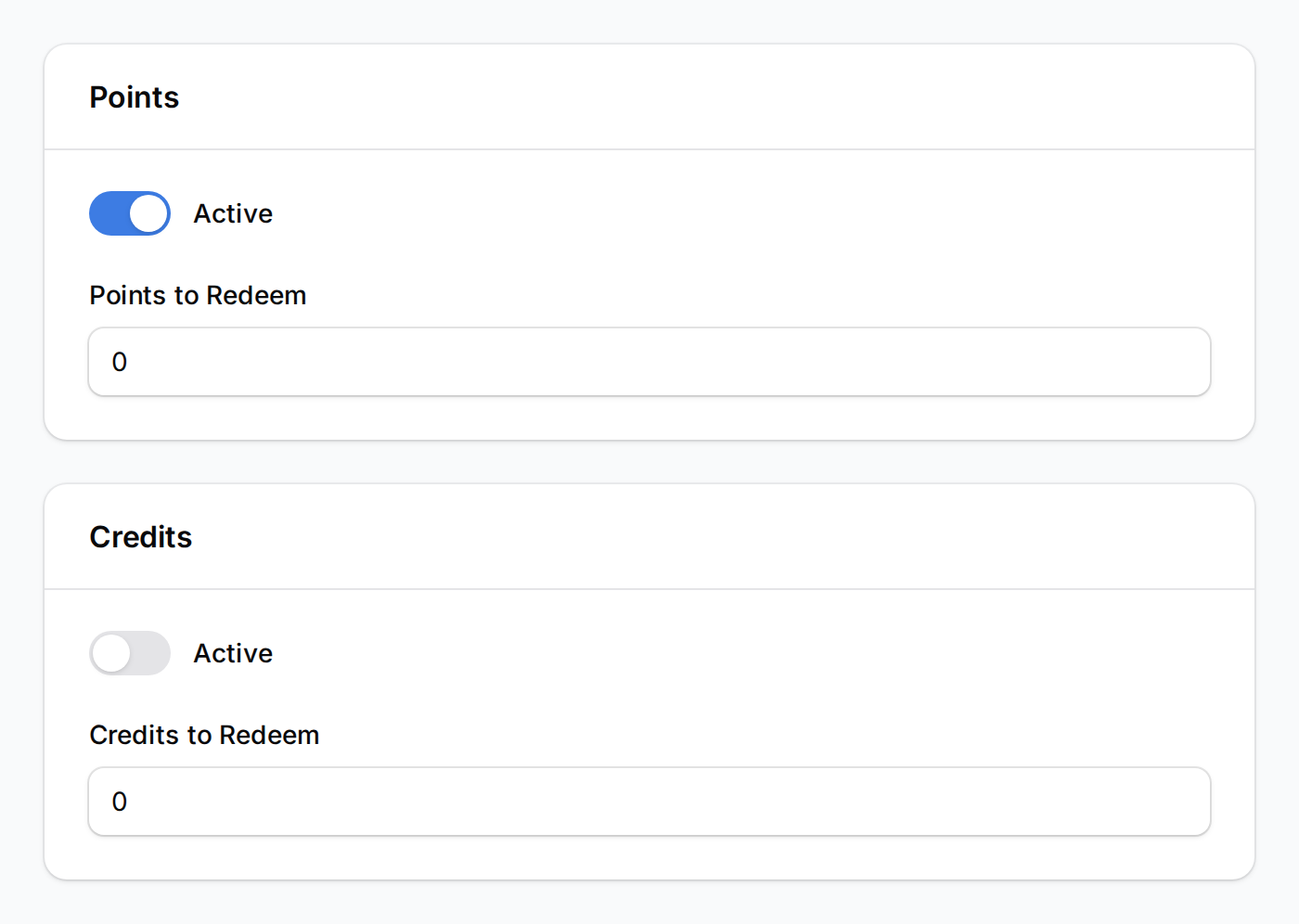
The system enforces this — you cannot set a cost on a reward that has automation turned on.
Step 3: Turn on Birthday automation
Click the Automations tab, then under the Birthday section toggle on Auto-assign to Birthday Customers. Set the Quantity (usually 1) and the Birthday Reward Assignment Time, which is the time of day the reward is delivered.
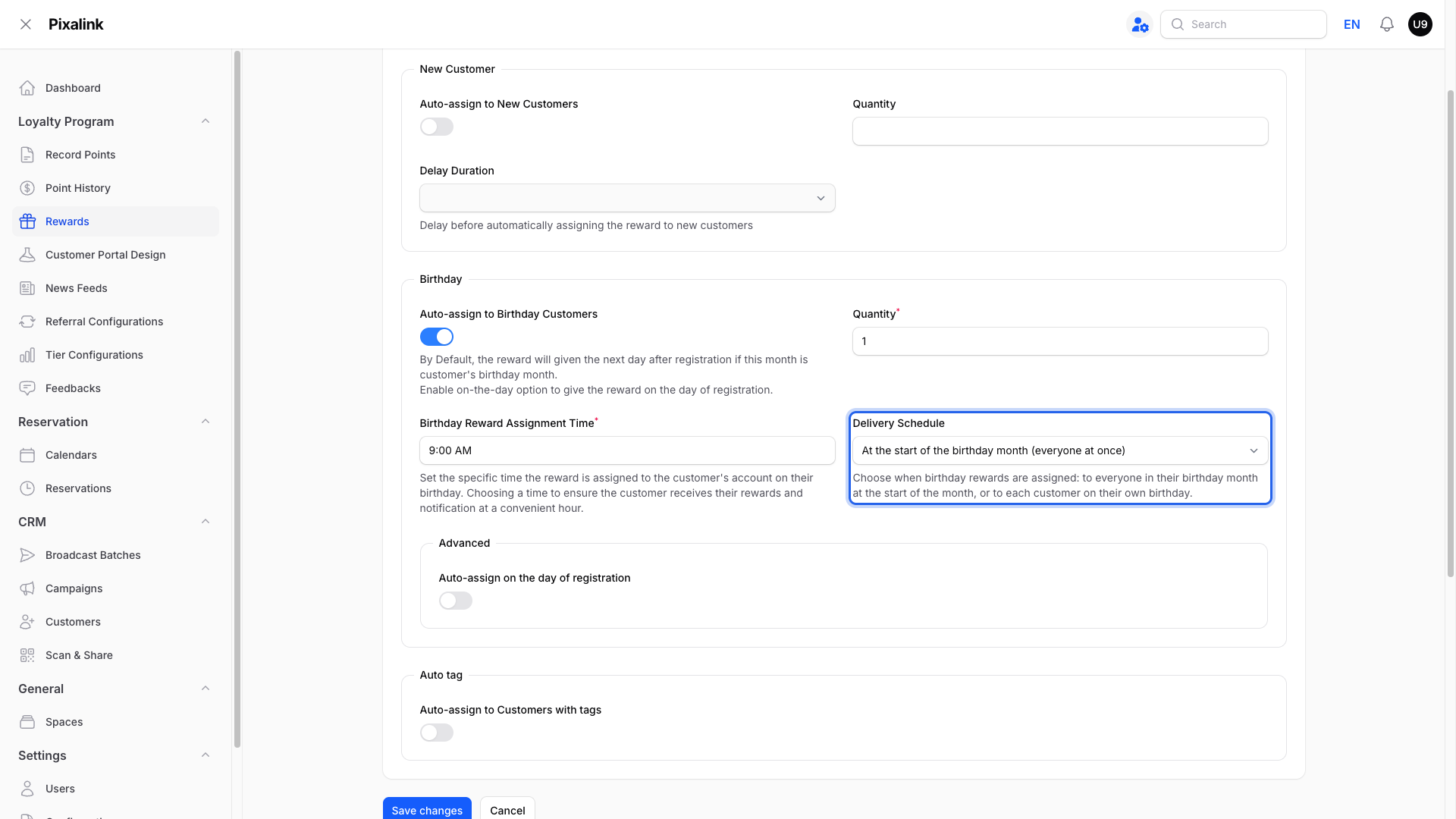
The assignment time uses 30-minute intervals (e.g. 09:00, 09:30, 10:00). Pick a time when your customers are likely to check their phone.
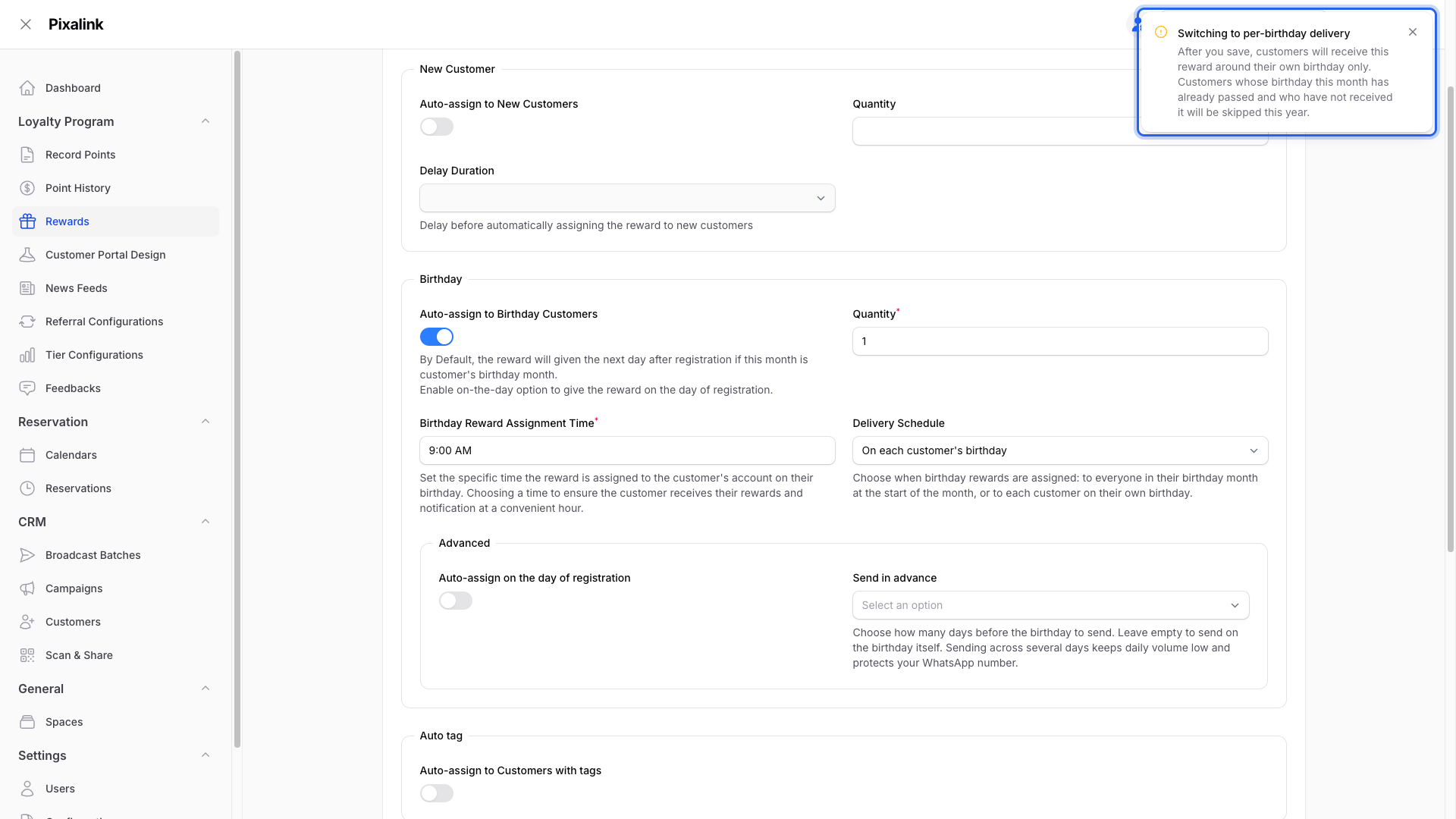
Step 4: Choose the Delivery Schedule
Pick when customers receive the reward using the Delivery Schedule dropdown. The default, At the start of the birthday month (everyone at once), sends to every customer with a birthday that month in one go. Choose On each customer's birthday to spread delivery across the month instead.
If you change this on a reward that is already running, a warning explains what happens after you save. Switching to month-start delivery sends to everyone in the current month on the next run. Switching to per-birthday delivery skips customers whose birthday this month has already passed.
Step 5: (Optional) Advanced timing
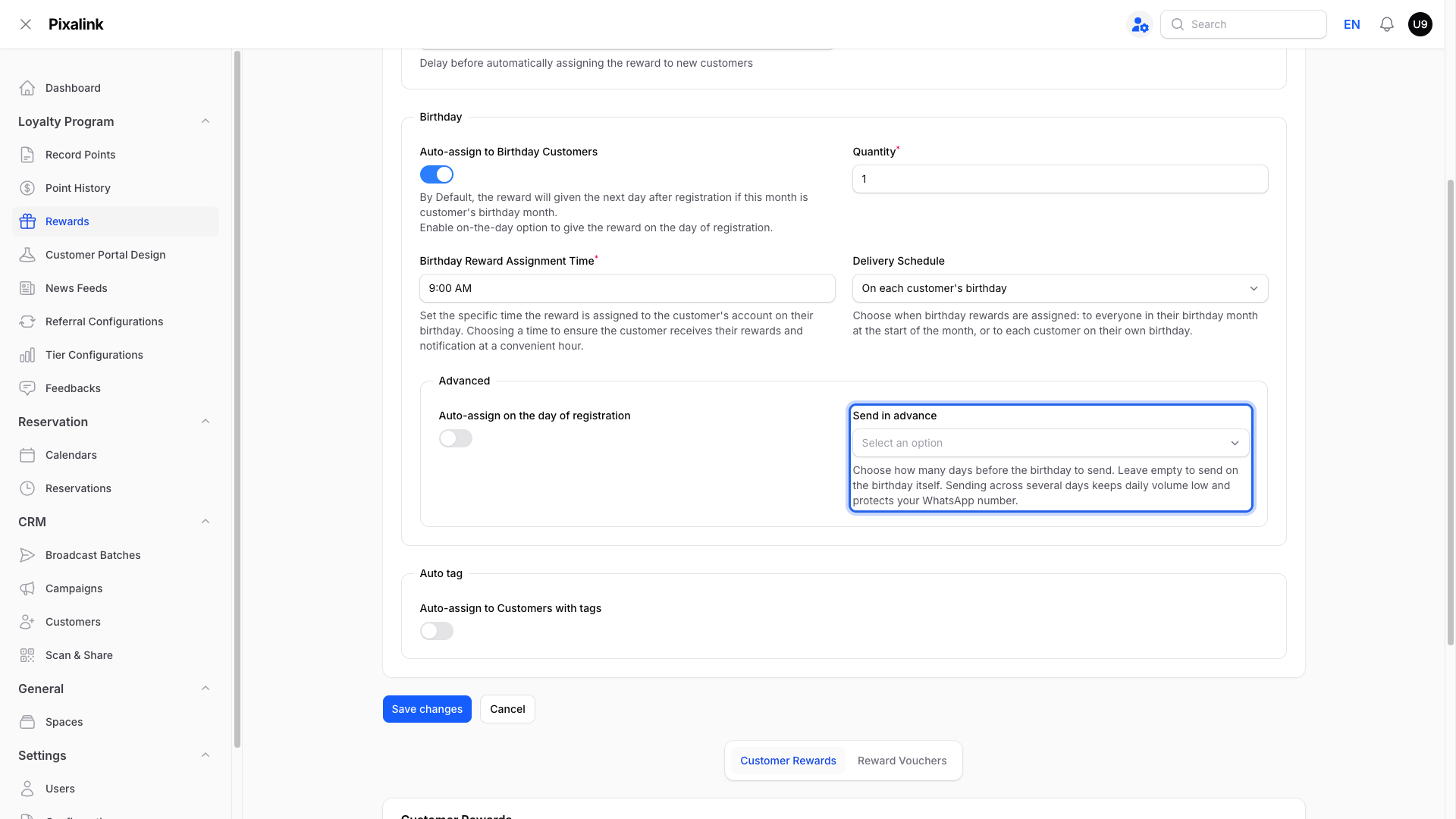
The Advanced section within Birthday has two options:
- Auto-assign on the day of registration — controls when a new customer receives the birthday reward during their birth month. Leave it off to assign the reward the next day. Turn it on to assign the reward on the same registration day. For example, if a customer joins on 10 August and their birthday is also 10 August, they receive the reward that day only when this option is enabled.
- Send in advance — only shown when the Delivery Schedule is On each customer's birthday. Send the reward before the birthday (3 or 5 days, 1 week, or 2 weeks early). Leave it empty to send on the birthday itself. Spreading it across several days keeps your daily message volume low and protects your WhatsApp number.
Step 6: Set an expiry or validity period
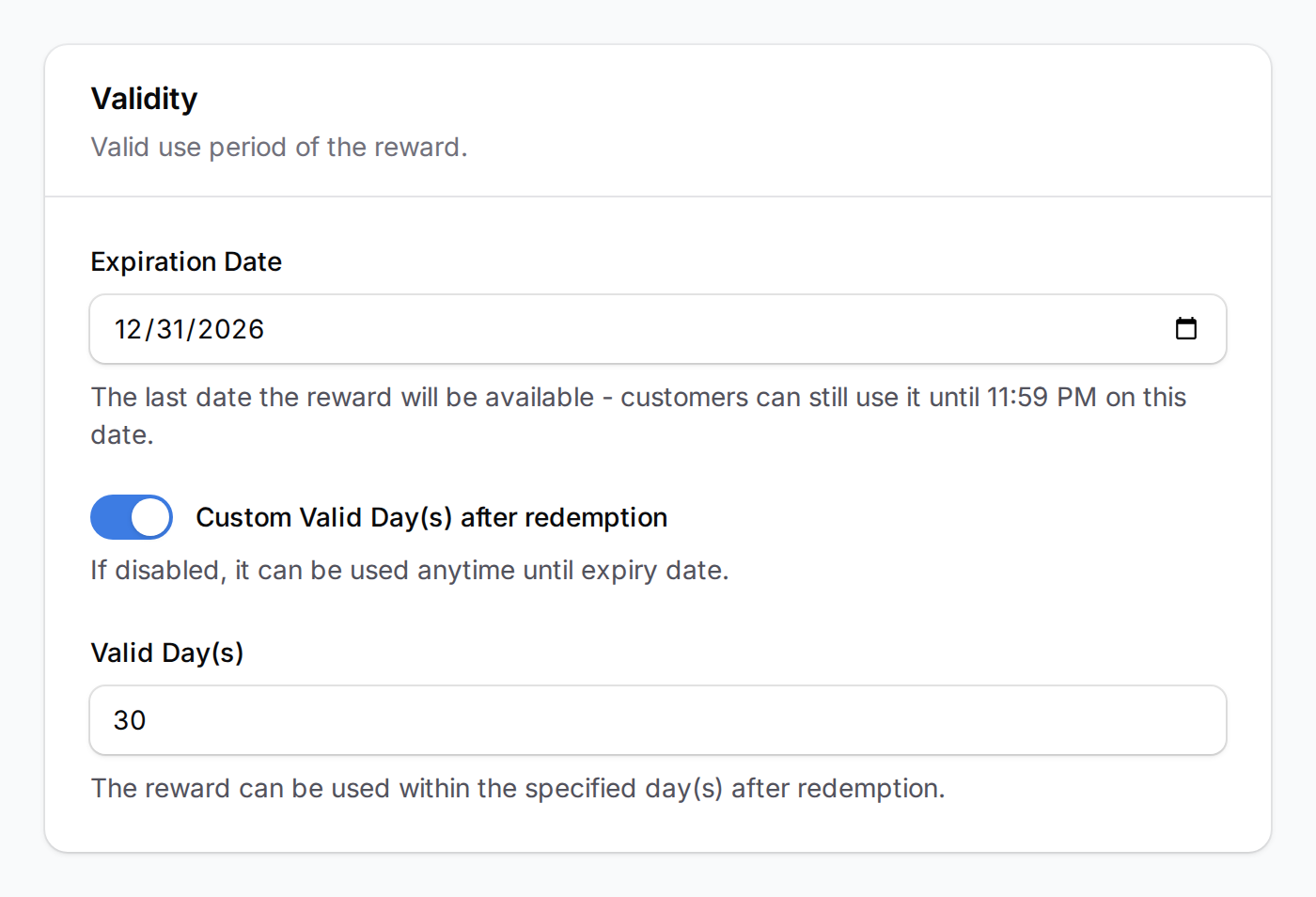
Back in the Settings tab, set an Expiration Date or enable Custom Valid Day(s) after redemption to control how long customers have to use the reward.
Step 7: Activate and save
Make sure the Active toggle is turned on, then click Save.

That's it. Pixalink checks every night for birthday rewards that need to be sent out and assigns them at the time you chose. If you pick a time earlier than about 4:30 AM, the reward arrives shortly after the nightly check instead.
What Your Customers Will See
Customers receive the reward at the start of their birthday month or on their own birthday, depending on the Delivery Schedule you chose. If you've set up WhatsApp notifications for the reward, they'll also get a message letting them know about their birthday gift. The reward appears in their customer portal with a unique code they can show at your location to claim it.
Good to Know
- The Delivery Schedule decides the date. By default, everyone with a birthday that month receives the reward at the start of the month. Switch to per-birthday delivery to send on each customer's own date instead.
- Tier and paid-membership birthday vouchers work differently. A birthday voucher tied to a loyalty tier is given at 9:00 AM on the customer's birthday itself, and one tied to a paid membership is given at 9:00 AM at the start of the birth month (or the next morning for a member who becomes eligible later that month). This article covers the standard reward automation, which follows the Delivery Schedule you choose.
- Customers need a date of birth on file. If a customer's profile doesn't include their date of birth, they won't receive a birthday reward.
- Paid Membership Visibility restricts the automation too. If the reward is set to Hidden from non-paid members or Locked for non-paid members, only customers with an active paid membership receive the birthday reward — on the scheduled run and on same-day registration alike. Customers without the membership are skipped by design.
- One reward per year. Each customer can only receive a specific birthday reward once per calendar year.
- Points/credits must be zero. Automated rewards cannot have a point or credit cost. If an older birthday reward still has a cost, it is skipped — customers are not charged and do not receive it — until you set the cost to 0.
- Multiple birthday rewards. You can create more than one reward with birthday automation — customers will receive all of them.
- The reward must be active. If you deactivate the reward, birthday assignments will stop.