
How to Check If a Customer Received Their Welcome Voucher
Every voucher a customer receives is saved on their record. When a customer says they never got their welcome voucher, you do not have to guess. You can open their record and see exactly when the voucher was sent and whether it has been used. This turns an awkward dispute into a quick, fact-based answer at the counter.
What Is This?
The Customer Rewards tab lists every voucher a customer has received. For each voucher you can see the received date, the expiry date, and whether it has been used. This is the proof you need when a customer claims a reward never arrived. If the record shows the voucher, it was delivered.
Real-Life Example
Farah runs Petal & Stem, a florist in Subang. A new customer, Nurul, signs up and the welcome voucher is sent out the same day.
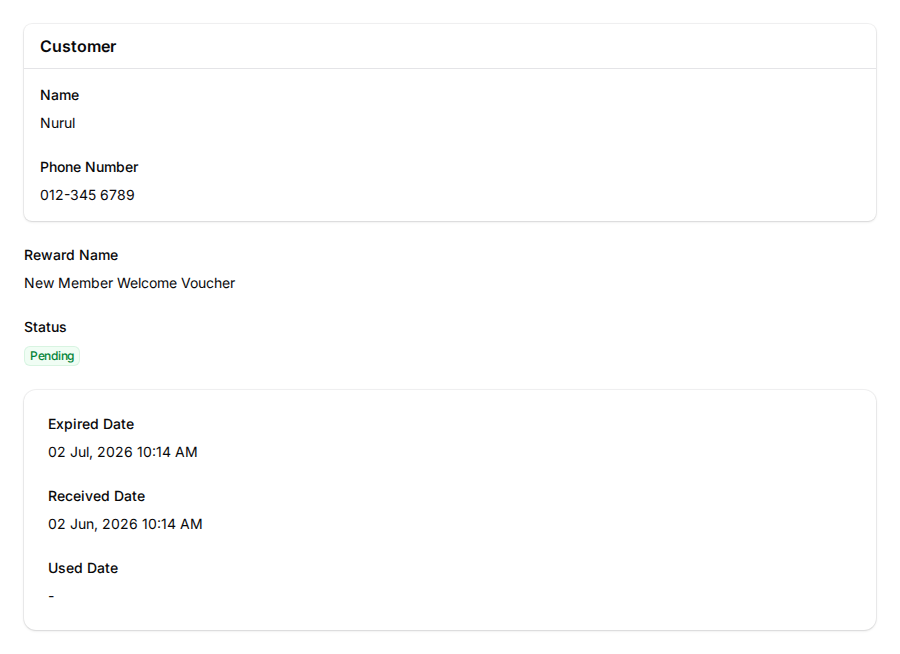
A week later, Nurul tells the counter she never received the voucher and asks for a new one. Farah opens Nurul's record and checks the Customer Rewards tab. The welcome voucher is there, received on 02 June, with a Pending status. The voucher was delivered and is still unused. Farah shows Nurul that the reward is ready to redeem, and no extra voucher is needed.
How to Set It Up
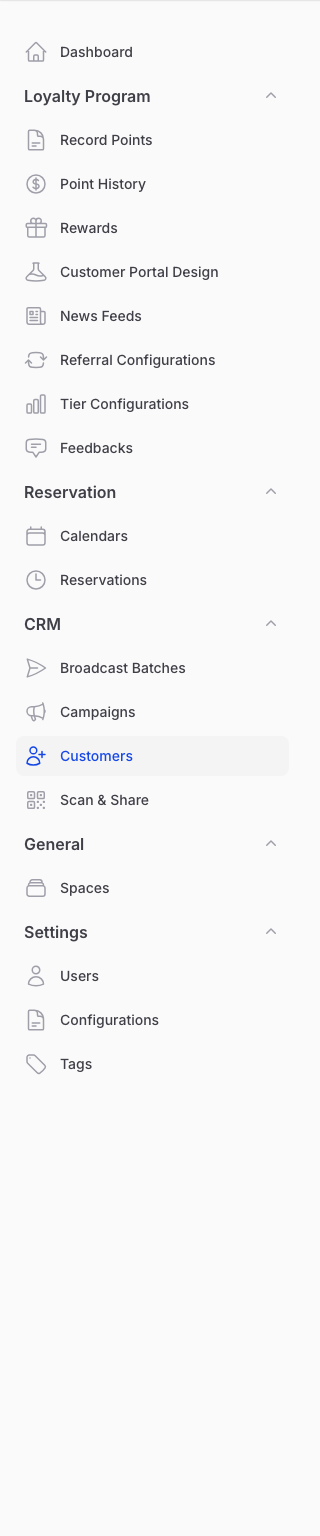
- Go to Admin Panel → CRM → Customers.
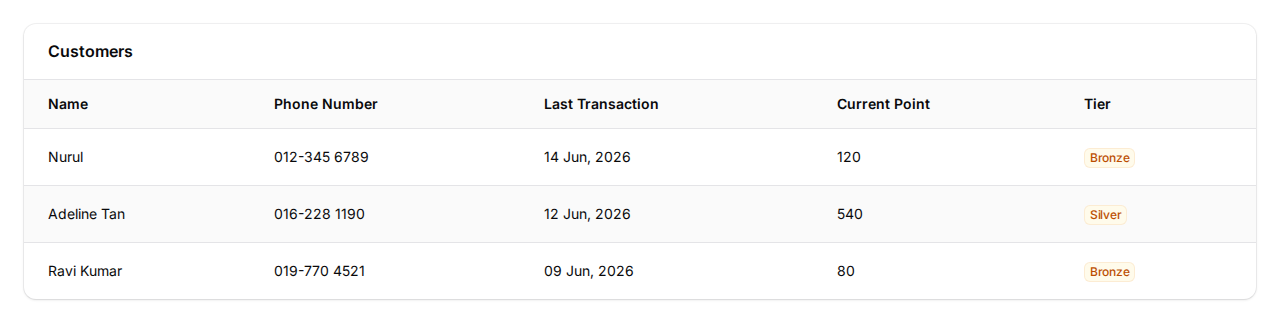
- Find the customer by name or phone number, then open their record.
- Open the Customer Rewards tab to see every voucher this customer has received.

- Click View on the welcome voucher to read its full details, including the received date and status.
What Your Customers Will See
The customer sees the same voucher in their loyalty portal marketplace. A Pending voucher sits in their rewards list, ready to use. A Used voucher moves into their history. An expired voucher drops out of the marketplace, so a customer who cannot find a voucher there has one that has expired.
Good to Know
- Received Date is the moment the voucher reached the customer. A date here means it was delivered.
- Redeem Status tells you the rest. Pending means received but not used. Used means already redeemed.
- The Used Date, Outlet, and Validator show where and when your staff redeemed the voucher.
- A voucher can also expire. An Expired status means the customer ran out of time to use it.
Need Help?
Contact the Pixalink support team if a voucher is missing from a customer's record, or if a status looks wrong.