
How to Share a Form with a QR Code or Link
How to Share a Form with a QR Code or Link
What Is This?
Turn any form into a QR code or a shareable link that customers open on their phone. They scan it, fill in the form, and submit on the spot — an easy way to collect sign-ups, receipts, and details without paperwork.
Real-Life Example
Farah runs Petal & Stem, a florist in Subang. She wants walk-in customers to join her loyalty program without queuing at the counter. So she builds a sign-up form and switches it on. Then she opens the QR code and prints it on a small card by the till. Customers scan it, fill in their details on their phone, and join in seconds. Farah also drops the link into her WhatsApp message to past buyers. New members start rolling in, and her staff barely lift a finger.
How to Set It Up
-
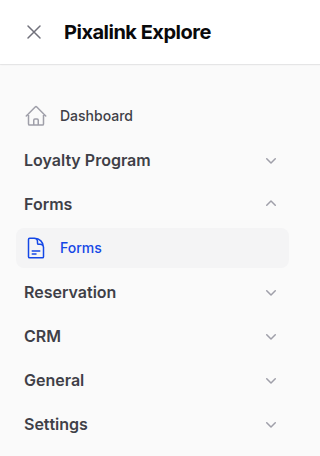
Go to Admin Panel → Forms → Forms.
-
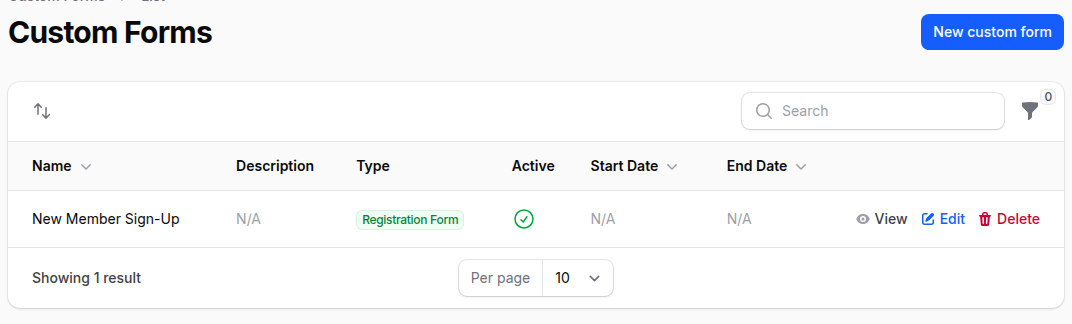
Find the form you want to share and check that it is switched on. Then open it.
-
Click Show Form QR Code at the top of the page.

-
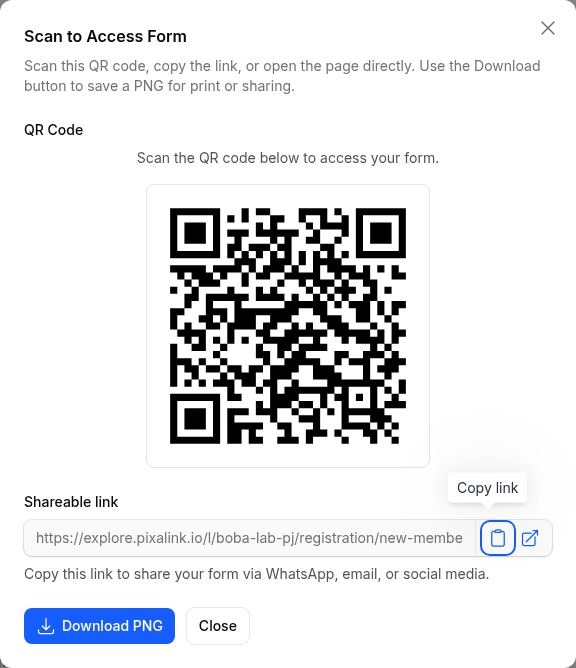
Click Download PNG to save the QR code, or use the copy button to grab the shareable link.
What Your Customers Will See
When a customer scans the code or opens the link, your form opens straight away on their phone. They fill in the fields and submit in a few taps. For a sign-up form, they can join without logging in first, which means fewer people give up halfway.
Good to Know
- The Show Form QR Code button only appears once the form is switched on.
- If you run more than one outlet, pick which outlet the link points to first.
- The QR code and the link both open the same form page.
- This works for sign-up forms, receipt uploads, and other custom forms.
- You can open the window again any time to download a fresh copy.
Need Help?
Stuck on any step? Reach out to our support team and we'll walk you through it.