
How to Let Staff Practise Safely in Pixalink
What Is This?
Pixalink has no practice or demo mode. Everything staff do is real. Train on a test customer that uses a staff member's own number, so any message reaches your team, not a customer.
Real-Life Example
Siti's clinic has two new front-desk staff. She doesn't want points landing on a real patient. Farah, one of the new staff, types her own phone number in Record Points and gives herself 1 point, which creates the test customer. She shows the voucher code on her phone, validates it, and takes the point back. The welcome message goes to Farah's own WhatsApp. Afterwards, Siti deletes the test customer.
Video Walkthrough

How to Set It Up
-
Go to Loyalty Program → Record Points, type the staff member's own number in Phone Number and click Next.

A number that isn't in your list becomes a new customer, so this creates your test customer.
-
Type a small amount such as 1 in Point Amount and click Create.
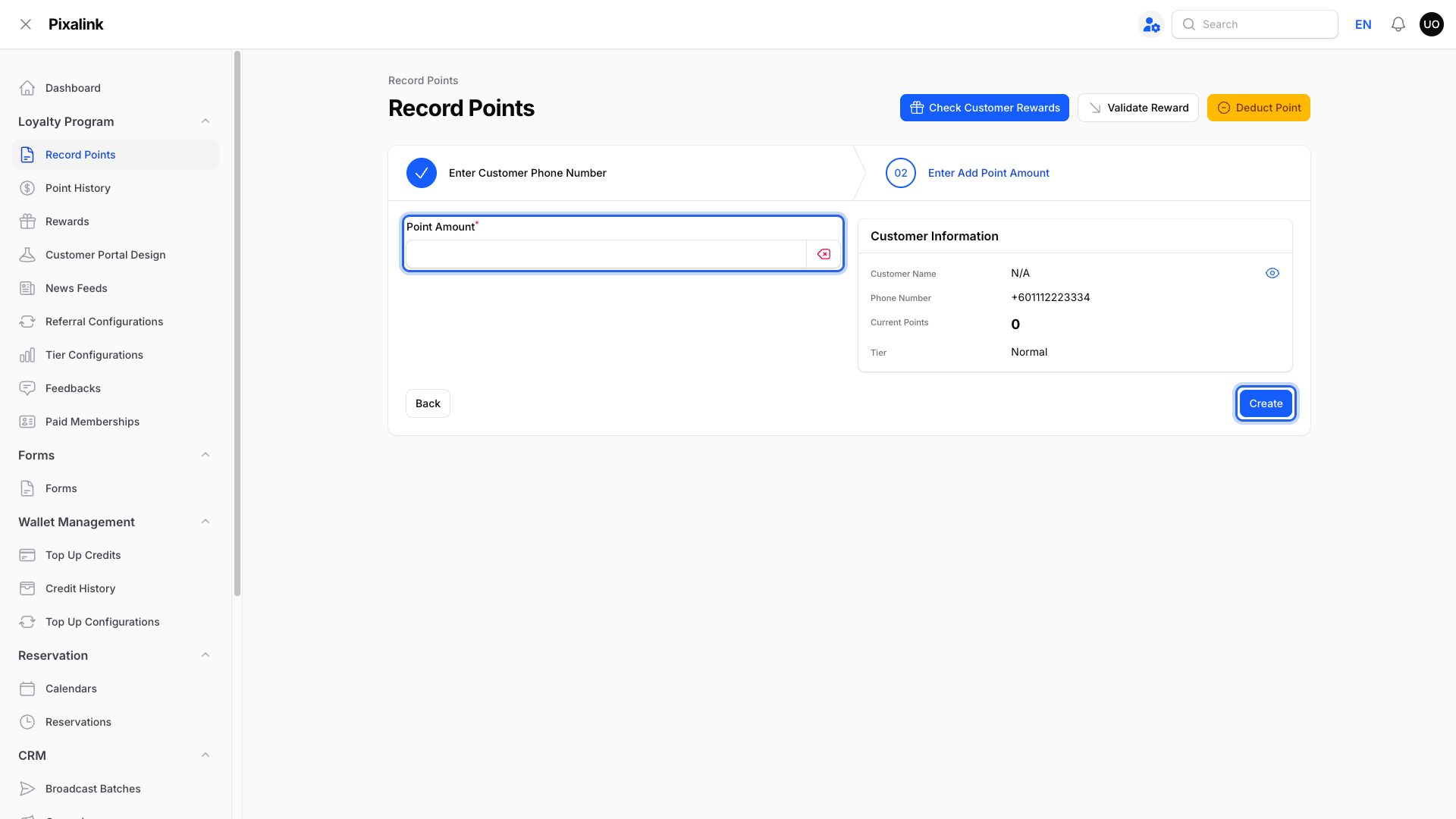
The balance shows under Customer Information.
-
On the staff member's phone, open a voucher in the customer portal and tap Use Now.
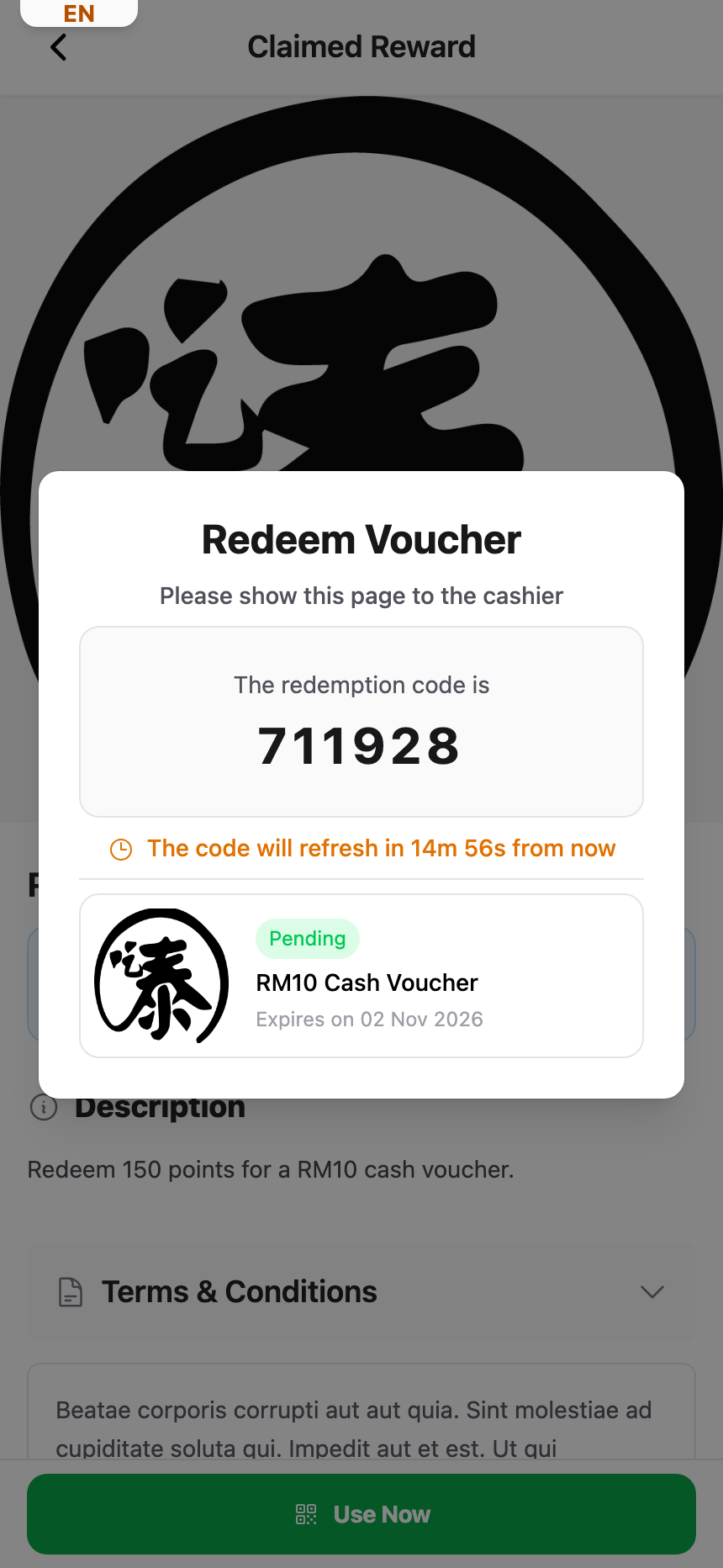
The 6-digit code changes every 15 minutes, so type it while it is on screen.
-
In Record Points, click Validate Reward, type the code in Redemption Code, check the Customer and Reward name, then click Submit.
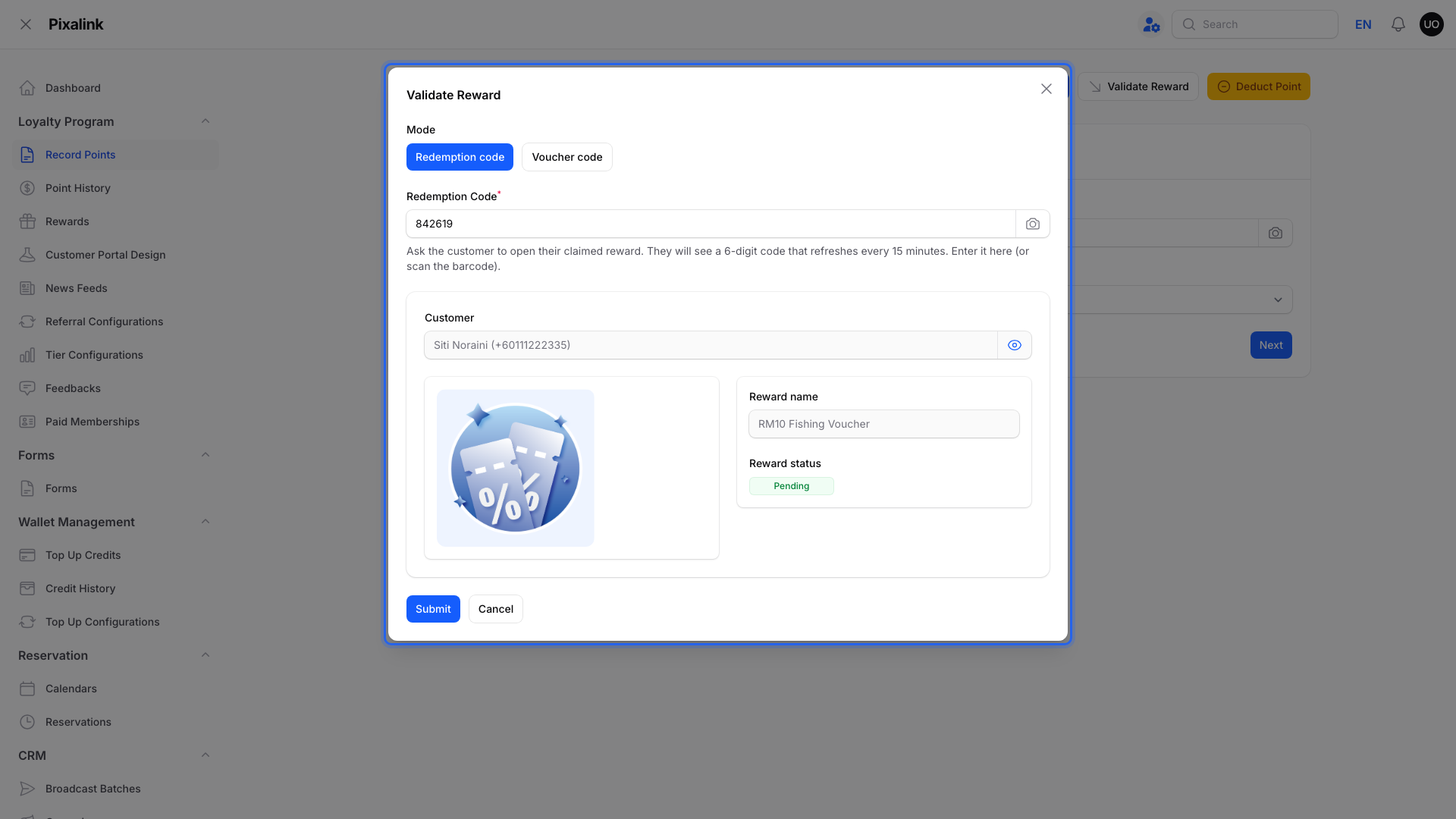
A Validated message confirms the voucher is now used.
-
Optional clean up: click Deduct Point, type the test number in Phone Number, click Next, then take back the points the test customer got. A tier or outlet point multiplier can make this more than you typed.

Add a note in Remarks, such as "training".
-
When training is done, go to CRM → Customers and click Delete on the test customer.
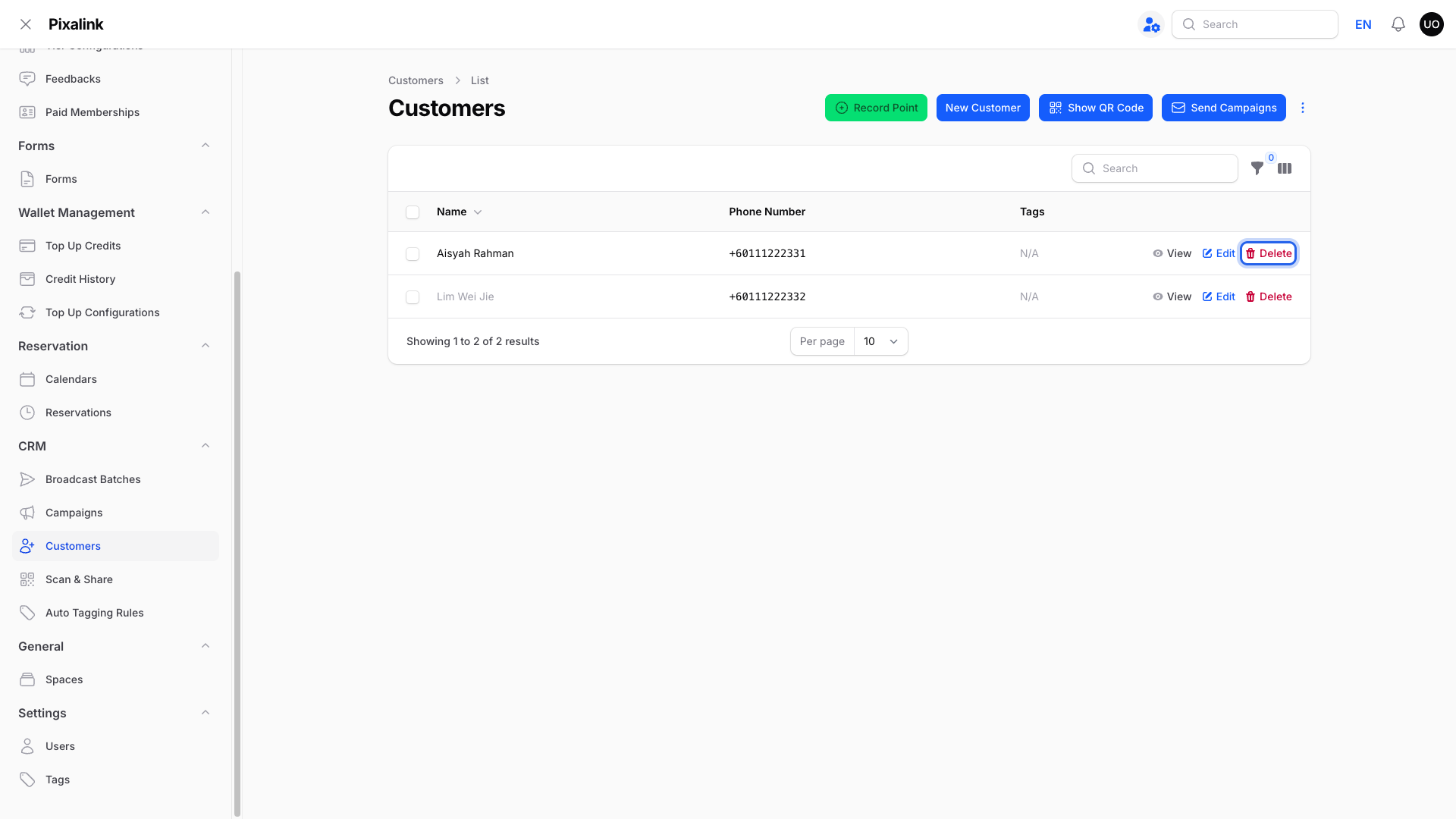
Check the phone number first. Deleting can't be undone.
Note
The first time the test customer opens the portal, they're asked for their name and date of birth. That's normal for any new number.
What Your Customers Will See
Nothing. Customer messages go only to the test customer. Your own team may get a reward alert if you turned one on.
Good to Know
Warning
These practice actions can send real messages to the test number:
- The first points for a new number create a new customer, so your welcome voucher and new customer message can go out.
- Recording points sends a "points earned" message if you turned that on.
- Validating a voucher marks it used and can send a "reward used" message.
- Moving tiers can send a tier message, so keep amounts small.
- If you don't see Validate Reward or Deduct Point, contact support to turn them on. Staff also need permission to use them.
- Deleting a customer erases their points and history. See What Happens When You Delete a Customer.
Need Help?
Our support team is happy to help.