
How to Record Points for a Customer
What Is This?
Recording points is how you reward customers for their purchases. Every time a customer buys something, your staff adds points to their account based on the amount spent. In Pixalink, 1 point = RM 1 — so if a customer spends RM 50, they earn 50 points.
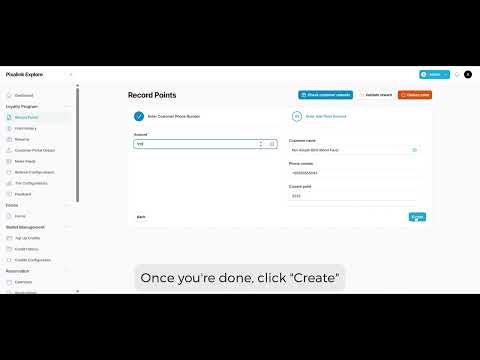
Video Walkthrough
Real-Life Example
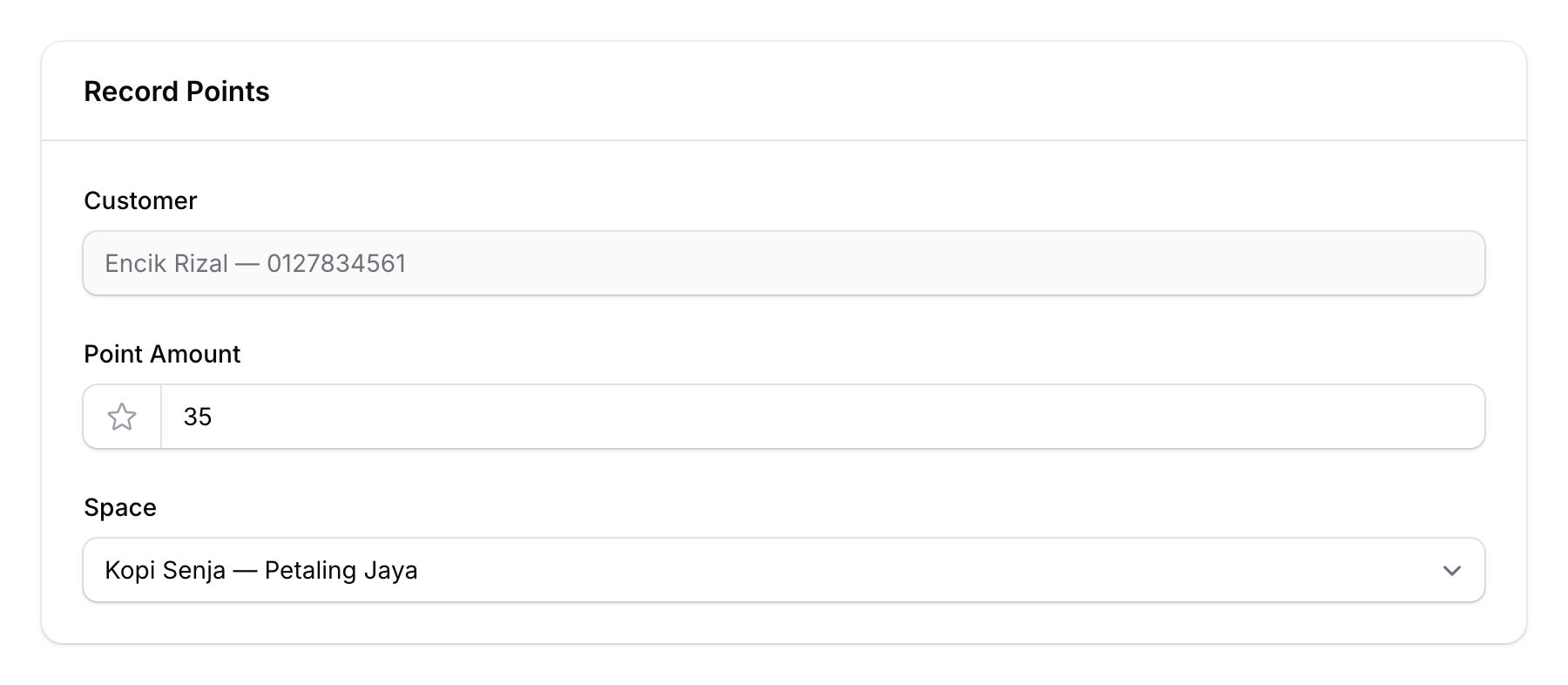
Aisyah runs a cafe called Kopi Senja in Petaling Jaya. A regular customer, Encik Rizal, pays RM 35 for his lunch. Aisyah's cashier opens the Record Points page, enters Encik Rizal's phone number, keys in 35 points, and taps Next. Encik Rizal instantly sees his updated balance on his phone — simple as that.
How to Record Points
Step 1: Open the Record Points Page
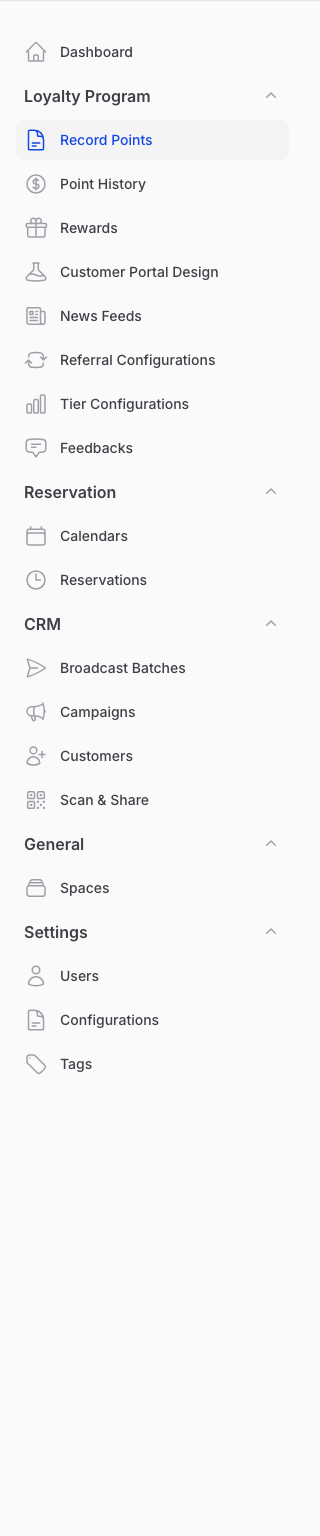
From the Admin Panel sidebar, go to Loyalty Program and click Record Points.
Step 2: Enter the Customer's Phone Number
Type the customer's phone number into the search field. You can also scan their QR code if they have one. Once the customer is found, click Next.

Step 3: Enter the Point Amount
Enter the number of points to award. This should match the customer's actual spending amount (e.g., RM 45 spent = 45 points).
If your organisation requires a password for large transactions, you'll be prompted to enter it here.
If your account has more than one outlet, select the Space where the transaction happened. Then click Next.
Step 4: Confirm the Transaction
A success notification confirms the points have been added to the customer's wallet. You'll see a View Customer link in the notification to check their updated profile.

Good to Know
- 1 point = RM 1 — This is a fixed conversion across all Pixalink accounts.
- Points don't expire by default. If you need expiration (e.g., 365 days), contact Pixalink support to enable it.
- Password protection — Your organisation can require a password for transactions above a certain amount, adding a layer of security.
- QR scanner — Staff can scan a customer's QR code from their portal instead of typing the phone number manually.
- Reward redemption — While recording points, staff can also link pending rewards to the transaction using the "Check Customer Rewards" button.