
How to Deduct Points from a Customer
What Is This?
Sometimes you need to remove points from a customer's balance — maybe they returned an item, or points were added by mistake. The Deduct Points feature lets authorised staff subtract points and record the reason, keeping your loyalty programme accurate.
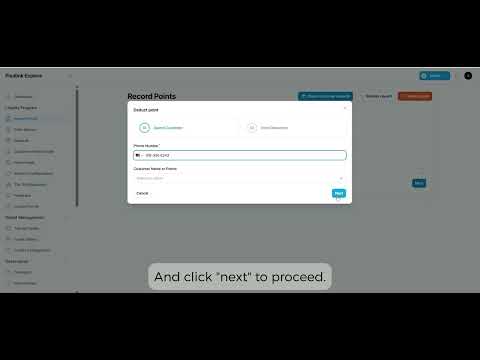
Video Walkthrough
Real-Life Example
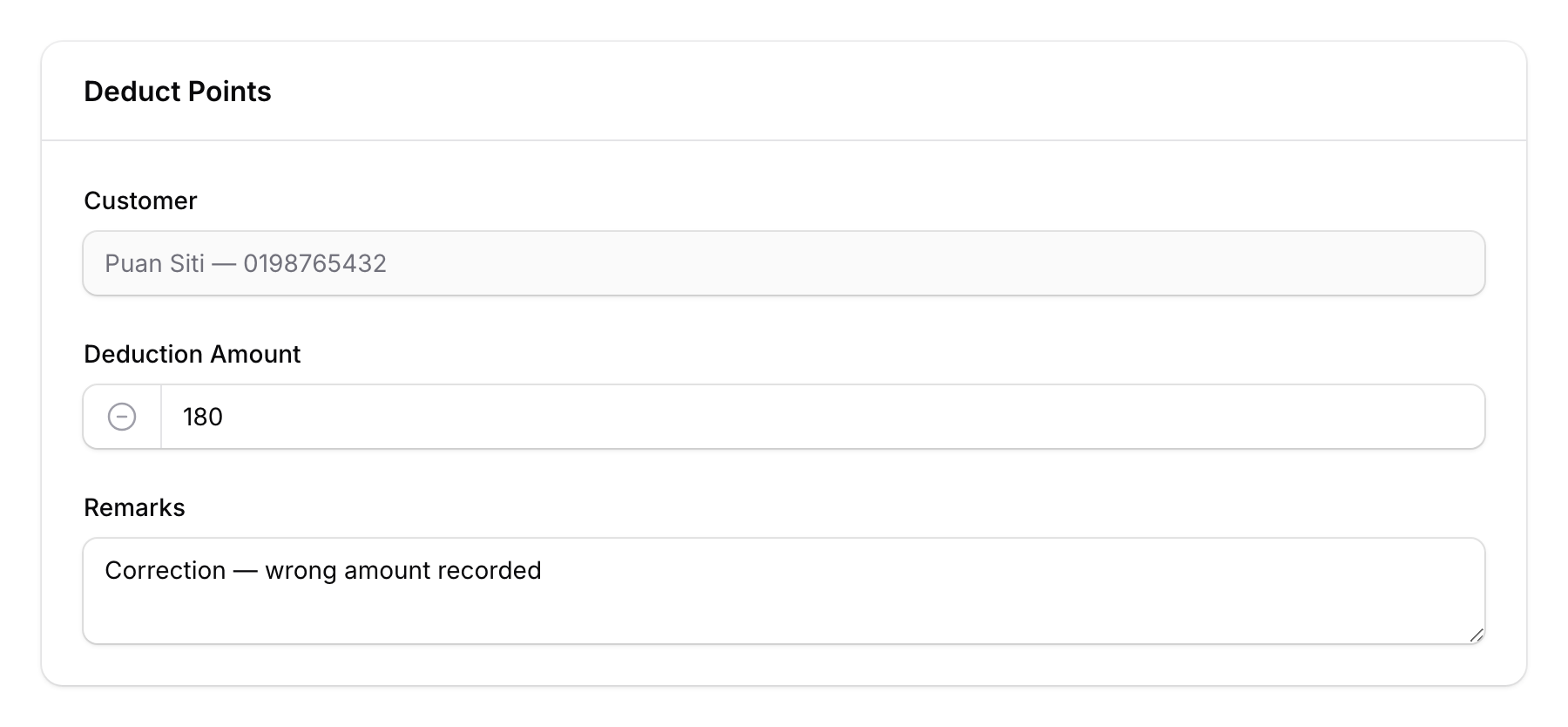
Ahmad from Restoran Dapur Mak in Shah Alam accidentally recorded 200 points for a customer named Puan Siti instead of 20. He opens the Deduct Points action, enters 180 points with the remark "Correction — wrong amount recorded", and the balance is fixed instantly.
How to Deduct Points
Step 1: Go to Record Points
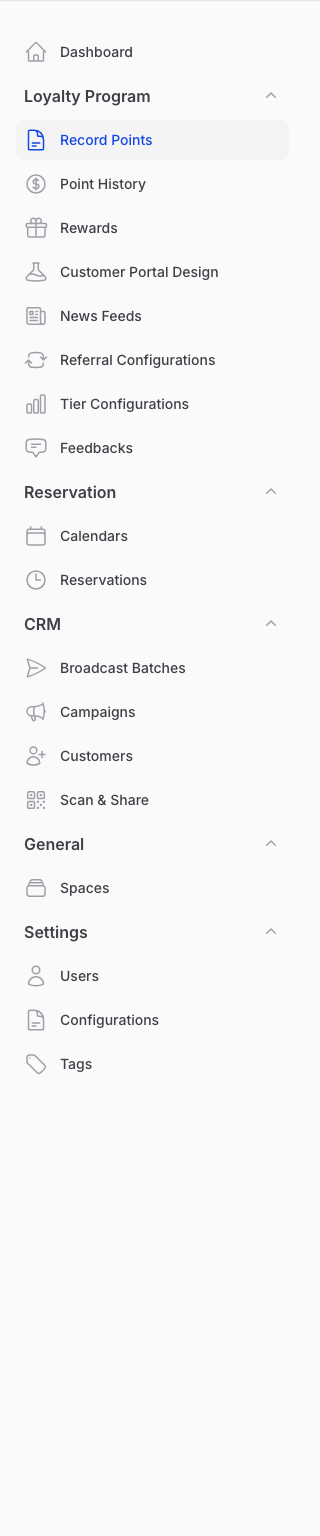
From the Admin Panel sidebar, go to Loyalty Program → Record Points.
Step 2: Click the Deduct Point Button
At the top of the Record Points page, click the Deduct Point button (orange button with a minus icon).
Note: The Deduct Point button only appears if the Verify Redemption feature is enabled for your account. If you don't see it, contact Pixalink support to enable it.

Step 3: Enter the Customer's Phone Number
Search for the customer by typing their phone number. Once found, click Next.

Step 4: Enter the Deduction Amount and Reason
- Enter the number of points to deduct.
- Add a remark explaining why the deduction was made (e.g., "Item returned", "Duplicate entry correction").
Click Submit to process the deduction.
Step 5: Confirm the Deduction
A notification confirms that the points have been successfully deducted from the customer's balance.

Good to Know
- Permission required — Only staff with the "Deduct Transaction" permission can see and use this button. If you don't see it, ask your admin to update your role.
- Always add a remark — This creates an audit trail so your team knows why points were removed.
- The deduction appears in Point History — Both additions and deductions are logged in the Transactions list for full transparency.
- Cannot deduct more than the balance — The system prevents deducting more points than the customer currently has.