
Updated Sep 2, 2026
Zu Wei
2 min read
14 views
Understanding Your Point History
What Is This?
Point History (also called Transactions) is your complete log of every point that's been added or deducted across your loyalty programme. Think of it as your loyalty programme's bank statement — every entry, every customer, every outlet, all in one place.
Real-Life Example
Farah, the manager of Beauty Haven Spa in Mont Kiara, wants to check how many points were given out last week across all three branches. She opens the Point History page, filters by date range and space, and instantly sees a summary — no spreadsheets needed.
How to View Point History
Step 1: Open the Point History Page
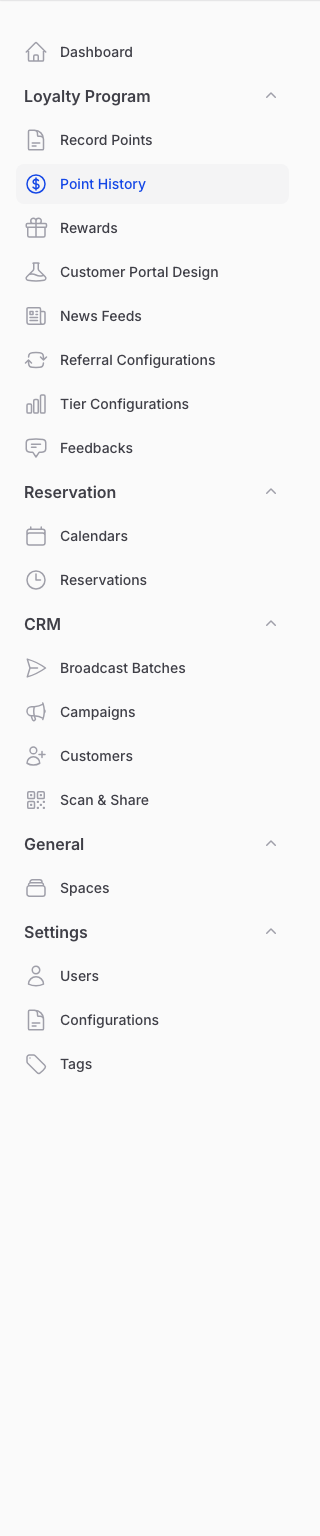
From the Admin Panel sidebar, go to Loyalty Program → Point History.
Step 2: Browse the Transaction List
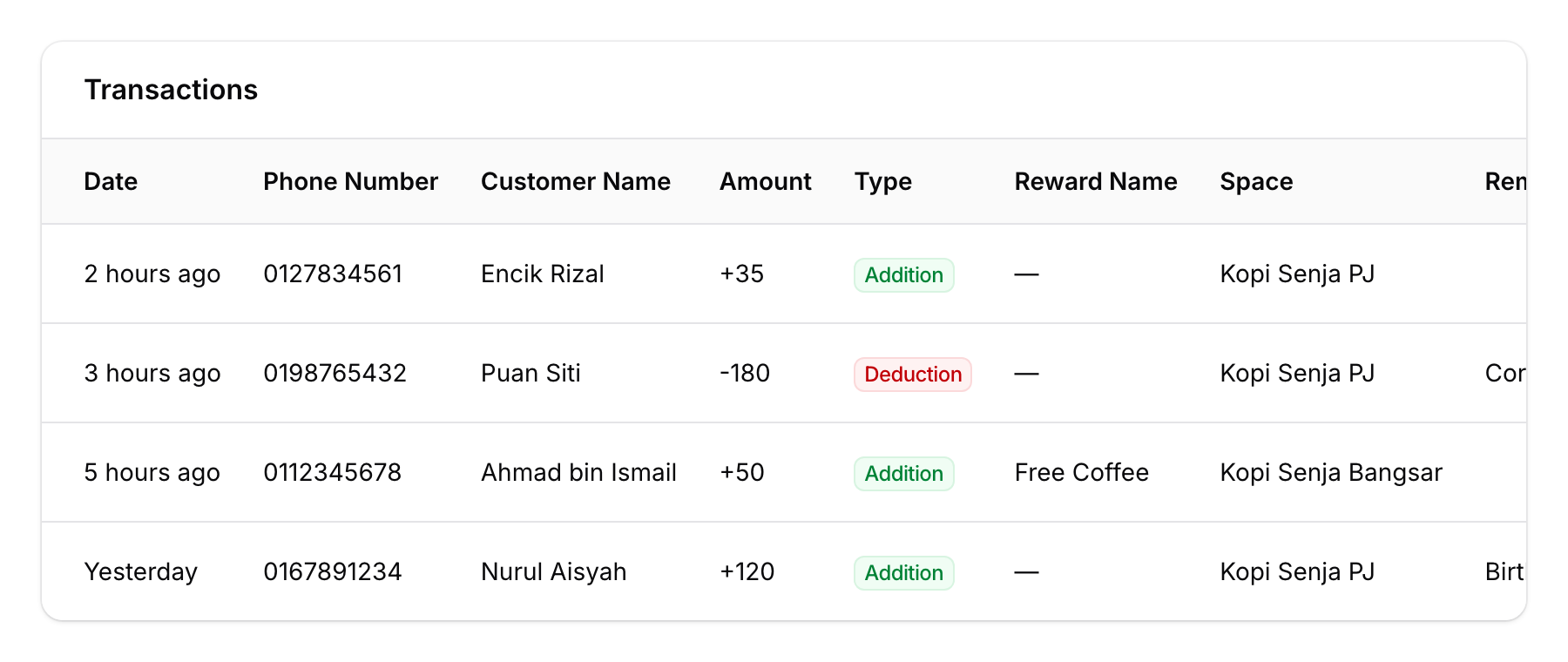
The table shows all transactions with these columns:
| Column | What It Shows |
|---|---|
| Date | When the transaction happened (relative time, e.g., "2 hours ago") |
| Phone Number | Customer's phone number (clickable — links to their profile) |
| Customer Name | The customer's name (also clickable) |
| Amount | Points added (+) or deducted (−) |
| Type | Green badge for additions, red badge for deductions |
| Reward Name | If the transaction was linked to a reward redemption |
| Space | Which outlet processed the transaction |
| Remarks | Staff notes (e.g., "Birthday bonus", "Correction") |
Step 3: Filter and Search
Use the filters at the top to narrow down your results:
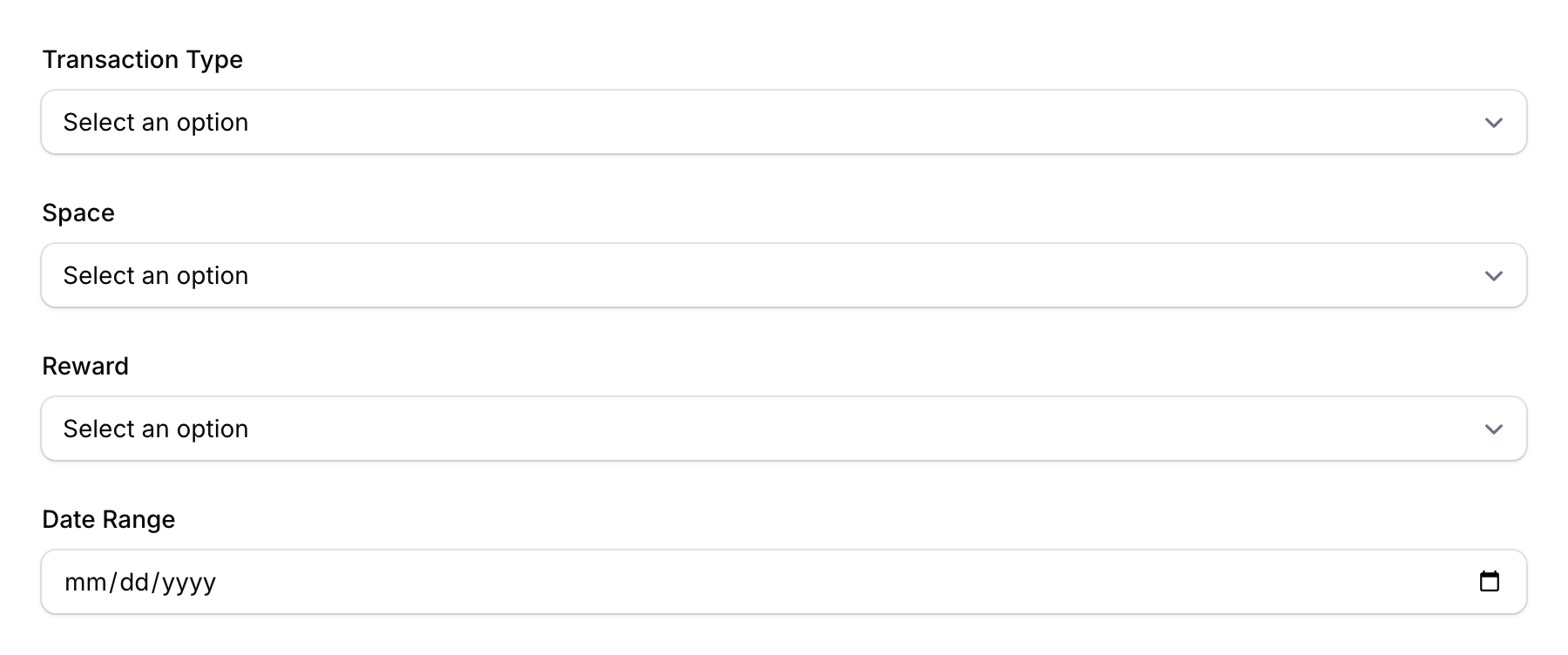
- Transaction Type — Show only additions or only deductions
- Space — Filter by specific outlet (appears if you have 2 or more spaces)
- Reward — Filter by specific reward
- Date Range — Pick a start and end date
- Search — Type a phone number to find a specific customer's transactions
Good to Know
- Edit window — Transactions can only be edited within 15 minutes of creation. After that, they're locked for audit integrity.
- Clicking a customer name takes you directly to their full profile, where you can see their complete loyalty history.
- Custom fields — If your organisation uses custom fields on transactions, they'll appear as additional columns in the table.