
What Happens When You Delete a Customer
What Happens When You Delete a Customer
What Is This?
Deleting a customer removes them from your customer list and clears their loyalty activity. It is very different from blocking. Blocking keeps all their history and can be undone at any time. Deleting cannot be undone from the panel — there is no restore button — so treat it as final. It clears the customer's loyalty data too: their point and transaction history is erased, while their wallet credits and redeemed rewards are removed from your account. Deleting is not the same as a formal privacy (data-erasure) request — see Privacy requests below. This guide explains what deleting does, what it does not do, and when to block instead.
You will find your customers under CRM → Customers.

How It Works
Each customer row has a Delete action next to View and Edit.
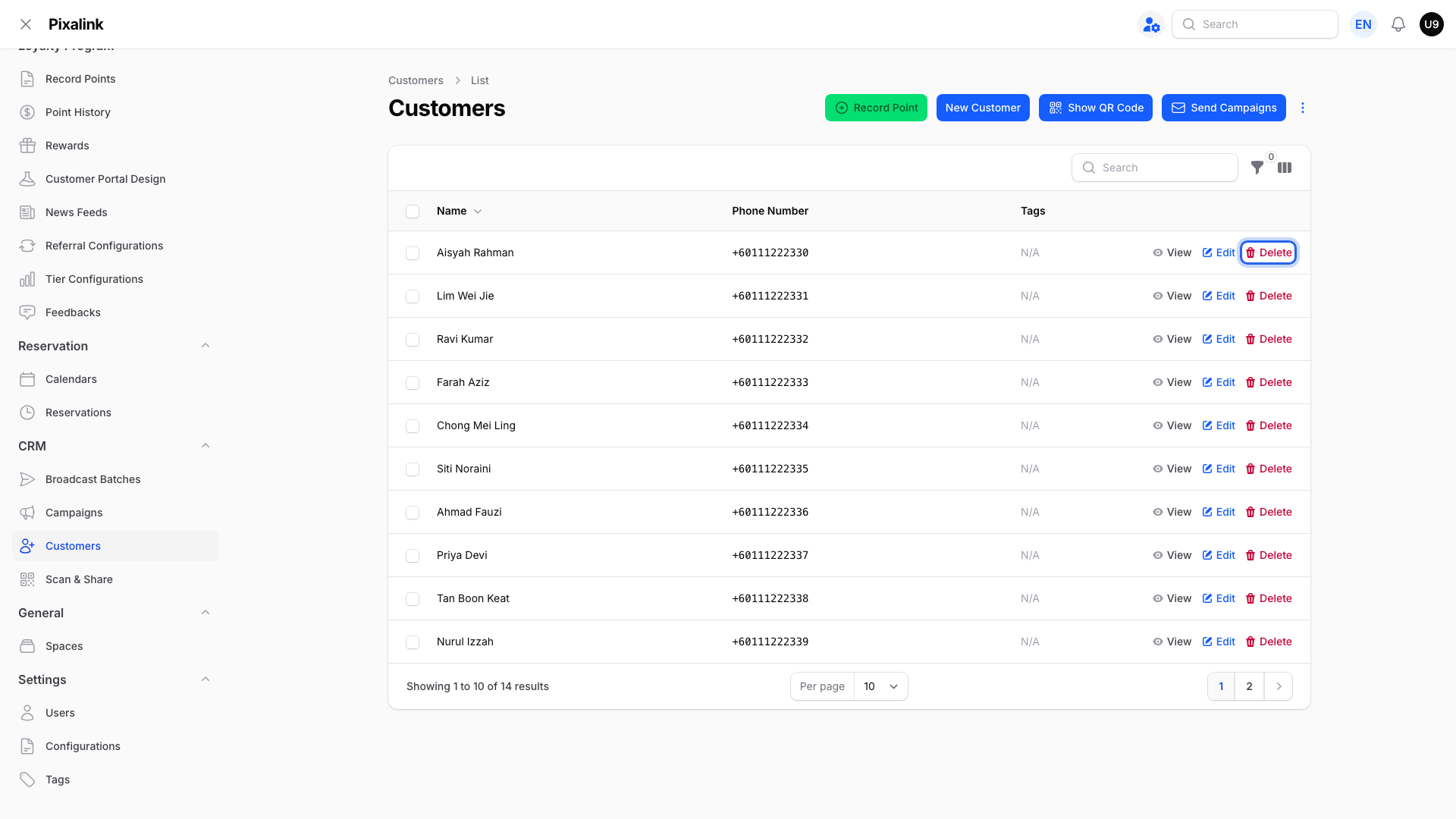
When you click Delete, a confirmation appears. Nothing is removed until you confirm.
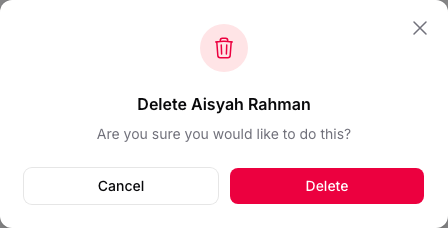
After you confirm, the removal runs in the background. This is why a deleted customer can still show in your list for a short moment. Refresh the page after a few seconds and they will be gone.
Here is what deleting does:
- Point and transaction history: permanently erased.
- Wallet credits and redeemed rewards: removed from your account, so the customer can no longer see or use them.
- Active, unclaimed reward vouchers: returned to your catalog, ready to be issued to someone else.
- The customer profile: removed from your customer list. There is no restore button in the panel, so you cannot bring it back yourself.
- Not a privacy erasure: everyday deletion is for tidying your list. It is not the same as a formal request to erase someone's personal data — that is handled separately (see Privacy requests below).
Real-Life Example
Aishah runs a cafe and tested Pixalink with her own phone number. Her test profile earned points and claimed a welcome voucher. Before launch, she opens CRM → Customers, clicks Delete on the test profile, and confirms. The points and history are wiped. Later she signs up again with the same phone number. Pixalink creates a fresh, empty profile, and her old points do not come back. Because it counts as a new customer, the welcome voucher is given again, and a referral reward can be earned again too.
Good to Know
- Deleting resets a customer. Re-registering with the same phone number starts a new profile with no past points. Welcome and referral rewards can trigger again, because the one-time limits were tied to the old record.
- Block instead when you want to keep history. Blocking stops a customer's access and messages while keeping every point and reward. You can unblock later.
- The phone number is the customer's identity. You cannot simply blank it out on a profile. Removing a record means deleting it.
- Clearing your whole list? Use the bulk delete flow rather than one row at a time.
- Privacy requests are handled separately. If a customer asks you to remove their personal data, that is different from everyday cleanup. Contact Pixalink support. Requests sent from a connected online store are processed for you automatically.
Need Help?
If you are unsure whether to block or delete, reach out to Pixalink support before you confirm. Deletion cannot be undone from the panel, so it is worth checking first.