
How to Delete All Customers for a Fresh Start
How to Delete All Customers for a Fresh Start
What Is This?
Sometimes you need to wipe your customer list and start clean — maybe after testing the platform with mock data, switching loyalty programs, or replacing an old import. The Customers tab lets you bulk delete customers in one go, and your screen stays responsive while the deletion finishes.
⚠️ This action is permanent. Once a customer is deleted, their profile, points balance, redeemed rewards, transaction history, and wallet credits are gone for good. Make sure this is what you want before you start.
Real-Life Example
Aishah runs Kopi Lima, a small cafe in Bangsar. She spent two weeks testing Pixalink with mock profiles — her own phone number, her friend's, and a few staff accounts — to make sure the points and rewards worked properly. Now she's ready to launch the real loyalty program. She opens the Customers tab, selects every test profile, and clicks bulk delete. A few minutes later, her customer list is empty and Kopi Lima is ready for its grand opening.
How to Set It Up
-
Go to Admin Panel → CRM → Customers

-
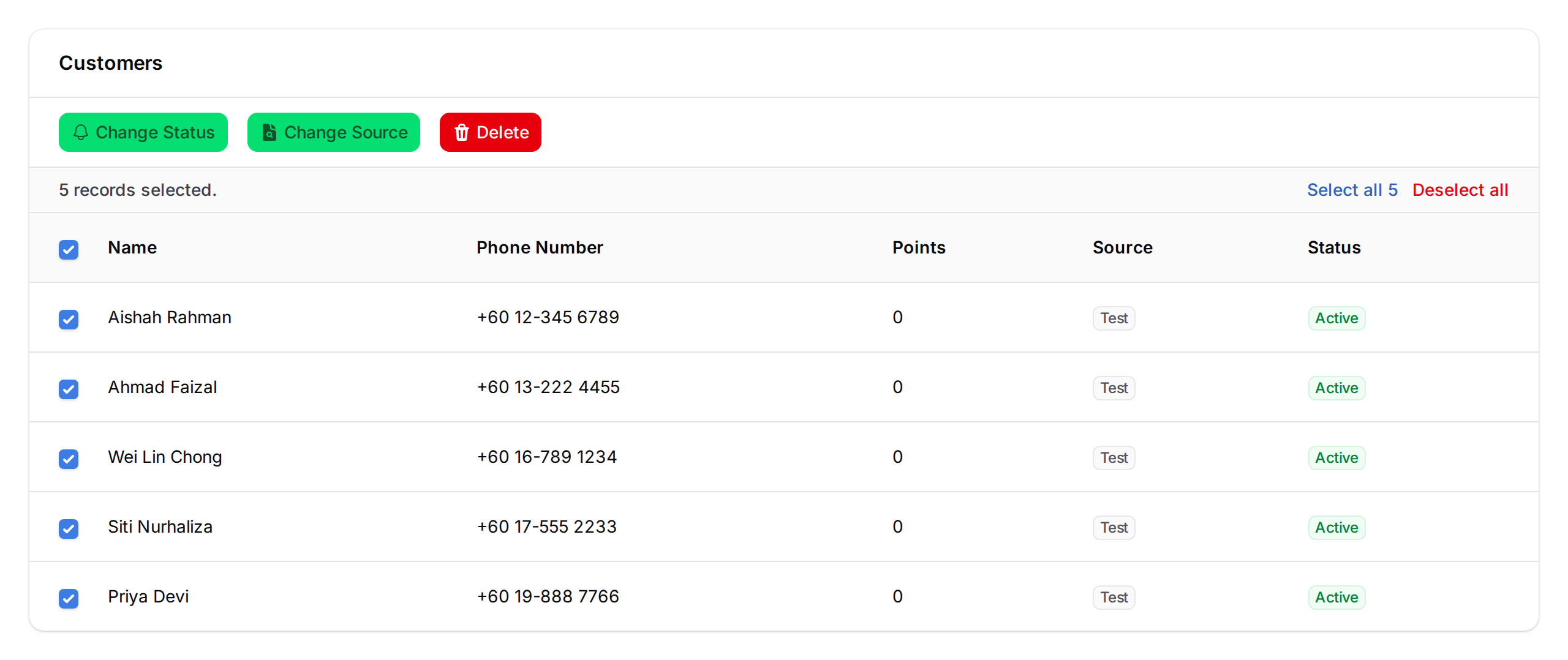
Tick the checkbox at the top of the table to select every customer on the current page. To extend the selection across all pages, click the Select all customers link that appears once a row is selected. If you only want to remove test customers, use the Source or Tag filter to narrow the list first.
-
Click Delete in the bulk actions toolbar that appears above the table after rows are selected.
-
Click Confirm in the dialog that appears. This is your last chance to back out.
-
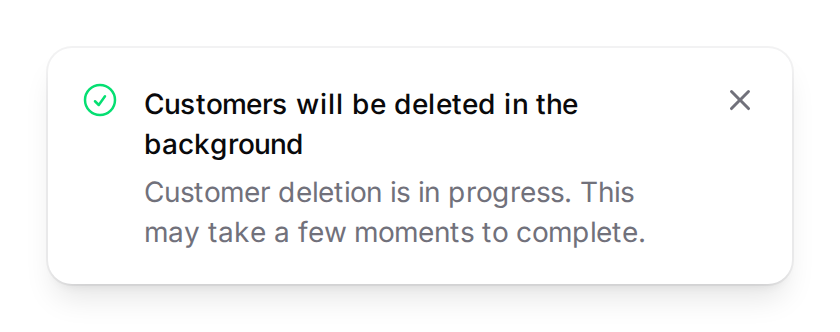
Watch for the confirmation: "Customers will be deleted in the background." You can close the page — the deletion keeps running.
-
Wait for the second notification: "Bulk Customer Deletion Complete" with the total number of customers removed.
What Your Customers Will See
Deleted customers lose access right away. If they try to sign in to the customer portal, their account no longer exists, and any points, rewards, or wallet credit they held cannot be restored.
Good to Know
- Active (unclaimed) reward vouchers are returned to your catalog, not destroyed
- Large customer lists may take several minutes to finish — the page can be closed safely
- Double-check the table filter before you confirm — anything selected will be removed
Need Help?
If you're unsure whether deleting is the right move, reach out to Pixalink support before you confirm.