
How to Create and Use Tags
What Is This?
Tags are labels you attach to customers to organise and segment them. Think of them like coloured stickers — you tag customers based on their behaviour, preferences, or any criteria that matters to your business. Tags are powerful because they integrate with campaigns, rewards visibility, and broadcast filtering.
Real-Life Example
Puan Mira runs Petshop Mira in Kota Kinabalu. She creates tags like "Cat Owner", "Dog Owner", "Premium Customer", and "Walk-in". When she launches a cat food promotion, she sends the broadcast only to customers tagged "Cat Owner" — no wasted messages, higher engagement.
How to Create Tags
Step 1: Open the Tags Page
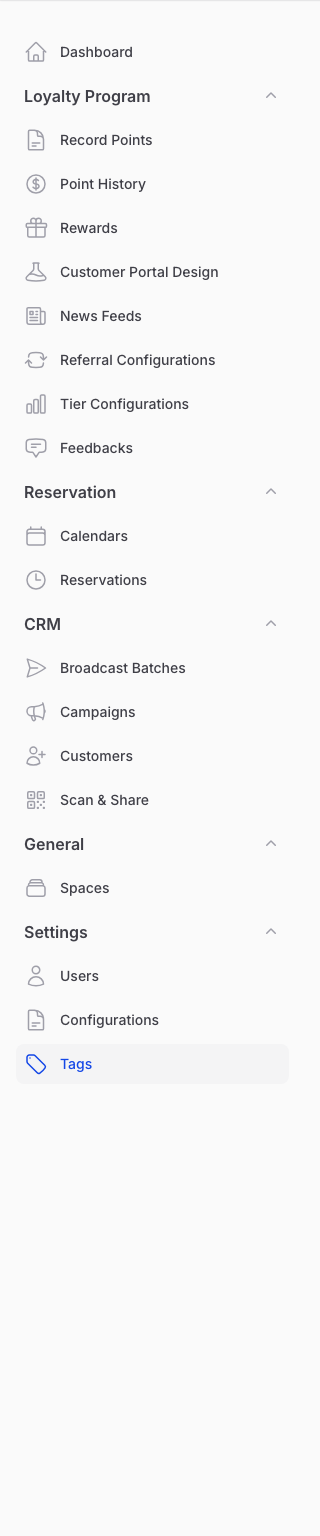
From the Admin Panel sidebar, go to Settings → Tags.
Step 2: Create a New Tag
Click Create at the top of the page. Enter the tag Name (e.g., "VIP", "Student", "Cat Owner") and click Create.
That's it — the tag is ready to use.

Step 3: Manage Existing Tags
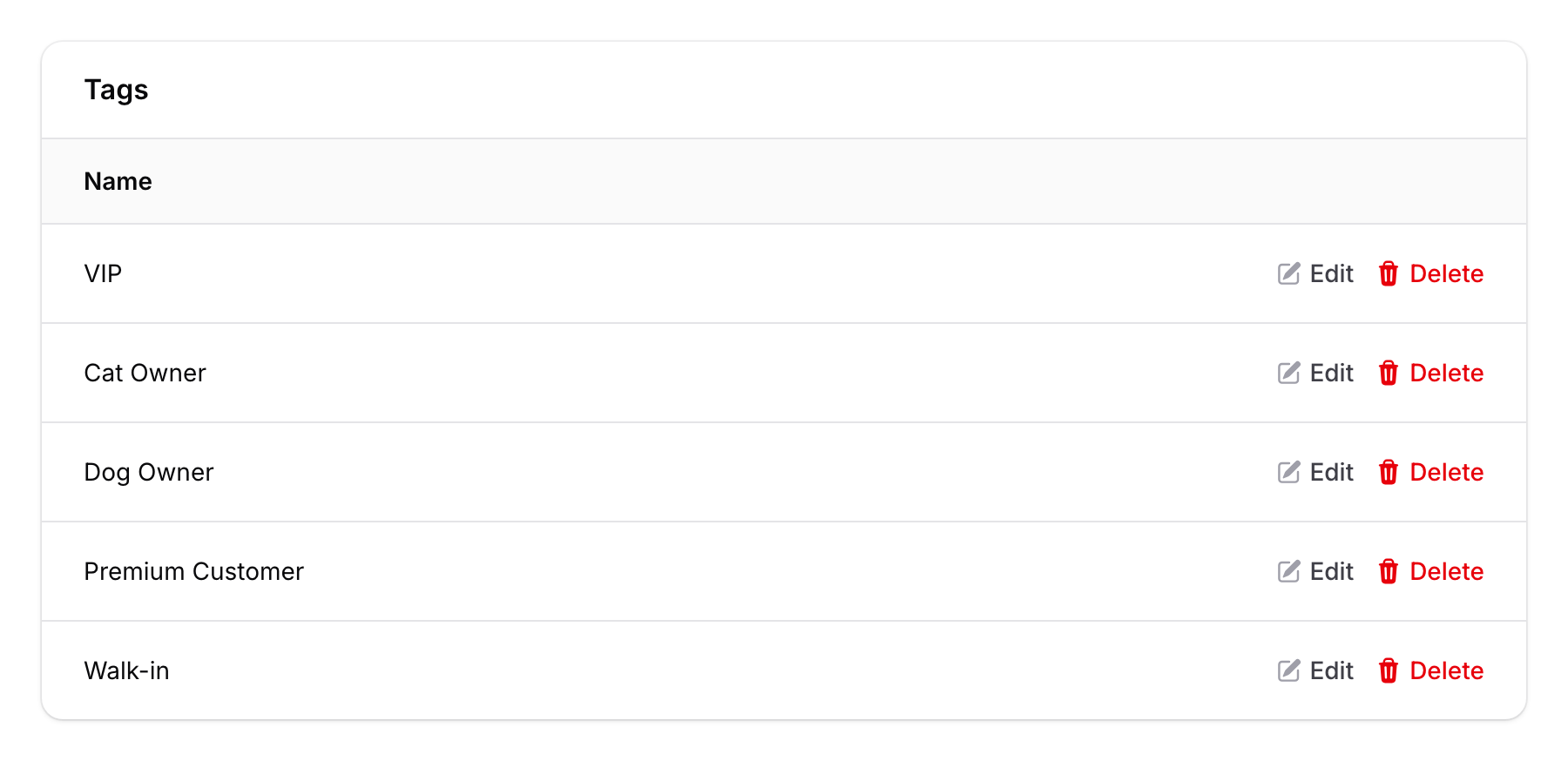
From the Tags list, you can:
- Edit — Click the pencil icon to rename a tag
- Delete — Click the delete icon to remove a tag
- Bulk Delete — Select multiple tags and delete them at once
How to Use Tags
Tagging Customers
You can tag customers in several ways:
- Manually — Open a customer's profile and add tags
- During import — Include a "Tags" column in your CSV import
- Automatically — Tags can be assigned through automations and reward rules
Using Tags for Targeting
Once customers are tagged, use tags to:
- Filter broadcasts — Send campaigns only to customers with specific tags
- Control reward visibility — Show certain rewards only to tagged customers
- Segment reports — Analyse performance by customer segment
- Filter customer lists — Quickly find groups of customers
Good to Know
- Tags are organisation-wide — Tags you create are available across all spaces in your organisation.
- No limit on tags — Create as many tags as you need.
- Case sensitive — "VIP" and "vip" are treated as different tags. Be consistent with naming.
- Import-friendly — When importing customers via CSV, include tags as a comma-separated list in the Tags column.
- Automations — Some features (like referrals and reward assignments) can automatically tag customers when triggered.