
What Are Customer Sources?
What Are Customer Sources?
What Is This?
Every customer in your system has a Source -- a label that tells you how they first joined your business. This helps you understand which channels bring in the most customers, so you can double down on what works.
Video Walkthrough

How It Works
When a customer is added to your system, Pixalink automatically tags them with a source based on how they arrived. You don't need to do anything -- it happens behind the scenes.
There are 18 possible sources, grouped into three categories:
Direct Channels
These are customers you or your staff added manually:
- Direct -- added by your team through the admin panel, during a transaction, or imported via CSV
- Email -- registered via an email-based channel
- Phone -- registered via a phone-based channel
- WhatsApp -- imported from your WhatsApp contacts
Self-Service
These are customers who signed up on their own:
- Loyalty -- signed up through your loyalty portal (the customer-facing registration page)
- Reservation -- created automatically when someone makes a booking through your calendar
POS and Online Store Integrations
These customers were synced from your connected systems:
- StoreHub, Loyverse, GeniusPos, Zeoniq, Ivend POS, Lemon POS, PosPal -- from your point-of-sale system
- Shopify, WooCommerce -- from your online store
- Softinn -- from your hotel/property booking system
- Bukku -- from your accounting system
- QnE -- from your QnE business software
Where to See Sources
You'll find customer sources in three places:
- Customer list -- the Source column shows a color-coded badge next to each customer. This column is hidden by default -- click the column toggle icon to show it.
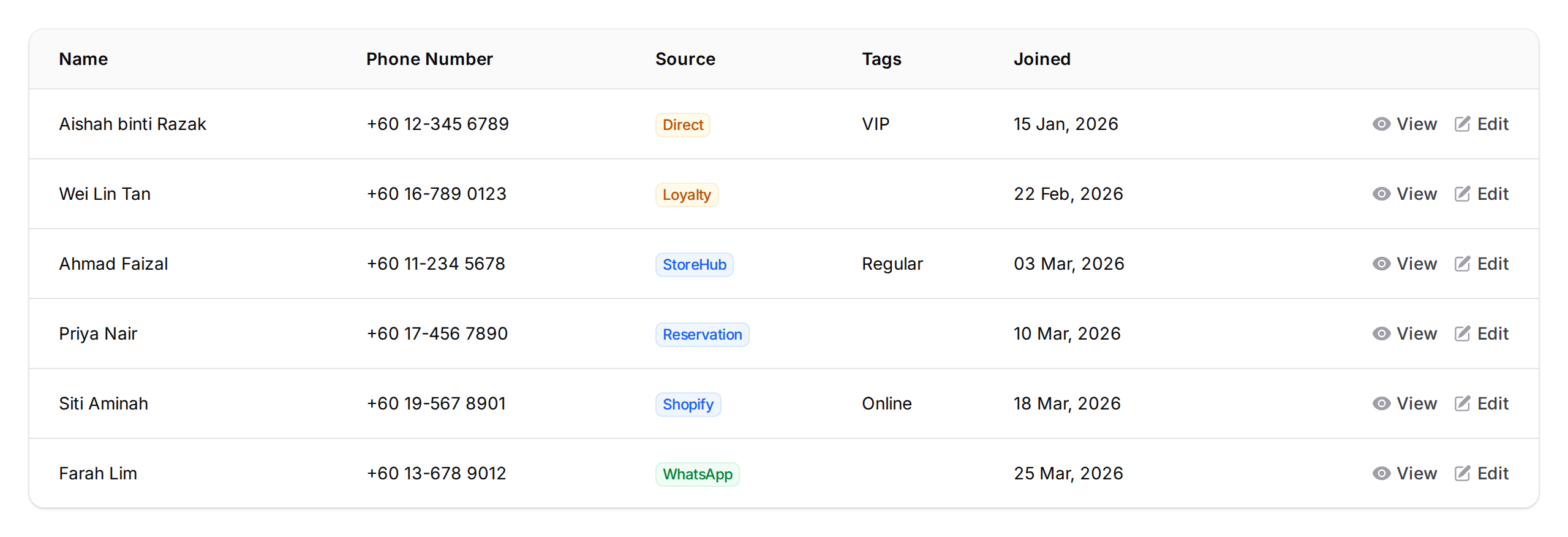
- Customer profile -- when you open or edit a customer, the Source dropdown appears in the Properties section on the right side.

- Exported data -- when you export your customer list to CSV, the source is included as a column.
Filtering by Source
You can filter your customer list to show only customers from a specific source. In the customer list, open the Filters panel and use the Source dropdown to pick the source you want to see.
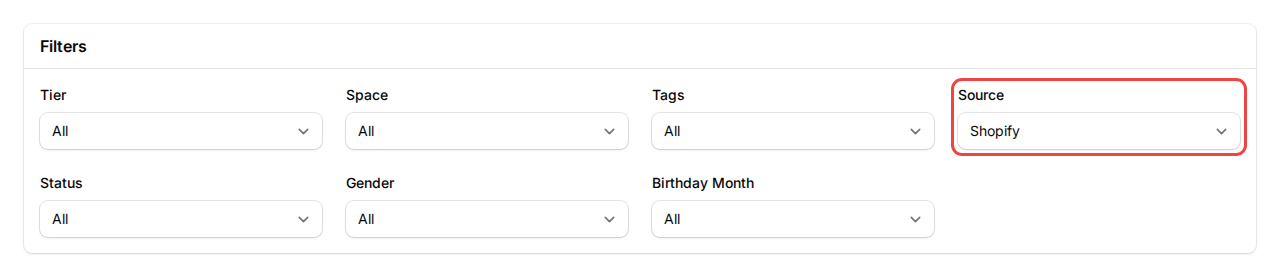
This is useful when you want to answer questions like "How many customers came from Shopify this month?" or "Who signed up through the loyalty portal?"
Changing a Customer's Source
You can change a customer's source at any time:
- One customer -- open their profile, change the Source dropdown in the Properties section, and save.
- Multiple customers at once -- select the customers in the list using the checkboxes, then choose Change Source from the bulk actions menu.
Real-Life Example
Siti runs a bubble tea shop in Kuala Lumpur. She uses StoreHub as her POS and has a Shopify store for online orders. She also has a loyalty portal where walk-in customers sign up for rewards.
After three months, Siti filters her customer list by source. She discovers that 45% of her customers came from StoreHub (in-store purchases), 30% from Loyalty (portal sign-ups), and 25% from Shopify (online orders). This tells her that her online store is growing fast. She decides to run a campaign targeting her Shopify customers with a free topping reward to keep them coming back.
Good to Know
- Sources are set automatically -- you don't need to tag customers manually unless you want to change one.
- If a customer was first synced from a POS system and later signs up on your loyalty portal, their original source is kept. The system doesn't overwrite it.
- The Direct source is the default. If a customer is created manually in the admin panel, through a transaction, credit top-up, or CSV import without a specific source, they'll be marked as Direct.
- You can use sources together with tags for even more detailed customer grouping.
Need Help?
Reach out to our support team -- we're happy to help you understand your customer data.