What Is the Normal Delay for Points and Customer Updates?
What Is This?
Points and customer details update at different speeds. Knowing the normal wait helps you tell a short delay from a real problem, so you don't call support for nothing.
Video Walkthrough
 Watch the video: https://www.youtube.com/watch?v=mi0gxe1eAas
How It Works
Points and customer records reach Pixalink through a few paths, each with its own speed.
Points staff add by hand. When staff add points on the Record Points page (Admin Panel → Loyalty Program → Record Points), the points show up right away. No wait at all.
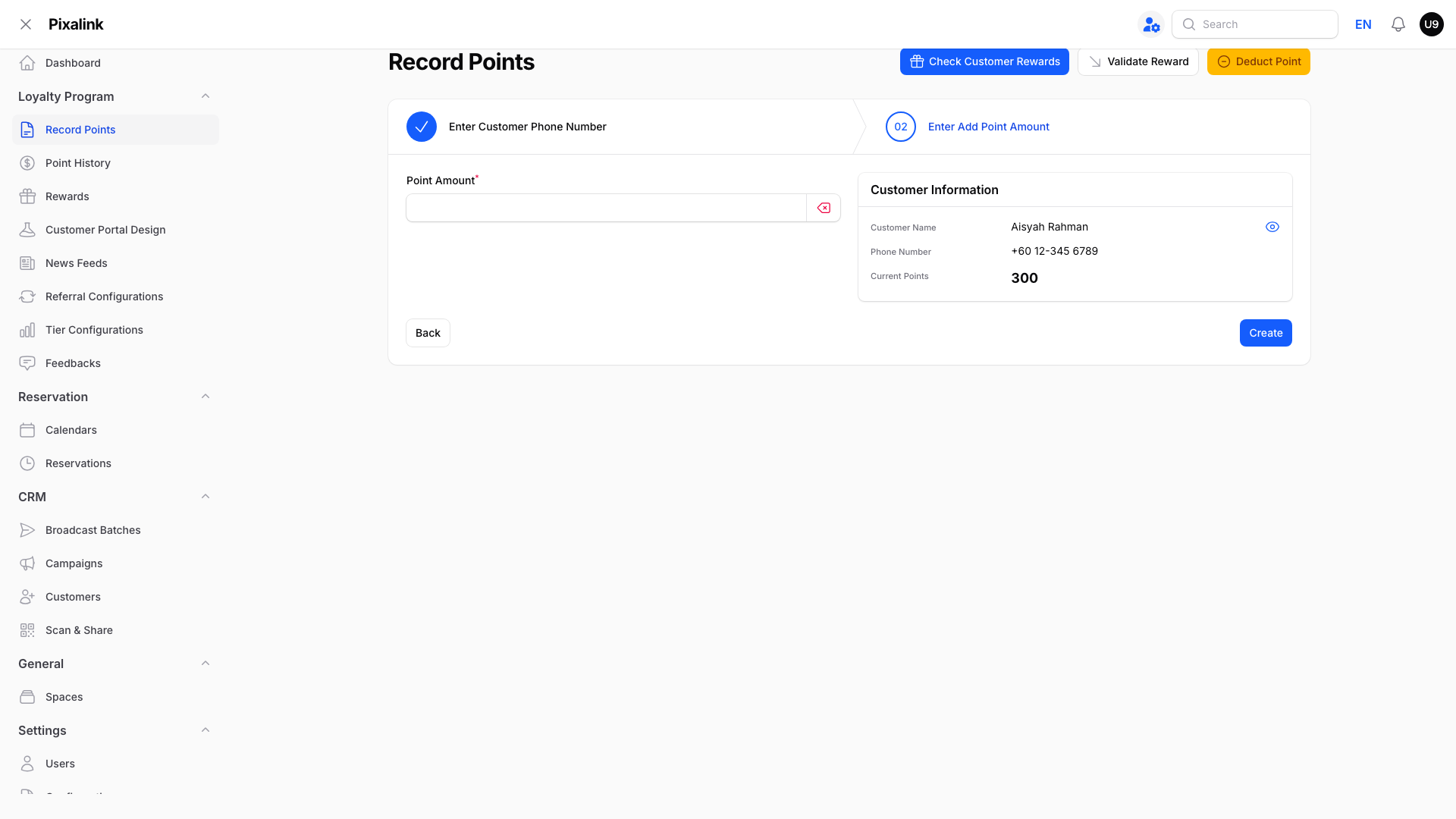
Sales from your POS or accounting system. Most systems check in with Pixalink on a schedule, not the instant a sale happens:
- Some systems send sales the moment the bill closes, so points appear almost right away.
- Some systems are checked every minute.
- Others are checked every 10 or 15 minutes.
If a sale has not shown up yet, it may just be waiting for the next check.
"Not synced yet" vs "not linked." These look the same, but they are not the same problem.
- Not synced yet means Pixalink has not checked your POS system since the sale happened. Give it a little time.
- Not linked means the sale already arrived, but no phone number matched a customer profile. This happens when a walk-in gives a different number, or none.
Go to Admin Panel → Loyalty Program → POS Transactions to see these sales. You only see this menu if your POS is connected to Pixalink. N/A in the Phone column and an Adopt button mean the sale is unlinked, not delayed. Don't want to wait for the next check? Click Refresh at the top to fetch the latest sales from your POS system. On AutoCount, the refresh runs in the background, and you get a notification when it is done.
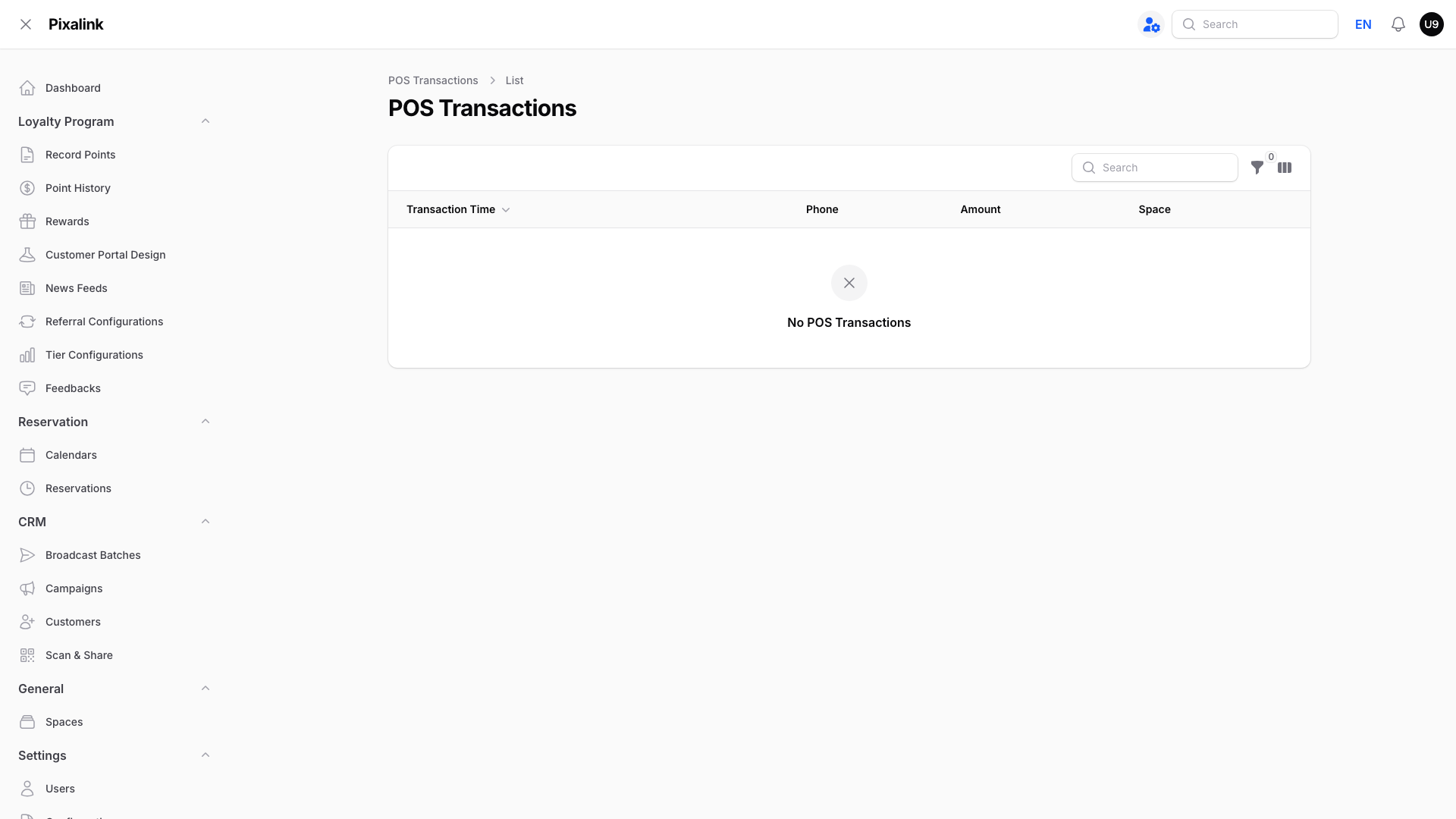
(This shop had no unmatched sales at the time of writing. When one is waiting to be linked, it appears in this same list with N/A in the Phone column and an Adopt button.)
Checking a customer's point history. Go to Admin Panel → CRM → Customers, click a customer, then open the Transactions tab.
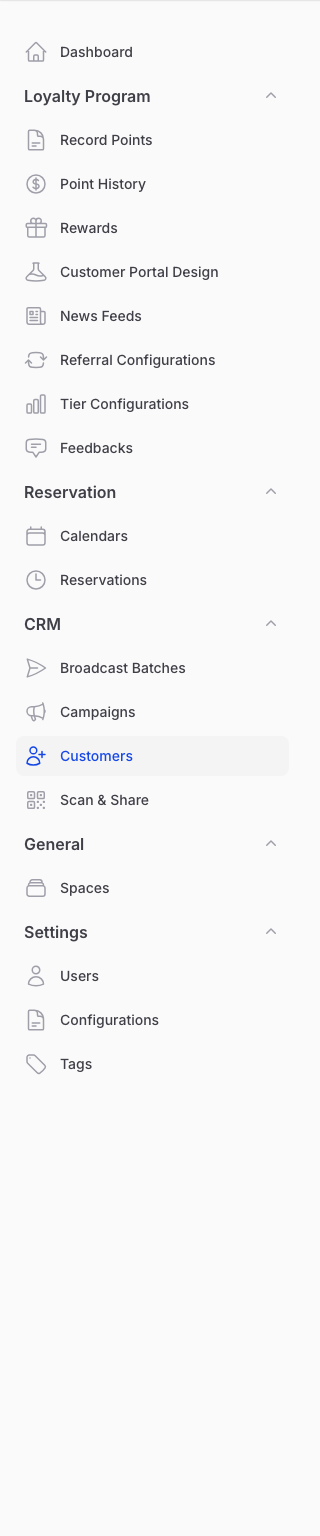
Every point earned and spent shows here, with the date, amount, and reason. Expired points are hidden at first. To include them, click the filter icon, set Expired entries to Shown, and click Apply filters.
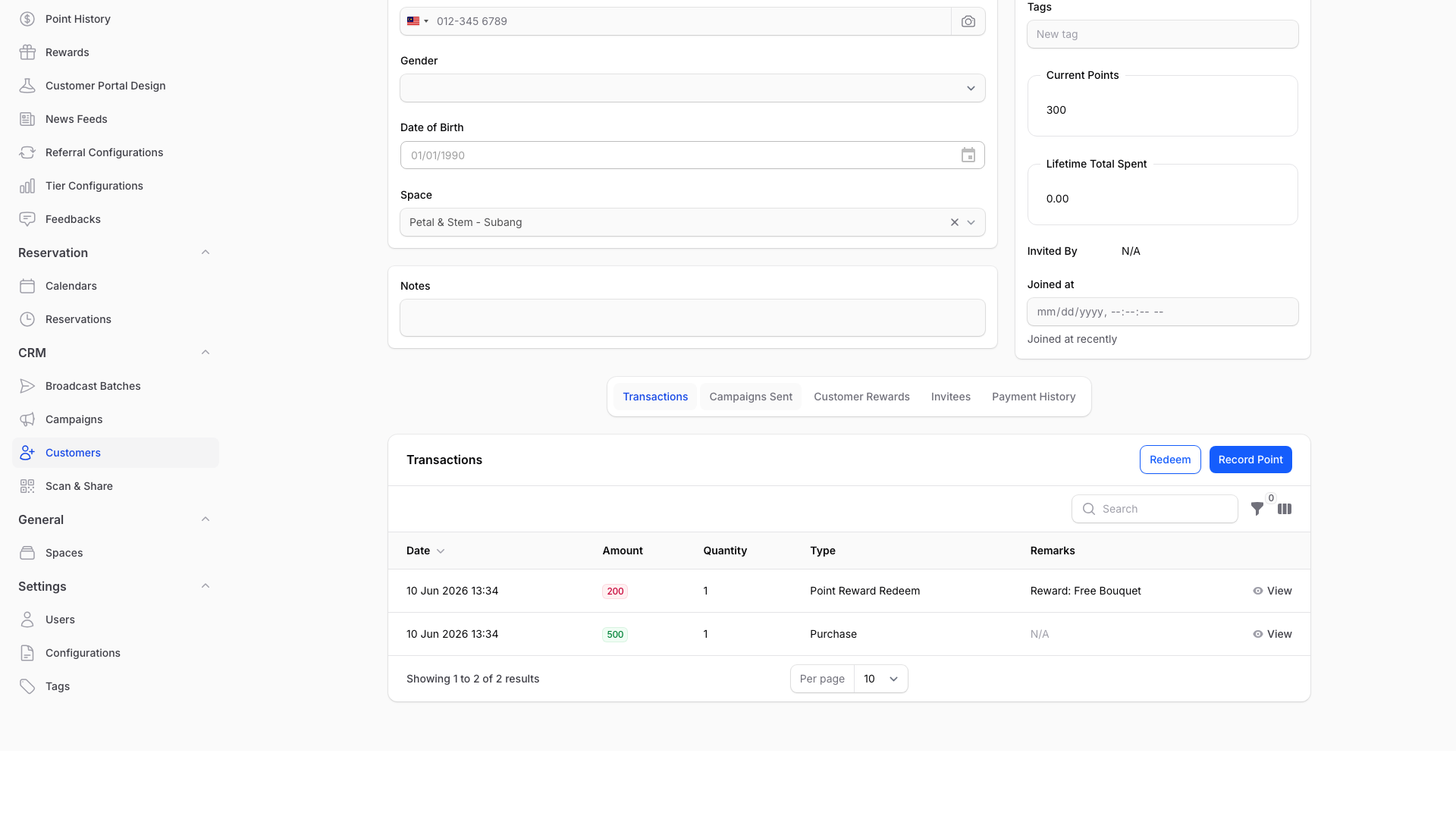
Editing a phone number. The phone field checks for duplicate numbers as you type, with a short pause before it saves the check. If you type a new number and click Save right away, wait a few seconds first.
Real-Life Example
Farah runs Petal & Stem, a flower shop in Subang. A regular customer bought a birthday bouquet and paid at the counter, but her points did not show up that afternoon. Farah checked POS Transactions and found the sale sitting there with no phone number attached. The customer had used a new number that was not in her profile yet. Farah clicked Adopt, typed in the customer's correct number, and the points appeared right away. It was not a delay at all. The sale was simply never linked to a customer.
Good to Know
- Points added by staff through Record Points always appear instantly.
- A sale with no phone number is not "coming later." Use Adopt to link it and award the points right away.
- If a sale never appears in POS Transactions after a few hours, your POS connection may be down. Contact support with the invoice number.
- Customer edits like a new phone number save normally once the duplicate check finishes.
- If the Save button seems stuck, wait a few seconds, then refresh and check whether your edit saved. A stuck save is usually a slow connection. But if your shop is linked to a POS or online store, the save can wait on that system to respond. If it keeps happening, contact support.
Need Help?
If a sale or customer update still looks wrong after checking these two screens, reach out to our support team with the customer's name and the time of the sale.
What's Next?
Video transcript: Why Points and Customer Records Take Time to Update
Points do not all arrive at the same speed. It depends on where they come from. Here is how to tell a normal short wait from a real problem, so you do not worry for nothing. Start in the Admin Panel. In the left menu, under Loyalty Program, select Record Points. This is where your staff add points at the counter. Staff enter the customer's phone number, then the amount, and click Create. The points show up right away. There is no waiting at all. Sales from your till are different. Some tills send each sale the moment the bill closes. Others are checked on a schedule, every minute, or every ten or fifteen minutes. So a sale that is missing may just be waiting for the next check. To see what your till has sent, open Loyalty Program in the left menu, and select POS Transactions. You will only see this menu if your POS is connected to Pixalink. Do not want to wait for the next check? Click Refresh at the top. It pulls in the last thirty days of sales from your till straight away. Now look at the Phone column. If a sale shows N/A, it is not delayed. It was simply never linked to a customer, so no points went anywhere. To fix it, click Adopt on that sale, and type the customer's phone number. The points are awarded right away. Check the number carefully, because a number you have never seen before creates a new customer profile. To check one customer, open CRM in the left menu, select Customers, and open their profile. Their full history is in the Transactions tab. Every point earned and spent is listed here, with the date and the reason. Expired points are hidden at first. To see them, click the filter icon, set Expired entries to Shown, and click Apply filters. If something still looks wrong after these checks, contact our support team with the customer's name and the time of the sale.
Video transcript: Why Points and Customer Records Take Time to Update
Points do not all arrive at the same speed. It depends on where they come from. Here is how to tell a normal short wait from a real problem, so you do not worry for nothing. Start in the Admin Panel. In the left menu, under Loyalty Program, select Record Points. This is where your staff add points at the counter. Staff enter the customer's phone number, then the amount, and click Create. The points show up right away. There is no waiting at all. Sales from your POS or accounting system are different. Some systems send each sale the moment the bill closes. Others are checked on a schedule, every minute, or every ten or fifteen minutes. So a sale that is missing may just be waiting for the next check. To see what your POS system has sent, open Loyalty Program in the left menu, and select POS Transactions. You will only see this menu if your POS is connected to Pixalink. Do not want to wait for the next check? Click Refresh at the top to fetch the latest sales from your POS system. On AutoCount, the refresh runs in the background, and you get a notification when it is done. Now look at the Phone column. If a sale shows N/A, it is not delayed. It was simply never linked to a customer, so no points went anywhere. To fix it, click Adopt on that sale, and type the customer's phone number. The points are awarded right away. Check the number carefully, because a number you have never seen before creates a new customer profile. To check one customer, open CRM in the left menu, select Customers, and open their profile. Their full history is in the Transactions tab. Every point earned and spent is listed here, with the date and the reason. Expired points are hidden at first. To see them, click the filter icon, set Expired entries to Shown, and click Apply filters. If something still looks wrong after these checks, contact our support team with the customer's name and the time of the sale.
Video transcript: Why Points and Customer Records Take Time to Update
Points do not all arrive at the same speed. It depends on where they come from. Here is how to tell a normal short wait from a real problem, so you do not worry for nothing. Start in the Admin Panel. In the left menu, under Loyalty Program, select Record Points. This is where your staff add points at the counter. At the counter, staff type the customer's Phone Number. Then they click Next. They enter the Point Amount. And they click Create. The points show up right away. There is no waiting at all. Sales from your POS or accounting system are different. Some systems send each sale the moment the bill closes. Others are checked on a schedule, every minute, or every ten or fifteen minutes. So a sale that is missing may just be waiting for the next check. To see what your POS system has sent, open Loyalty Program in the left menu, and select POS Transactions. You will only see this menu if your POS is connected to Pixalink. Do not want to wait for the next check? Click Refresh at the top to fetch the latest sales from your POS system. On AutoCount, the refresh runs in the background, and you get a notification when it is done. Now look at the Phone column. If a sale shows N/A, it is not delayed. It was simply never linked to a customer, so no points went anywhere. To fix it, click Adopt on that sale. Type the customer's Phone Number. Check it carefully, because a number you have never seen before creates a new customer profile. To check one customer, open CRM in the left menu, select Customers, and open their profile. Their full history is in the Transactions tab. Every point earned and spent is listed here, with the date and the reason. Expired points are hidden at first. To see them, click the filter icon. Set Expired entries to Shown. Then click Apply filters. If something still looks wrong after these checks, contact our support team with the customer's name and the time of the sale.
