
Why Your AutoCount Customers Didn't Import
Why Your AutoCount Customers Didn't Import
What Is This?
When you import from AutoCount, some members come across and others do not. That is usually on purpose: Pixalink skips records it cannot use. This guide explains which members are imported, which are skipped, and how to bring the missing ones across.
How It Works
An AutoCount member is imported when it has both of these:
- a Member Number
- at least one phone number, mobile or office
Miss either one and the member is skipped. There is no name requirement, so a member with no name still comes across.
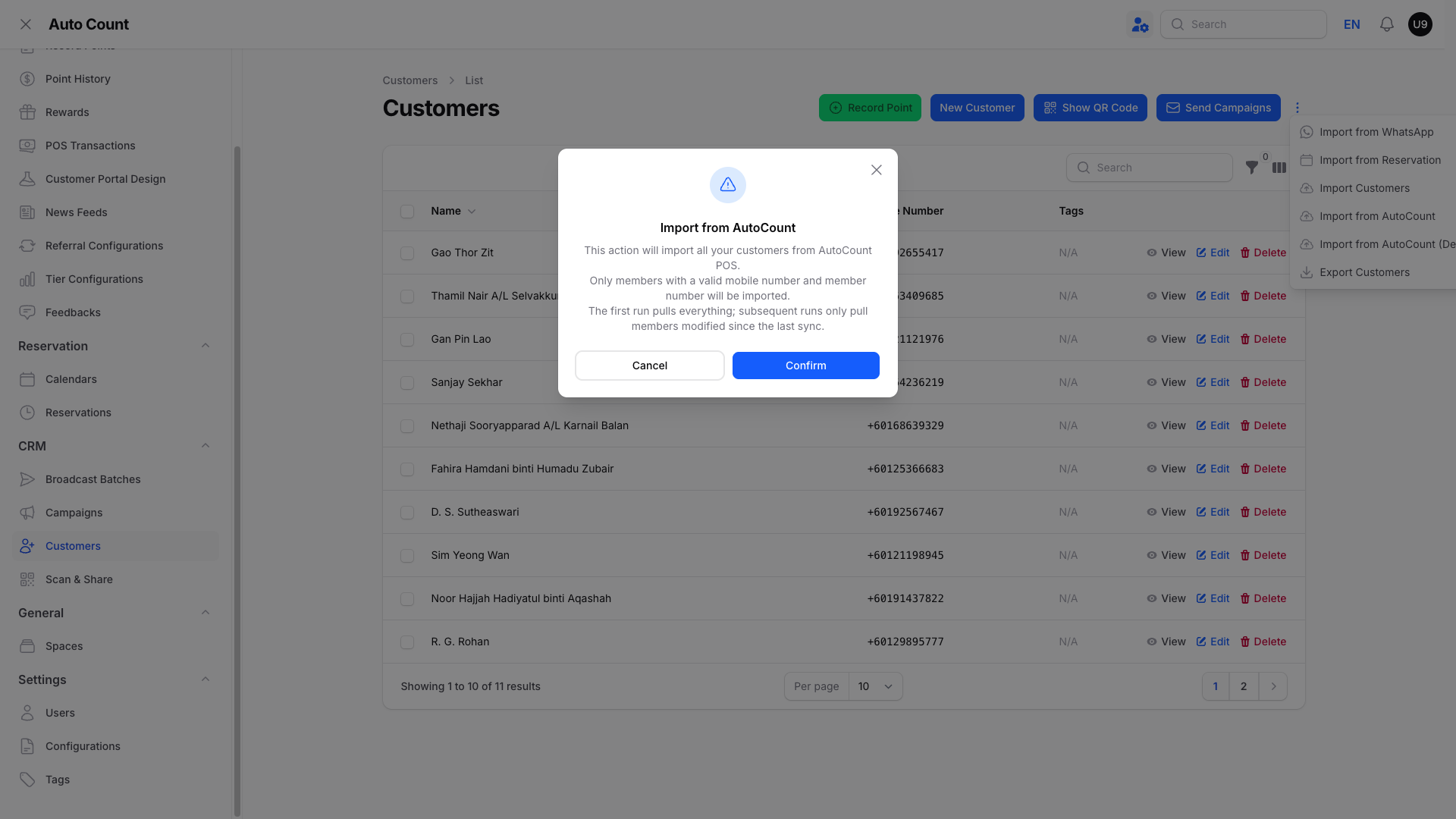
The phone number is what links a member to a customer. The Member Number is what keeps them linked afterwards. Without both, Pixalink has no reliable way to match that person to their future sales.
To see what came across, go to Admin Panel → Customers and look at the AutoCount Member No. column. A value there means the member is linked. An empty cell means either the import is still running, or that customer has no AutoCount member behind them.
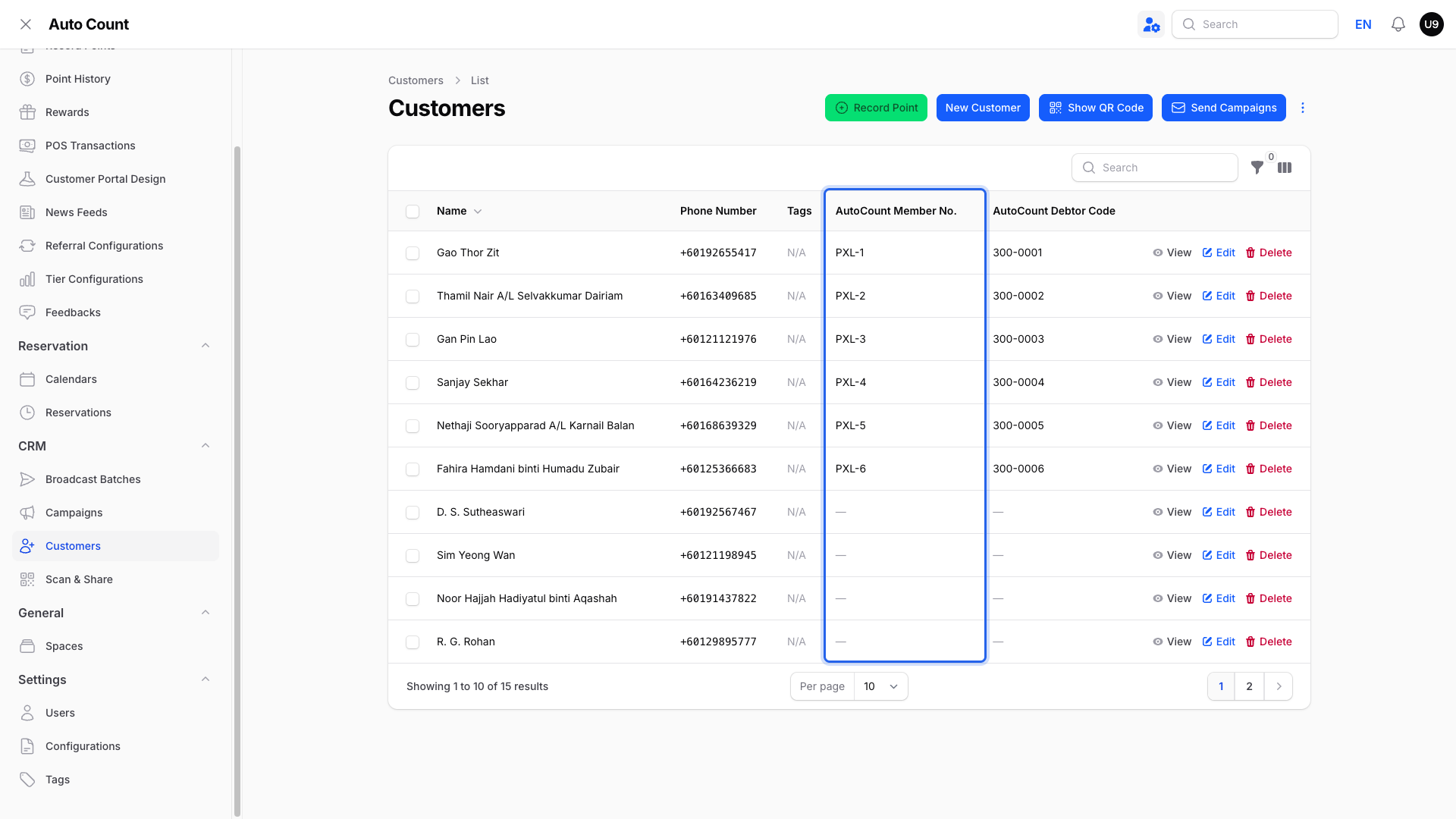
Not every row shows a code starting with PXL-. Members who already existed in AutoCount keep their original numbering. Only customers that Pixalink creates in AutoCount are written back as PXL- plus their Pixalink number.
There are two ways members arrive. The scheduled sync runs on its own and pulls only members changed since the last run. The Import from AutoCount button re-reads your entire member list, however many times you press it.
So the fix for a skipped member is simple: add the missing Member Number or phone number in AutoCount, then press Import from AutoCount again.
Real-Life Example
Wei Lin runs a seafood restaurant and imports 800 members from AutoCount. Only 640 arrive. She checks the missing ones and finds they were added years ago with a name and nothing else, no phone number at all. She fills in numbers for the regulars she still serves, presses Import from AutoCount again, and they come across.
Good to Know
- Fixing a record in AutoCount does not pull it across on its own. Run the import again, or wait for the next scheduled sync.
- Importing the same list twice does not create duplicates. Members already in Pixalink are updated rather than added again.
- Members with no phone number are the most common skip. Collecting numbers at the counter fixes it at source.
- Keep numbers in a normal Malaysian format. An unusual format may import but fail to match that member's later sales.
Need Help?
If a member has both a Member Number and a phone number but still does not appear, contact Pixalink support with that member's number so the team can trace it.
What's Next?
- How to Import Customers from AutoCount — the import steps
- How Customer Sync Works Between Pixalink and AutoCount — how the two systems stay in step
- Why Your AutoCount Sale Didn't Earn Points — when points are missing