
Why Your AutoCount Sale Didn't Earn Points
Why Your AutoCount Sale Didn't Earn Points
What Is This?
Your AutoCount system and Pixalink work together to add loyalty points after every sale. When points are missing, the cause is almost always one of four things, and each has a quick fix. This guide shows what to check, in the order that solves the most cases first.
How It Works
Pixalink reads your settled AutoCount invoices and cash sales on a schedule. Each document is matched to a customer using the phone number saved on the debtor attached to that sale. When the match works, points reach the customer within minutes.
flowchart TD
    A[Invoice or cash sale<br/>created in AutoCount] --> B{Rung up at the<br/>front counter?}
    B -->|Yes| C[Waits for AutoCount's own<br/>client sync, about 15 minutes]
    B -->|No| D[Picked up on the next<br/>scheduled read]
    C --> D
    D --> E{Debtor attached, with a<br/>number in Phone 1?}
    E -->|Yes| F[Points added to the<br/>customer automatically]
    E -->|No| G[Sale waits in POS Transactions<br/>with no phone number]
Check these four things in order.
1. Is the number in the Phone 1 field? This is the most common cause by far. Pixalink reads a debtor's Phone 1 field. A number typed only into the Mobile field is not read, so that debtor's sales never match a customer.
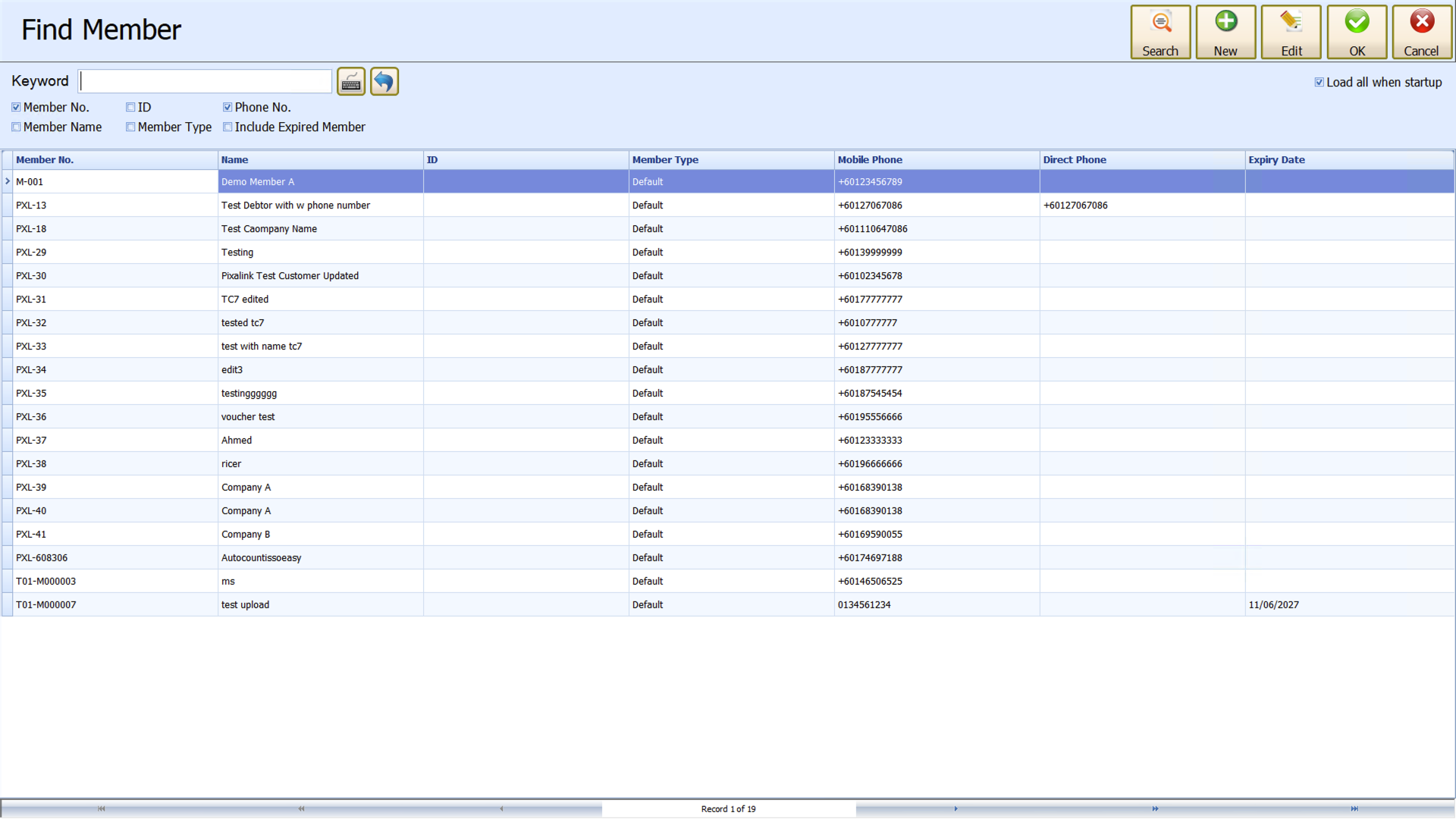
2. Was a debtor attached to the sale? A walk-in sale with nobody attached cannot be matched. Go to Loyalty Program → POS Transactions to see every sale that reached Pixalink. Unmatched sales sit there with no phone number.
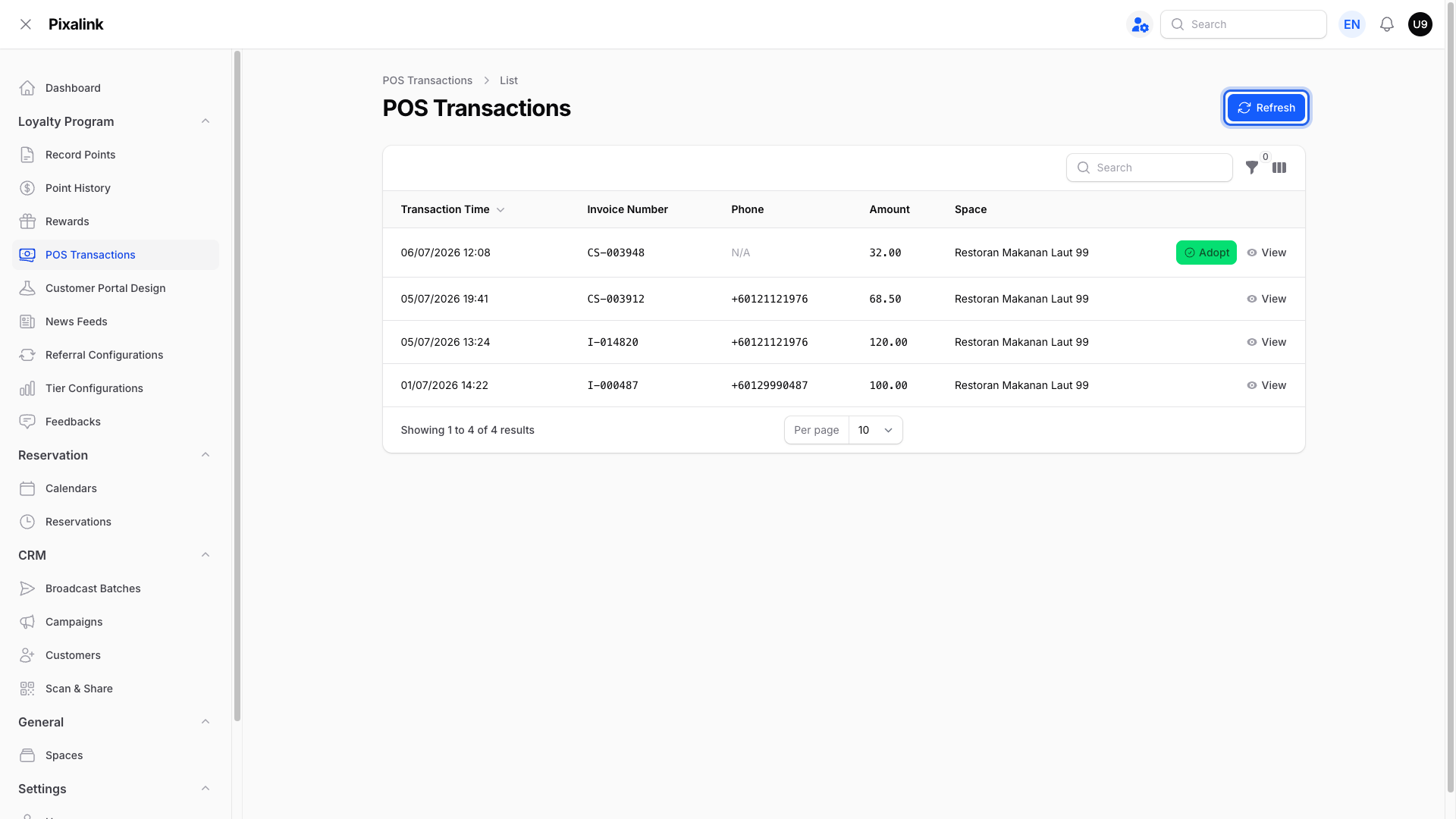
3. Has the sale reached Pixalink yet? Front-counter sales stay on the till until AutoCount's own client sync runs, usually every 15 minutes. To send them at once, go to Point of Sales → Sync Monitor Status → Run All Client Sync in AutoCount, then use Refresh on the POS Transactions page.
4. Is the document still unpaid? An invoice with an amount still outstanding is skipped until it is settled. Once paid, Pixalink picks it up on a later pass and the points arrive then.
Real-Life Example
Ahmad runs a hardware shop in Klang and rings every sale through AutoCount. A regular, Priya, spends RM320 and sees no points. Ahmad opens her debtor record and finds her number sitting in the Mobile field, with Phone 1 empty. He moves it into Phone 1 and saves. Her next purchase earns points on its own.
Good to Know
- Cash sales are settled at the counter, so they earn points straight away. Invoices wait until the amount outstanding reaches zero.
- The Phone 1 rule applies to debtors. Members may use either a mobile or an office number.
- A mistyped number creates a second customer, so points can sit under a number one digit different from the real one.
- Coach your team to attach the debtor before taking payment. It prevents nearly every missing-points case.
Need Help?
If a sale is missing from POS Transactions, or the amount looks wrong, contact Pixalink support. Include the document number, its date, and the customer's phone number so the team can trace it quickly.
What's Next?
- How AutoCount Invoices Become Point-Earning Transactions — how a sale turns into points
- What Happens to Points When an AutoCount Invoice Is Voided or Amended — voids and refunds
- How Customer Sync Works Between Pixalink and AutoCount — how customers are matched