
How AutoCount Invoices Become Point-Earning Transactions
How AutoCount Invoices Become Point-Earning Transactions
What Is This?
When you connect AutoCount AgileX to Pixalink, your paid sales turn into loyalty points on their own. Every settled invoice, cash sale, and front-counter POS bill flows in and rewards the right customer, so you never re-key a receipt or hand out points by hand.
How It Works
Pixalink watches your AutoCount sales and pulls in the paid ones. You can see them all under Admin Panel → Loyalty Program → POS Transactions. Each row is one AutoCount document — an invoice, a cash sale, or a bill rung up on your POS terminal — with its document number, the amount, and the outlet.
All three kinds earn points. A bill you ring up at the counter on your AutoCount POS terminal (its document number usually looks like T01-000123) is picked up the same way an invoice or a cash sale is.
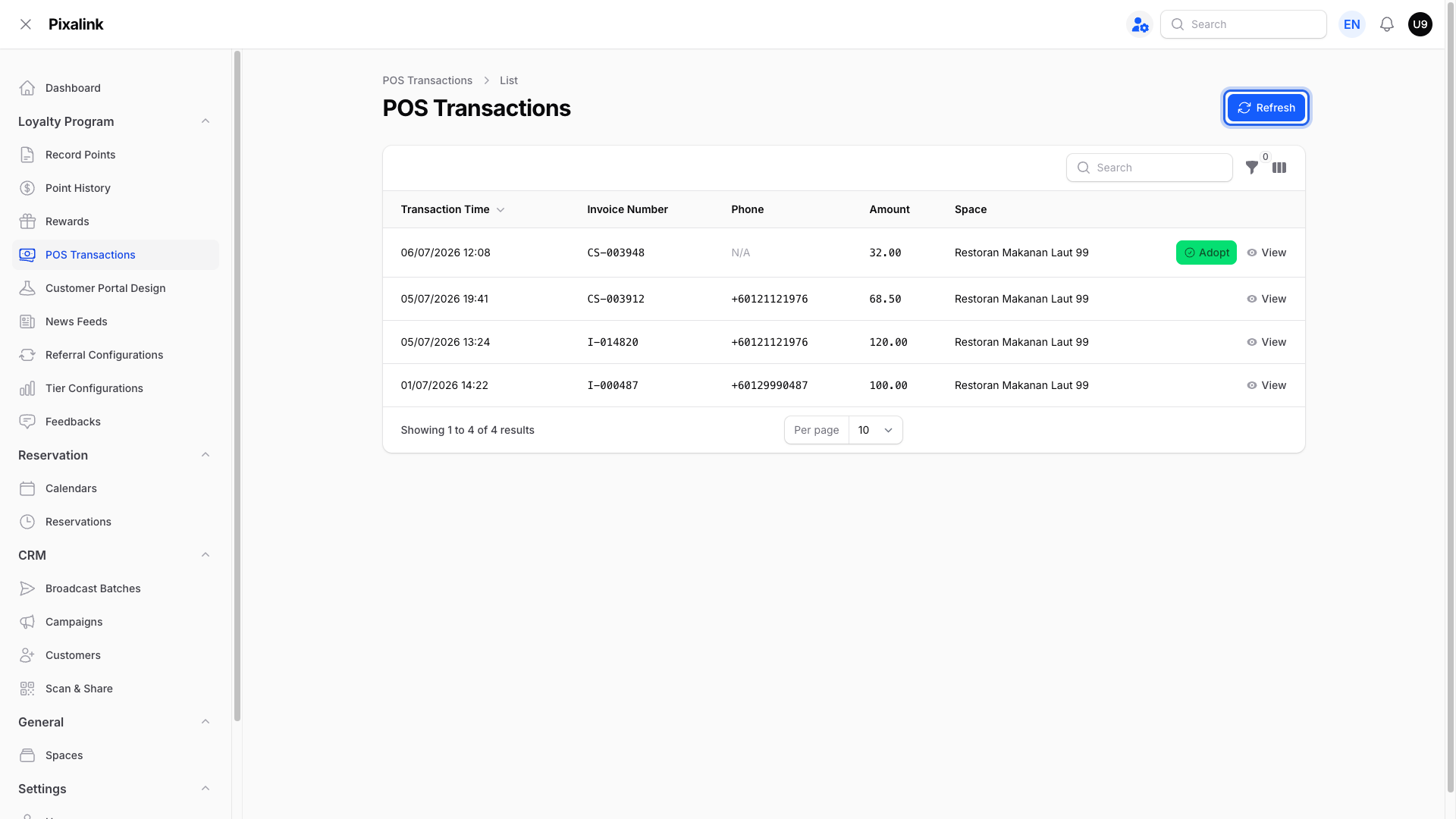
Here is the journey a sale takes:
flowchart TD
  A[Customer buys and pays<br/>at your shop] --> B[AutoCount records it as an invoice,<br/>a cash sale, or a POS terminal bill]
  B --> C{Is the sale<br/>fully paid?}
  C -->|Still has a balance| D[No points yet<br/>Pixalink keeps waiting]
  C -->|Fully paid| E[Pixalink pulls it into<br/>POS Transactions]
  E --> F{Can Pixalink match<br/>the customer?}
  F -->|Matched by member,<br/>debtor or phone| G[Points added<br/>automatically]
  F -->|No match found| H[Row waits with<br/>an Adopt button]
  H --> I[You tap Adopt and enter<br/>the phone number]
  I --> G
Three things decide what happens:
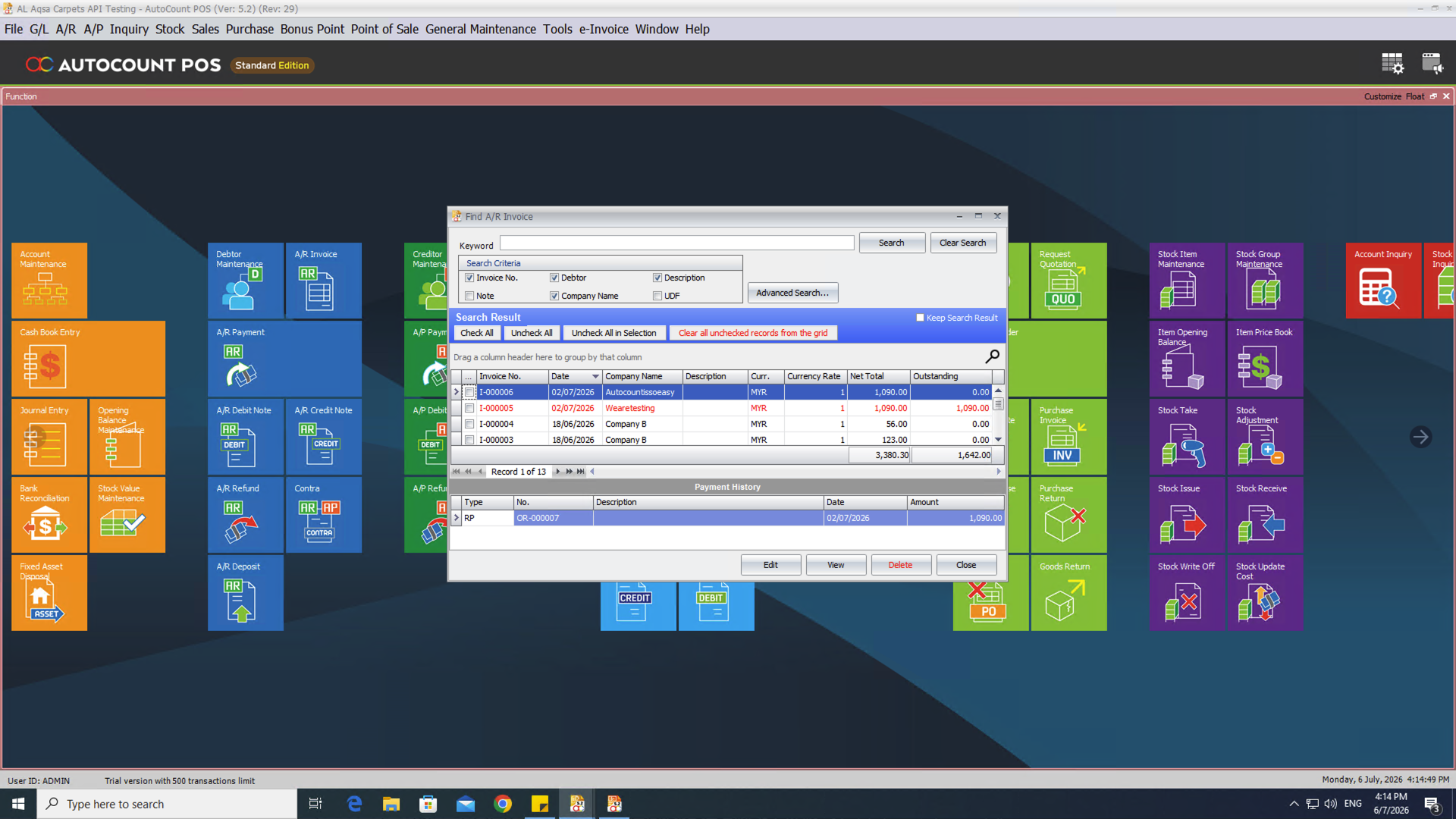
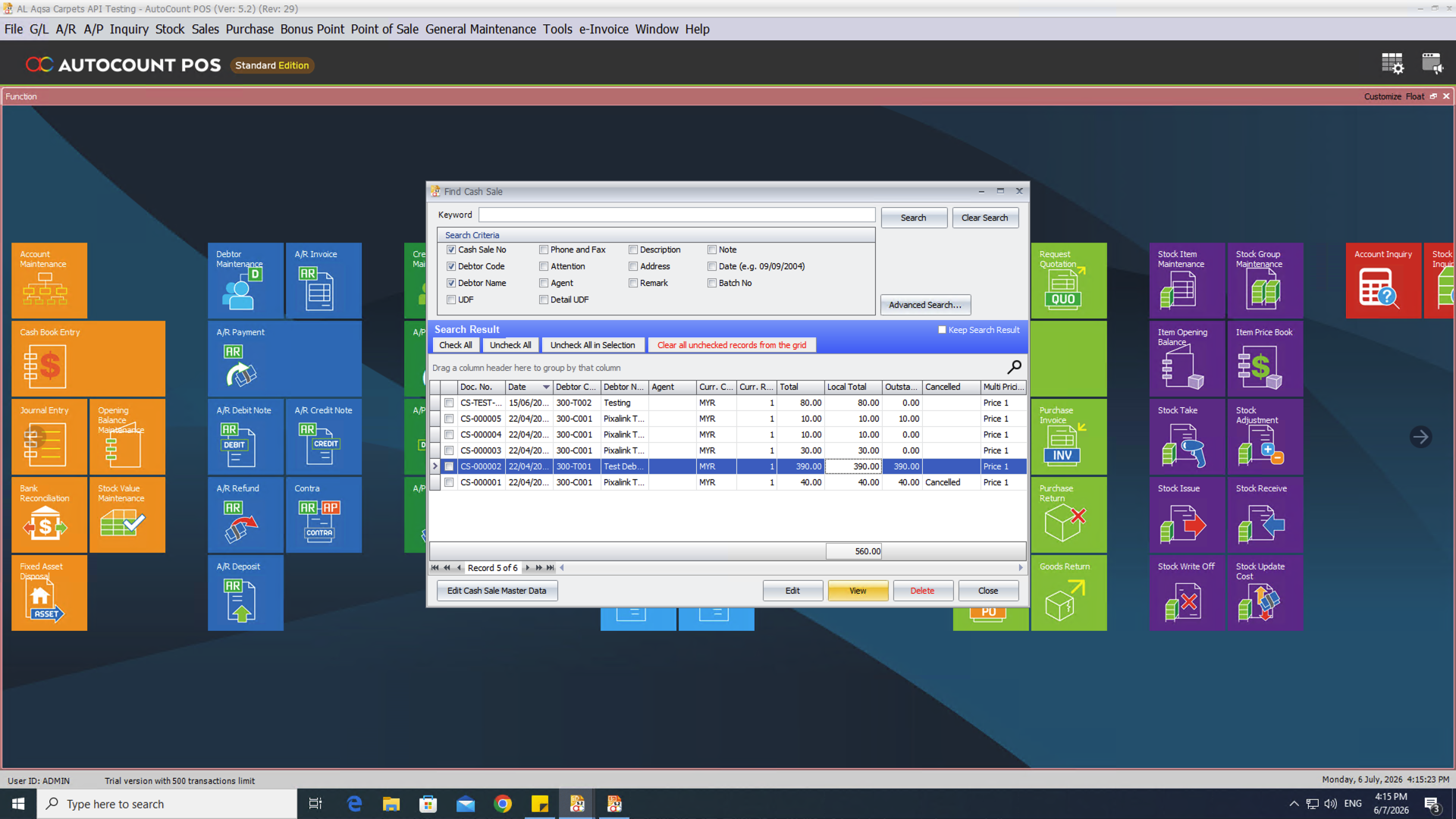
- Only paid sales earn points. An invoice on account earns nothing until the balance reaches zero. A cash sale earns points once it is fully paid. Part-paid sales simply wait.
- Customers are matched for you. Pixalink links a cash sale to the member on the bill, then the debtor, then the phone number on the receipt; invoices use the debtor, then the phone number. POS terminal bills are matched by member only. For invoices and cash sales, that phone number is read from the debtor's Phone 1 field — a number typed only into the Mobile field will not match, so make sure your team fills in Phone 1 when creating debtors. Starting the number with
+60is best, but a number without it is still recognised and treated as Malaysian. - Unmatched sales wait as Pending. If no customer is found, the sale sits with an Adopt button. Tap it, enter the phone number, and the points land straight away.
On the AutoCount side, a sale is ready once its balance is settled:
Want the latest sales right now? Click Refresh at the top of the page to sync straight away instead of waiting for the next automatic check. It also re-checks older sales in case they have since been paid.
Why Isn't My Sale Showing Yet?
A bill actually makes two hops before it reaches Pixalink, and each hop has its own timing:
- Your POS terminal → your AutoCount system. The AutoCount front counter holds its bills locally and sends them up on its own schedule — the AgileX client sync, which many shops set to every 15 minutes. Until this sync runs, the bill exists only on the terminal and no outside system (including Pixalink) can see it. To push it through straight away, in the AutoCount back end go to Point of Sales → Sync Monitor Status and click Run All Client Sync.
- Your AutoCount system → Pixalink. Pixalink then picks the bill up on its next automatic check, or immediately when you click Refresh on the POS Transactions page.
So if a sale you just rang up is missing from Pixalink, run the client sync in AutoCount first, then click Refresh in Pixalink. If it still does not appear after both, contact support.
Real-Life Example
Ahmad runs Kopi Corner in Bangsar and rings up every sale in AutoCount. His regular, Wei Lin, buys RM50 of coffee beans on account. At first she gets no points, because the invoice is still unpaid. The next day she settles the bill, and Pixalink pulls in the now-paid invoice and adds her points on its own. Later, a walk-in pays RM30 cash but is not yet linked to a customer, so the sale waits as Pending. Ahmad opens POS Transactions, taps Adopt, and types the customer's phone number. The points land at once, and Ahmad never touches a calculator.
Good to Know
- Points follow the document total, awarded only once the bill is fully settled. Paying part of an invoice earns nothing yet — there are no partial points. Paying more than the invoice (an overpayment or deposit) still earns exactly the invoice total; the extra sits as credit in your AutoCount accounts and never becomes points.
- Discounts are taken off first. If you sell a RM250.90 item and give a discount, the customer earns points on what the bill actually comes to, not on the original price.
- Rounding works slightly differently for POS terminal bills. At the counter, AutoCount applies a small rounding adjustment to a bill's final total. Cash sales earn points on that exact rounded total. POS terminal bills earn on the total just before the adjustment, so a bill showing a Final Total of RM200.85 earns points on RM200.86. Invoices are not rounded at the counter, so they simply earn on their document total. The gap is never more than a sen or two, and because points round down to the whole ringgit it almost never changes the points a customer gets.
- If an invoice is paid days after it was raised, Pixalink still catches it and rewards the customer.
- A sale stays as Pending until it is matched. It never disappears, so you can adopt it whenever you are ready.
- If a paid sale was matched to the wrong person, adopt-by-phone lets you point it at the right customer.
- Cash sales go to the member on the bill first, then the debtor, then the phone number, so Pixalink matches AutoCount's Member Points report. See AutoCount Members vs Debtors: Who Gets the Points?
- Both invoices and cash sales are covered, so counter sales and account sales both reward your customers.
Need Help?
Reach out to our support team any time. We are happy to walk you through your AutoCount setup.