
How to Import Customers from AutoCount
How to Import Customers from AutoCount
What Is This?
If you already keep customers in AutoCount, you can bring them straight into Pixalink. AutoCount keeps two lists, members and debtors (account customers), and Pixalink brings in both. The import only reads from AutoCount. It never changes anything in your AutoCount. This saves you from typing customers in by hand and gets your regulars into your loyalty program right away.
Real-Life Example
Ahmad runs Kopi Corner cafe in Bangsar. He has spent years building up a member list in AutoCount, with hundreds of regulars who buy coffee every morning. When he joined Pixalink, he wanted all those members in his loyalty program without starting from scratch. Instead of re-typing every name, he used the Import from AutoCount button. Within minutes, his members with a phone number appeared in his Pixalink Customers list. Now they can collect points on their next visit, and Ahmad kept all the history he had built. He can also send them offers straight from Pixalink, without touching his old records again.
How to Set It Up
The Import from AutoCount option only shows once your AutoCount connection is set up.
-
Go to Admin Panel → CRM → Customers.
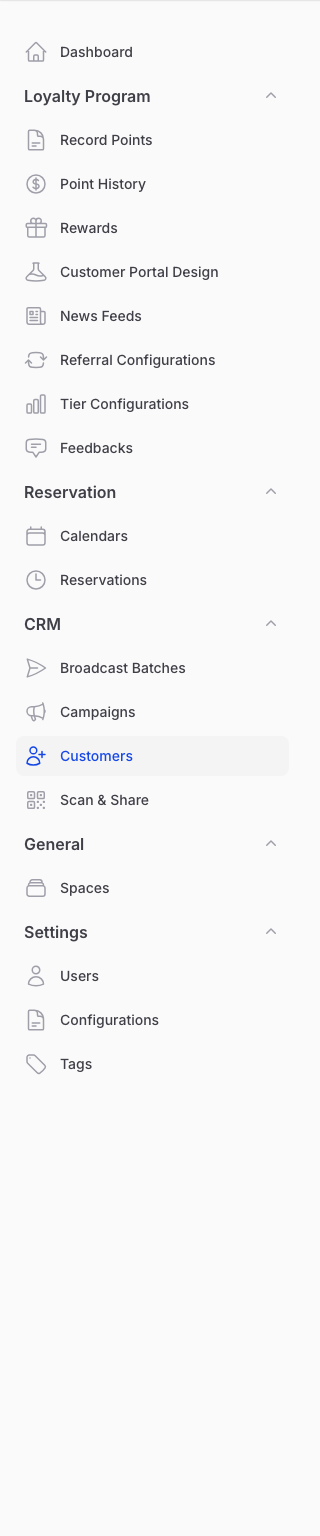
-
Open the Actions menu at the top right, then click Import from AutoCount.
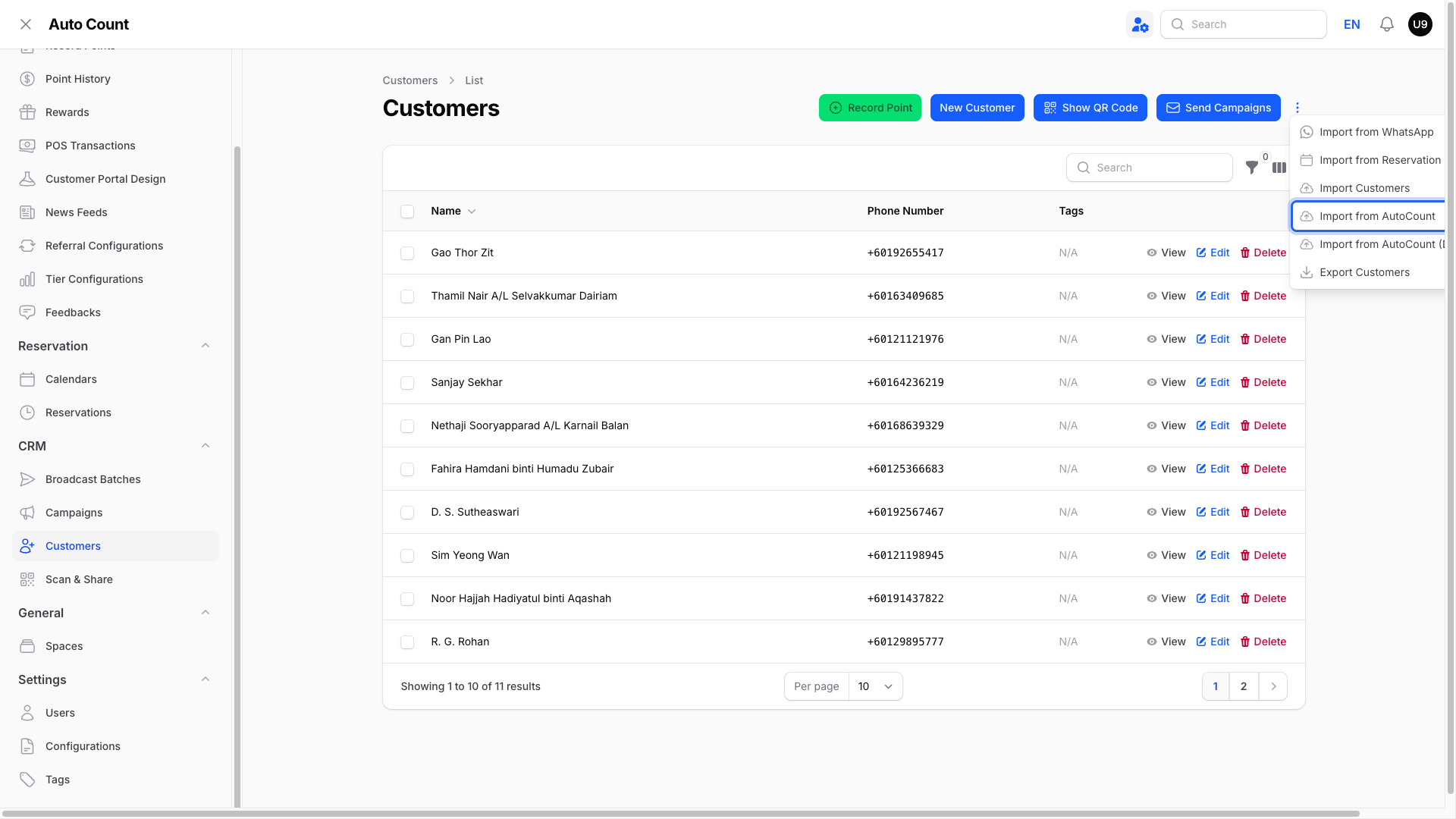
-
Read the note about what will be imported, then click Confirm.
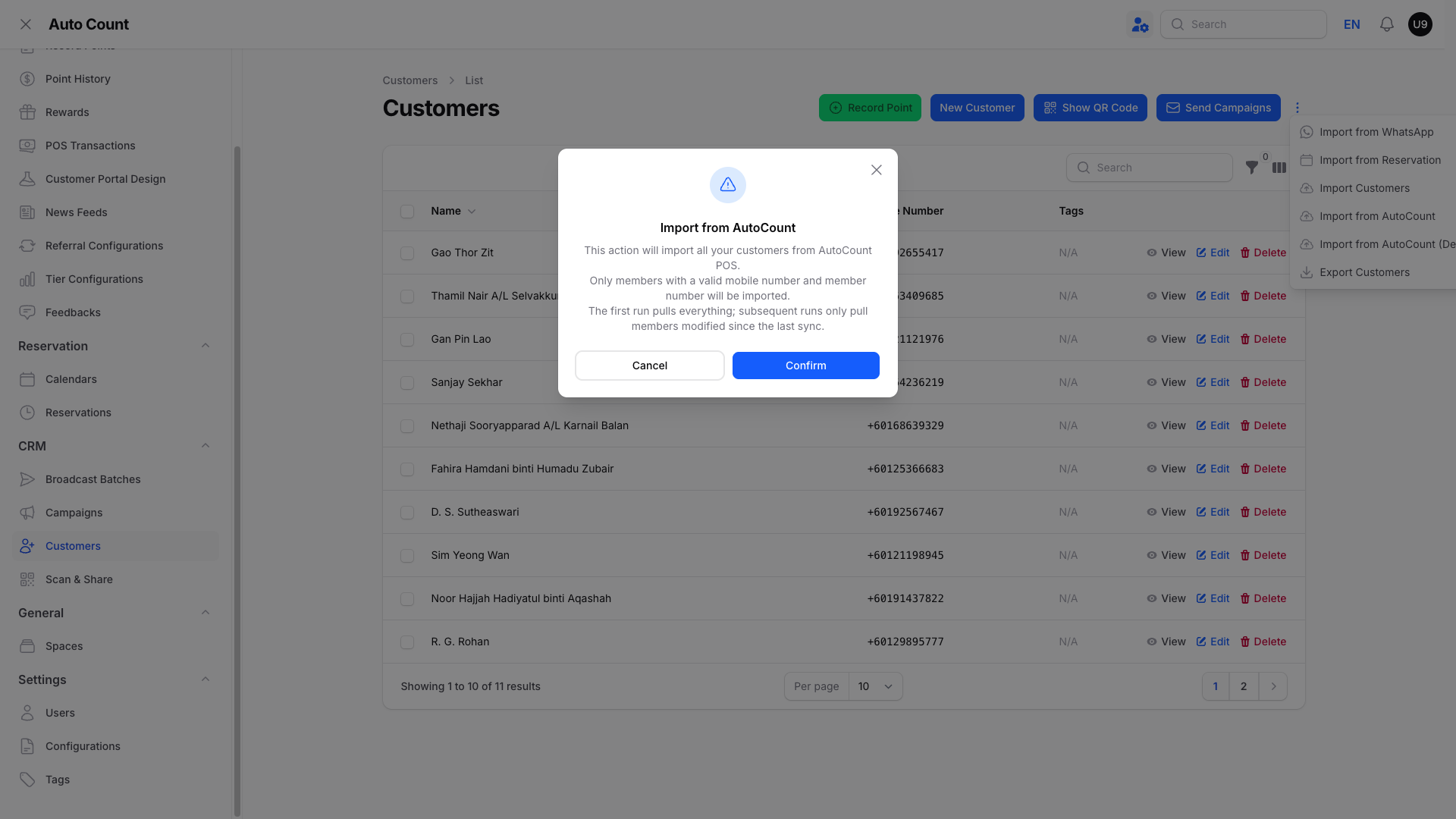
-
Check the message confirming your import has started.
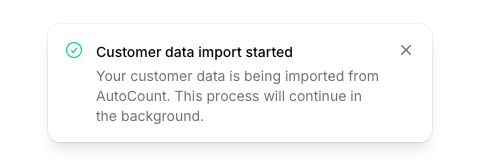
-
Open the Actions menu again, click Import from AutoCount (Debtor), then click Confirm. This brings in your debtors (account customers). Customers already in Pixalink with the same debtor account number or phone number are updated, not duplicated.
What Your Customers Will See
Your customers won't get any message from this import. They simply become part of your loyalty program, ready to collect points the next time they visit. Once the import finishes, your imported members appear in your Customers list.
Good to Know
- Import both members and debtors before your sales start earning points. Each sale is matched to a member or a debtor, so if a customer is missing from Pixalink, their sale can wait as Pending. See AutoCount Members vs Debtors: Who Gets the Points?.
- Only members with a member number and a phone number are brought over. Only debtors with an account number and a valid phone number are brought over. Everyone else is skipped.
- Each time you run an import, it re-checks your whole AutoCount list. Anyone who already matches a customer is updated, so you won't get duplicates.
- Press each import button once, then wait for the notification. Pressing it again starts another full import and slows both down.
- New debtors added in AutoCount also come across on their own while the connection is on.
- These imports only read from AutoCount. Adding Pixalink customers into AutoCount is a separate setting, Customer Sync (see the article below).
- The import runs in the background, so a large member list may take a little while to appear.
- You can run this import again any time you add or update members in AutoCount.
Need Help?
Reach out to our support team any time. We're happy to help you get your AutoCount members into Pixalink.