
How Customer Sync Works Between Pixalink and AutoCount
What Is This?
Customer sync keeps one shared customer list across Pixalink and AutoCount. When you add a customer in one system, they appear in the other on their own. This means no double typing, and every shopper can earn points and rewards no matter where their details were first entered.
How It Works
Sync runs both ways, and Pixalink handles it in the background for you.
sequenceDiagram
    participant P as Pixalink
    participant A as AutoCount
    P->>A: You add a new customer
    A-->>P: Member number PXL-1 saved back
    Note over P,A: Import brings AutoCount members into Pixalink
    P->>A: You remove a customer
    A-->>P: Matching member removed too
Pixalink sends customers to AutoCount.
When you add a new customer in Pixalink, their name, phone, and email are saved into AutoCount as a member. Pixalink gives each one a member number that starts with PXL-, so you can tell at a glance which members came from Pixalink. If the customer is later removed in Pixalink, their matching member is removed in AutoCount too.
Inside AutoCount, that member number sits on the member record.
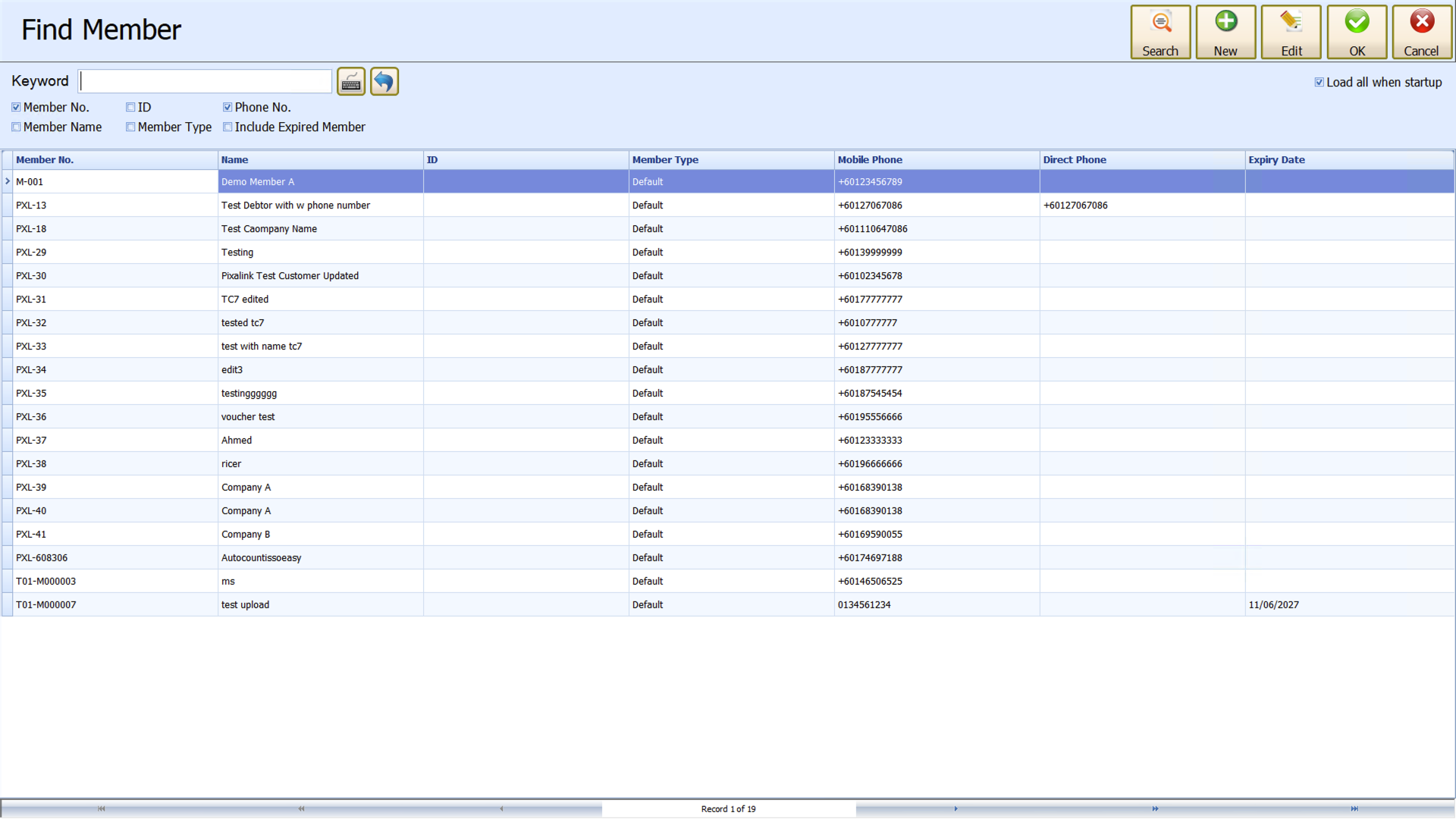
AutoCount sends customers to Pixalink. Members already in AutoCount come into Pixalink two ways. You can bring them in yourself with the Import from AutoCount button, or let Pixalink pull new members on a regular schedule. Only members with a phone number are brought in, since the phone is how a shopper is matched to their points.
Matching stops duplicates. Before creating anyone new, Pixalink checks the member number first, then the phone number. If a shopper is already in your list, Pixalink updates that same record instead of making a second copy. So a shopper who was in AutoCount before Pixalink stays as one person, not two.
Members and debtors are not the same thing.
AutoCount keeps two separate lists: members (your loyalty walk-in shoppers, used by the POS front counter) and debtors (accounts your sales team invoices, part of your accounting ledger). Pixalink deliberately writes new customers into the member list only — it never creates debtors, so your accounting stays clean. Don't be surprised when a shopper who signed up through the loyalty portal appears under Find Member but not under Find Debtor: that is by design. Debtors flow the other way — a debtor with a phone number syncs into Pixalink as a customer — but signing up a member never creates a debtor. If someone needs to be invoiced, your team creates the debtor in AutoCount as usual, and Pixalink matches the two records by phone number. With Customer Sync on, a brand-new debtor picked up by the automatic sync gets a PXL- member if AutoCount doesn't already have a member with the same code or phone. See AutoCount Members vs Debtors: Who Gets the Points?.
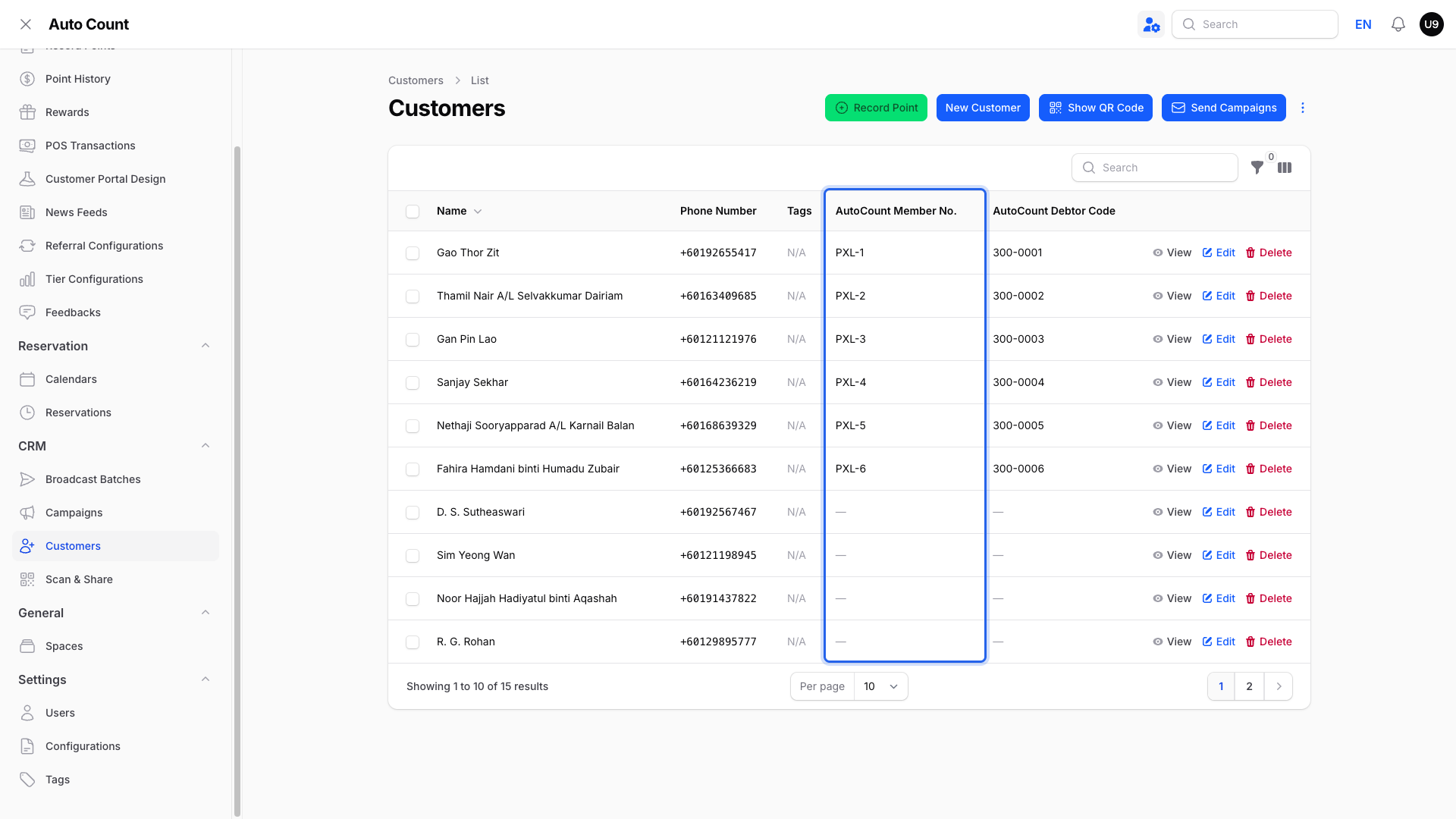
You can see the shared link on any customer. Go to Admin Panel → CRM → Customers and look at the AutoCount Member No. and AutoCount Debtor Code columns.

Real-Life Example
Ahmad runs a homeware shop in Ipoh and rings up sales through AutoCount. He also uses Pixalink to run his points and rewards. For months he typed each new shopper into both, which was slow and full of small mistakes. After he turned on customer sync, a shopper he adds in Pixalink now appears in AutoCount straight away, tagged with a PXL- member number. His older AutoCount members flowed into Pixalink on their own, matched by phone so nobody was doubled up. Now Ahmad keeps one list, and every shopper earns points from the very first sale.
Good to Know
- A customer needs a phone number before they can sync either way.
- For debtors, fill in the Phone 1 field, not just Mobile. Any phone field is enough for the debtor themselves to sync into Pixalink, but an invoice document only carries the debtor's Phone 1 — so a Mobile-only debtor's invoices can fail to match their customer by phone. Members can use either mobile or office phone. Starting numbers with
+60is best; numbers without it are treated as Malaysian. - Pixalink matches by member number, then by phone, so the same shopper is never added twice.
- The
PXL-member number is added by Pixalink and helps you spot Pixalink members inside AutoCount. - Removing a customer in Pixalink also removes their member in AutoCount — as long as Customer Sync is switched on and that customer already has a
PXL-member number created by Pixalink. Members you created in AutoCount yourself are never removed, and neither are debtors. A customer who was never synced across has no member to remove. - Deleting a member or debtor in AutoCount never removes the customer from Pixalink. Their points and history stay. To remove them from Pixalink too, delete the customer in Pixalink as well.
- Your welcome reward only goes to genuinely new AutoCount members: ones picked up by the regular automatic sync whose member record was created in AutoCount in the last 7 days. Your first import and the Import from AutoCount button never send welcome rewards, and new debtors never trigger one. Turning on the sync won't flood your existing members with rewards.
Need Help?
Our support team is happy to walk you through customer sync. Just reach out and we will help.