
What Happens to Points When You Issue an AutoCount Credit Note
What Happens to Points When You Issue an AutoCount Credit Note
What Is This?
Returned goods shouldn't leave points behind. When you raise a credit note in AutoCount for a return, Pixalink can take back the points that sale earned.
How It Works
For each credit note, Pixalink finds the original invoice or cash sale and takes back the points for the amount returned.
- It's off until you ask for it. Our team switches on Reverse Points on Credit Notes for you. Past credit notes are checked too, so review your old returns with us first.
- The credit note must name the original sale. Fill in the Our Invoice No. field, or create the credit note by transferring from the original sale. Otherwise Pixalink can't tell which sale was returned, and the points stay.
- Only the returned share is reversed. A credit note for the full sale takes back every point. A credit note for part of it takes back that share: returning RM200 of a RM800 sale takes back a quarter of its points.
- Points already spent stay spent. Pixalink takes back what it can, and the balance never goes below zero.
- Paperwork-only credit notes can keep their points. Some credit notes only fix details, like a wrong TIN on an e-invoice. Tell us the Reason text you use on those. We add it to Credit Note Reasons That Keep Points, and those notes leave the points alone.
- Cancelling a credit note gives its points back. If you cancel the credit note in AutoCount, Pixalink puts back exactly what that note took, on the next sync. If the original sale was itself cancelled or deleted, the points stay taken.
- Several credit notes on one sale add up. Once they cover the whole sale, every point is taken back and no more.
flowchart TD
    A["Credit note raised in AutoCount"] --> B{"Reason on the<br/>keep-points list?"}
    B -->|Yes| C["Points stay"]
    B -->|No| D{"Original sale found<br/>in Pixalink?"}
    D -->|No| C
    D -->|Yes| E["Points for the returned<br/>amount are taken back"]
    E --> F["Credit note cancelled later"]
    F --> G["Points are given back"]
Most credit notes reach Pixalink within 15 minutes. If a credit note arrives before its sale has been imported, Pixalink tries again every hour until the sale shows up.
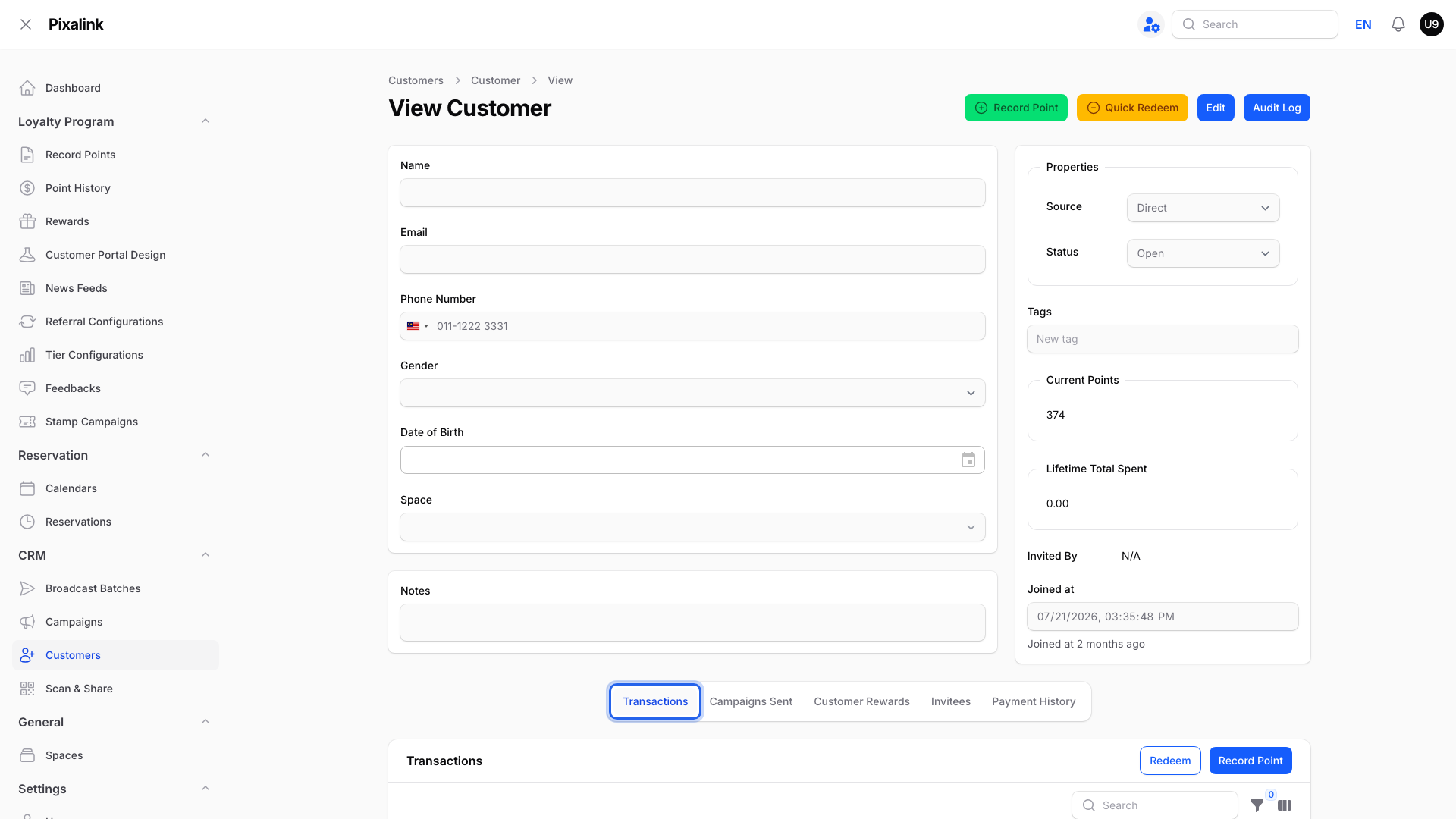
To see the result, go to Admin Panel → CRM → Customers, open the customer, then look at the Transactions tab.

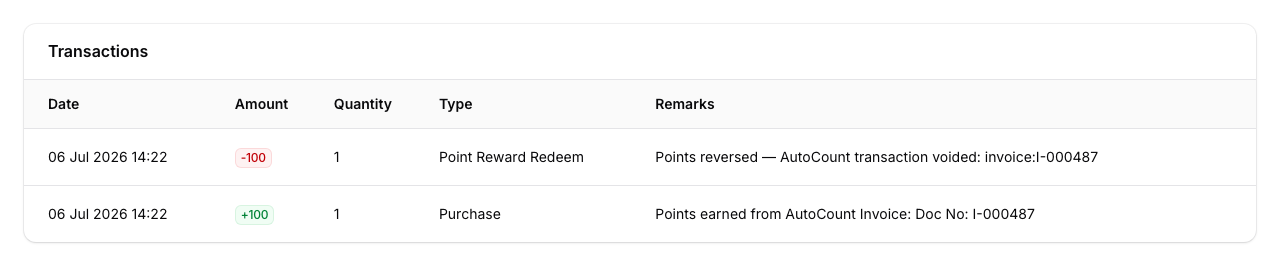
The point history shows a deduction naming the credit note and the sale it returned. A cancelled credit note adds a "points restored" line for the points it took back.
Here's a reversal from a voided sale. A credit note reversal looks the same but names the credit note.
Real-Life Example
Wei Lin runs a home appliance shop that bills through AutoCount. Ahmad buys a rice cooker and an air fryer for RM800 on one cash sale, and earns 800 points.
A week later he returns the air fryer. Wei Lin raises a credit note, transferring it from the original cash sale.
The credit note is for RM300, the air fryer's price. On the next sync, Pixalink takes back 300 points, and Ahmad keeps the 500 from the rice cooker.
Later she raises a credit note only to correct a customer's TIN, with the Reason "Wrong TIN". That reason is on her keep-points list, so the points stay put.
Good to Know
- The keep-points reason must match the whole Reason text on the credit note. Capital letters and spaces at the start or end don't matter, but "Wrong TIN - resent" won't match "Wrong TIN".
- Only credit notes against an invoice or a cash sale are checked.
- Once a credit note has returned the whole sale, later changes to that sale's amount don't add points back. Cancel the credit note instead.
Need Help?
Want this switched on, or a keep-points reason added? Our support team is happy to help.