
How to Stop Wholesale Accounts Earning Points in AutoCount
How to Stop Wholesale Accounts Earning Points in AutoCount
What Is This?
Some AutoCount debtor accounts aren't real shoppers, like trade buyers or company accounts. Their big orders pile up points you never meant to give. List their debtor codes once, and your points go only to real shoppers.
Real-Life Example
Wei Lin runs Kilauan Gold, a jewellery shop with a wholesale side. One trade buyer, account 300-WHL01, bought RM80,000 of stock in a month. Its invoices earned more points than her whole retail base. Wei Lin sent her two trade codes to her Pixalink contact. Within the hour, those invoices stopped earning points. Her retail members kept earning as usual.
How to Set It Up
Your Pixalink contact adds the codes for you. It lives in Pixalink's own panel, not your Admin Panel. Just send them the debtor codes from your AutoCount debtor list.
This is what your Pixalink contact does:
-
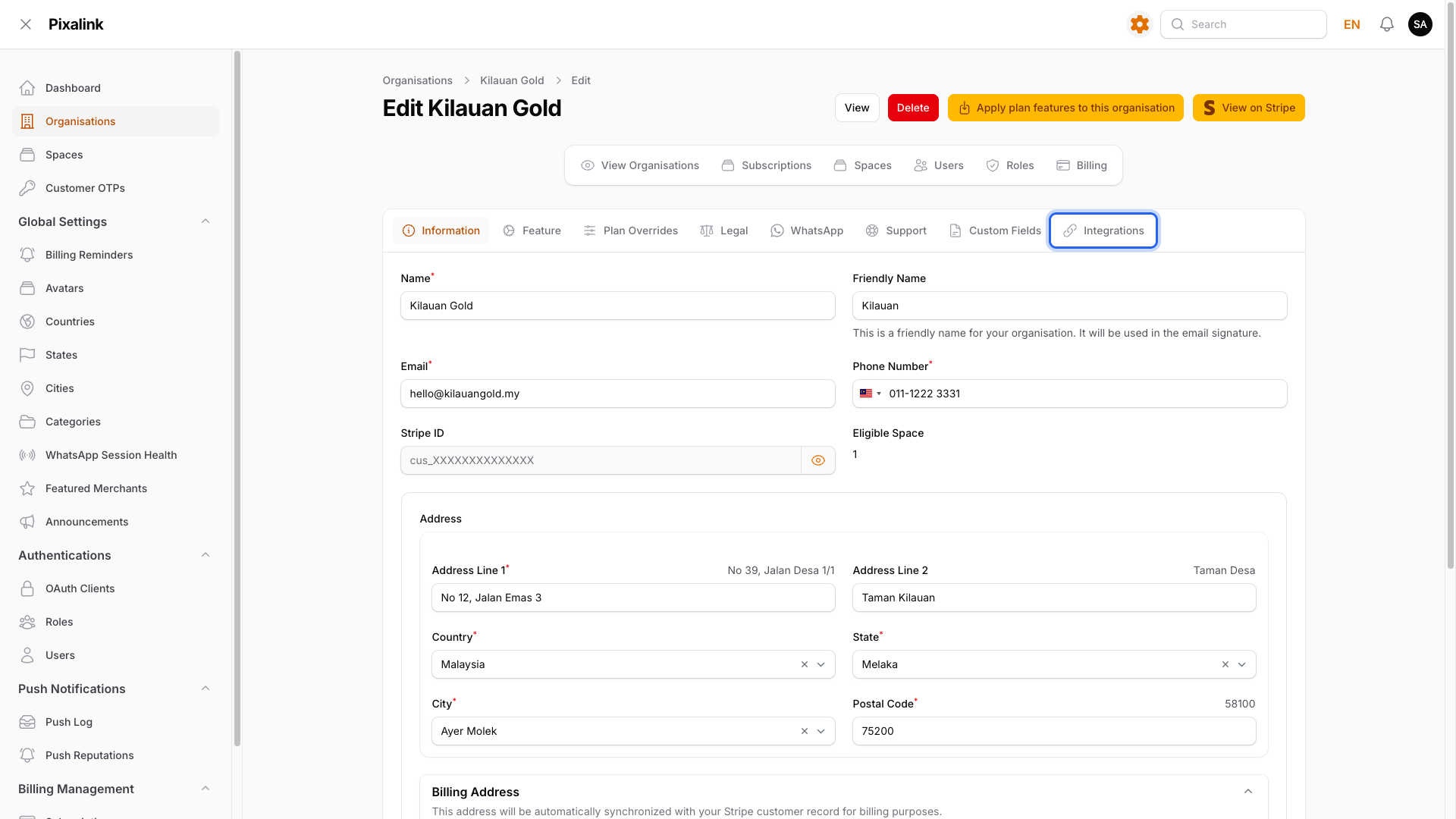
Opens your business under Organisations, then clicks the Integrations tab.
-
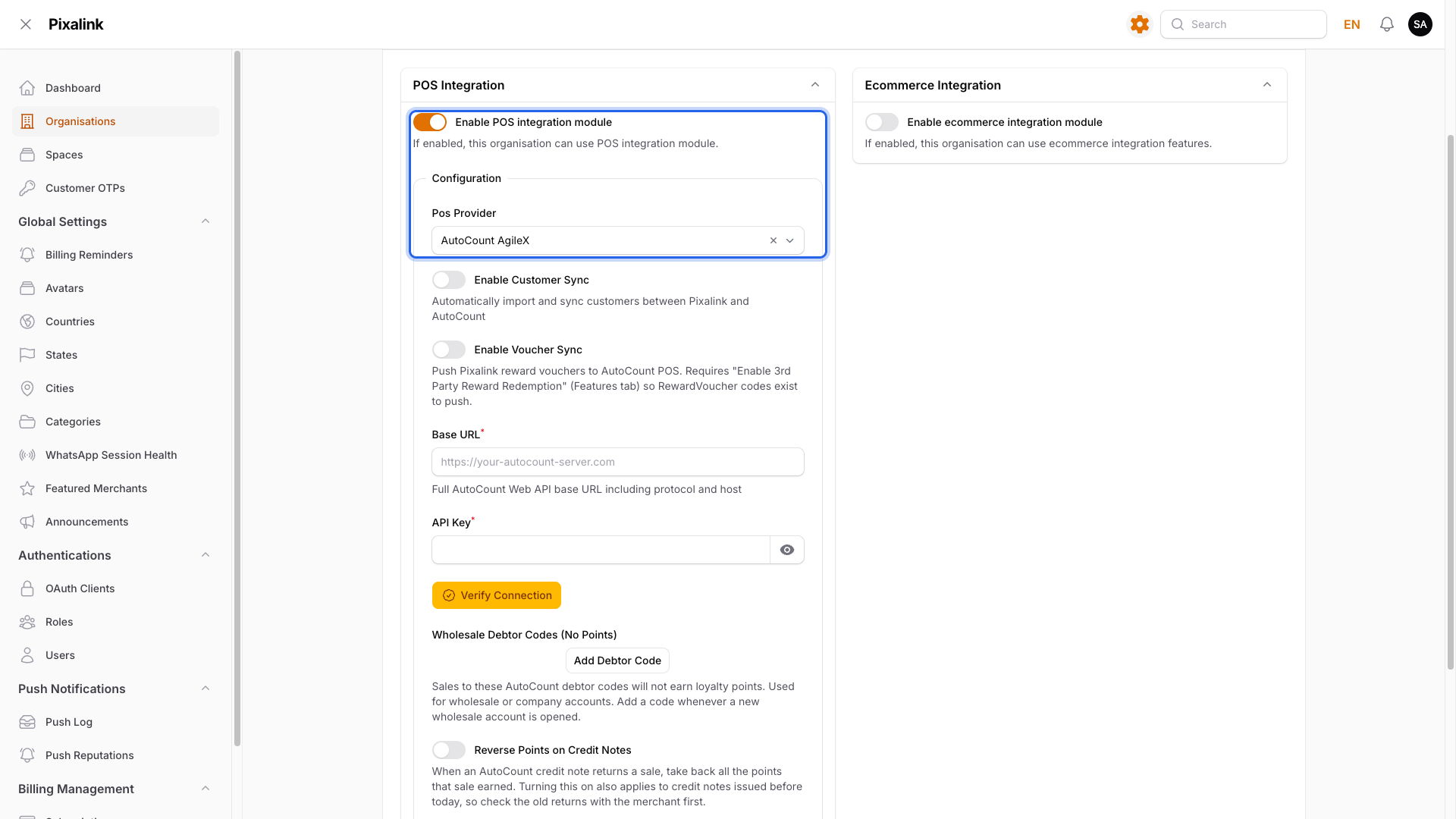
Checks that Enable POS integration module is on and Pos Provider is AutoCount AgileX.
-
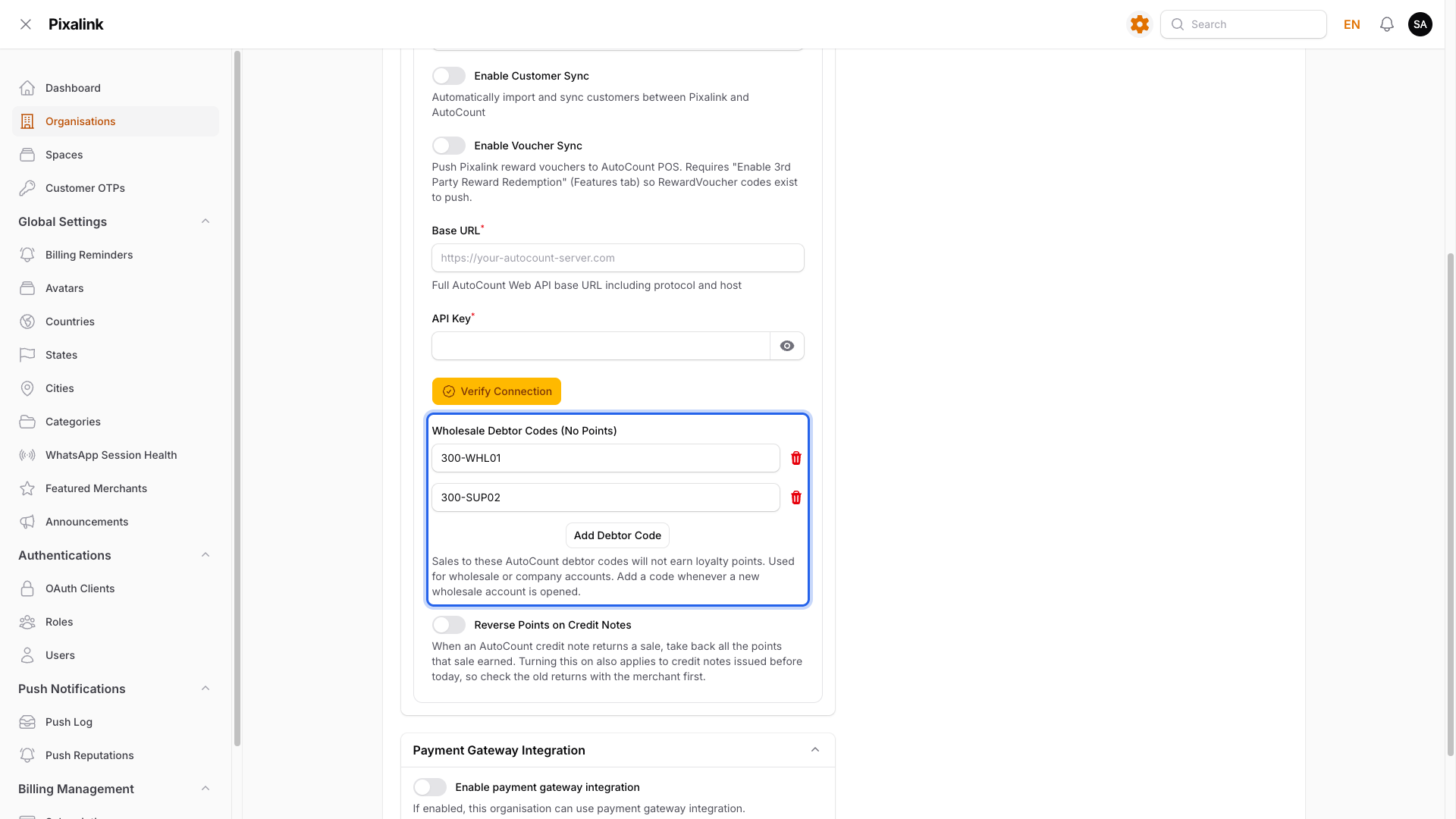
Clicks Add Debtor Code under Wholesale Debtor Codes (No Points), then types one code per row.
-
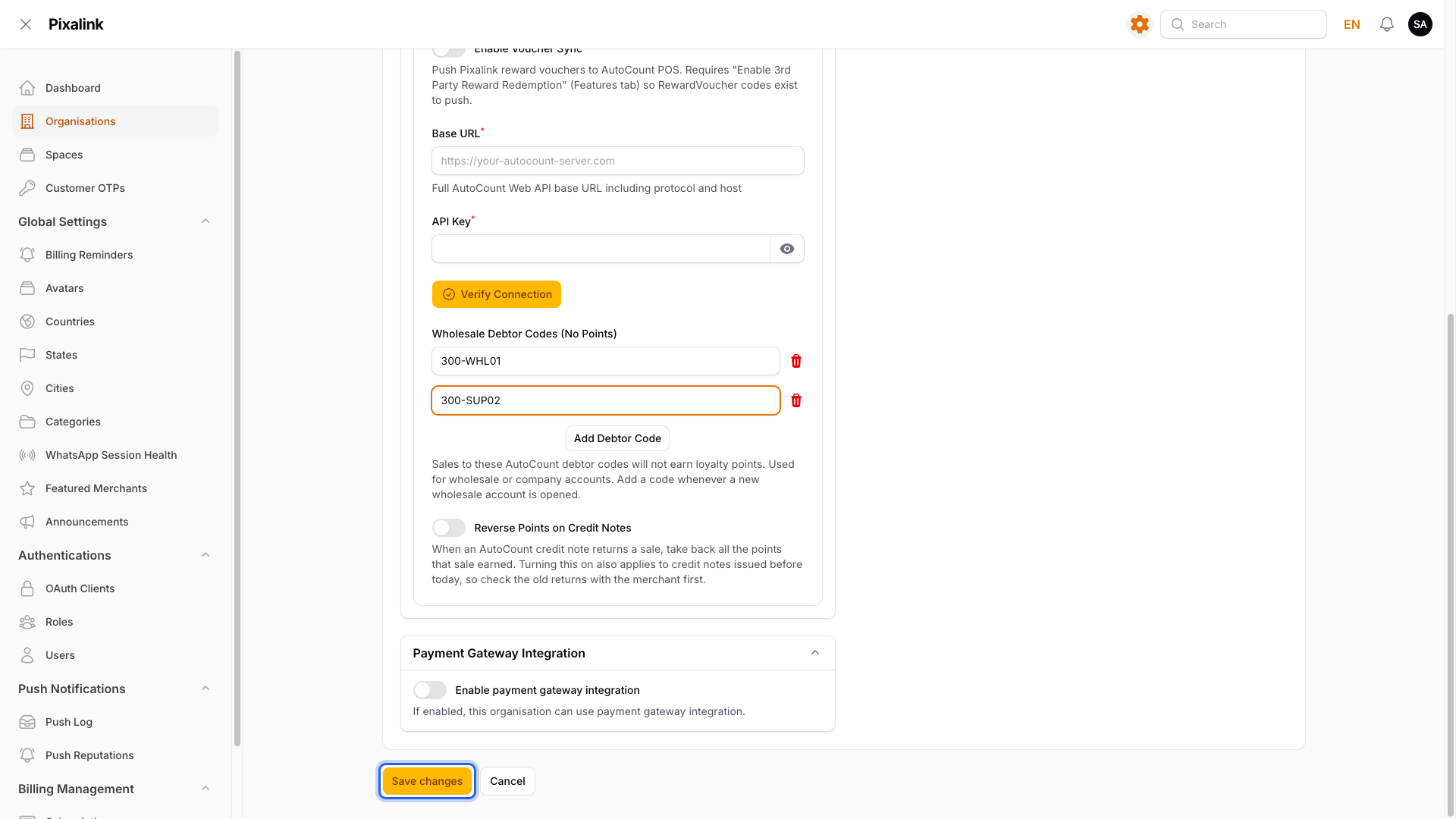
Clicks Save changes.
What Your Customers Will See
Nothing changes for your retail customers. Only listed accounts stop earning.
Good to Know
- Pixalink doesn't read AutoCount's debtor type, so send a new code whenever you open a wholesale account.
- Invoices and cash sales are skipped. POS counter bills are never skipped, because they have no debtor code.
- A cash sale to a listed code earns nothing, even with a member attached. So don't list a shared "cash customer" code if members buy under it.
- Capital letters, and spaces before or after a code, don't matter.
- A listed account still comes into Pixalink as a customer if it has a phone number.
- Sales already in Pixalink before a code was added keep their points. One still waiting for a customer match can still earn. Deduct points by hand if needed.
- Skipped sales still show in Admin Panel → Loyalty Program → POS Transactions, marked No points (wholesale), so you can see why they earned nothing.
- Removing a code later only affects new sales. Sales already marked No points (wholesale) never earn, so no past points arrive at once.
Need Help?
Our support team can help you choose which accounts to list.