
Why StoreHub Purchases Sometimes Don't Award Points
Why StoreHub Purchases Sometimes Don't Award Points
What Is This?
Your StoreHub till and Pixalink work together to add loyalty points after every sale. Most missing-points cases have a simple cause: the sale could not be matched to a customer. This guide explains how the matching works, what to check first, and how to add the points yourself in under a minute.
How It Works
Pixalink picks up your paid StoreHub receipts automatically, usually within a few minutes. Each receipt is matched to a customer using the mobile number saved on the StoreHub member attached to that sale.
flowchart TD
    A[Sale rung up in StoreHub] --> B[Paid receipt syncs to Pixalink<br/>usually within a few minutes]
    B --> C{Member with a mobile number<br/>attached to the sale?}
    C -->|Yes| D[Points added to the customer<br/>automatically]
    C -->|No| E[Receipt waits in POS Transactions<br/>with no phone number]
    E --> F[Click Adopt and enter the customer's<br/>number to add the points yourself]
The number one cause of missing points is a walk-in sale. If the cashier did not attach the customer's member profile at checkout, the receipt arrives with no mobile number. Pixalink cannot tell whose sale it was, so no points are added automatically.
You can see every synced receipt under Loyalty Program → POS Transactions. Unmatched receipts show N/A in the Phone column. Click Adopt on a receipt, enter the customer's mobile number, and the points are added straight away. The Refresh button pulls your latest StoreHub receipts into the list.
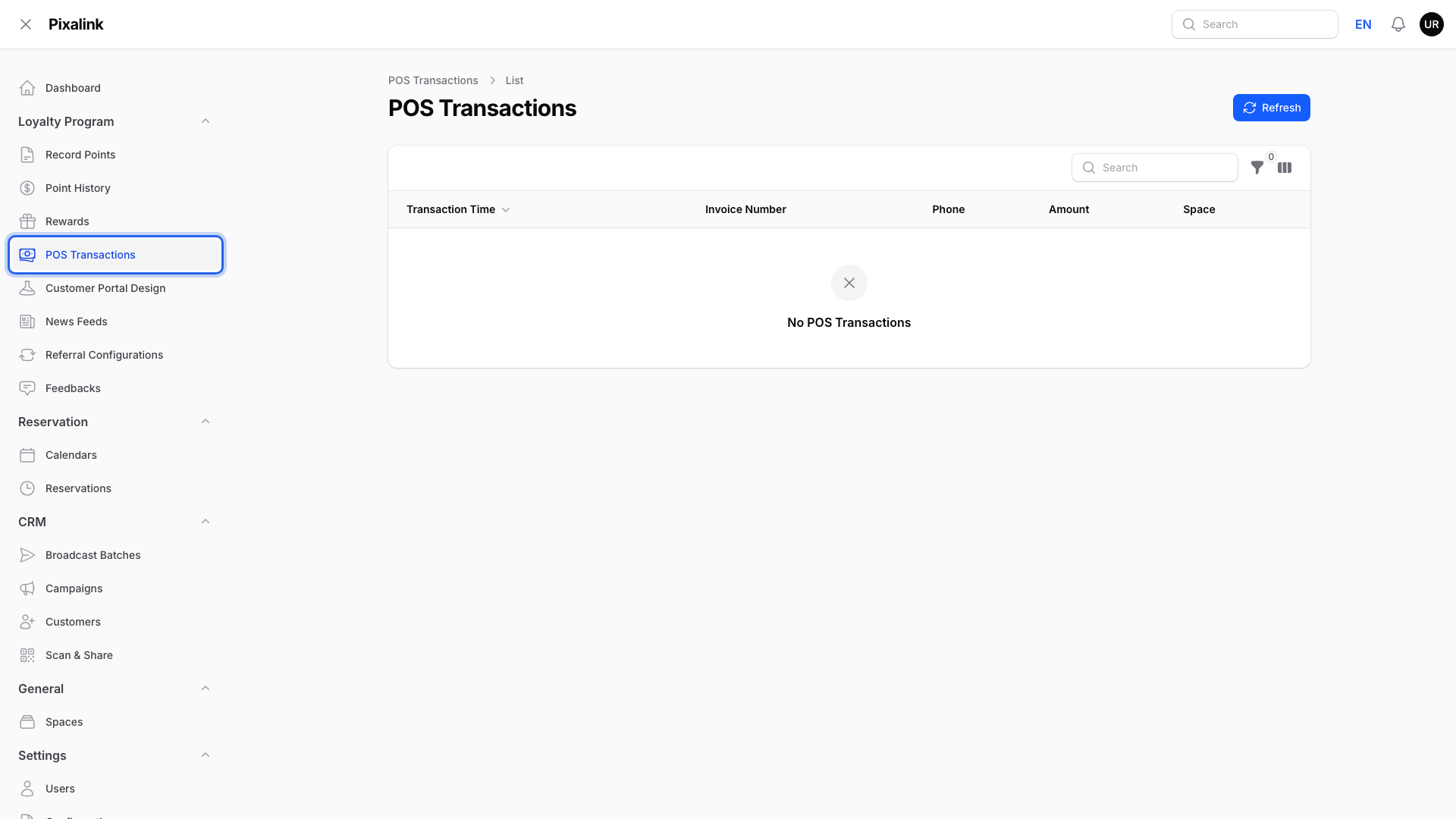
When points are missing, check these three things in order:
- Was the customer attached at the till? Ask the cashier to select the member in StoreHub before payment.
- Does the mobile number match? Numbers starting with 0 are matched as +60 automatically. A mistyped number creates a separate customer profile, so the points may sit under the wrong number.
- Has the sale synced yet? Only paid receipts come across. QR and online orders sync after payment is confirmed, not when the order is placed.
Real-Life Example
Nurul buys lunch for RM50 at Ahmad's Kopi Corner in Bangsar. The new cashier forgets to select her member profile, so no points appear. Ahmad opens POS Transactions, finds the RM50 receipt with N/A in the Phone column, clicks Adopt, and enters 012-345 6789. Nurul's points arrive before she finishes her coffee.
Good to Know
- Points use the receipt amount at sync time. If a bill is edited or refunded in StoreHub after Pixalink has recorded it, the points already given do not change on their own. Contact support to adjust them.
- Cancelled receipts are skipped, so voided sales do not add points.
- Adopt is the quick fix for any receipt that arrived without a member attached.
- Coach cashiers to ask for the customer's mobile number at checkout. It is the one habit that prevents almost every missing-points case.
Need Help?
If a receipt is missing from the list, or the amount looks wrong, contact Pixalink support. Include the receipt date and time and the customer's mobile number so the team can trace it quickly.
What's Next?
- How to Link StoreHub POS Integration — how the connection is set up
- How Loyalty Points Are Earned at POS — how a sale turns into points
- POS Integration Feature Comparison — what each till system supports