
How to Share Your Customer Portal and Get Your First Members
How to Share Your Customer Portal and Get Your First Members
What Is This?
Your customer portal is where customers sign up, collect points, and redeem rewards. But it only works if people can find it. This guide shows you how to share your portal link and QR code so customers can start joining your loyalty programme right away.
Real-Life Example
Siti just finished setting up her loyalty programme for her bubble tea shop in Subang Jaya. She created her rewards, set up her tiers, and designed her customer portal. But after a week, she still had zero members. The problem? She hadn't shared her portal link anywhere. Once Siti printed her QR code and placed it at the counter, she got 30 new signups in the first weekend. She also posted the link on her Instagram bio and picked up another 15 members that month. Now her regulars earn points on every visit.
Video Walkthrough
How to Find Your Portal Link
-
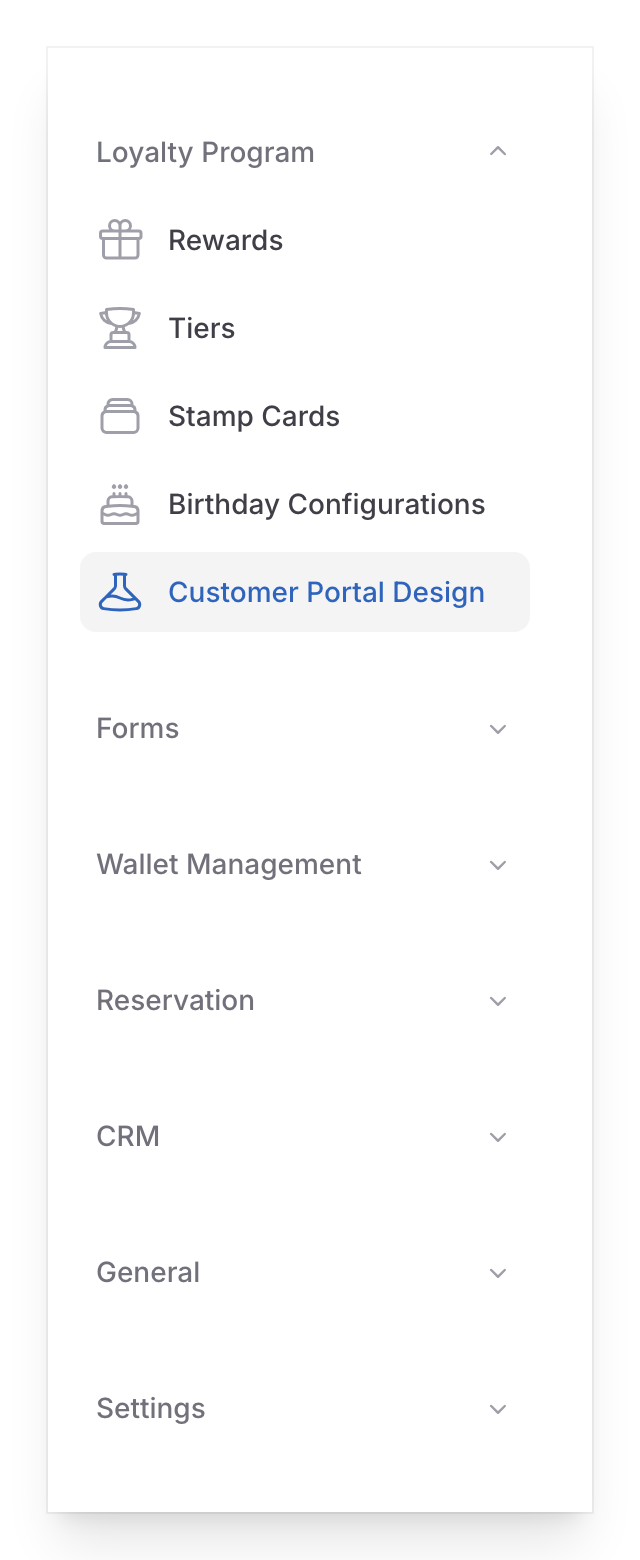
Go to Admin Panel → Loyalty Program → Customer Portal Design
-
Click the View on Front Page button at the top of the page. If you have more than one outlet, pick the outlet you want from the dropdown first.

-
Your customer portal opens in a new tab. Copy the URL from your browser's address bar — this is the link you'll share with customers.
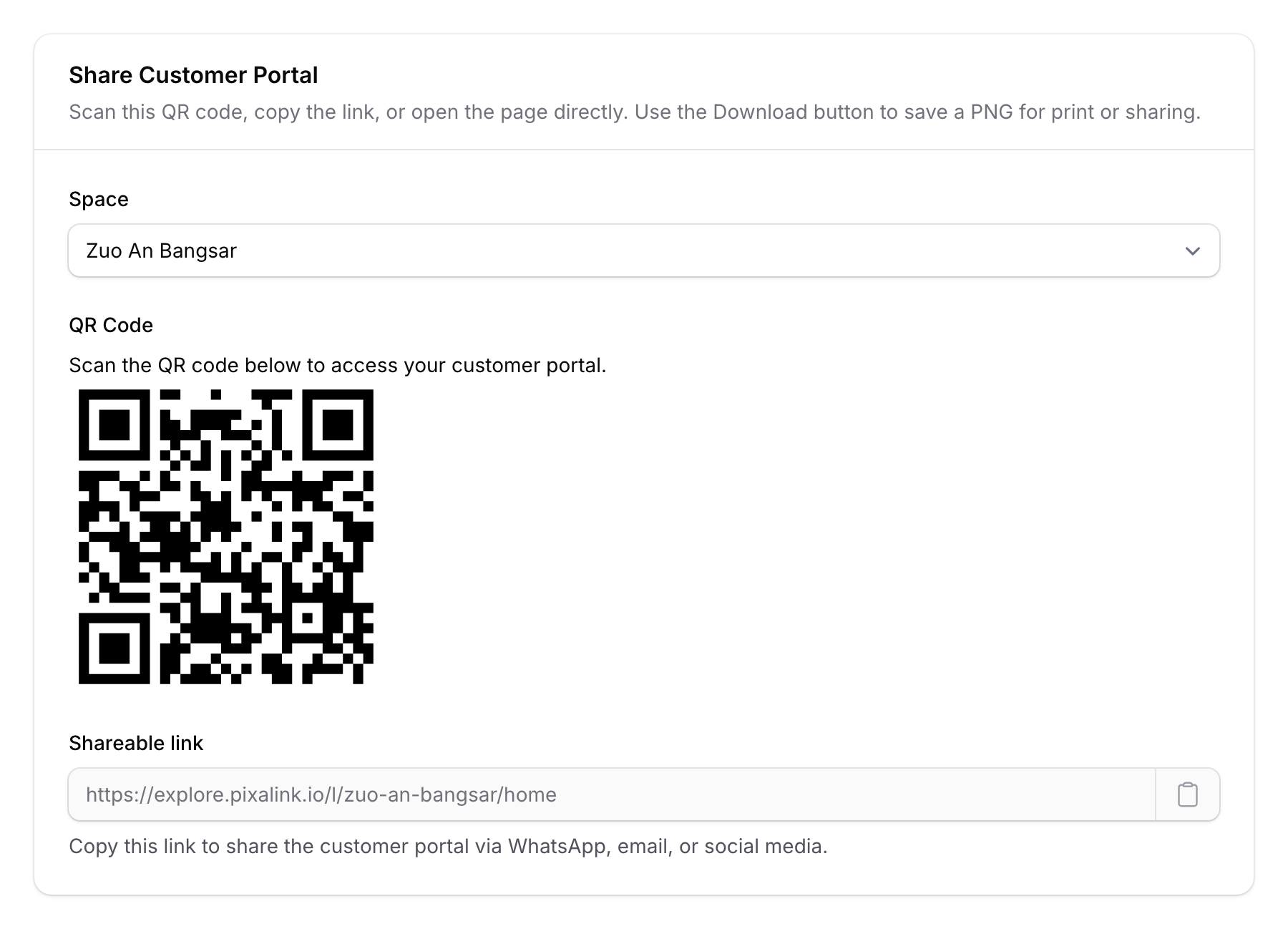
Your portal link starts with https://explore.pixalink.io/l/<your-space-slug>. For example, a bubble tea shop with the slug zuo-an-bangsar will see https://explore.pixalink.io/l/zuo-an-bangsar/home. The Shareable link in the QR panel below also ends with ?store=<outlet>, so sign-ups from it are credited to that outlet. If you've connected your own custom domain, your link will use that domain instead.
How to Get Your QR Code
-
Go back to Admin Panel → Loyalty Program → Customer Portal Design
-
Click the Show Customer Portal QR Code button at the top of the page.
-
Pick your outlet from the Space dropdown. The QR code appears on screen along with your portal link.
-
Click Download PNG to save the QR code as an image you can print or share. Use the copy icon next to the Shareable link field to copy the portal URL straight to your clipboard.
Where to Share Your Portal
Here are the most effective places to put your portal link and QR code:
In-store (QR code)
- Print the QR code and place it at your counter or cashier
- Add it to table tents, menu inserts, or standees
- Put it near your entrance so customers see it while waiting
Online (portal link)
- Add the link to your Instagram, Facebook, or TikTok bio
- Include it in your WhatsApp business profile
- Add it to your Google Business listing under "Links"
- Put it in your email signature
On printed materials (QR code)
- Add it to flyers, receipts, or business cards
- Print it on packaging or takeaway bags
How to Track New Signups
-
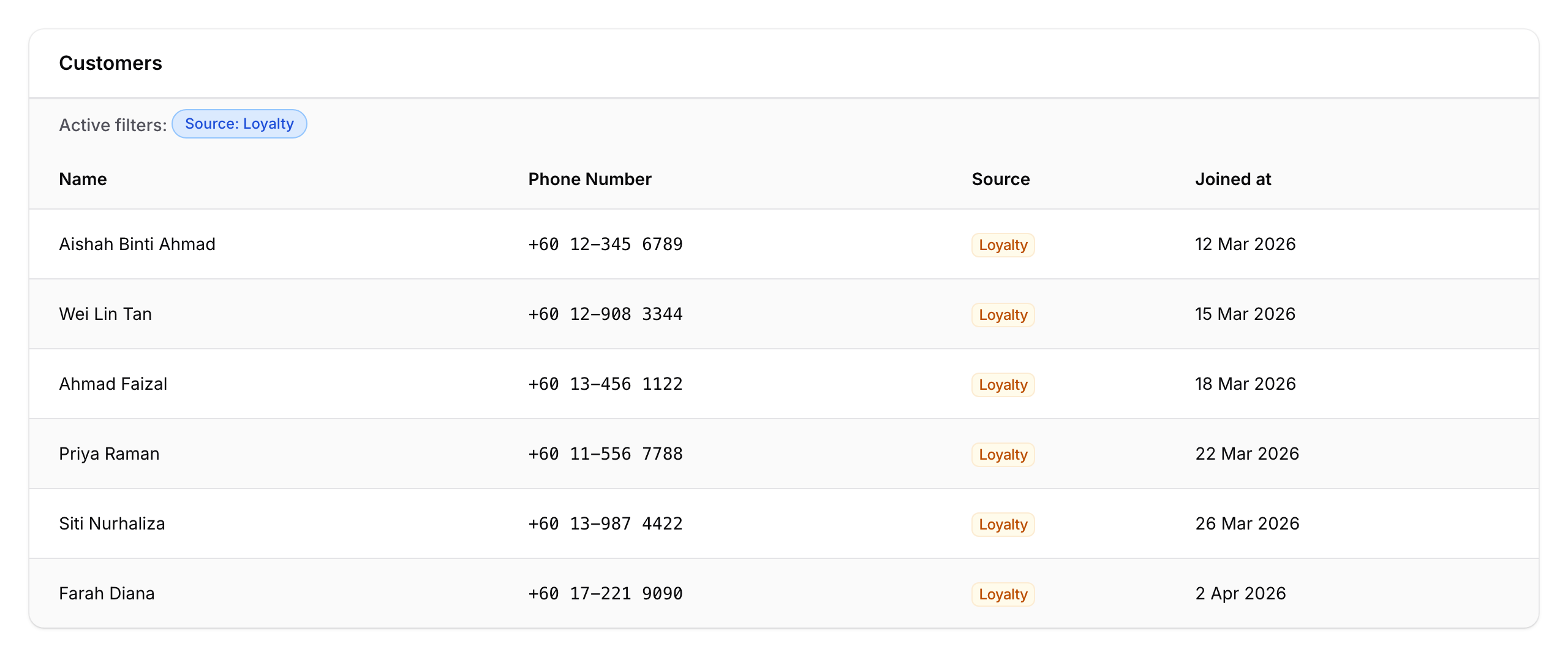
Go to Admin Panel → CRM → Customers to see your full member list.
-
Use the Source filter and select Loyalty to see only customers who signed up through your portal link or QR code.
-
Use the Joined at date filter to see signups from a specific time period — handy for measuring how well your QR code placement is working.
Good to Know
- Your QR code and portal link both point to the same page — the customer experience is identical either way.
- Customers sign up with their phone number and confirm it, usually on WhatsApp. No app download is needed.
- If you have multiple outlets, each outlet can have its own QR code. Customers who scan it get linked to that outlet automatically.
- View on Front Page appears once you have at least one outlet set up. What the Show Customer Portal QR Code outlet dropdown offers depends on how your portal is set up. If every outlet has its own portal, the dropdown lists outlets that have a Customer Portal theme — create a theme first if an outlet is missing. If your organisation uses one portal for all outlets, the dropdown lists every outlet, no theme needed: the portal looks the same whichever QR is scanned, but sign-ups from each QR are credited to the outlet you picked. That lets you print a different QR for each branch and see exactly where new members signed up, even with a single shared portal.
Need Help?
Reach out to our support team — we're happy to help you get started.
What's Next?
- How to Customise Your Customer Portal Theme: customise the look and feel of your portal
- What Are Rewards and How to Create Them: create rewards for your new members to redeem