
How to Give a Sign-Up Reward with a Custom Registration Form
How to Give a Sign-Up Reward with a Custom Registration Form
What Is This?
A custom registration form lets new customers join your loyalty program through your own sign-up page. You can attach a special reward that only people who join through this form receive. It is a simple way to turn a campaign, event, or poster into new members with a welcome gift.
Real-Life Example
Farah runs Petal & Stem, a florist in Subang. She wanted to grow her member list during a weekend flower fair. So she made a registration form just for the fair and attached a free bouquet upgrade as the sign-up gift. She printed the form link as a QR code on her booth banner. Anyone who scanned it and signed up got the upgrade straight away. Walk-in customers who joined later through her normal page did not get it. The reward stayed special to the fair sign-ups only.
How to Set It Up
-
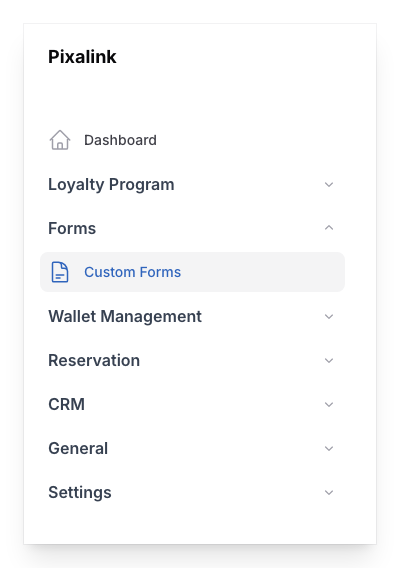
Go to Admin Panel → Forms → Custom Forms, then click New custom form.
-
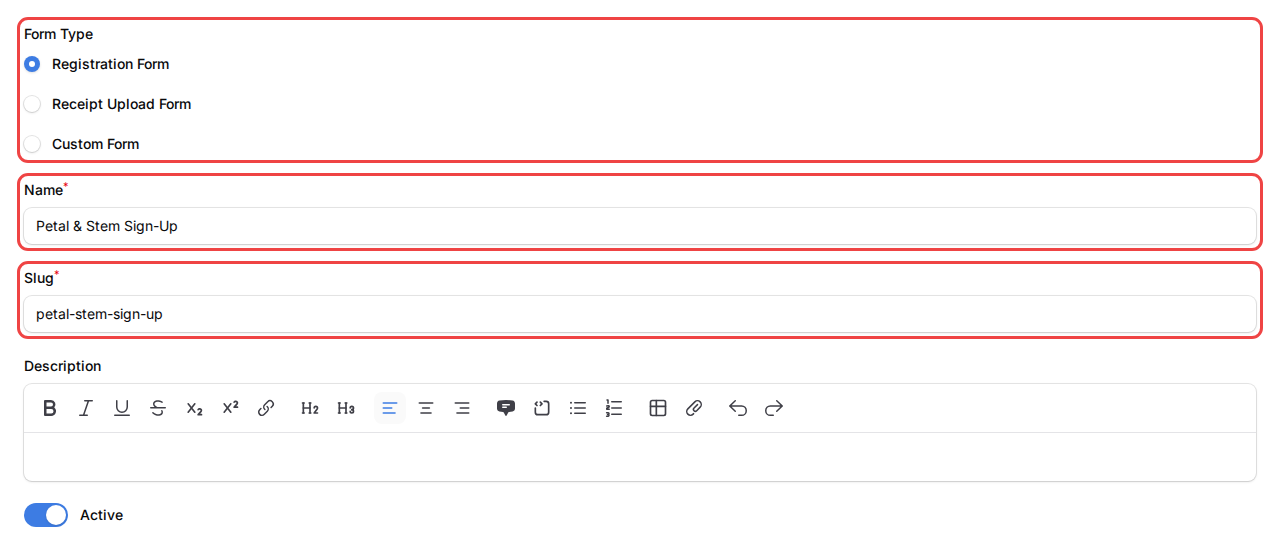
Choose Registration Form as the form type, give it a name, and keep it active.
-
Open the Automations tab, add your reward under Rewards Assignment, then click Create to save.

What Your Customers Will See
Your customers open the form link and fill in their details to join. Once they sign up, the reward lands in their account right away. They can see it in their voucher list in the customer portal, ready to use.
Good to Know
- The reward only goes to people who sign up through this form. Other members do not get it.
- Each customer receives the reward once, even if they submit the form again.
- Only free rewards that are not one-time and not already a welcome reward show in the list.
- You can attach more than one reward to a single form.
- Set a start and end date in the Details tab if you want the form live for a limited time.
- Share the form link as a QR code on posters, tables, or at events to bring in sign-ups.
Need Help?
Reach out to our support team and we will help you set up your form.