
How to Set Up New Customer Reward Automation
How to Set Up New Customer Reward Automation
What Is This?
When someone joins your loyalty programme, you can automatically give them a reward — no manual work needed. You can also delay it: send the reward 1 day after signup instead of right away, so it lands at the right moment and brings them back.
Real-Life Example
Aishah owns a bubble tea shop and sets up a "Welcome Freebie" reward with a 1-day delay. When Wei Lin signs up on Monday, the voucher appears in her account Tuesday morning. She pops in on the way to work, redeems it, and becomes a returning customer — without Aishah lifting a finger.
How to Set It Up
-
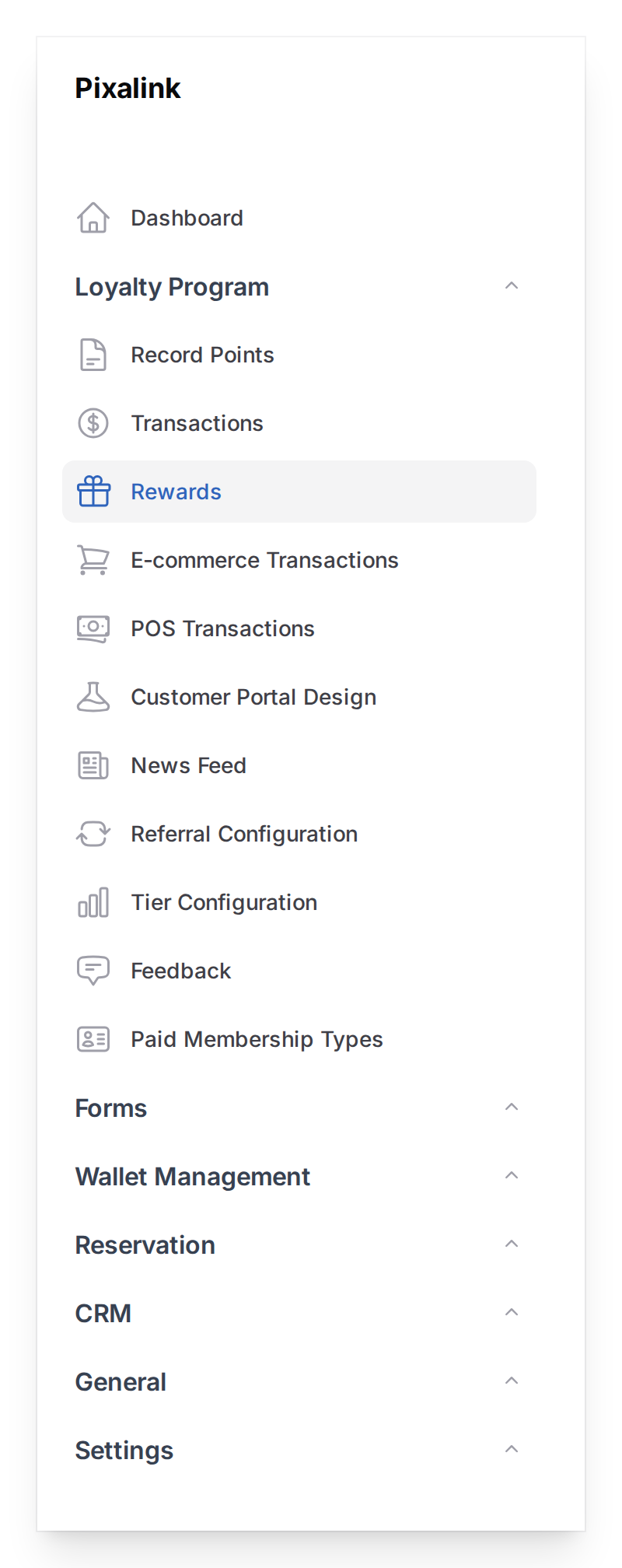
Go to Loyalty Program → Rewards in the left sidebar
-
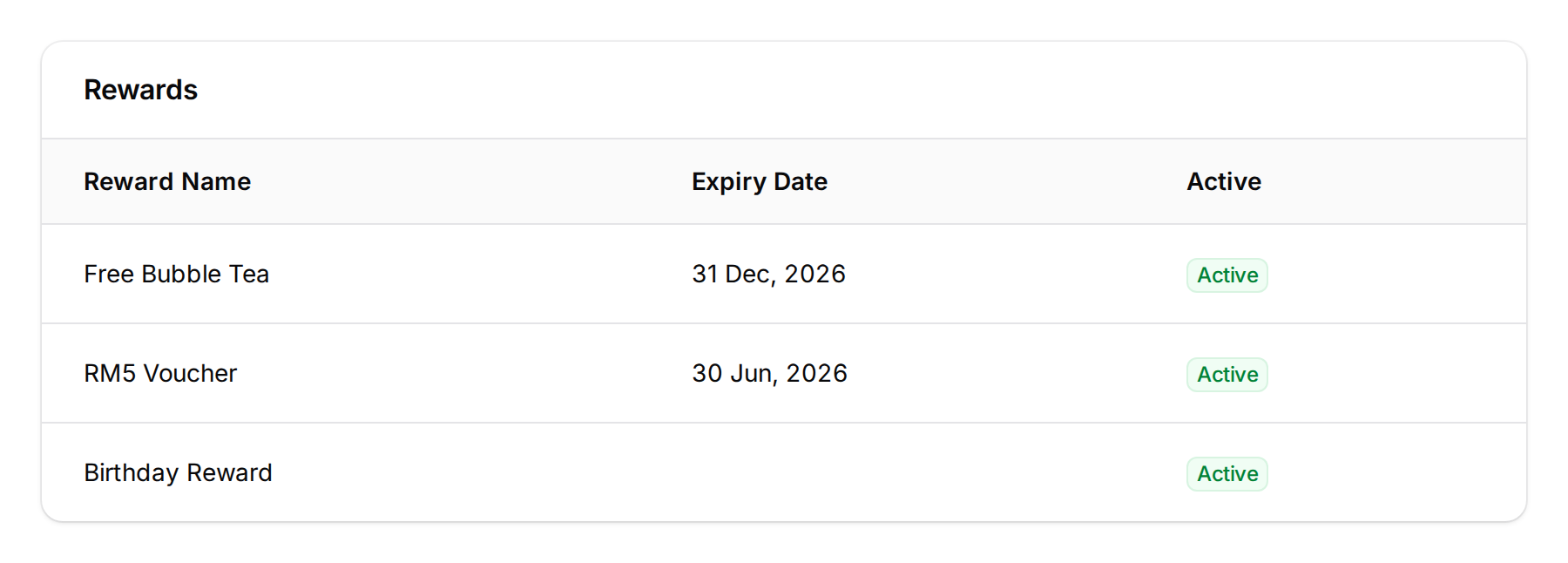
Open the reward you want to set up (or create a new one)
-
Click the Automations tab at the top of the reward editor
-
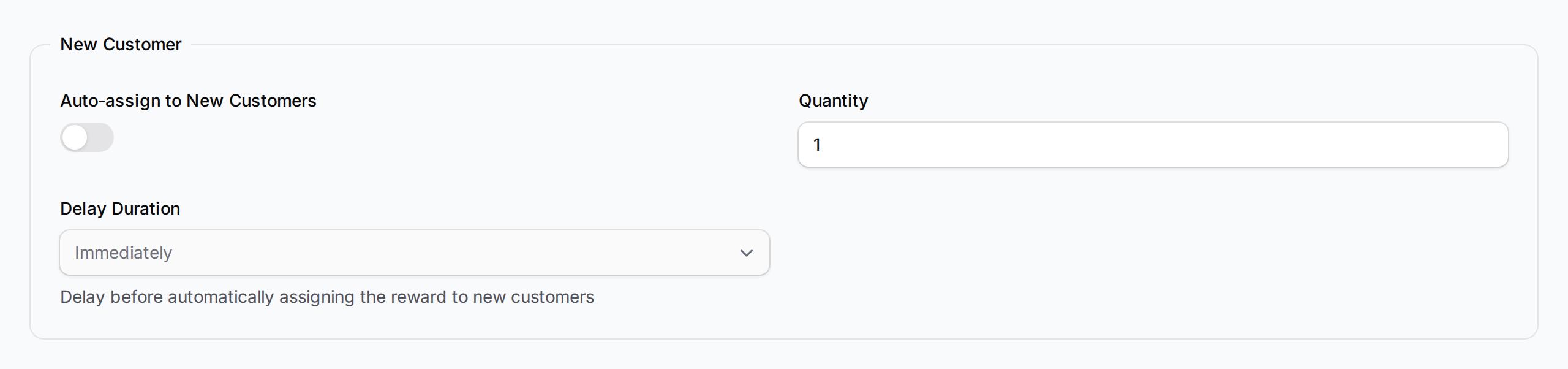
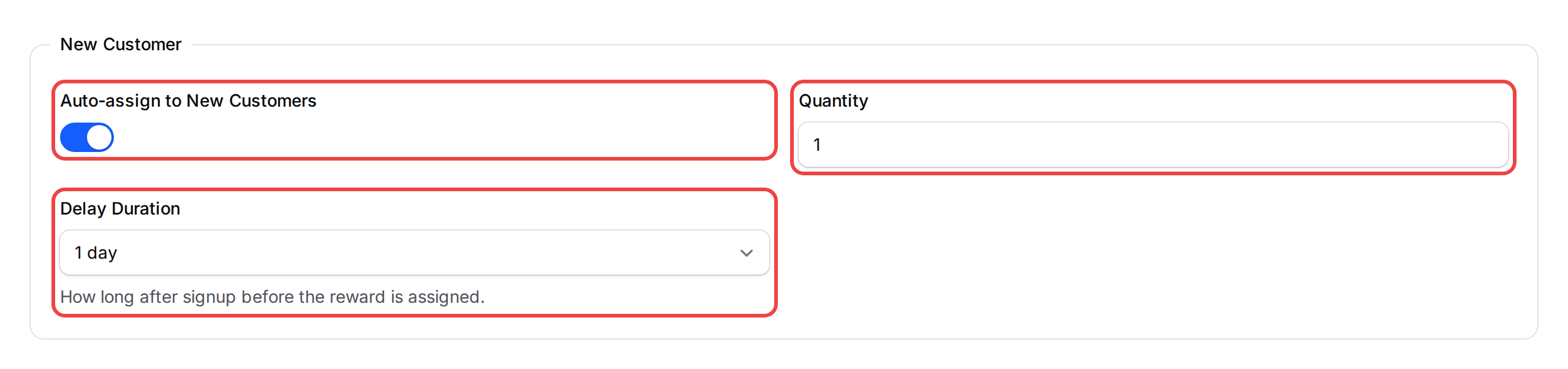
Find the New Customer section and turn on Auto-assign to New Customers. Fill in the form:
- Quantity — how many of this reward each new customer receives (default: 1)
- Delay Duration — when to give the reward after signup. Choose Immediately to give it right away, or pick a delay (e.g. "1 day" sends the reward the next day at the same time they signed up)
-
Click Save
What Your Customers Will See
After the delay period passes, the reward appears in the customer's account automatically. If you have WhatsApp notifications set up on the Notifications tab, they'll also get a message. It lets them know their reward is ready to use.
Good to Know
- Each customer only receives this reward once — the system won't give it again if they already have it
- If a reward is already used as a Referral reward, the New Customer automation turns off — you'll see a warning with a link to change the referral settings
- You can change the delay at any time — it only affects new signups going forward
- Available delay options range from Immediately up to 1 week
- This automation works independently from Birthday and Tag automations — all three can be active on the same reward
What's Next?
- What Are Rewards and How to Create Them — set up the reward first if you haven't yet
- How to Set Up Conditional Reward Distribution — add spending conditions to unlock rewards
- Customer Reward Lifecycle Explained — see what happens after a reward is assigned