
How to Automatically Give Vouchers to Paid Members
How to Automatically Give Vouchers to Paid Members
What Is This?
When a customer signs up for one of your paid memberships, you can hand them a welcome voucher (or several) without lifting a finger. Pixalink does it for you the moment the membership activates. It's a great way to thank them for joining and give them a reason to come back soon.
Real-Life Example
Wei Lin runs a bubble tea chain and just launched her "VIP Tea Lover" membership at RM 29 per month. She wants every new member to feel special from day one, so she sets up two free vouchers — a Free Bubble Tea and a Free Topping — to be handed out automatically. When Ahmad signs up at the counter, both vouchers land in his rewards list straight away. Wei Lin didn't have to remember a thing.
Video Walkthrough

How to Set It Up
-
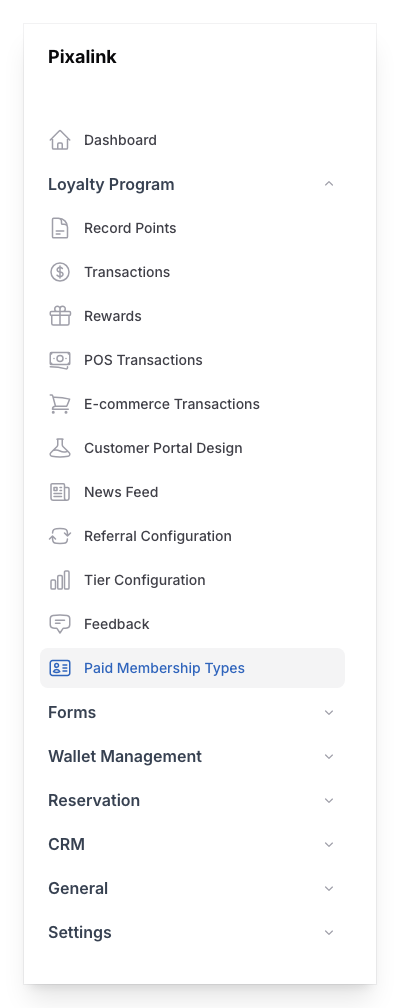
Go to Admin Panel → Loyalty Program → Paid Memberships
-
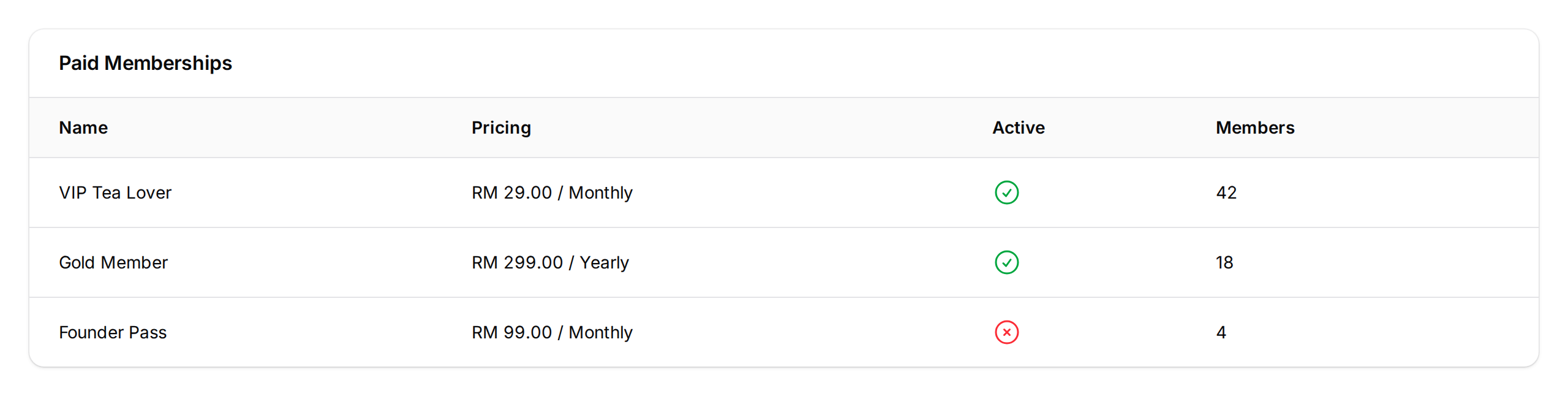
Click Edit on the membership type you want to add vouchers to
-
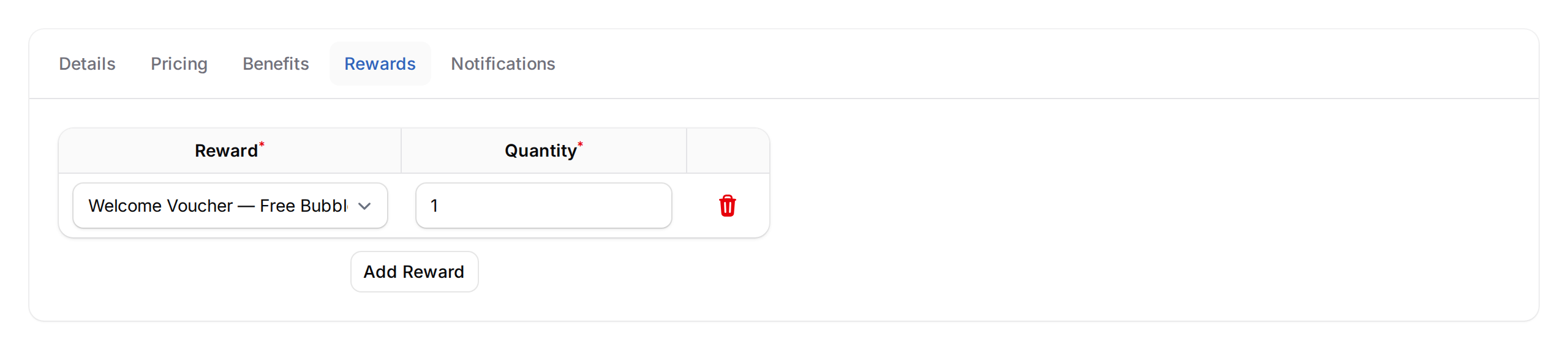
Click the Rewards tab, then click Add Reward

-
Pick a reward from the Reward dropdown and set how many to give in Quantity, then click Save changes. Click Add Reward again if you want to hand out more than one reward per member.
What Your Customers Will See
The moment a membership activates — whether it's a free assignment, a cash payment, or an online payment — the vouchers appear under My Rewards in the customer portal.
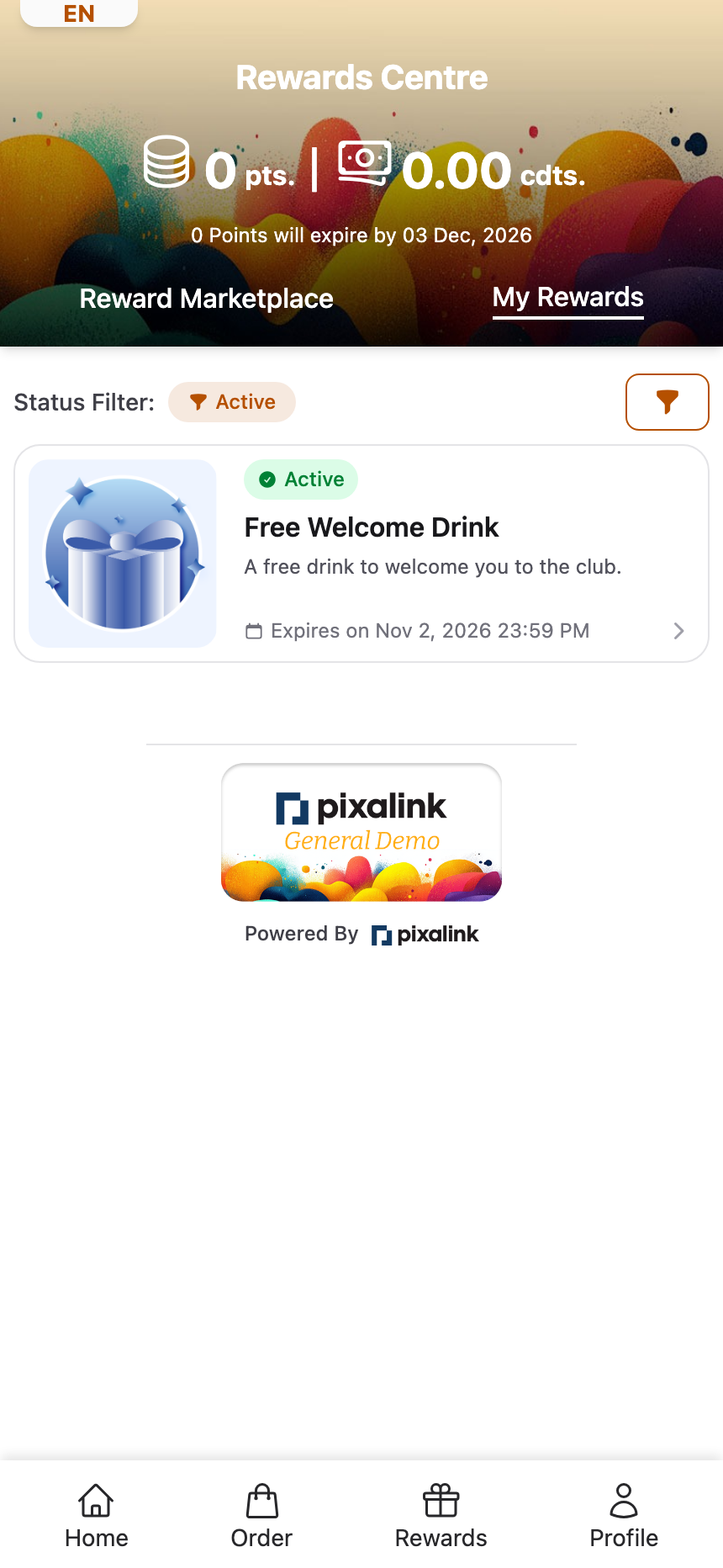 They redeem each voucher at the counter like any other reward. Members who renew through a new cash or online payment receive a fresh batch of vouchers too.
Good to Know
- Only free rewards can be assigned. The dropdown only shows rewards with a points cost of 0. If you don't see the reward you want, open it under Rewards and set its Points to Redeem to 0.
- Rewards are re-issued every time a payment activates a membership — new signups, cash payments, and online renewal payments all trigger a fresh batch. Manually extending a member's expiry date (without taking a payment) does not.
- The reward must stay active. If you turn a reward off after adding it here, new members won't receive it.
- Keep a members-only voucher out of the Reward Marketplace. Set a past date in the reward's Display Until (End Date). It disappears from the marketplace, but members still receive it here.
- You can assign as many rewards as you like. Add multiple rows to bundle a welcome pack.
- Quantity controls how many vouchers each member gets. Set it to 3 to hand out three identical vouchers at once.
- Changing the quantity only affects future activations. Members who already received their vouchers keep what they got — raising the quantity later does not top up earlier members. And note the Automations tab is a different feature: it is a one-time back-fill that runs once per member, forever, so it cannot be used to top up either. See Rewards Tab vs Automations Tab on Paid Memberships before touching it.
Need Help?
Stuck on a step? Reach out to support@pixalink.io and we'll get you sorted.
What's Next?
- Paid Memberships — full guide to setting up your membership plans
- What Are Rewards and How to Create Them — make sure your free reward exists before you assign it
- Customer Reward Lifecycle Explained — see how the voucher moves from issued to used