
Paid Memberships
Paid Memberships
What Is This?
Paid Memberships let you sell premium membership plans to your customers. Customers pay monthly, yearly, or a one-time Lifetime price and unlock the perks you choose — bonus points, exclusive rewards, priority treatment, or anything else that fits your business.
Real-Life Example
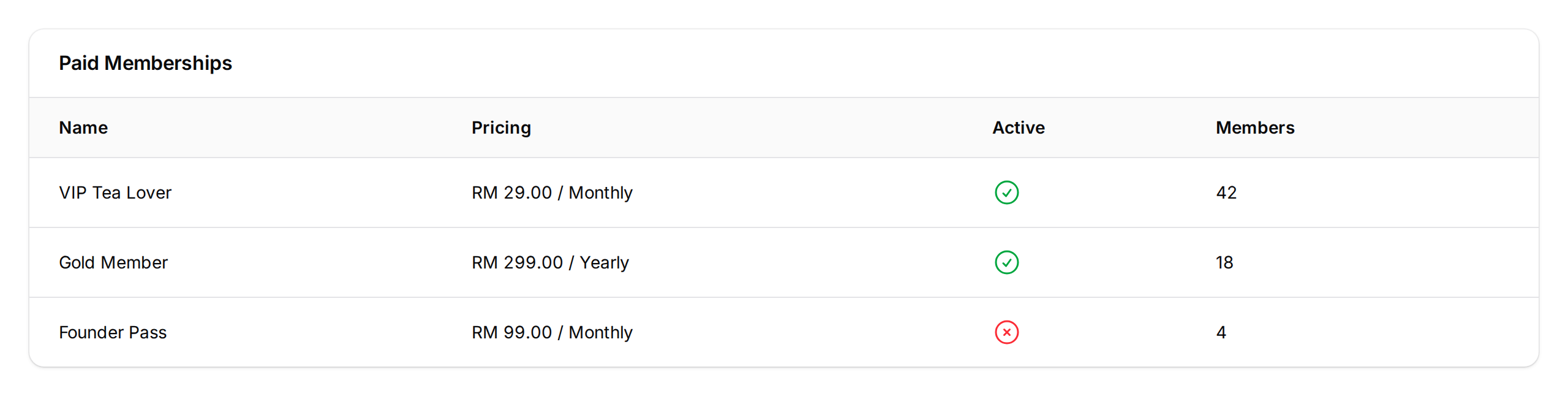
Wei Lin owns a bubble tea chain with three outlets. She wants to reward her most loyal customers with something extra. She creates a "VIP Tea Lover" membership at RM 29/month — double points on every purchase, a free birthday drink, and early access to new flavours. Within a week, 40 regulars sign up. Ahmad, one of her Sunday brunch regulars, pays cash at the counter; the staff opens his profile and assigns the membership in seconds. A week before his expiry next month, Ahmad gets a WhatsApp reminder and renews on the spot. Wei Lin now has steady monthly income from her best customers.
Video Walkthrough

How to Set It Up
-
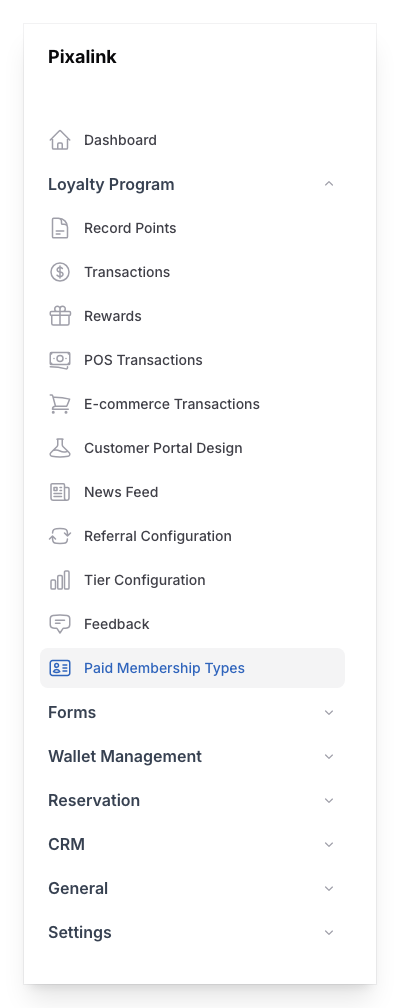
Go to Admin Panel → Loyalty Program → Paid Memberships and click New Paid Membership.
-
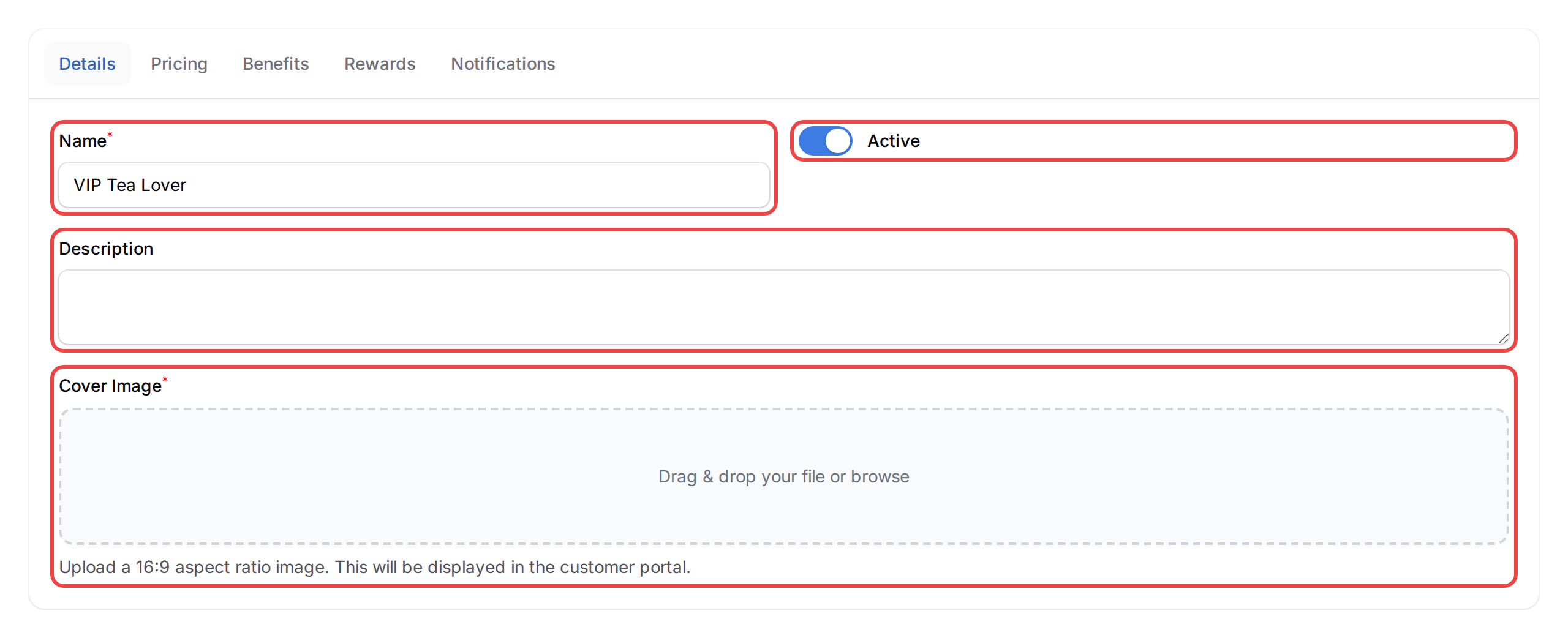
On the Details tab, fill in:
- Name — what your customers will see (e.g. "VIP Tea Lover")
- Active — turn this on to make the plan available
- Description — a short summary of the plan. Customers see it right under the plan name in your portal
- Cover Image — required. Upload a 16:9 image; the built-in editor helps you crop.
-
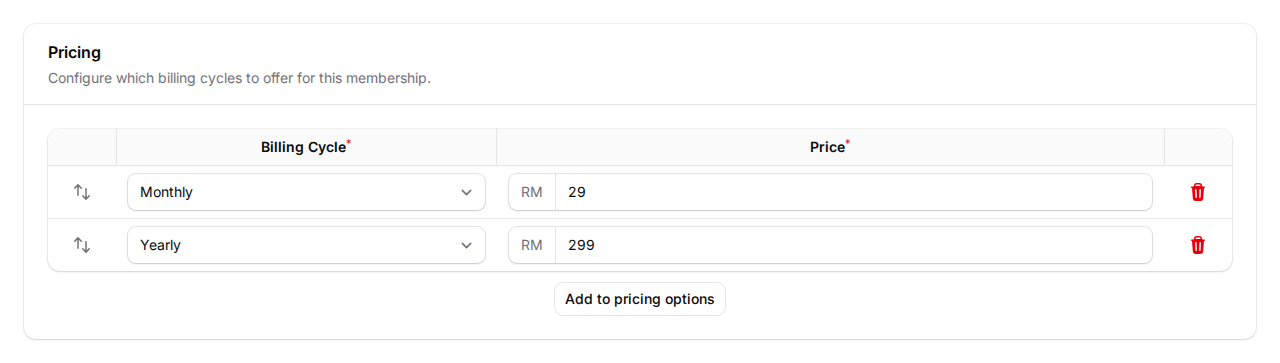
On the Pricing tab, add a price for each billing cycle you offer. There are five: Monthly, Quarterly, Half-yearly, Yearly, and Lifetime. A Lifetime plan is a one-time payment that never expires. Minimum price is RM 0.01.
-
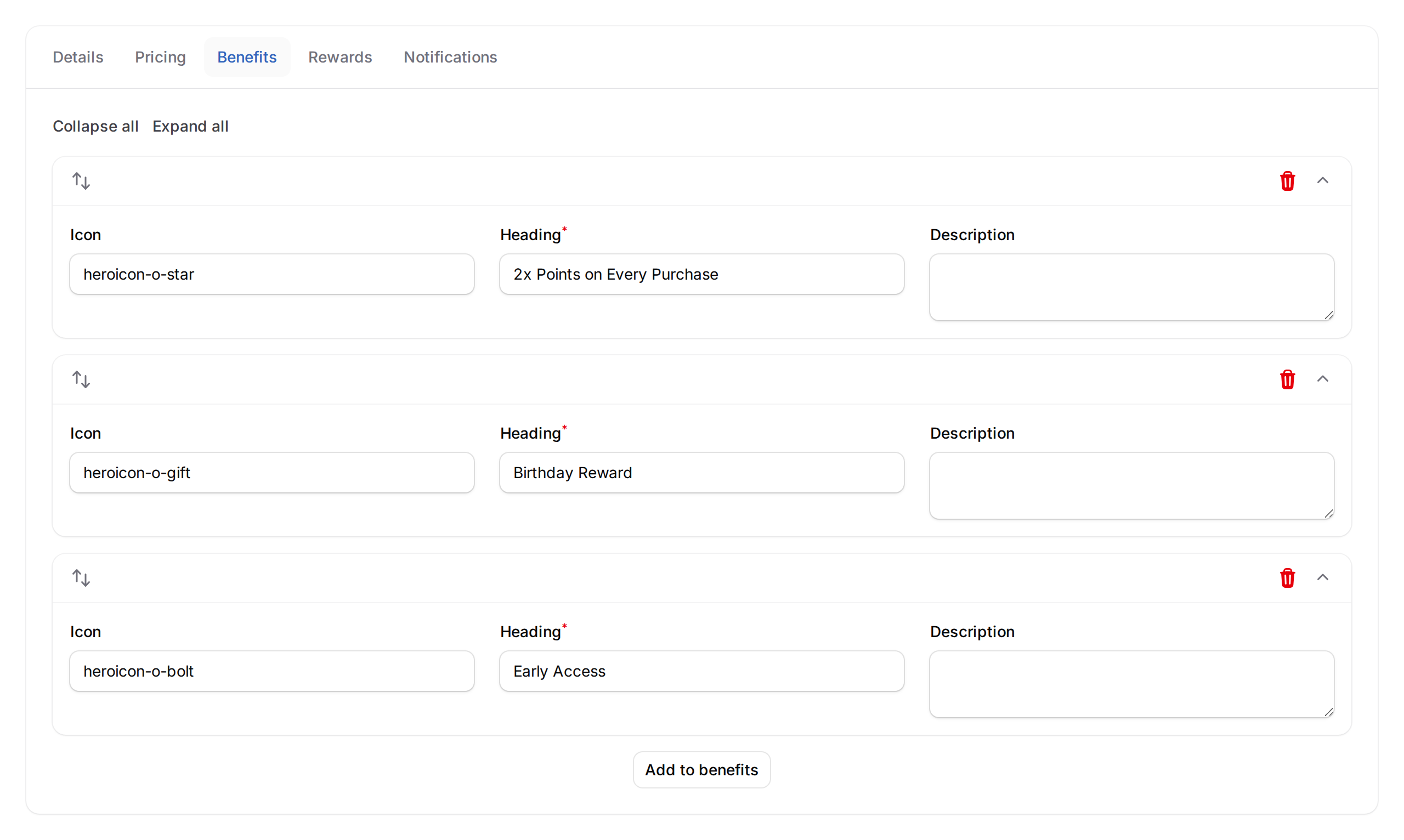
On the Benefits tab, list what members get. Pick an Icon, write a short Heading, and add a Description. Drag rows to reorder.
-
(Optional) On the Rewards tab, pick free rewards members get automatically when their membership activates. Only rewards with zero point cost are eligible — a quick way to add a welcome gift.

-
(Optional) On the Notifications tab, tick the Notification channels you want — Email, WhatsApp, or both. Then set up the five messages — when a membership is activated, an expiry reminder, when it expires, when it is extended, and when a renewal payment goes through. Use placeholder tags like
{{CUSTOMER_NAME}}and{{EXPIRES_AT}}to personalise each WhatsApp message. WhatsApp needs a connected number; if yours isn't connected yet, the tab shows a warning and Email still works.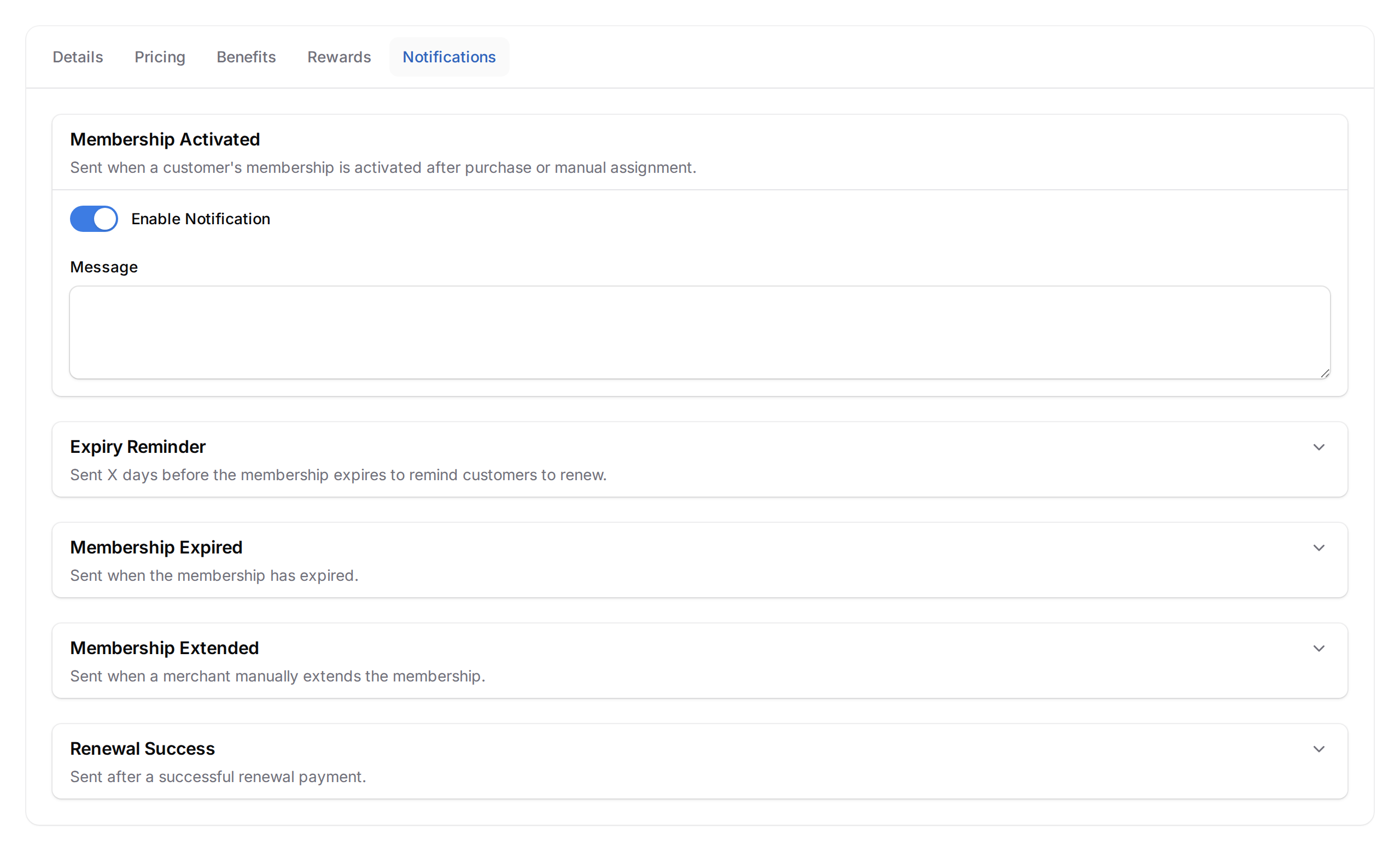
-
(Optional) On the Automations tab, add a Birthday Voucher so members get a free reward in their birth month.
-
Click Create. The plan appears in your list and is ready to assign to customers.
What Your Customers Will See
In the customer portal, members see their membership card with the cover image, benefits list, and expiry date. A progress bar tracks how much of their cycle has passed.
If their membership is about to expire (30 days or fewer), a Renew button appears so they can pay online directly — available when online payments are set up. Customers who don't have a membership see all your available plans and can buy one themselves.
They can also view payment history and download receipts.
Paid Membership vs Regular Member
A regular member signs up for free, collects points and redeems rewards. A paid member is a regular member who has also bought one of your plans, so they keep everything a regular member gets and add the plan's perks on top.
| Regular member | Paid member | |
|---|---|---|
| Cost to the customer | Free | The price you set for the billing cycle they pick |
| Points and rewards | Yes | Yes |
| Extra perks | No | The benefits and free rewards of the plan |
| End date | None | End of each cycle unless renewed. Lifetime never ends |
| How they join | Sign up in your customer portal | Buy online, or your staff assign the plan |
Good to Know
- A customer can hold only one active paid membership at a time.
- Buying the same plan again extends it. When a customer renews in the portal, or buys the plan they already hold on the same billing cycle through a connected POS, Shopify or an integration, the extra cycle is added on top of their current expiry date, so unused days are kept.
- Moving them to a different plan replaces the old one, and remaining days on it are not carried over. Assign Membership from the customer profile also replaces their current membership, even for the same plan: it starts a fresh term and the remaining days are lost. To keep their days, use Extend (add days) or Renew (with payment) on the customer's Paid Memberships tab instead.
- Lifetime memberships never expire. A Lifetime plan gets no expiry reminders, no progress bar, and no Renew button, and it cannot be renewed or extended. You also cannot assign a new membership over an active Lifetime one; remove the Lifetime membership first.
- Changing a plan's price only affects future purchases. Existing members keep their original pricing.
- The Notifications tab is always there. If WhatsApp isn't connected for your business, it shows a warning, and you can still send by Email.
- The Rewards tab issues free rewards the moment a membership activates — handy for welcome gifts.
- A Birthday Voucher on a plan is given at 9:00 AM at the start of each member's birth month, once per calendar year. A member who joins the plan or adds their date of birth later in their birth month gets it the next morning, or straight away when Grant on signup during birth month is on.
- Paid Memberships need to be turned on for your business. If you don't see this menu item, contact Pixalink so we can enable it.
Need Help?
Reach out to our support team — we're happy to help.
What's Next?
- How to Assign a Paid Membership to a Customer Manually — give a customer their plan straight from the customer profile.
- How to Automatically Give Vouchers to Paid Members — set up the Rewards tab for automatic perks.
- How Customer Membership Statuses Work — understand active, expired, and replaced states.