
How to Enable Low Stock Notifications for Voucher Codes
How to Enable Low Stock Notifications for Voucher Codes
What Is This?
If a reward gives out codes from a stock you upload, such as partner vouchers, you can get an alert before the codes run out. That gives you time to add more before customers see Sold Out.
Real-Life Example
Aishah runs Boba Lab in Petaling Jaya. She uploads 50 partner coffee codes and sets the alert at 10. When the 40th code is claimed, she gets an email and a WhatsApp message. She imports a fresh batch the same afternoon, and her customers never see Sold Out.
How to Set It Up
-
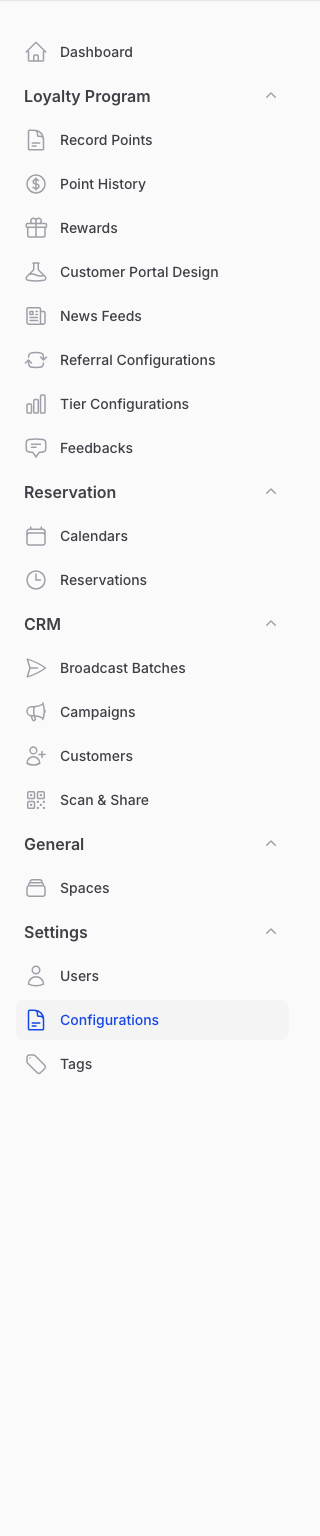
Go to Settings → Configurations. This page appears once a WhatsApp number is connected.
-
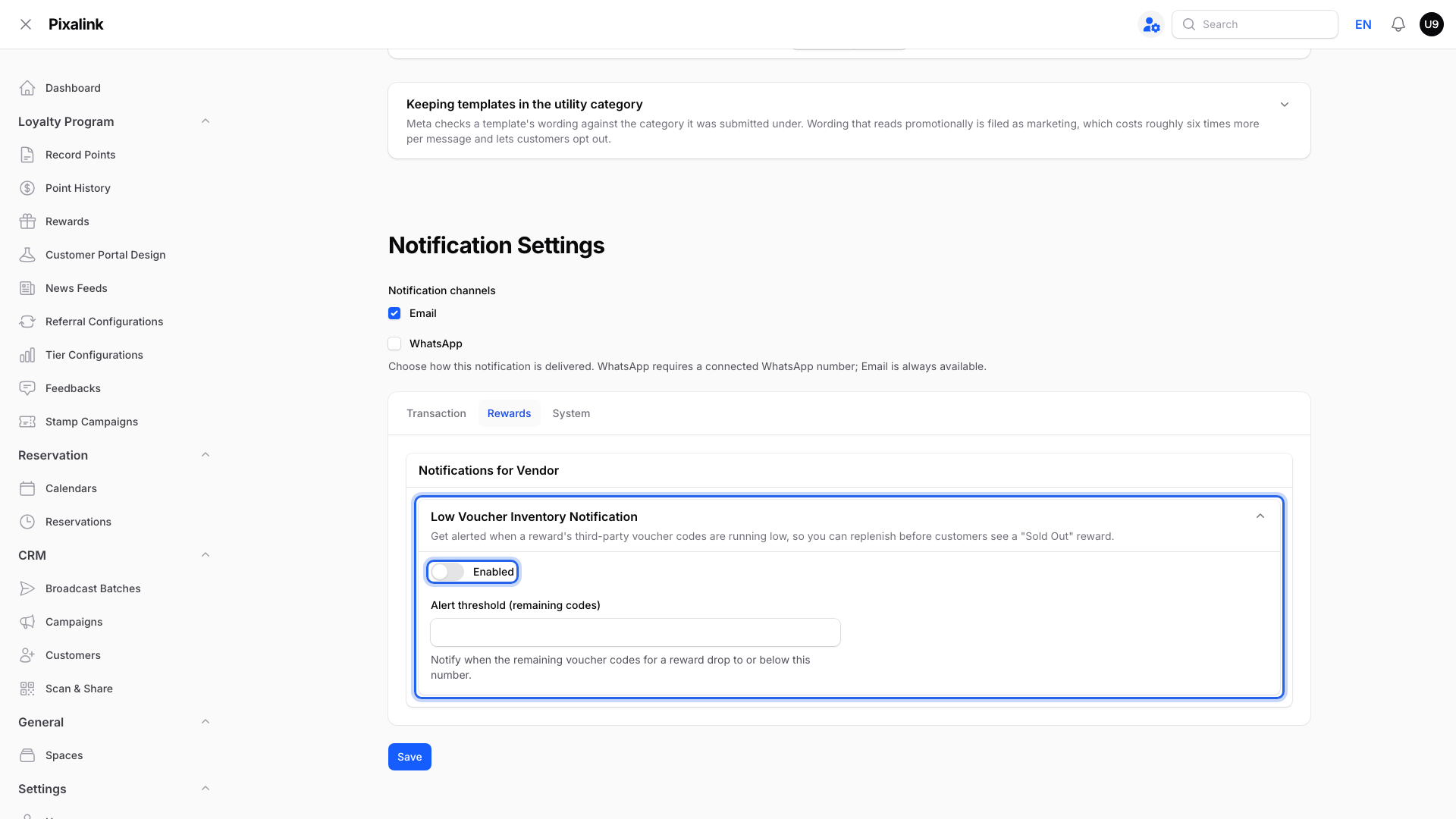
Under Notification Settings, open the Rewards tab and expand Low Voucher Inventory Notification. Turn on Enabled, set how many remaining codes should trigger the alert, then click Save.
-
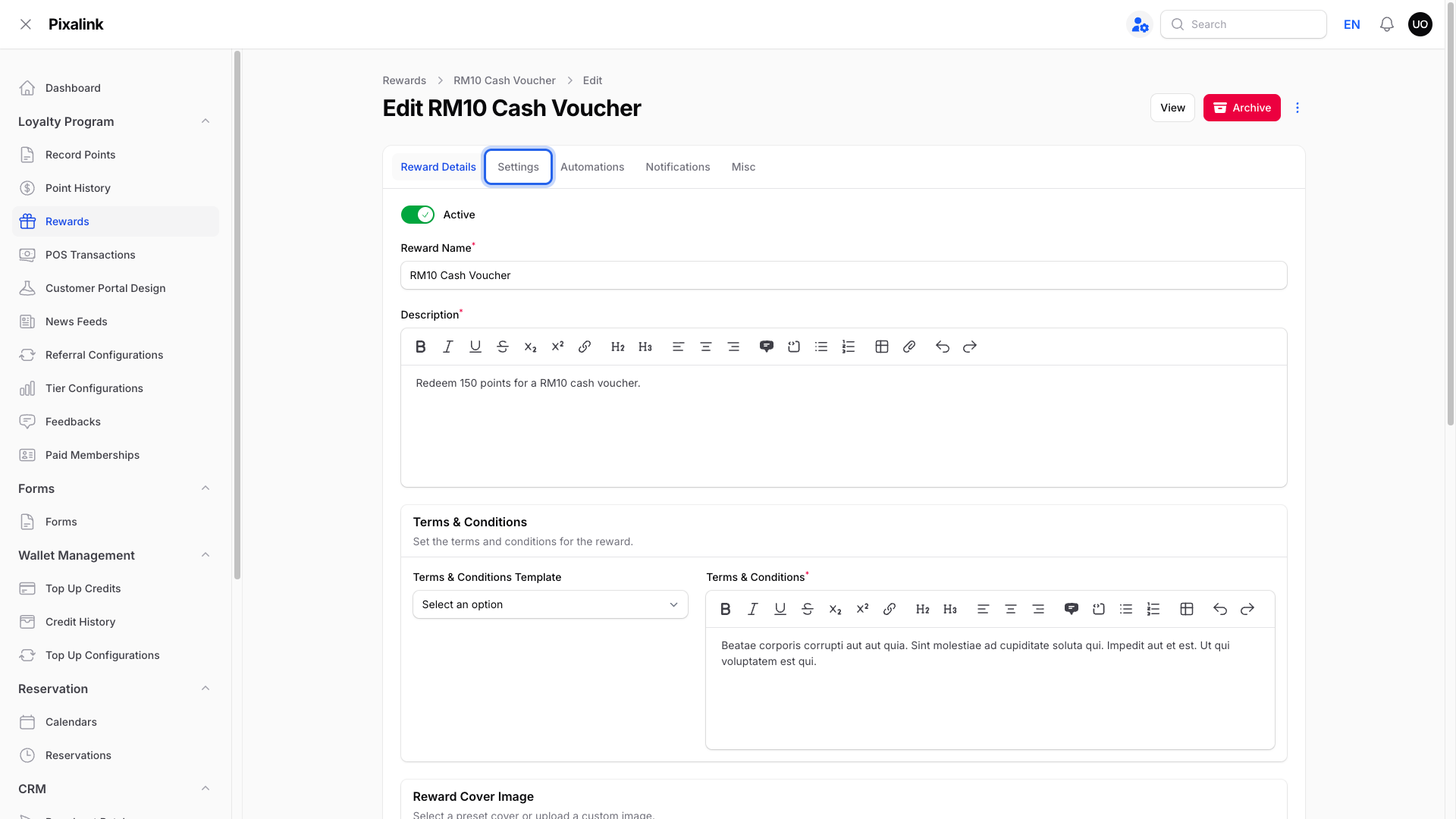
Optional: to use a different number for one reward, open that reward's edit page from Loyalty Program → Rewards. Then click the Settings tab.
-
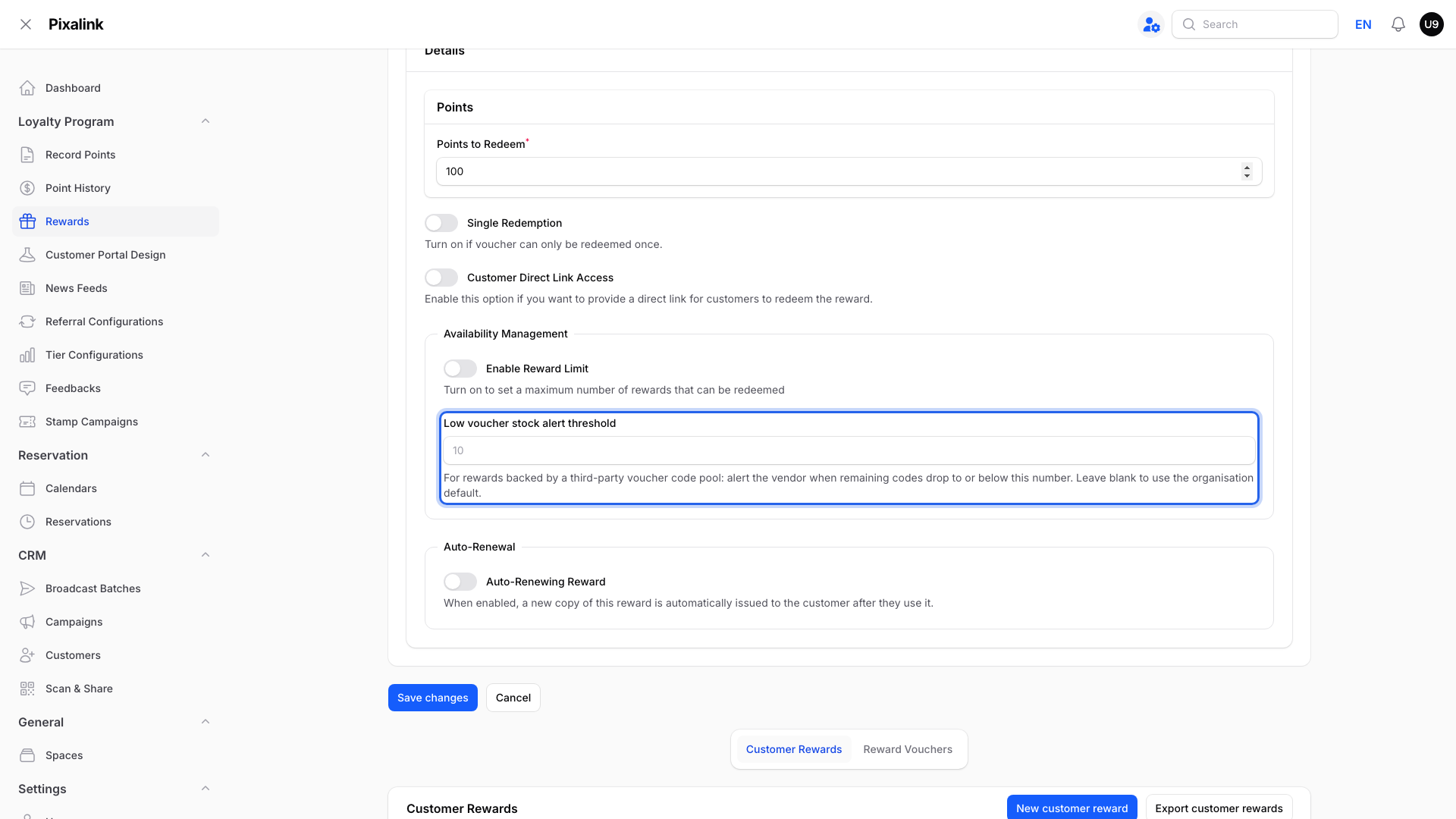
Fill in Low voucher stock alert in the Availability Management box, then click Save changes. Leave it blank to use your business-wide number.
What You Will Receive
When a reward's remaining codes drop to your number, Pixalink sends one alert:
| Where | Who gets it |
|---|---|
| Your business email address | |
| Admin panel bell | Every team member in your account |
| The groups picked on the reward's Notifications tab, or your own WhatsApp number if no group is picked |
Good to Know
- One alert per drop. You get one alert when stock runs low. After you add more codes, the alert is ready to fire again next time.
- No number set? Pixalink alerts you when 10 codes are left.
- Only stocked rewards alert. Rewards that never used a stock of codes are skipped.
Need Help?
If stock ran low and no alert arrived, contact our support team with the reward name.