
How to Give Rewards to Many Customers at Once
What Is This?
Assign Rewards gives vouchers to a whole group of customers in one go. Pick customers with filters, or upload a list of phone numbers. Use it for apology vouchers or event prizes.
Real-Life Example
Aishah runs Boba Lab, a bubble tea shop in Petaling Jaya. Her counter system was down one afternoon, so 80 customers missed their points. She uploaded their phone numbers on Assign Rewards and picked Free Bubble Tea. Each customer got the voucher. Its new reward message is on, so they got a WhatsApp too.
How to Set It Up
-
Go to Admin Panel → Loyalty Program → Rewards and click Assign Rewards.
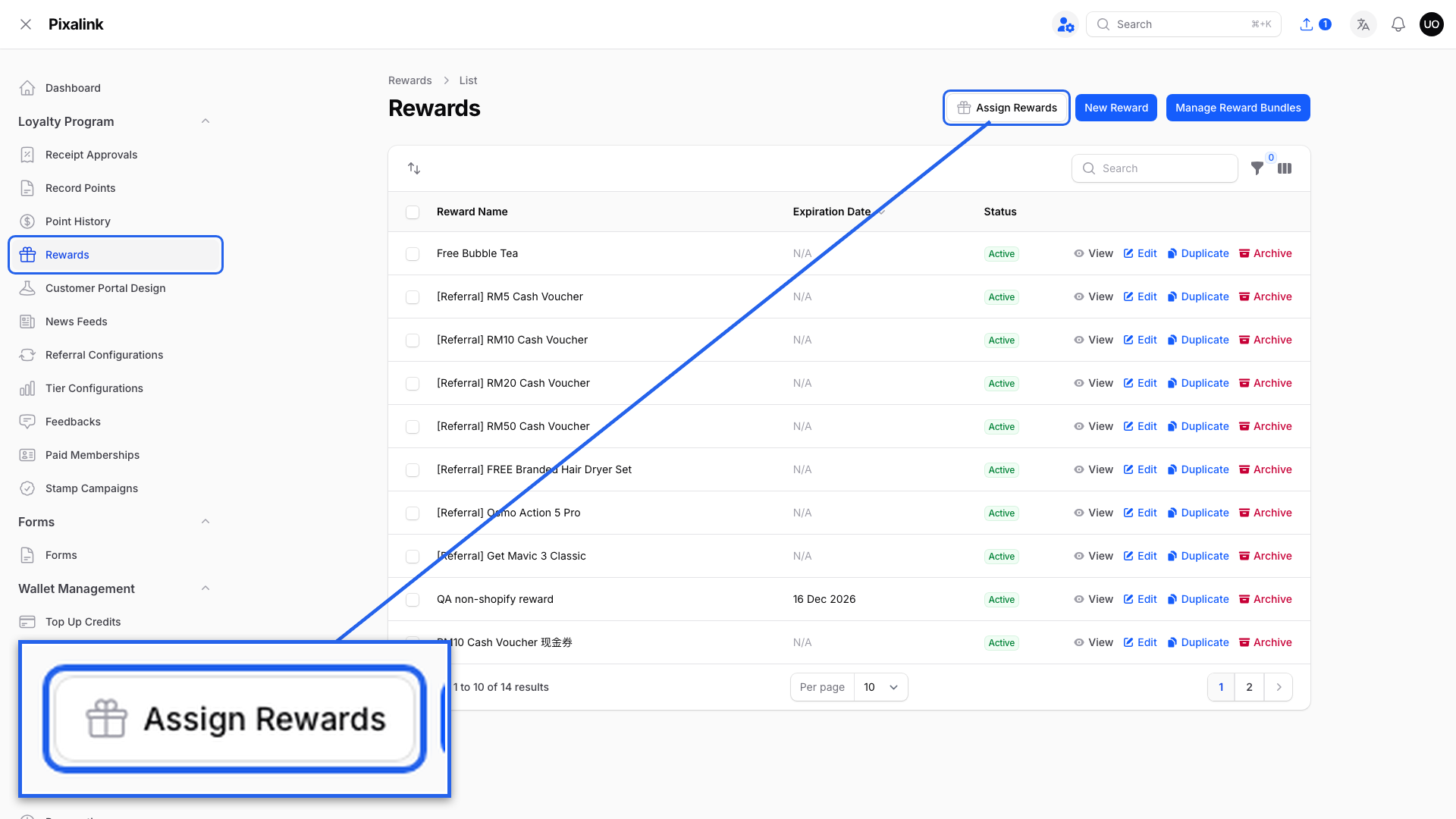
The button is at the top right of the Rewards list.
-
Choose Choose Customers or Upload Customers via CSV under 1. Who gets the rewards?

Choose Customers is selected when the page opens.
-
If you chose Choose Customers, turn on Add All Customers or pick customers with the filters.

Filter by tier, tag, outlet or segment. The line below shows how many customers match.
-
If you chose Upload Customers via CSV, upload a file with one phone number per row.

Download example CSV file shows the layout. The check lists ready rows and rows with problems.
-
Pick a Reward and its Quantity per customer.

Leave Expiry date empty to follow the reward's settings. Add another reward gives up to 10.
-
Click Assign Rewards.

A notification tells you how many customers got the rewards and how many didn't.
What Your Customers Will See
The voucher appears in the customer's rewards on your loyalty portal. They get a WhatsApp or email when Send the new reward message is on and the reward has its own message on.

The voucher is ready to use, unless the reward has a waiting period in Usable After (Day(s)).
Good to Know
- Rewards are free. No points or credits are taken.
- Customers who ever received one of the rewards get nothing, unless you turn on Also give to customers who already have these rewards.
- A phone number that isn't a customer yet becomes a new customer.
- In Excel, format the phone column as Text so no digits are lost.
- After a CSV upload, download failed rows from Uploads & exports.
- With Choose Customers, a customer who matches any one filter is included. Blocked customers are left out.
- Only active rewards are listed. Switch a reward on before you give it.
- You can give up to 10 rewards at once. A reward bundle gives every reward inside it.
- Large groups are given in the background and can take a few minutes.
- Bulk Assign to Customers on a reward's edit page opens this page with that reward picked, if it's active.
Need Help?
If Filter by Customer Tiers is missing, turn off Add All Customers. Still missing? Set up your tier programme first.