
How to Do Things to Many Customers at Once
What Is This?
You don't have to change customers one by one. Tick a group on your Customers list, then tag them, give them a reward, change their status or source, or delete them, all in one go.
Real-Life Example
Aishah runs a bubble tea shop in Petaling Jaya. After her anniversary event, 40 regulars filled in a paper form. She finds them on her Customers list and ticks each name.
She adds the tag Regulars to all 40 in one step. Then she gives all 40 a free drink voucher. It takes her five minutes instead of an afternoon.
How to Set It Up
-
Go to Admin Panel → CRM → Customers

The CRM group in the left menu, with Customers.
-
Tick the box beside each customer you want
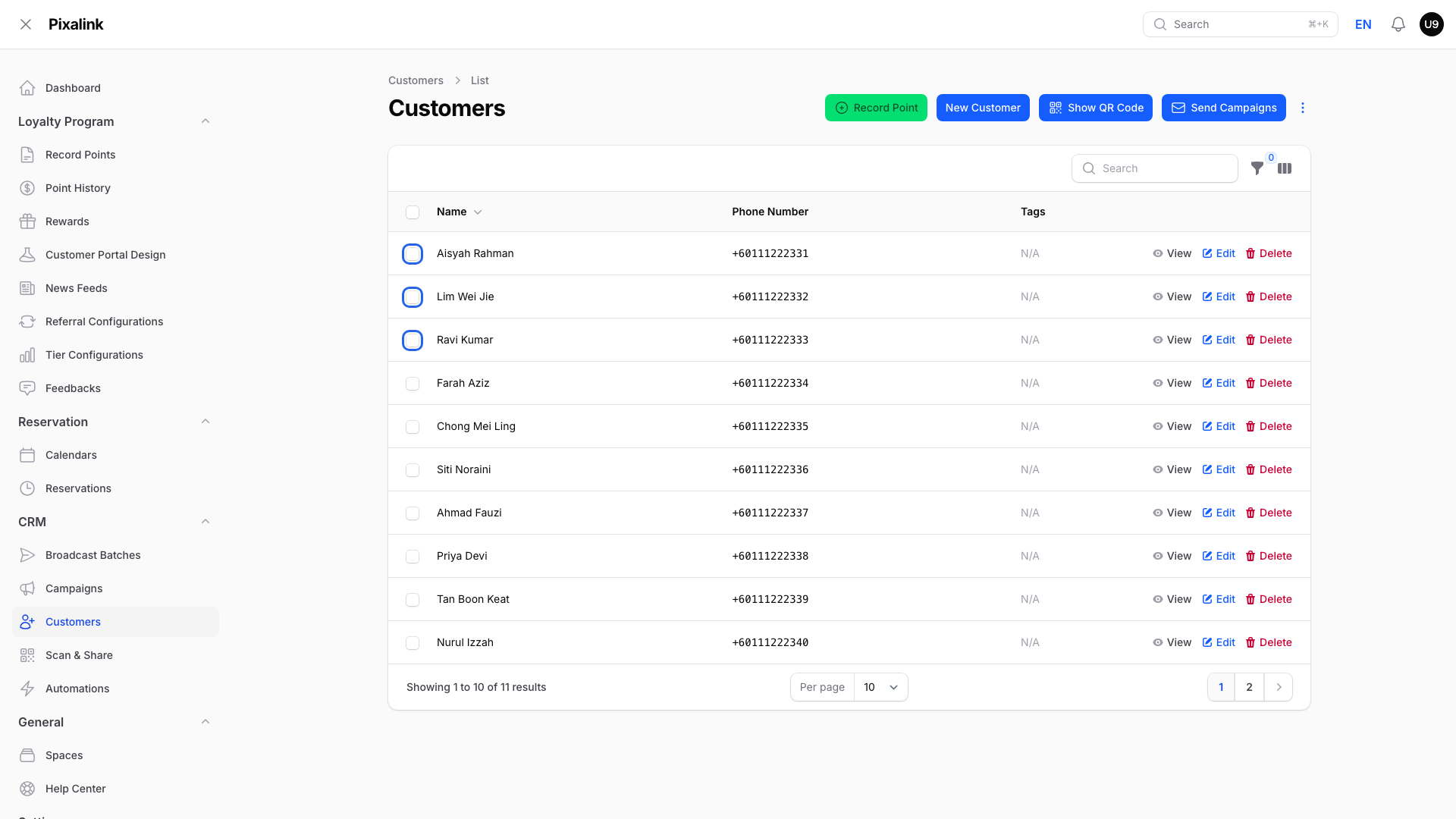
Nothing is ticked yet. The boxes are in the first column.
-
Click the action you want in the bar above the list. Here, click Tags

The action bar appears once you tick a customer.
-
Click Add tags

Tags opens a small menu with two choices.
-
Type a tag in Tags and press Enter

Type a tag, then press Enter to add it.
-
Click Submit
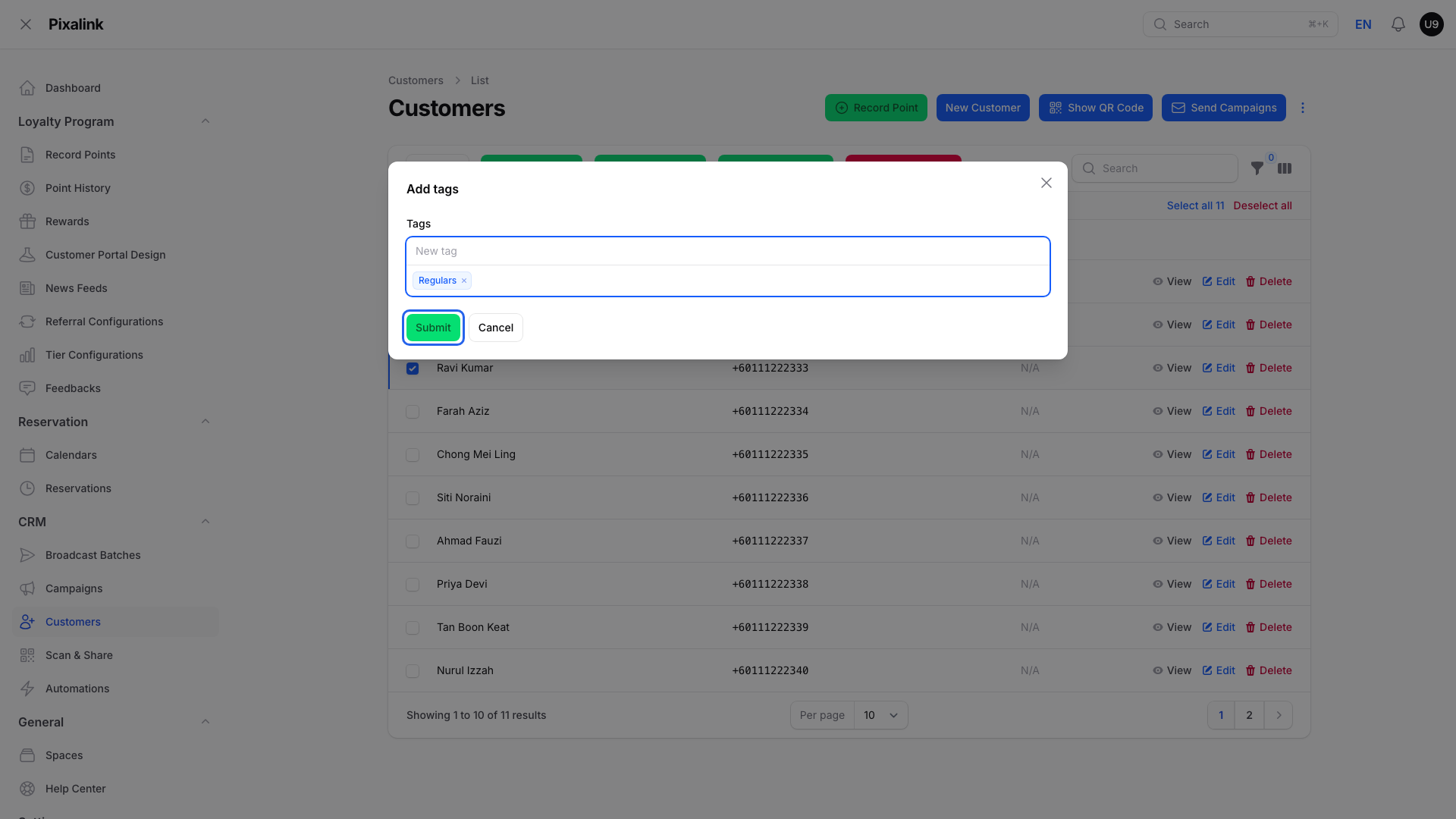
Check the tag, then save.
Pixalink does the work in the background. When it's done, a notification tells you how many customers were updated.
To pick everyone, tick one box, then click Select all above the list. It picks every customer that matches your current search and filters, across all pages.
What Each Action Does
| Action | What happens |
|---|---|
| Tags → Add tags | Adds the tags you type to every ticked customer. |
| Tags → Remove tags | Takes the tags you pick off every ticked customer. |
| Give Reward | Gives one reward to each ticked customer. |
| Change status | Sets every ticked customer to the status you pick. |
| Change source | Sets every ticked customer to the source you pick. |
| Delete selected | Removes every ticked customer. |
Give Reward asks for the Reward and the Quantity per customer.

Pick a reward, and how many each customer gets.
Delete selected asks you to confirm first.
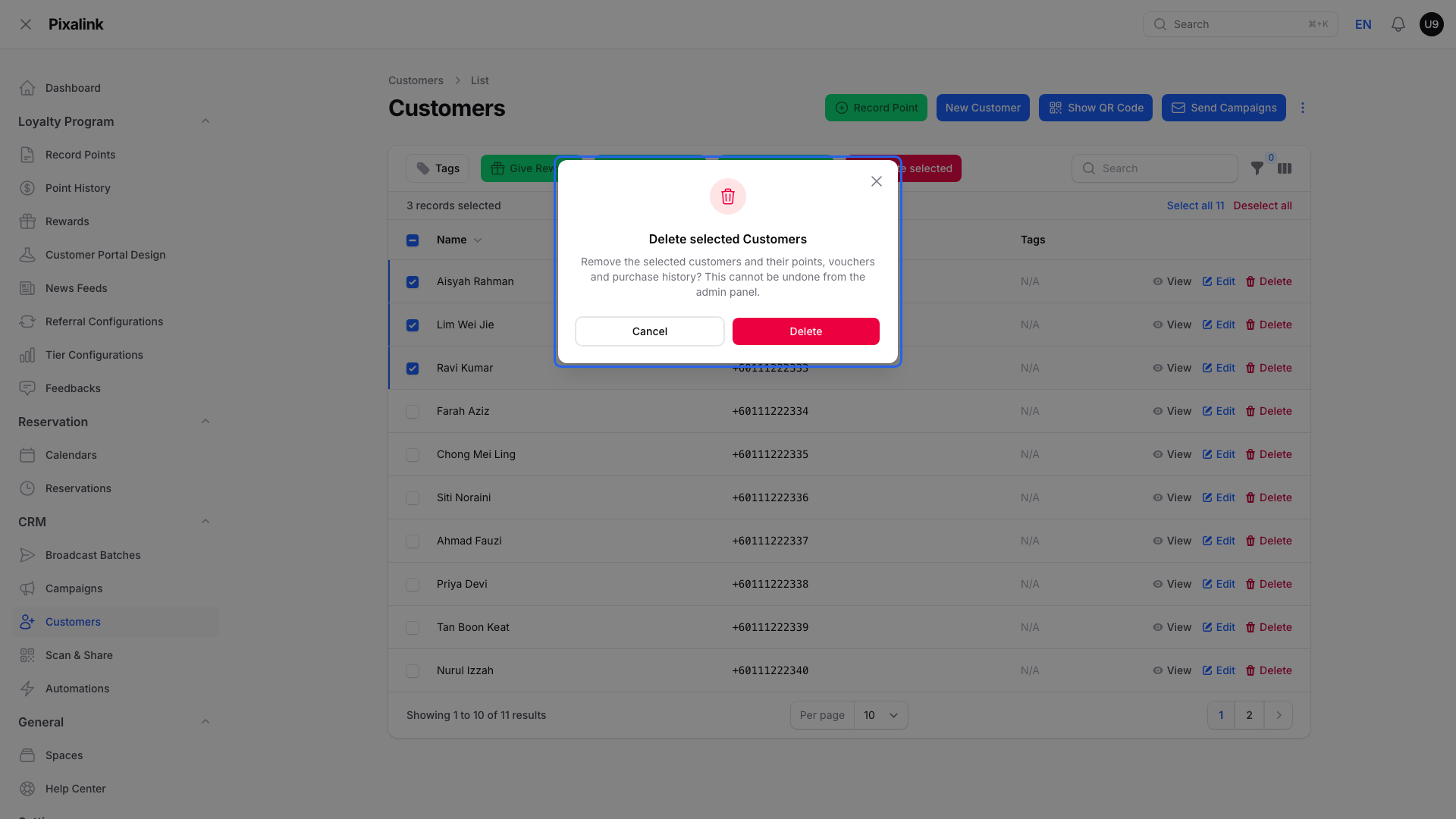
Read the warning before you confirm.
What Your Customers Will See
A reward you give appears in each customer's account like any other reward. If the reward is set to notify customers when they receive it, each customer also gets a message for every voucher you give, so choosing 3 sends 3 messages. Switch that off in the reward's notification settings first if you don't want to message everyone.
Good to Know
- Give Reward only lists rewards that are switched on and free. You can give 1 to 10 per customer.
- Customers who have received this reward before, even if they used it, are skipped. The finished notice tells you how many got it and how many were skipped.
- If a reward has Auto-assign to Customers with tags turned on for a tag you add, Pixalink gives that reward to every customer with that tag who hasn't had it yet, not only the ones you ticked. Taking the tag off later doesn't take the reward back.
- Delete selected removes the customers along with their points, credits, vouchers and purchase history. You can't undo it in the admin panel.
- Change status and Change source save right away. Pick a status or source before you click Submit.
Need Help?
Reach out to our support team. We're happy to help you get started.