
Why Can't My Customer Redeem a Reward?
Why Can't My Customer Redeem a Reward?
What Is This?
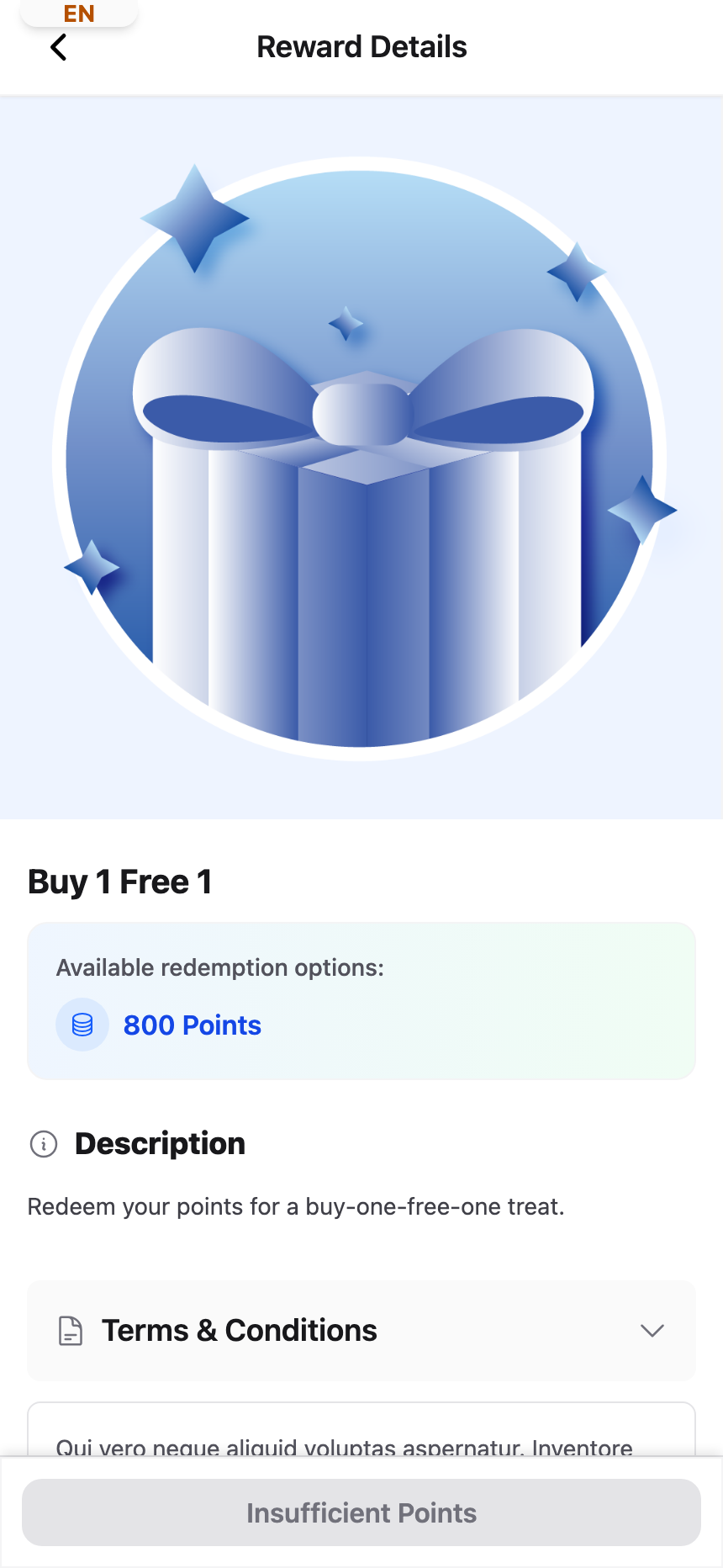
A customer can have plenty of points and still be unable to redeem a reward. The good news: the button on their reward page always names the reason. Ask the customer what the button says, then use this guide to find the setting behind it.
How It Works
The portal checks the reward in the order below and shows the first message that applies.
| Button says | Why | What to change |
|---|---|---|
| Redemption Not Available | Distributable is off. | Turn on Distributable. |
| Paid Members Only | The reward is locked for non-members. | Change Paid Membership Visibility. |
| You have redeemed this reward | Single Redemption is on and they already claimed it. | Working as set. Turn it off to allow repeats. |
| All Rewards Claimed | Total Available Rewards is used up. | Raise the number. |
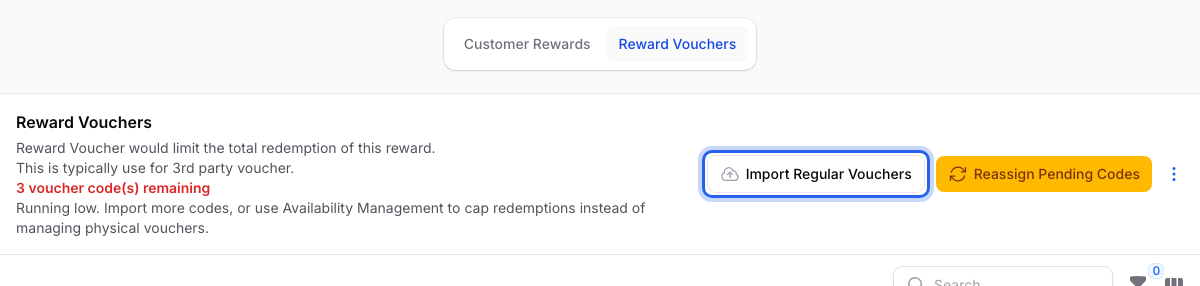
| Sold Out | No Pending voucher codes are left. | Import more codes. |
| Redeemable at a date | The Distribution Start Date is in the future. | Wait, or move the date earlier. |
| A message about earning more points | Enable Conditional Distribution is on. | See the last setting below. |
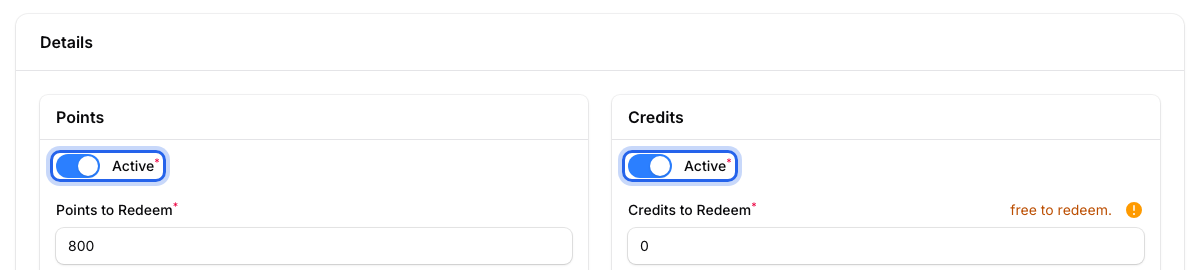
| Redemption Disabled | No payment method is switched on. | Turn on Active in Points, or in Credits if you offer credit payment. |
| Insufficient Points | Their balance is lower than Points to Redeem. | They need more points. |
If you offer credit payment, the last message reads Insufficient Points/Credits.
Where to Find Each Setting
All of these settings are on the same page. Go to Loyalty Program → Rewards, click Edit on the reward, then open the Settings tab.
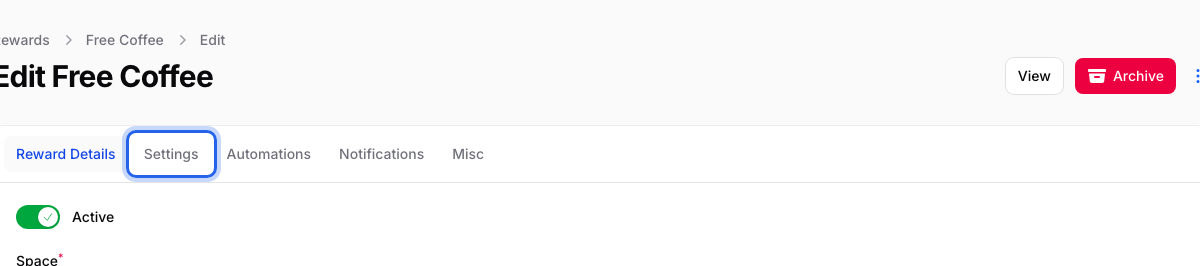
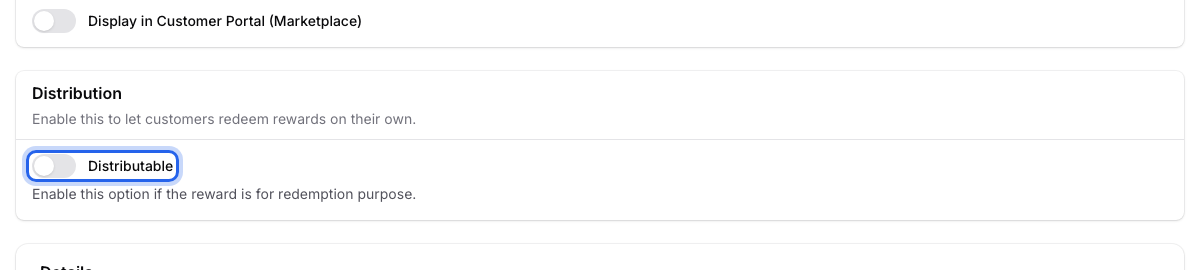
Distributable is the main on/off switch for redeeming. When it is off, customers can still see the reward, but the button says Redemption Not Available. Turn it on and save.
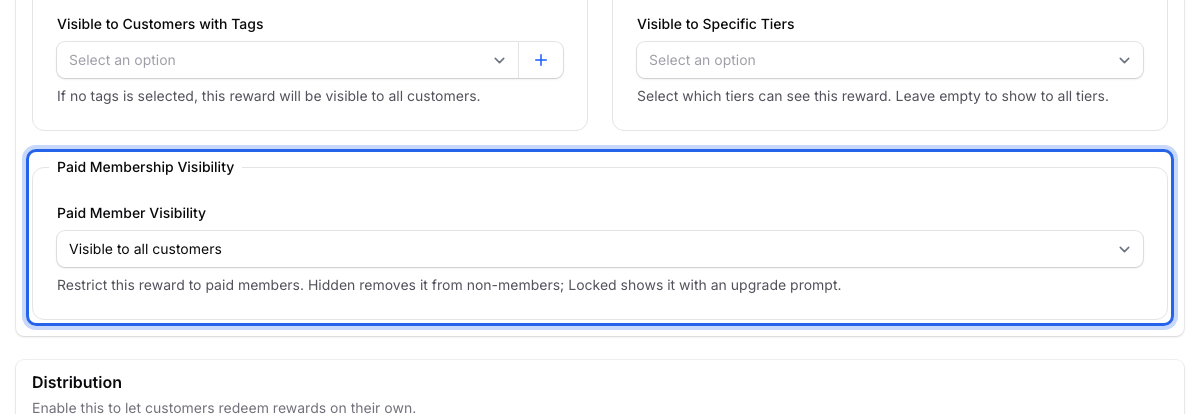
Paid Membership Visibility decides whether only paid members can use the reward. Locked shows it to everyone, but only members can redeem it. Pick Visible to all customers to open it to everyone. This box only appears if you sell paid memberships.
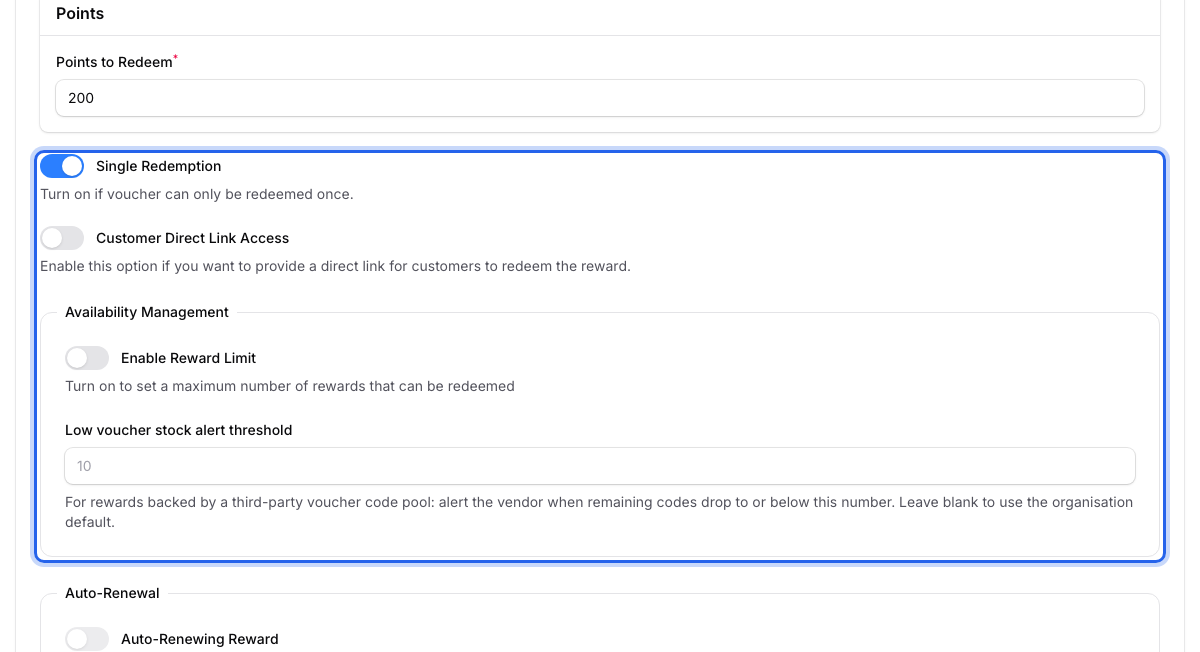
Single Redemption lets each customer claim the reward only once. Enable Reward Limit caps how many can be claimed in total, across all customers. When the cap is reached, the button says All Rewards Claimed. Raise Total Available Rewards to open it again.
Active in the Points and Credits boxes decides how customers pay for the reward. If both are off, nobody can pay, and the button says Redemption Disabled. The Credits box only appears if customers can also pay with credits.
Voucher codes matter only if the reward gives out codes from a stock you upload. When no Pending codes are left, the button says Sold Out. Scroll below the form to the Reward Vouchers tab and click Import Regular Vouchers to add more.
The Big-Balance Puzzle
When a customer has thousands of points but sees a message about earning more, look at the Distribution Condition box.
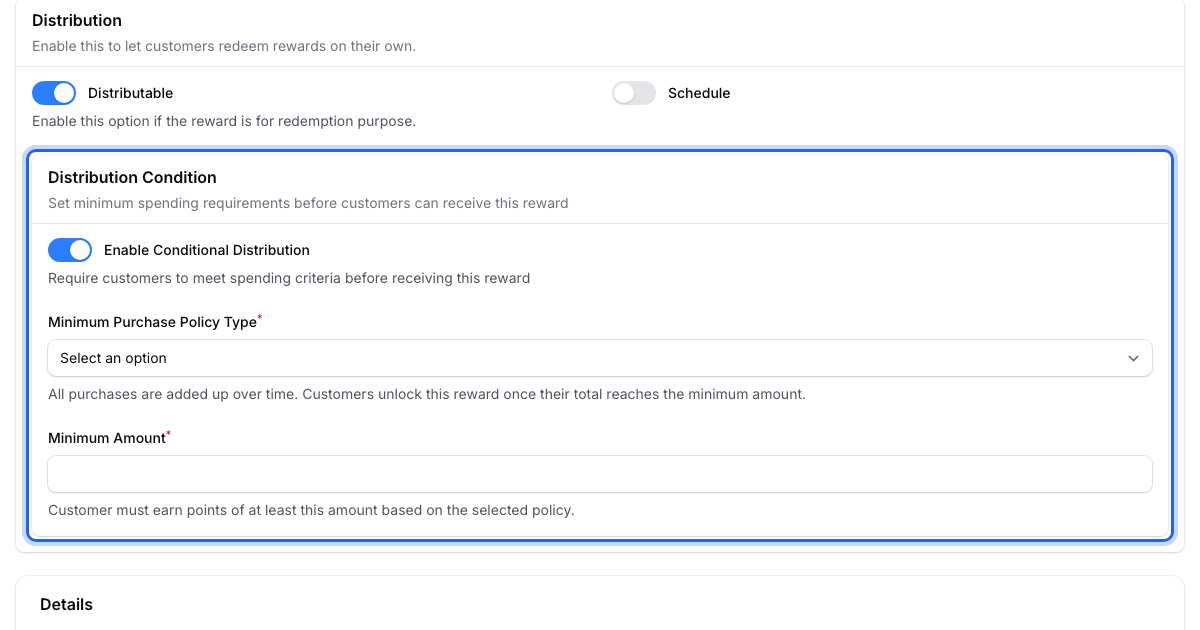
This condition does not look at the current balance. It looks at the points or credits the customer earned over time. For points, it counts every addition that wasn't reversed, not only purchases:
- First transaction minimum amount checks only the first points addition in the chosen period. If that was too small, later additions don't count.
- Any transaction minimum amount needs one points addition that meets the amount.
- Cumulative transaction minimum amount adds them all up.
- Count Transactions From Distribution Start Date ignores additions made before the start date.
Real-Life Example
Aishah runs Boba Lab in Petaling Jaya. Her regular Nurul has 3,000 points but can't redeem a "Free Large Tea". Aishah asks Nurul what the button says. It asks her to earn more points from her first purchase. Aishah opens the reward and sees the condition was set to "first transaction" by mistake. She changes it to Cumulative transaction minimum amount, and Nurul redeems straight away.
Good to Know
- If a customer can't see the reward at all, read Who Can See and Redeem a Reward in the Customer Portal.
Need Help?
If the button says Redeem Now but it still fails, contact our support team.