
How to Avoid Giving Points When a Customer Uses a Voucher
What Is This?
Pixalink has no setting that blocks points when a customer uses a voucher. When you add points in Record Points, your staff type the amount themselves, so you stay in control.
So for a voucher sale, you decide. Give points only on what the customer actually paid, or give no points at all.
Real-Life Example
Wei Lin runs a guitar shop in Petaling Jaya. A regular buys a RM450 guitar and uses a RM50 voucher, so he pays RM400. Wei Lin doesn't want to give points on the RM50 she has already given away. Her cashier records 400 points, not 450. For a free gift voucher with nothing paid, the cashier simply records nothing. Wei Lin's points now match real sales, and no one argues at the counter.
How to Set It Up
-
Go to Admin Panel → Loyalty Program → Record Points.
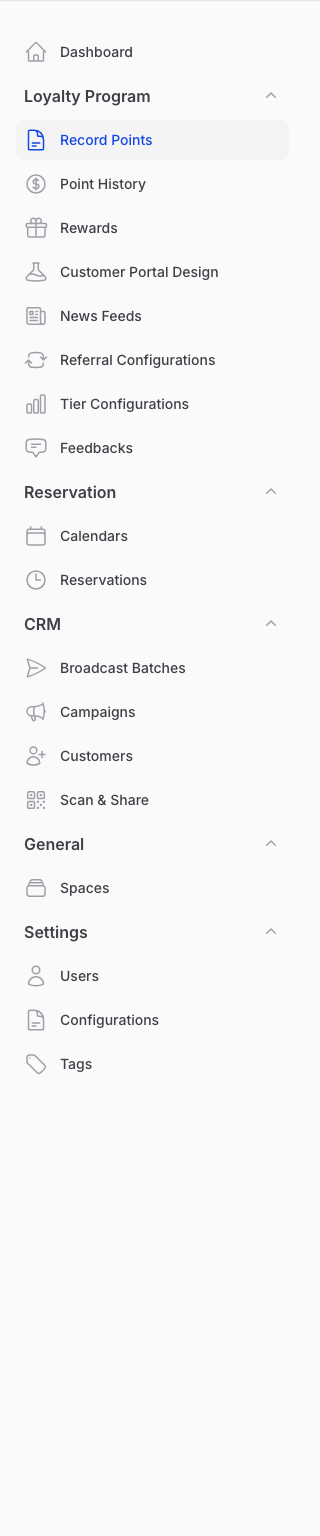
Record Points sits near the top of the Loyalty Program group.
-
Type the customer's number in Phone Number.
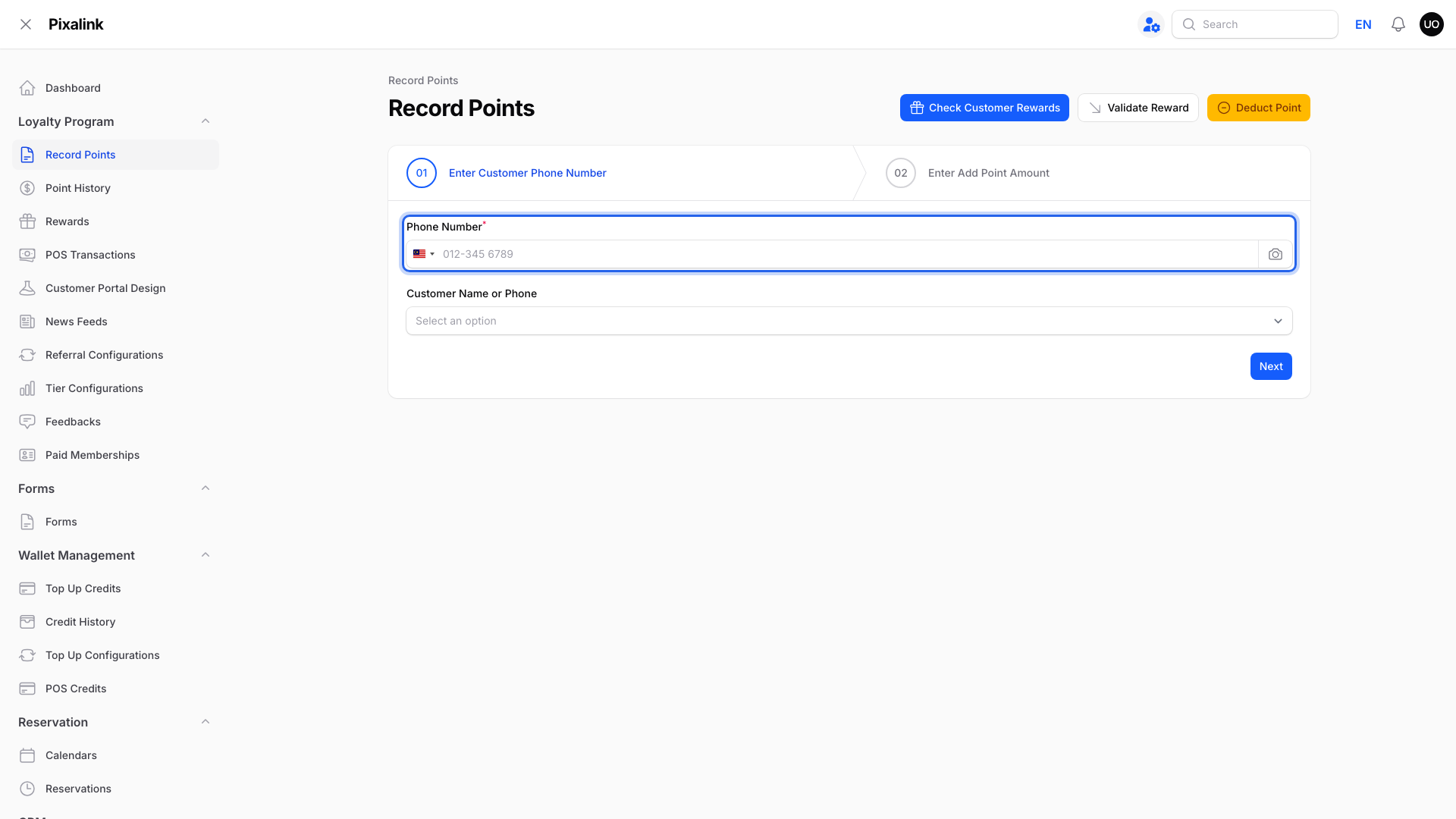
You can also tap the camera icon to scan the customer's code.
-
Click Next.
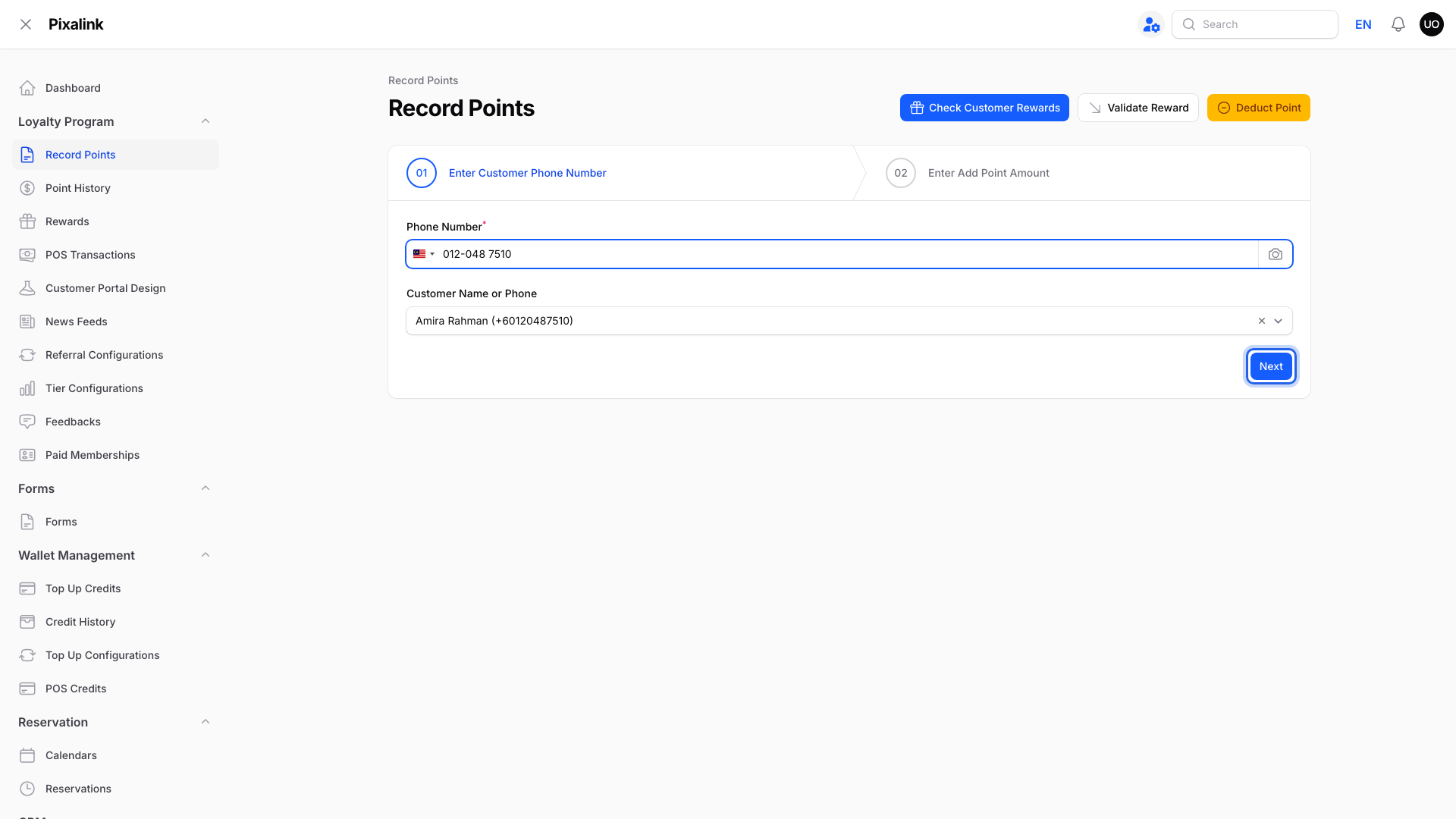
Check that the customer's name appears before you continue.
-
Type the amount paid after the voucher in Point Amount.
- RM450 bill with a RM50 voucher: type 400.
- Each 1 you type counts as RM1 spent and gives 1 point, before any tier or outlet boost.
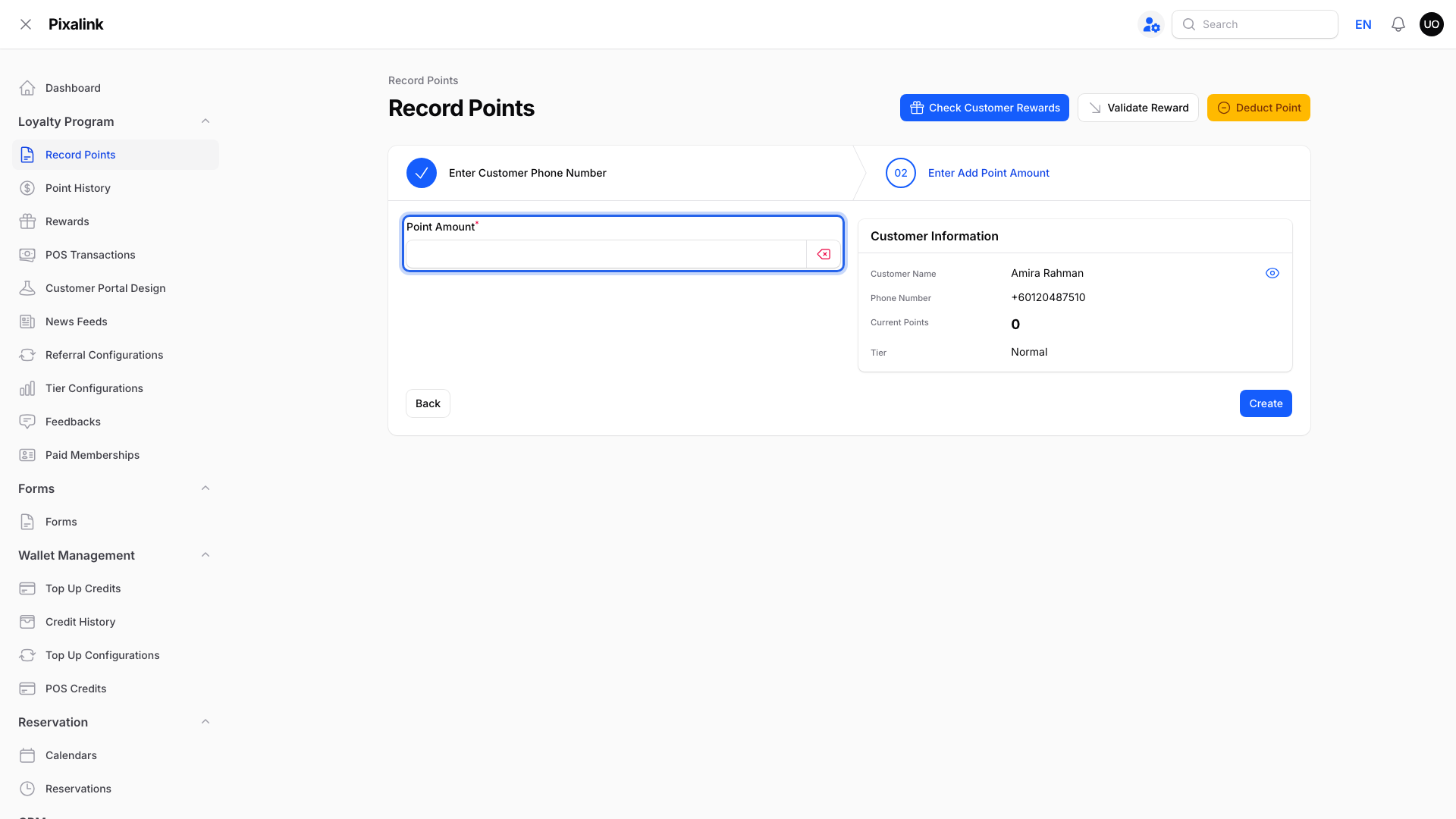
Customer Information on the right shows who you're giving points to.
-
Click Create to add the points. If Pixalink asks you to confirm, confirm it.
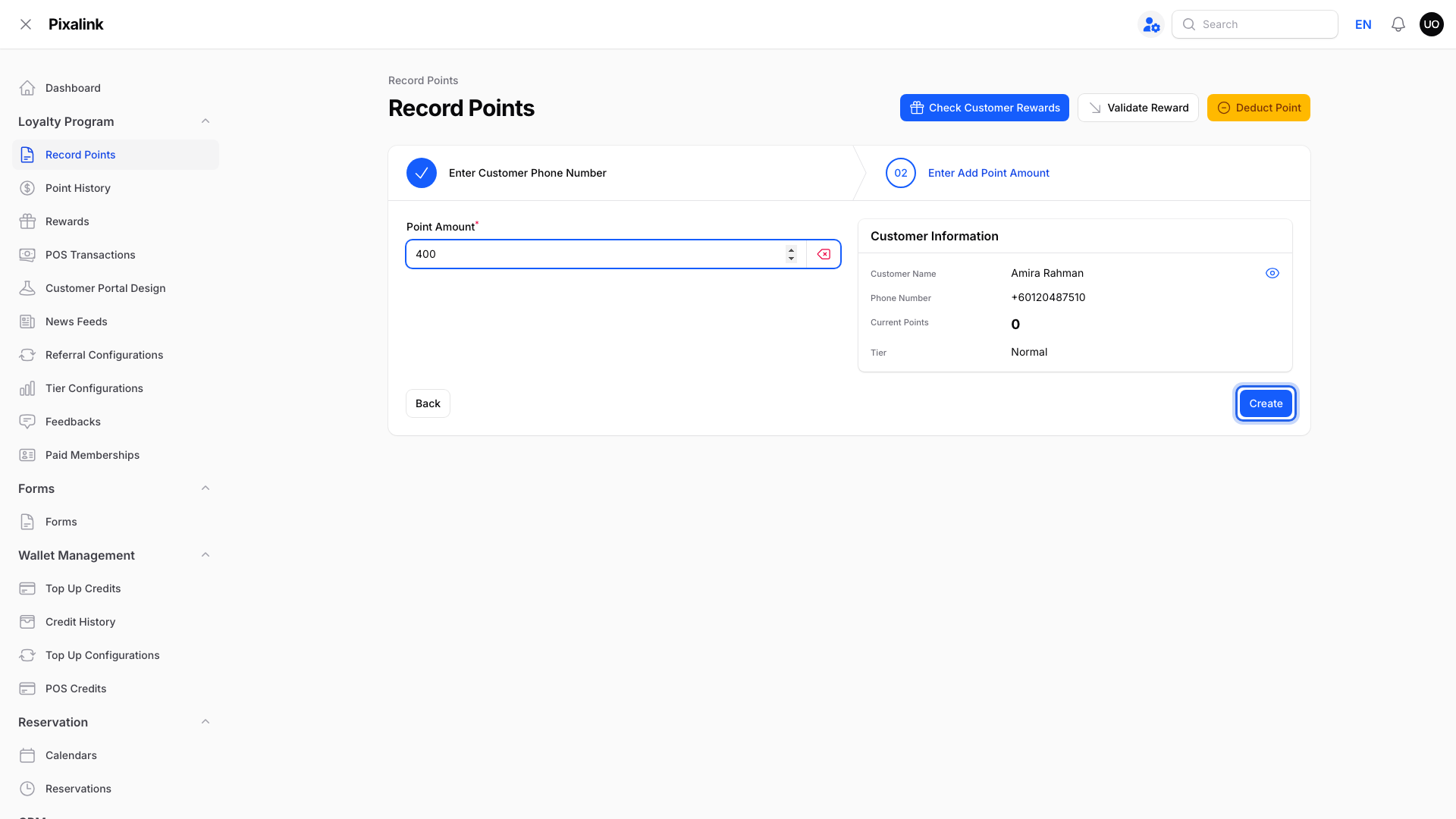
Point Amount shows 400, the amount paid after the RM50 voucher.
If you don't want to give any points for that sale, skip these steps. Nothing is added unless you click Create.
What Your Customers Will See
Your customer sees their points go up by the amount you recorded, plus any tier or outlet boost. For a sale where you skipped Record Points, their balance stays the same.
Good to Know
- Marking a voucher as used at your counter doesn't add any points on its own.
- If you gave too many points by mistake, use Deduct Point on the same page to take them back. If you don't see that button, contact support.
- If you use tier or outlet point boosts, the customer may get more points than the amount you type.
- This guide is for points you record yourself. If your POS sends sales to Pixalink, contact support to check how discounts are handled.
Need Help?
Reach out to our support team. We're happy to help you set up a rule your staff can follow.